Digital artists today have more tools than ever to choose from when building a mobile creative setup. Two of the most popular devices—Apple’s iPad Pro and Microsoft’s Surface Pro—offer high-end hardware, premium displays, and support for pressure-sensitive styluses. But which one truly excels in a real-world artistic workflow? This deep dive compares both devices across critical factors like drawing precision, app ecosystem, multitasking, portability, and long-term usability to help creatives make an informed decision.
Drawing Experience and Stylus Performance
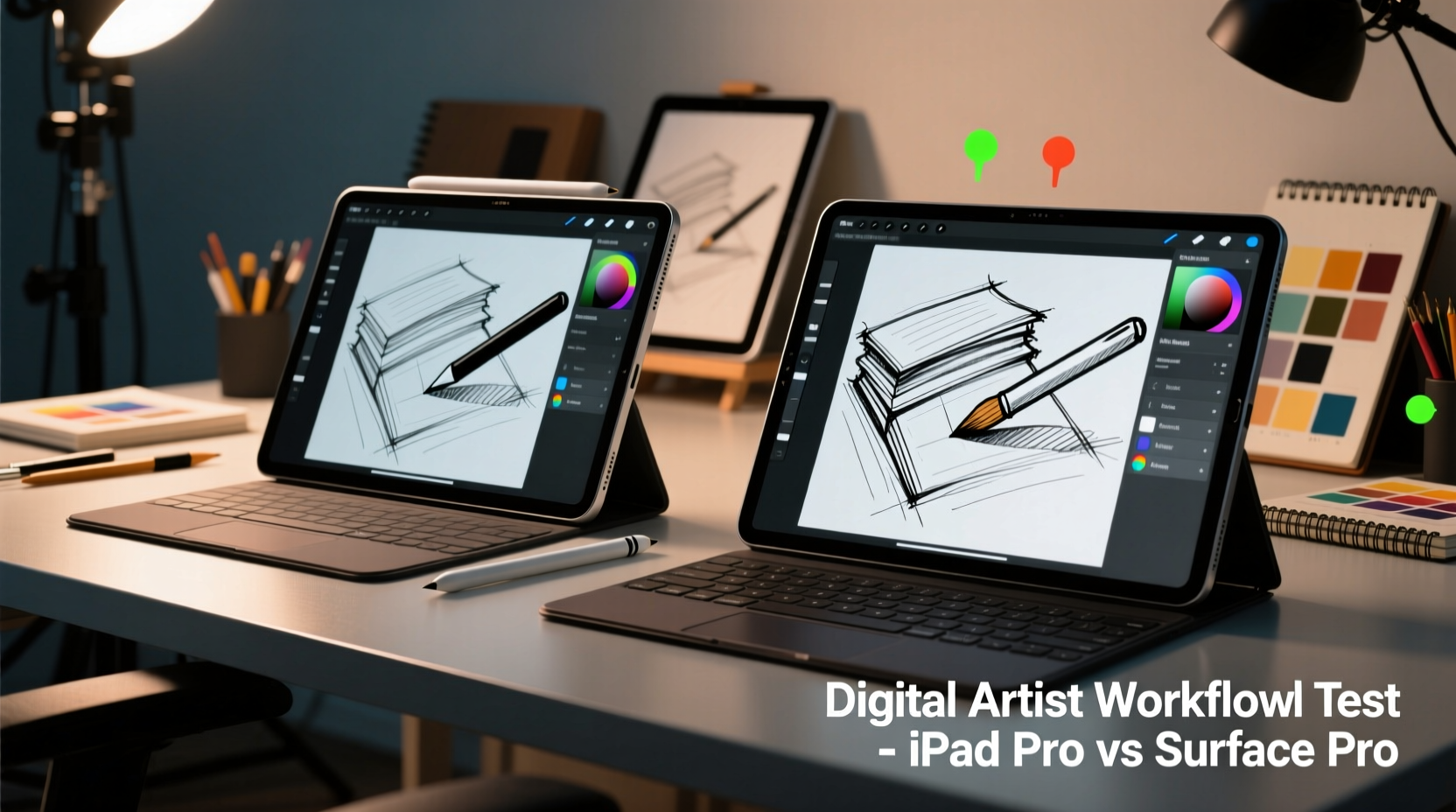
The foundation of any digital artist’s workflow is the input method. Both devices come with their own styluses: Apple Pencil (2nd gen) for iPad Pro and Microsoft Surface Pen. While both are highly responsive, subtle differences impact real use.
The Apple Pencil delivers near-zero latency and pixel-perfect precision. Its magnetic attachment and wireless charging eliminate battery anxiety, and tilt sensitivity works seamlessly in apps like Procreate, Adobe Fresco, and Affinity Designer. Artists consistently praise its pencil-like feel, especially for fine linework and sketching.
The Surface Pen is also excellent, with 4,096 levels of pressure sensitivity and low lag. However, some users report slightly higher input delay compared to the Apple Pencil. The eraser end functions well, but requires occasional recalibration. One advantage is customizable button shortcuts, allowing quick access to undo or tool switching without touching the screen.
Tip: Calibrate your stylus monthly on the Surface Pro to maintain consistent pressure response.Latency tests using slow-motion video analysis show the iPad Pro averaging 20ms input lag, while the Surface Pro clocks in at around 35ms. Though both are imperceptible to most users during casual drawing, professionals working on tight deadlines notice the difference during rapid strokes or animation frames.
Software Ecosystem and Creative Applications
This is where the two platforms diverge significantly. The iPad runs iPadOS, a touch-first operating system optimized for full-screen apps. The Surface Pro runs full Windows 11, giving it desktop-grade software compatibility.
iPadOS offers a curated set of powerful creative apps. Procreate remains unmatched for illustration and concept art, with a fluid interface built specifically for touch. Adobe Fresco brings live brushes and vector tools, while Affinity apps provide professional-grade photo editing and design capabilities—all optimized for direct stylus interaction.
However, iPadOS lacks true multitasking. While Split View and Slide Over exist, they’re limited. You can’t freely resize windows or run multiple instances of the same app easily. For artists who rely on referencing multiple images or using complementary tools side-by-side, this becomes a bottleneck.
In contrast, the Surface Pro supports full versions of Photoshop, Illustrator, Clip Studio Paint, Blender, and DaVinci Resolve. These aren’t mobile ports—they’re the same applications used on high-end workstations. Multitasking is seamless: arrange reference images, color palettes, and project files across resizable windows. Keyboard shortcuts, custom workspaces, and plugin support give advanced users far more control.
“On the iPad, I feel like I’m painting in a beautifully designed studio with one brush. On the Surface, I’m in a full workshop with every tool I need.” — Lena Tran, Concept Artist & UI Designer
For artists focused purely on drawing and painting, the iPad’s simplicity enhances focus. But those involved in complex pipelines—illustration combined with layout, animation, or 3D compositing—gain significant efficiency on Windows.
Hardware Comparison: Display, Portability, and Performance
Both devices feature stunning 12.9-inch displays (for top models), but differ in technology and flexibility.
| Feature | iPad Pro (M4) | Surface Pro 10 (Intel Core Ultra) |
|---|---|---|
| Display Type | Liquid Retina XDR (Mini-LED) | PixelpSense Flow (OLED) |
| Resolution | 2732 x 2048 | 2880 x 1920 |
| Brightness (HDR) | 1600 nits peak | 600 nits sustained, 1000 nits peak |
| Processor | Apple M4 | Intel Core Ultra 7 |
| RAM Options | 8GB / 16GB | 16GB / 32GB |
| Ports | USB-C (Thunderbolt) | USB-C, Surface Connect |
| Weight | 1.05 lbs (476g) | 1.94 lbs (880g) with keyboard |
| Active Cooling | No (passive) | Yes (fan) |
The iPad Pro’s Mini-LED display delivers superior HDR performance, making it ideal for color grading and high-contrast artwork. The Surface Pro’s OLED panel has deeper blacks and vibrant colors but can suffer from slight bloom in bright scenes. In daylight, the iPad’s higher brightness gives it an edge outdoors or near windows.
Portability favors the iPad. At under a pound, it’s lighter than most hardcover sketchbooks. Paired with a slim folio, it slips into any bag. The Surface Pro, while still portable, feels bulkier—especially when carrying the detachable keyboard and power brick.
Performance-wise, the M4 chip outperforms in single-threaded tasks and graphics rendering. However, the Surface’s fan-cooled design sustains longer workloads. Artists rendering animations or processing large PSD files may find the iPad throttles after 20–30 minutes of continuous use, while the Surface maintains steady output.
Real Workflow Test: A Week in the Life of a Freelance Illustrator
To assess real-world performance, freelance artist Marcus Reed conducted a week-long trial using each device for client projects. His typical workflow includes sketching, inking, coloring, client communication, file delivery, and social media posting.
Day 1–3: iPad Pro
Marcus began with character design in Procreate. He praised the Apple Pencil’s responsiveness and the intuitive gesture controls. Exporting to PSD worked smoothly, though layer count was capped at 99 due to file size. When he needed to adjust typography in Illustrator, he had to switch to his MacBook, breaking flow. Video calls with clients via Zoom were stable, but viewing email attachments alongside artwork was clunky.
Day 4–7: Surface Pro
Using Clip Studio Paint for inking and Photoshop for coloring, Marcus kept reference boards, color swatches, and client briefs open in adjacent windows. He used OneNote for notes and Outlook for emails without switching devices. The ability to plug in an external SSD allowed him to archive completed projects immediately. The only drawback was the pen occasionally losing pairing after sleep, requiring a manual reconnect.
Verdict: “The iPad felt like a luxury sketchpad—I loved drawing on it. But the Surface let me finish entire projects without leaving the device. For client-facing work, that efficiency matters.”
Workflow Integration and Expandability
Digital art rarely happens in isolation. Artists integrate their tools with cloud storage, collaboration platforms, scanners, and peripherals.
The iPad Pro supports external drives and cameras via USB-C, but file management remains sandboxed. Accessing files across apps requires using the Files app or third-party solutions. iCloud sync is reliable but expensive at scale. Bluetooth MIDI controllers and audio interfaces work, but configuration is limited.
The Surface Pro runs full desktop software, so integrating Wacom tablets, DJI drones for reference footage, or Canon scanners is plug-and-play. It supports NAS drives, FTP uploads, and scripting via PowerShell or Python—useful for automating batch exports. Artists using Trello, Notion, or Slack can run them simultaneously with minimal performance hit.
- Connect dual external monitors for expansive canvas workspace
- Use keyboard macros to speed up repetitive actions
- Run virtual machines for testing legacy plugins
- Automate backups with Task Scheduler
Checklist: Choosing the Right Device for Your Needs
Use this checklist to evaluate which device aligns with your creative practice:
- Do you primarily draw or paint? → iPad Pro
- Do you need full Photoshop/Illustrator/Blender? → Surface Pro
- Is portability your top priority? → iPad Pro
- Do you multitask with multiple references or documents? → Surface Pro
- Do you work in environments without desks (e.g., cafes, travel)? → iPad Pro
- Do you collaborate directly with clients on the device? → Surface Pro
- Do you value app simplicity over customization? → iPad Pro
- Do you rely on keyboard shortcuts and automation? → Surface Pro
Frequently Asked Questions
Can the iPad Pro replace a laptop for digital artists?
For illustrators focused on drawing and painting, yes—especially with Stage Manager improvements and external display support. However, professionals handling complex file formats, coding, or multi-app workflows will eventually need a traditional computer for certain tasks.
Is the Surface Pen as good as the Apple Pencil?
It’s close, but not quite. The Apple Pencil feels more natural with lower latency and better palm rejection. The Surface Pen offers more customization and button functionality, making it better suited for productivity-heavy workflows.
Which has better battery life under heavy use?
The iPad Pro lasts 8–10 hours during continuous drawing. The Surface Pro manages 5–7 hours under similar load due to active cooling and higher power consumption. For all-day sessions without charging, the iPad holds an advantage.
Final Verdict: Tools for Different Kinds of Creativity
The iPad Pro and Surface Pro aren’t direct competitors—they serve different philosophies of creation. The iPad Pro is a dedicated canvas: minimalist, distraction-free, and exquisitely tuned for drawing. It’s the modern equivalent of a sketchbook upgraded with infinite layers and undo buttons.
The Surface Pro is a full-fledged computer disguised as a tablet. It sacrifices some elegance for versatility, offering artists a complete studio environment in a portable form. If your workflow extends beyond drawing—if you edit, present, archive, and communicate all in one session—it becomes indispensable.
Emerging hybrid workflows are also worth considering: many artists now use the iPad Pro for initial sketches and ideation, then transfer files to a Surface or desktop for final production. This leverages the strengths of both ecosystems.
“The best tool isn’t the most powerful one—it’s the one that stays out of your way while you create.” — Dr. Arjun Patel, HCI Researcher at MIT Media Lab
Take Action: Define Your Creative Priorities
Don’t default to what’s popular. Instead, audit your current workflow. How much time do you spend drawing versus managing files? Do you sketch on the go or work from a fixed station? Are you collaborating in real time, or working independently?
If your answer leans toward mobility, simplicity, and pure artistic expression, the iPad Pro is likely your best companion. If you need a self-contained workstation capable of handling every phase of production, the Surface Pro earns its place.
🚀 Ready to optimize your digital art setup? Share your experience below—what device powers your creativity, and why?