For digital artists, choosing the right device can make or break the creative process. Two leading contenders dominate the high-end tablet market: Apple’s iPad Pro and Microsoft’s Surface Pro 10. Both promise powerful hardware, precision input, and seamless integration with creative software. But when it comes to drawing performance—pressure sensitivity, latency, palm rejection, screen texture, and natural feel—how do they truly stack up?
This comparison dives deep into real-world artistic use cases, examining every aspect that impacts the drawing experience. From stylus technology to software optimization, we’ll help you determine which device offers a superior foundation for sketching, inking, painting, and illustrating.
Drawing Experience: Pressure, Tilt, and Latency
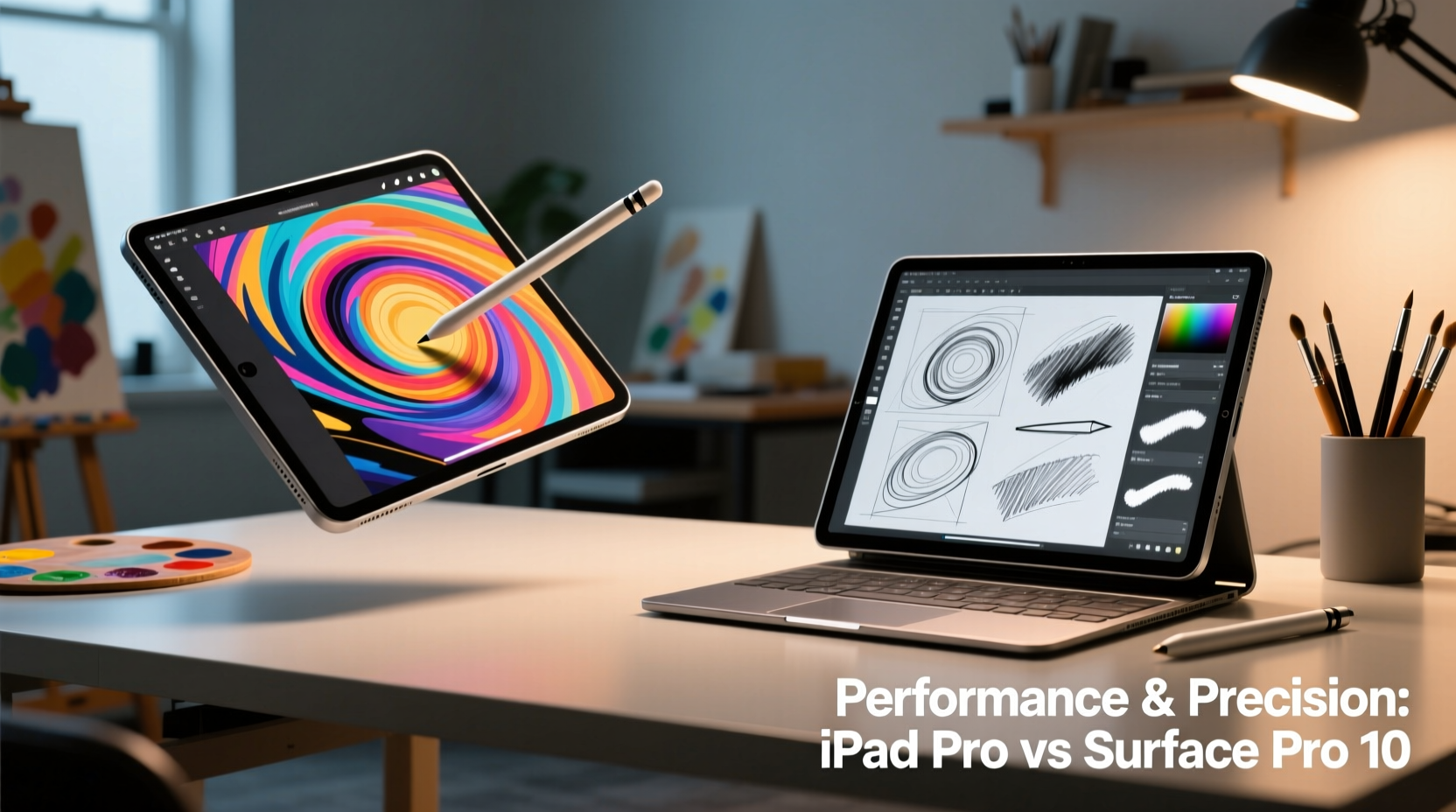
The core of any drawing tablet lies in how naturally it translates hand movements to the screen. Artists rely on pressure sensitivity to vary line weight and tilt detection to simulate real-world tools like pencils or brushes. Latency—the delay between stylus contact and visual feedback—can disrupt flow if not minimized.
The iPad Pro, paired with the Apple Pencil (especially the second generation and later), delivers industry-leading responsiveness. Apple claims near-zero latency at 20ms, but many users report it feeling even faster due to predictive stroke rendering in apps like Procreate and Adobe Fresco. The Apple Pencil supports full pressure and tilt sensitivity across all supported apps, with consistent behavior regardless of application.
The Surface Pro 10 uses Microsoft’s Slim Pen 2, which also offers 4,096 levels of pressure sensitivity and tilt recognition. However, latency varies more depending on the app. While optimized applications like Clip Studio Paint and Photoshop achieve sub-25ms response, others may lag slightly behind. Microsoft has improved palm rejection significantly in recent updates, but some artists still report occasional interference when resting their hand on the screen during long sessions.
Tip: For minimal latency, ensure your device is updated and using the latest drivers or OS version—both Apple and Microsoft optimize stylus performance through firmware.Display Quality and Screen Texture
A screen’s resolution, color accuracy, and surface finish dramatically affect how lines appear and how the stylus feels during use.
The iPad Pro features a Liquid Retina XDR display with ProMotion technology (120Hz refresh rate), offering smooth brush strokes and excellent motion clarity. Its anti-reflective coating reduces glare, and optional nano-texture glass (on select models) provides a paper-like feel without sacrificing brightness. Third-party matte screen protectors further enhance the tactile sensation, closely mimicking traditional media.
The Surface Pro 10 boasts a 13-inch PixelSense Flow display with a 120Hz refresh rate and 2880×1920 resolution. It covers 100% of sRGB and DCI-P3 color spaces, making it suitable for professional illustration and color-critical work. However, its glossy screen can be prone to reflections under bright lighting. While Microsoft offers an optional matte film accessory, it doesn’t integrate as seamlessly as Apple’s built-in nano-texture option.
In side-by-side tests, artists often describe the iPad Pro’s screen as “more organic” due to tighter integration between hardware and stylus, while the Surface Pro feels slightly more like drawing on glass—despite both being technically impressive.
“After switching from Wacom to iPad Pro, I noticed my wrist fatigue dropped significantly. The combination of low latency and screen texture made long sessions sustainable.” — Lena Tran, Concept Artist at Framestore
Software Ecosystem for Artists
No matter how good the hardware, creative potential depends heavily on available software and how well it leverages the device’s capabilities.
iOS and iPadOS offer a curated but highly optimized suite of art apps. Procreate remains unmatched in performance and feature set for raster-based illustration, running flawlessly on M-series chips. Other top-tier options include Adobe Fresco (with live brushes), Autodesk Sketchbook, and Pixelmator Pro. These apps are finely tuned for the Apple Pencil, delivering buttery-smooth strokes and predictable behavior.
On the other hand, the Surface Pro 10 runs full Windows 11, giving access to desktop-grade creative software such as Photoshop, Illustrator, Corel Painter, and Clip Studio Paint. This is a major advantage for professionals who require advanced layer management, plugin support, or vector workflows. Additionally, compatibility with industry-standard file formats and external monitors enhances studio flexibility.
However, touch and pen optimization in Windows apps can be inconsistent. Some programs treat the pen as a generic input device unless specifically updated for Microsoft Pen Protocol (MPP). This means features like eraser ends or pressure curves may not work uniformly across all software.
App Comparison Table
| Feature | iPad Pro | Surface Pro 10 |
|---|---|---|
| Native Art Apps | Procreate, Adobe Fresco, Sketchbook | Limited native apps; relies on desktop software |
| Full Desktop Software | No (limited to mobile versions) | Yes (Photoshop, Illustrator, etc.) |
| Palm Rejection | Excellent, system-level support | Good, but app-dependent |
| Pressure Sensitivity Support | Universal across compatible apps | Varies by app implementation |
| Offline Functionality | Fully functional offline | Fully functional offline |
Ergonomics and Workflow Flexibility
Drawing isn't just about screen and stylus—it's also about posture, portability, and how easily you can adapt the device to different environments.
The iPad Pro is lighter (starting at ~469g) and thinner than the Surface Pro 10 (~891g with keyboard). When used with a stand or case, it excels in lap drawing, couch sketching, or outdoor work. The absence of a physical keyboard by default keeps it minimalist and focused on creativity. However, multitasking across multiple apps requires splitting the screen, which can reduce usable canvas space.
The Surface Pro 10, with its kickstand and detachable Type Cover, functions more like a laptop. This makes it ideal for hybrid workflows where artists switch between drawing and typing—such as storyboarding with annotations or managing client emails. The ability to connect external monitors, drives, and audio interfaces gives it a clear edge in studio setups.
Yet, this versatility comes at a cost. Holding the Surface Pro on your lap for extended periods can be awkward due to weight distribution. And unlike the iPad, which supports third-party Bluetooth accessories natively, pairing MIDI controllers or specialty pens on Windows sometimes requires additional drivers.
Tip: Use a cross-body strap or ergonomic tablet holder to reduce arm strain during long drawing sessions, especially with heavier devices like the Surface Pro.Real-World Case Study: Freelance Illustrator Transition
Sophie Kim, a freelance illustrator based in Portland, spent five years using a Cintiq tablet with a desktop PC before transitioning to mobile workflows. She tested both the iPad Pro (12.9”, M2 chip) and Surface Pro 10 (i5, 16GB RAM) over a three-month period while working on a children’s book series.
Her findings were nuanced. On the iPad Pro, she completed rough sketches and final paintings 30% faster thanks to Procreate’s intuitive interface and instant-on functionality. The battery lasted through two full workdays at cafés without charging. However, she missed having layered PSD files with smart objects, which forced her to export and refine compositions on her desktop later.
With the Surface Pro 10, she could open Photoshop directly, maintain complex layer structures, and send print-ready PDFs immediately. She appreciated the full USB-C connectivity for backing up to portable SSDs. But she noted increased finger fatigue after hours of drawing, attributing it to the lack of textured screen protection and higher perceived latency.
Ultimately, Sophie chose to keep both devices: the iPad Pro for ideation and fieldwork, and the Surface Pro 10 for production and client delivery.
Step-by-Step: Choosing Based on Your Artistic Needs
If you're deciding between these two powerhouses, follow this decision framework:
- Assess your primary use case: Are you creating standalone illustrations (favor iPad Pro) or integrated design projects (favor Surface Pro)?
- Evaluate software needs: Do you depend on Procreate or Fresco? Or do you need full Photoshop/Illustrator?
- Consider mobility: Will you draw on the go, in nature, or in transit? The iPad Pro wins for pure portability.
- Test palm rejection and ergonomics: Try both devices in-store if possible. Rest your hand naturally and draw long strokes.
- Budget for accessories: Include costs for Apple Pencil, Surface Slim Pen, keyboard, screen protector, and cases.
Frequently Asked Questions
Can I use the Surface Pen on the iPad Pro?
No. Styluses are platform-specific. The Apple Pencil only works with iPads, and Microsoft’s Slim Pen is designed exclusively for Surface devices.
Which has better color accuracy for print work?
Both offer excellent color reproduction. The iPad Pro edges ahead with XDR contrast and HDR support, but the Surface Pro 10’s calibrated display meets soft-proofing standards in professional design suites.
Is the Apple Pencil worth the extra cost?
For serious artists, yes. Its magnetic attachment, wireless charging, and pixel-perfect precision justify the investment, especially when used daily.
Final Verdict: Who Should Choose What?
The iPad Pro shines as a dedicated drawing machine. Its seamless integration of hardware, operating system, and creative apps creates an almost meditative drawing experience. Artists focused on concept art, comics, or expressive illustration will appreciate its immediacy, lightweight form, and best-in-class stylus.
The Surface Pro 10 is the tool for hybrid creators—those who draw but also write, code, edit video, or manage business tasks. It bridges the gap between tablet and workstation, offering unparalleled software freedom and expandability. If your workflow extends beyond drawing into full creative production, it’s hard to beat.
There is no single \"best\" device. Instead, the choice reflects your priorities: purity of artistic experience versus breadth of functionality.
🚀 Ready to upgrade your creative toolkit? Whether you lean toward the elegance of the iPad Pro or the versatility of the Surface Pro 10, take the next step today—test one in person, invest in the right pen, and start creating with confidence.