
Streaming content from your iPhone, iPad, or Mac to your television enhances the viewing experience—whether you're sharing vacation photos, watching a movie, or presenting a work project. Apple AirPlay makes this possible with minimal setup and seamless integration across Apple devices. Unlike third-party casting solutions, AirPlay delivers high-quality audio and video while maintaining strong privacy and security standards. Understanding how to properly set up and use AirPlay ensures you get the most out of your Apple ecosystem without frustration.
Understanding AirPlay: What It Is and How It Works
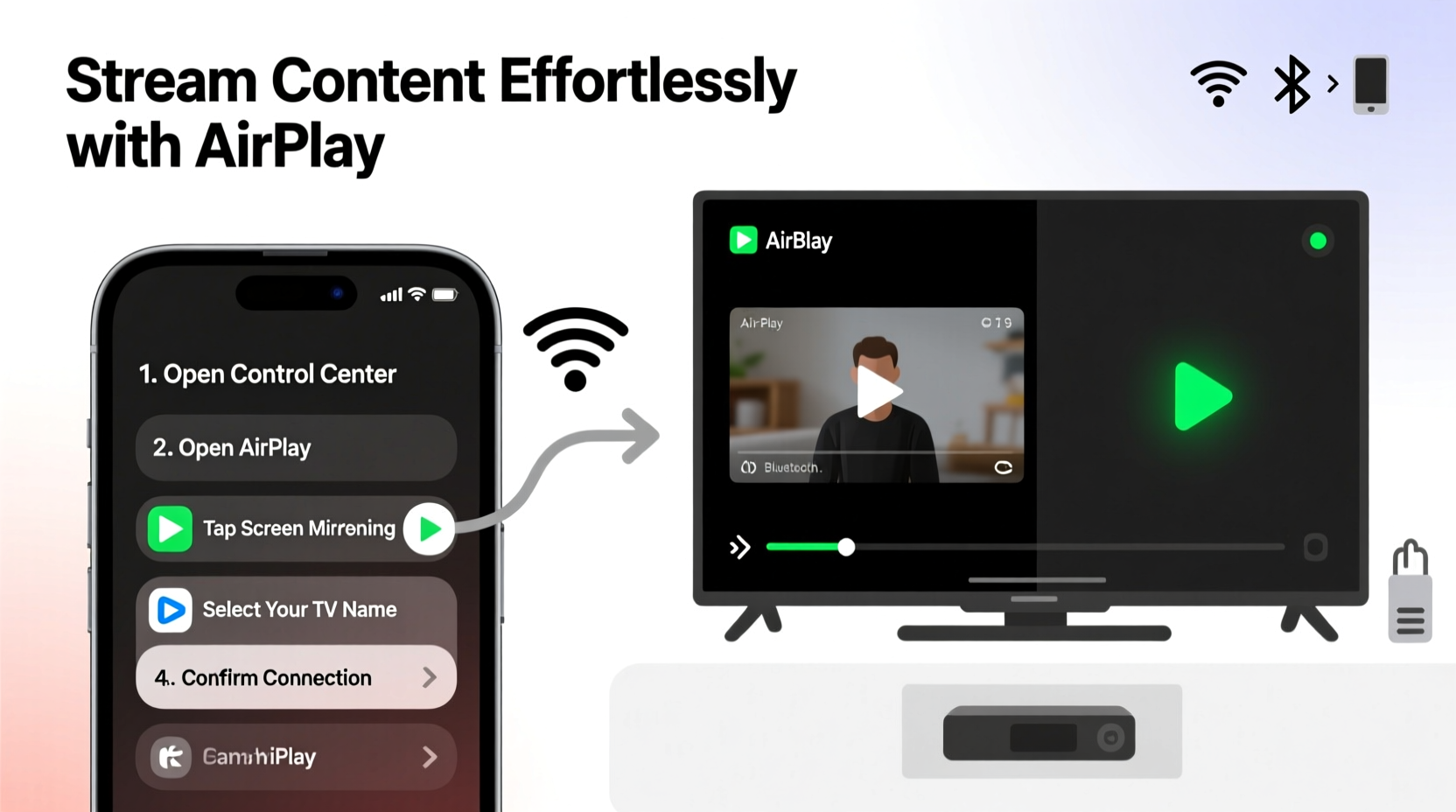
AirPlay is Apple’s proprietary wireless streaming technology that allows you to send audio, video, photos, and even your entire device screen to compatible receivers such as smart TVs, Apple TV, and AirPlay 2-enabled speakers. First introduced in 2010, AirPlay has evolved into AirPlay 2, which supports multi-room audio, improved buffering, and better synchronization across devices.
To use AirPlay, both your source device (iPhone, iPad, or Mac) and the receiving device (TV or speaker) must be connected to the same Wi-Fi network. AirPlay uses peer-to-peer encryption during transmission, ensuring that your data remains secure between devices. Unlike Bluetooth, which compresses audio significantly, AirPlay maintains high-fidelity sound, making it ideal for music lovers and home theater enthusiasts alike.
Tip: Ensure both your Apple device and TV are on the same 5GHz Wi-Fi band for smoother streaming and reduced lag.Step-by-Step Guide to Connecting AirPlay to Your TV
Connecting via AirPlay is straightforward when you follow the correct sequence. The process varies slightly depending on whether you're using an Apple TV, a smart TV with built-in AirPlay 2 support, or a third-party adapter.
- Verify compatibility: Confirm that your TV supports AirPlay 2. Most modern LG, Samsung (2019+), Sony, and Vizio models do. Alternatively, use an Apple TV 4K or HD as your receiver.
- Connect both devices to the same Wi-Fi network: Go to Settings > Wi-Fi on your iPhone or iPad and ensure you’re on the same network as your TV.
- Enable AirPlay on your TV: On your TV, navigate to Settings > Apple AirPlay & HomeKit > AirPlay and turn it on. Some TVs require you to enable “Allow Pairing” from new devices.
- Open Control Center on your iOS device: Swipe down from the top-right corner (iPhone X and later) or up from the bottom (older models).
- Tap Screen Mirroring or Audio Output: Select your TV from the list of available devices. If prompted, enter the four-digit code displayed on your TV screen.
- Begin streaming: Once connected, any video, app, or game will appear on your TV in real time.
On a Mac, click the AirPlay icon in the menu bar (it looks like a rectangle with a triangle at the bottom). If you don’t see it, go to System Settings > Displays > check \"Show mirroring options in the menu bar when available.\"
Supported Devices and Requirements
Not all TVs or Apple devices can use AirPlay. Below is a summary of compatibility requirements:
| Device Type | Minimum Requirement | Notes |
|---|---|---|
| iPhone/iPad | iOS 12 or later | All models from iPhone 6s onward support AirPlay 2 |
| Mac | macOS Monterey (12.0) or later | AirPlay to Mac feature requires macOS 12+ |
| Apple TV | Apple TV HD or 4K (all generations) | Must be updated to tvOS 12+ |
| Smart TVs | Select 2019–2024 models from LG, Samsung, Sony, Vizio | Look for “AirPlay 2” logo on packaging |
| Home Speakers | HomePod, HomePod mini, or AirPlay 2-compatible third-party speakers | Can be used alongside TV for enhanced audio |
Real-World Example: Hosting a Movie Night with AirPlay
Sarah wanted to host a casual movie night with friends but didn’t want to transfer files or deal with HDMI cables. She owns an iPhone 14 and a Samsung QLED TV from 2022 that supports AirPlay 2. After dinner, she opened her Control Center, tapped Screen Mirroring, and selected her TV. She launched Apple TV+ directly from her phone, chose a film, and began playback. The video streamed in full HD with synchronized audio through her TV’s speakers. When her friend suggested changing the volume, Sarah simply used her phone as a remote—no additional apps or logins required.
This scenario illustrates how AirPlay simplifies entertainment sharing. No technical knowledge was needed, and the connection remained stable throughout the two-hour film thanks to a robust dual-band router.
Optimizing Performance and Troubleshooting Common Issues
While AirPlay is designed to work seamlessly, occasional hiccups may occur. Addressing them proactively improves reliability.
- Lag or stuttering video: This often results from network congestion. Move closer to your router or switch to the 5GHz band.
- TV not appearing in the list: Restart both devices and ensure AirPlay is enabled on the TV under system settings.
- No sound after connecting: Check that your TV isn’t muted and that external sound systems (like soundbars) aren’t overriding the default output.
- Connection drops mid-stream: Update your router firmware and disable automatic channel selection if interference is suspected.
“AirPlay’s strength lies in its simplicity and integration. When both hardware and network conditions are optimized, users experience near-wireless perfection.” — James Lin, Senior Product Engineer at AirtameTip: Rename your TV in its settings to something recognizable like “Living Room TV” so you can easily identify it among multiple devices.
Checklist: Preparing for a Smooth AirPlay Experience
- ✅ Confirm your TV supports AirPlay 2
- ✅ Connect all devices to the same Wi-Fi network
- ✅ Enable AirPlay in your TV’s settings menu
- ✅ Update your iOS/macOS to the latest version
- ✅ Position your router centrally to minimize dead zones
- ✅ Test with a short video before important presentations or gatherings
Frequently Asked Questions
Can I use AirPlay without an Apple TV?
Yes. Many modern smart TVs from major brands include built-in AirPlay 2 support. As long as your TV runs compatible firmware and is on the same network, you can stream directly without needing an Apple TV box.
Does AirPlay work over cellular data?
No. AirPlay requires both devices to be on the same local Wi-Fi network. It does not function over Bluetooth or mobile data connections due to bandwidth and security constraints.
Is there a limit to how many devices can connect via AirPlay?
You can only mirror one device at a time to a single TV. However, multiple AirPlay 2-compatible speakers can receive audio simultaneously, enabling whole-home audio setups.
Maximize Your Viewing Experience with Confidence
Using Apple AirPlay to stream content to your TV removes clutter, reduces dependency on physical cables, and integrates naturally with the devices you already own. Whether you're sharing memories, enjoying a film, or delivering a polished presentation, AirPlay delivers a reliable, high-quality experience when set up correctly. By understanding compatibility, optimizing your network, and following best practices, you unlock a frictionless way to enjoy your digital content on the big screen.
💬 Have a favorite AirPlay tip or trick? Share your experience in the comments and help others make the most of their Apple devices!