Navigating remote hiking trails without reliable GPS can be disorienting—and even dangerous. While dedicated GPS devices are built for rugged terrain, most hikers today rely solely on their smartphones. The challenge? Dense tree cover, steep valleys, and rocky overhangs often weaken or block satellite signals. Yet, with smart preparation and real-time adjustments, you can significantly improve your phone’s GPS performance even in low-signal zones. This guide explores field-tested strategies to maximize your smartphone’s GPS accuracy when you need it most—using nothing but the device in your pocket.
Understand How Smartphone GPS Works
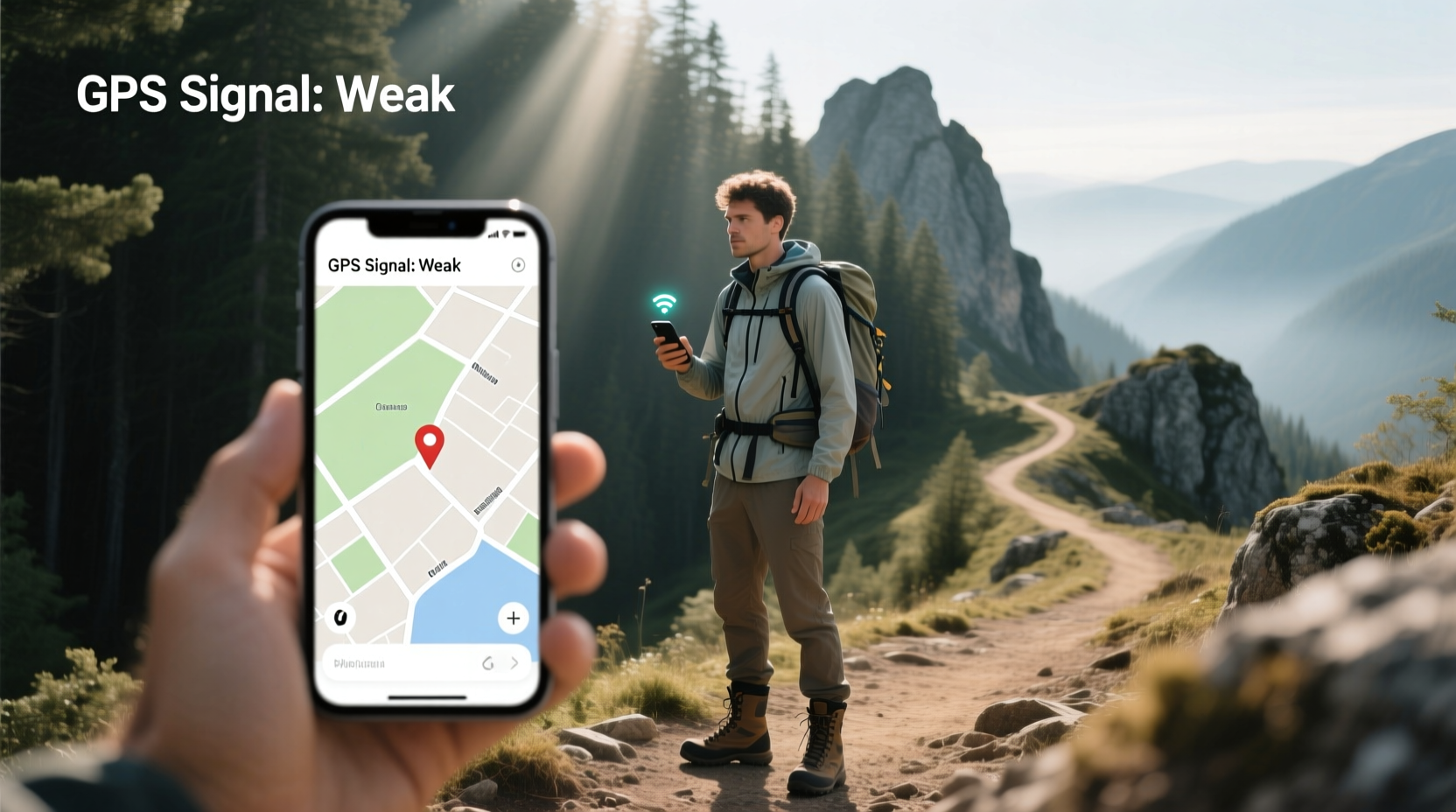
Your phone doesn’t just use GPS satellites—it combines signals from multiple global navigation systems including GPS (U.S.), GLONASS (Russia), Galileo (EU), and BeiDou (China). Modern smartphones automatically connect to all available constellations, increasing the number of visible satellites and improving location accuracy. However, signal strength depends on line-of-sight access to these satellites. Obstacles like thick forest canopies, mountain ridges, and deep ravines disrupt that line of sight, leading to delayed fixes, drifting positions, or complete signal loss.
Additionally, phones use Assisted GPS (A-GPS), which relies on Wi-Fi and cellular data to speed up initial satellite lock. In wilderness areas, where mobile networks are absent, A-GPS becomes less effective, making cold starts slower. Knowing this helps explain why GPS may struggle—but also reveals opportunities for improvement through smarter usage.
Tip: Enable airplane mode briefly before disabling it to reset your phone’s radio connections, which can help refresh GPS signal acquisition.Pre-Hike Preparation: Maximize Signal Readiness
The foundation of strong GPS performance begins before you leave home. Proper setup ensures your phone is primed to lock onto satellites quickly once outdoors.
- Download offline maps: Use apps like Gaia GPS, AllTrails, or Maps.me to download topographic maps of your route. These allow full navigation without cellular data and reduce reliance on real-time location processing.
- Enable high-accuracy mode: On Android, go to Location > Mode and select “High Accuracy.” On iPhone, ensure both Location Services and Precise Location are enabled for your navigation app. This activates all available positioning systems (GPS, Wi-Fi scanning, Bluetooth beacons).
- Clear GPS cache (Android): Some Android devices store outdated satellite data. Use a tool like GPS Status & Toolbox to clear the EPO (Extended Prediction Orbit) data and force a fresh satellite sync.
- Charge fully and bring a power bank: GPS is one of the most battery-intensive functions. A weak battery may throttle background processes, including location services.
- Update firmware and apps: Outdated software can contain bugs affecting sensor calibration or satellite communication protocols.
“Smartphone GPS has improved dramatically, but it still requires user awareness. Pre-loading data and understanding environmental limitations are half the battle.” — Dr. Lena Torres, Geospatial Systems Researcher, University of Colorado Boulder
On the Trail: Real-Time Techniques to Improve Signal
Once on the trail, conditions change rapidly. Here’s how to adapt and maintain the strongest possible GPS signal using only your phone.
Find Open Sky Locations
Satellite signals come from above. If you're under heavy canopy or in a narrow canyon, step into a clearing, open ridge, or rocky outcrop. Even a 10-second exposure to the sky can allow your phone to reacquire satellites and recalibrate your position.
Tip: Pause movement when acquiring signal. Motion can delay accurate triangulation. Stand still and let the phone stabilize its fix.Hold Your Phone Correctly
How you hold your phone affects antenna performance. Most smartphones place GPS antennas near the top edge. Avoid covering this area with your hand or placing the phone face-down in your palm. Instead, hold it upright or lay it flat with the screen facing up when checking your position.
Use Airplane Mode Strategically
Turning on Airplane Mode disables competing wireless signals (cellular, Wi-Fi, Bluetooth) that can interfere with GPS reception. Then, manually re-enable GPS (or Location Services). This reduces electromagnetic noise and allows the phone to focus on satellite signals. Note: iPhones do not allow GPS-only toggling directly, but enabling Airplane Mode and then turning Location back on can still reduce interference.
Calibrate Compass and Sensors
An uncalibrated compass leads to inaccurate orientation, making your direction arrow spin erratically. On iPhone, wave your phone in a figure-eight motion. On Android, follow the calibration prompt in Google Maps. Do this every few hours or after passing through metal-rich rock formations, which can magnetically distort sensors.
Leverage Barometric Altimeter Data
If your phone has a barometer (e.g., iPhone and select Android models), elevation data can supplement GPS by confirming your position relative to known terrain. Apps like Gaia GPS overlay elevation profiles, helping you verify your location even if horizontal accuracy is poor.
Do’s and Don’ts: GPS Optimization Table
| Do | Don’t |
|---|---|
| Download offline maps before heading out | Rely solely on real-time Google Maps loading |
| Keep phone upright with top edge exposed | Place phone screen-down in hand or pocket |
| Use high-accuracy location mode | Run battery saver with location throttled |
| Step into clearings to reacquire signal | Assume GPS works perfectly under dense canopy |
| Carry a portable charger for long hikes | Let battery drop below 20% during critical navigation |
Case Study: Regaining Signal in the Sawtooth Wilderness
Jamie, an experienced day hiker, entered Idaho’s Sawtooth National Recreation Area on a solo trek along the Alpine Way Trail. After three miles, the path became indistinct beneath lodgepole pines. Her phone’s GPS began lagging—position updates took 30 seconds, and the blue dot drifted off-trail. With no cell service, she couldn’t reload map tiles.
She paused at a small meadow, opened Gaia GPS, and held her iPhone aloft, screen up, waiting two minutes. The device eventually locked onto 11 satellites (7 GPS, 4 Galileo). She verified her location against a known creek crossing on the offline topo map. To prevent future drops, she switched to “Battery Saver” mode within the app (which logs points less frequently but maintains tracking), kept the phone in a chest pouch with the screen facing outward, and made brief stops every mile in open areas to confirm alignment.
By combining pre-downloaded maps, strategic positioning, and disciplined sensor management, Jamie completed the loop safely—even when the trail vanished under snow patches.
Checklist: Boost GPS Signal on Any Hike
- ✅ Download offline maps of your route
- ✅ Enable high-accuracy location mode
- ✅ Charge phone and pack a power bank
- ✅ Calibrate compass before starting
- ✅ Carry phone upright, top edge exposed
- ✅ Step into open areas every 30–60 minutes
- ✅ Use Airplane Mode to reduce interference (re-enable location)
- ✅ Monitor battery and disable unused apps
- ✅ Confirm position using landmarks and elevation
- ✅ Share live location with a contact if possible (pre-hike)
Frequently Asked Questions
Can I improve GPS signal without downloading special apps?
Yes. Built-in tools like Apple Maps (offline collections) and Google Maps (downloaded areas) support basic offline use. While not as detailed as topographic apps, they still provide functional GPS tracking. Ensure you’ve viewed the entire route while online so cached data is stored.
Why does my GPS work fine in cities but fail in forests?
In urban areas, your phone uses a hybrid system: GPS, Wi-Fi hotspots, cell towers, and even nearby Bluetooth devices to pinpoint location. Forests eliminate Wi-Fi and cell signals, forcing reliance on pure satellite data. Tree moisture and canopy density further absorb GPS frequencies (L1 band at 1.575 GHz), weakening reception.
Does putting my phone in a plastic bag help with GPS?
No, but it won’t hurt either. Plastic is transparent to GPS signals. However, wrapping your phone in foil or storing it in a metal container will block signals completely. Use waterproof dry bags made of nylon or TPU—they protect without interfering.
Final Thoughts: Smart Habits Over Gear
You don’t need a dedicated GPS unit to navigate safely. Millions of hikers successfully rely on smartphones every year—because they prepare wisely and adjust behavior in response to environmental challenges. Strong GPS performance isn’t about raw technology alone; it’s about understanding its limits and working with them.
By downloading maps ahead of time, managing your phone’s orientation and settings, and knowing when and where to pause for signal refresh, you transform your smartphone into a resilient navigation tool. These habits cost nothing, add no weight to your pack, and can make the difference between staying found and getting lost.
💬 Have a tip that saved your hike? Share your experience below. Whether it’s a clever workaround or a close call, your story could help another hiker stay safe on the trail.