
Streaming videos, photos, music, or even mirroring your smartphone screen directly to your TV has become a daily necessity. Whether you're sharing vacation clips with family, watching the latest episode of your favorite show, or presenting a work project, connecting your phone to your TV doesn’t have to involve cables, complex setups, or tech expertise. Modern technology offers multiple seamless, wireless, and user-friendly methods to do it—all within minutes.
The key is knowing which method fits your devices, environment, and needs. From built-in casting features to affordable adapters, this guide breaks down practical, tested approaches that require minimal effort and deliver maximum results.
Use Built-In Casting Features (Chromecast & AirPlay)
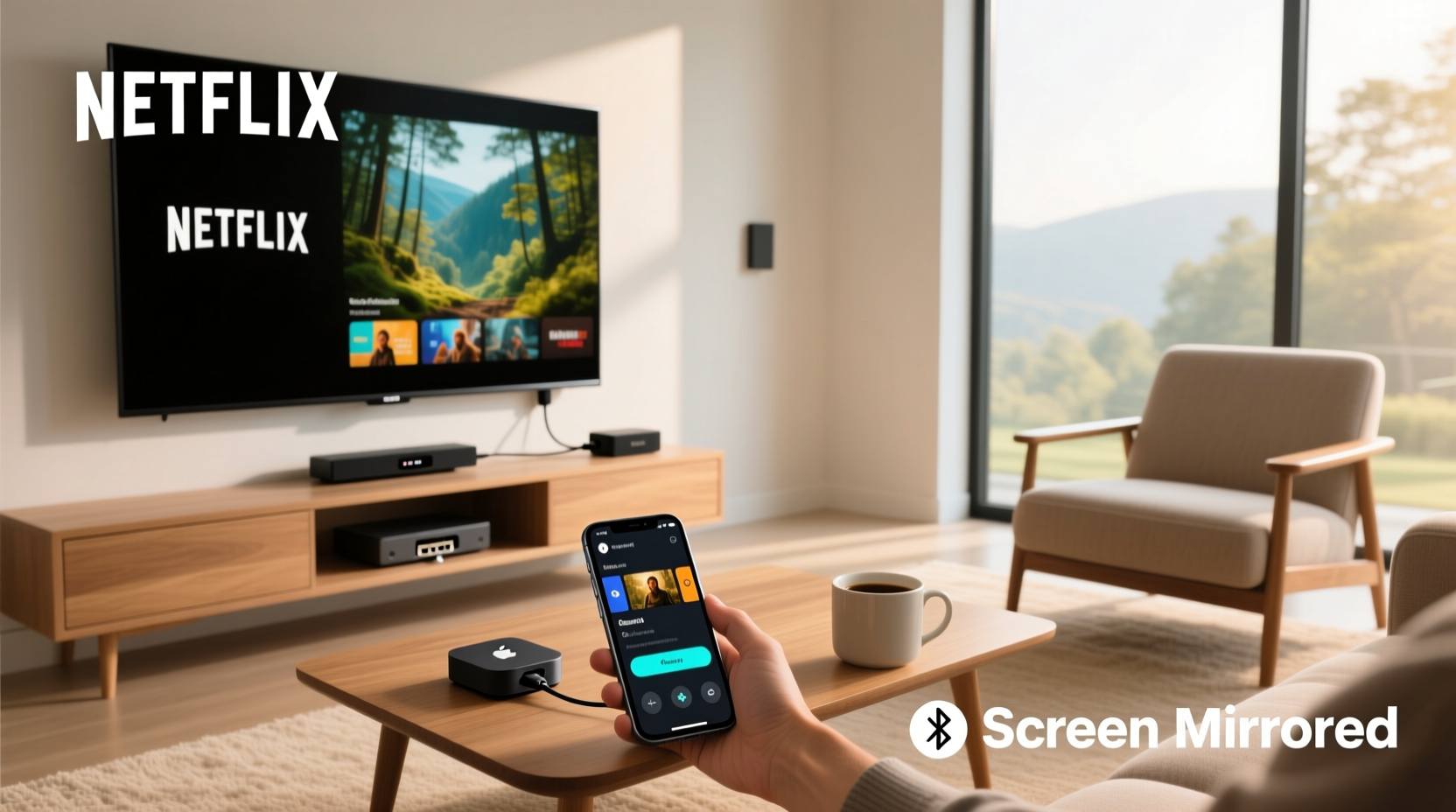
Most modern smartphones and smart TVs support native screen mirroring or app-level casting. These technologies eliminate the need for extra hardware by using your home Wi-Fi network to transmit content.
For Android users: Google’s Chromecast technology is integrated into many Android phones and thousands of compatible smart TVs. Apps like YouTube, Netflix, Disney+, and Spotify include a “Cast” button (a rectangle with radiating waves). Tap it, select your TV from the list, and your content plays instantly on the big screen.
For iPhone users: Apple’s AirPlay 2 allows direct streaming from iOS devices to compatible smart TVs or Apple TV. Swipe down from the top-right corner of your iPhone to open Control Center, tap “Screen Mirroring,” and choose your TV. Once connected, your entire screen appears on the TV in real time.
Tip: Ensure both your phone and TV are connected to the same Wi-Fi network. A strong, stable connection prevents buffering and lag.Casting works best when you're streaming media through supported apps. Full screen mirroring may consume more battery and bandwidth but is ideal for presentations or gameplay.
Connect with a Streaming Dongle or Stick
If your TV isn’t smart or lacks built-in casting, an affordable streaming dongle can transform it into a wireless receiver. Devices like Google Chromecast, Amazon Fire TV Stick, and Roku Streaming Stick+ plug into your TV’s HDMI port and connect to Wi-Fi.
Once set up, they act as a bridge between your phone and TV. Open any compatible app on your phone, tap the Cast icon, and send video or audio directly to the dongle. Some devices even support full screen mirroring via their companion apps.
“Streaming sticks have democratized access to smart TV functionality. For under $50, you gain seamless phone-to-TV integration.” — David Lin, Consumer Tech Analyst at GadgetInsight
These devices often come with remotes, voice control, and access to major streaming platforms, making them a versatile long-term upgrade to any television.
Use Screen Mirroring via HDMI Adapters
When Wi-Fi is unreliable or unavailable, a physical connection remains one of the most stable options. Many phones support video output through USB-C or Lightning ports using adapters.
- Android (USB-C): Use a USB-C to HDMI adapter or cable. Plug one end into your phone, the other into your TV’s HDMI port. Your phone will prompt you to enable display mirroring.
- iPhone (Lightning): Apple’s Digital AV Adapter connects Lightning to HDMI. Pair it with a standard HDMI cable to mirror your screen directly.
This method provides zero latency and high-resolution output, perfect for gaming, photo slideshows, or professional presentations. It does require carrying an adapter, but the reliability makes it worth it for critical moments.
Comparison: Wireless vs. Wired Streaming Options
| Method | Setup Time | Cost | Best For | Limits |
|---|---|---|---|---|
| Chromecast/AirPlay | 2–5 minutes | Free (built-in) | Daily streaming, casual use | Requires strong Wi-Fi |
| Streaming Stick | 10–15 minutes | $30–$60 | Non-smart TVs, frequent use | One-time purchase needed |
| HDMI Adapter | 1–2 minutes | $20–$50 | Gaming, presentations, reliability | Tethered connection, portable gear |
| Smart View/Miracast | 3–7 minutes | Free | Android-to-Android TV | Inconsistent across brands |
Try Smart TV Companion Apps
Many TV manufacturers offer free mobile apps that turn your phone into a remote control and media sender. Samsung’s SmartThings, LG’s ThinQ, and Sony’s Video & TV SideView allow you to browse content on your phone and push it to the TV with a single tap.
These apps often support file browsing, letting you stream personal videos or photos stored locally on your phone. No cloud upload or conversion needed—just select and play.
Additionally, some apps provide keyboard input, making text entry on the TV faster than using a remote. This is especially useful when logging into streaming services or searching for content.
Tip: Download your TV brand’s official app before attempting to connect. Third-party apps may lack full functionality or pose security risks.Step-by-Step: How to Mirror Your iPhone to a Samsung Smart TV
A common scenario involves pairing an iPhone with a non-Apple TV. Here's how to do it reliably using AirPlay 2 (available on Samsung TVs from 2018 onward):
- Ensure both your iPhone and Samsung TV are on the same Wi-Fi network.
- Turn on your Samsung TV and press the Home button on the remote.
- Navigate to and open the AirPlay settings (usually under Settings > General > Apple AirPlay Settings).
- Set AirPlay to “On” and choose “Open” for access control.
- On your iPhone, swipe down to open Control Center.
- Tap Screen Mirroring.
- Select your Samsung TV from the list.
- Enter the four-digit code displayed on the TV if prompted.
- Wait a few seconds—the full iPhone screen will appear on the TV.
To stop mirroring, return to Control Center, tap “Stop Mirroring,” or simply lock your phone.
Mini Case Study: Family Movie Night Made Easy
The Patel family wanted to watch a home video of their daughter’s first steps, recorded on their Android phone. Their living room TV was a five-year-old model without smart features. Instead of fumbling with cables or uploading to the cloud, they purchased a $35 Amazon Fire TV Stick.
Within 12 minutes, they had installed the device, connected it to Wi-Fi, and opened the Photos app on the phone. Tapping the Cast icon sent the video directly to the TV. The grandparents were impressed by the clarity and ease—no tech support needed.
Since then, the Fire Stick has become a fixture, used weekly for streaming shows, sharing travel photos, and even displaying recipes in the kitchen.
FAQ
Can I stream content without Wi-Fi?
Yes, but options are limited. You can use a wired HDMI adapter or create a local hotspot from your phone for short-range casting. However, Wi-Fi significantly enhances performance and convenience.
Why won’t my phone find my TV when casting?
This usually happens when devices are on different networks. Confirm both are connected to the same Wi-Fi. Restarting the router or updating your TV’s firmware may also resolve detection issues.
Does screen mirroring drain my phone battery quickly?
Yes—especially during full-screen mirroring or video playback. Keep your phone plugged in during extended sessions to avoid unexpected shutdowns.
Essential Checklist for Seamless Phone-to-TV Streaming
- ✅ Confirm both phone and TV are on the same Wi-Fi network.
- ✅ Update your phone’s OS and TV’s firmware to the latest version.
- ✅ Install the manufacturer’s companion app if available (e.g., SmartThings, Fire TV Remote).
- ✅ Test casting with a short video before important presentations.
- ✅ Keep HDMI adapters charged and accessible if using wired connections.
- ✅ Disable battery-saving mode on your phone—it can interrupt casting.
Conclusion
Streaming content from your phone to your TV doesn’t require technical know-how or expensive equipment. Whether you use built-in casting, a compact streaming stick, or a simple HDMI adapter, the process can be fast, reliable, and frustration-free. The right method depends on your devices, usage habits, and environment—but all lead to the same benefit: enjoying your digital life on the biggest screen in the house.
🚀 Ready to go big screen? Pick one method from this guide and try it tonight. Share your experience or tips in the comments—help others make the most of their devices!