
Running multiple operating systems on a single machine has become increasingly common—whether for software development, cybersecurity testing, or simply exploring alternative platforms like Linux or macOS. Two primary methods dominate this space: dual booting and using virtual machines (VMs). While both allow access to different environments, they differ significantly in architecture, performance, and most critically, safety. Understanding these differences is essential for making an informed decision that balances functionality with security.
The choice between dual boot and virtualization isn't just about convenience—it's about risk management. Each approach exposes your system to unique vulnerabilities and protection mechanisms. Whether you're a developer testing cross-platform applications, a student learning penetration testing, or a professional managing legacy software, knowing which method offers greater safety can protect your data, privacy, and hardware integrity.
Understanding the Core Differences
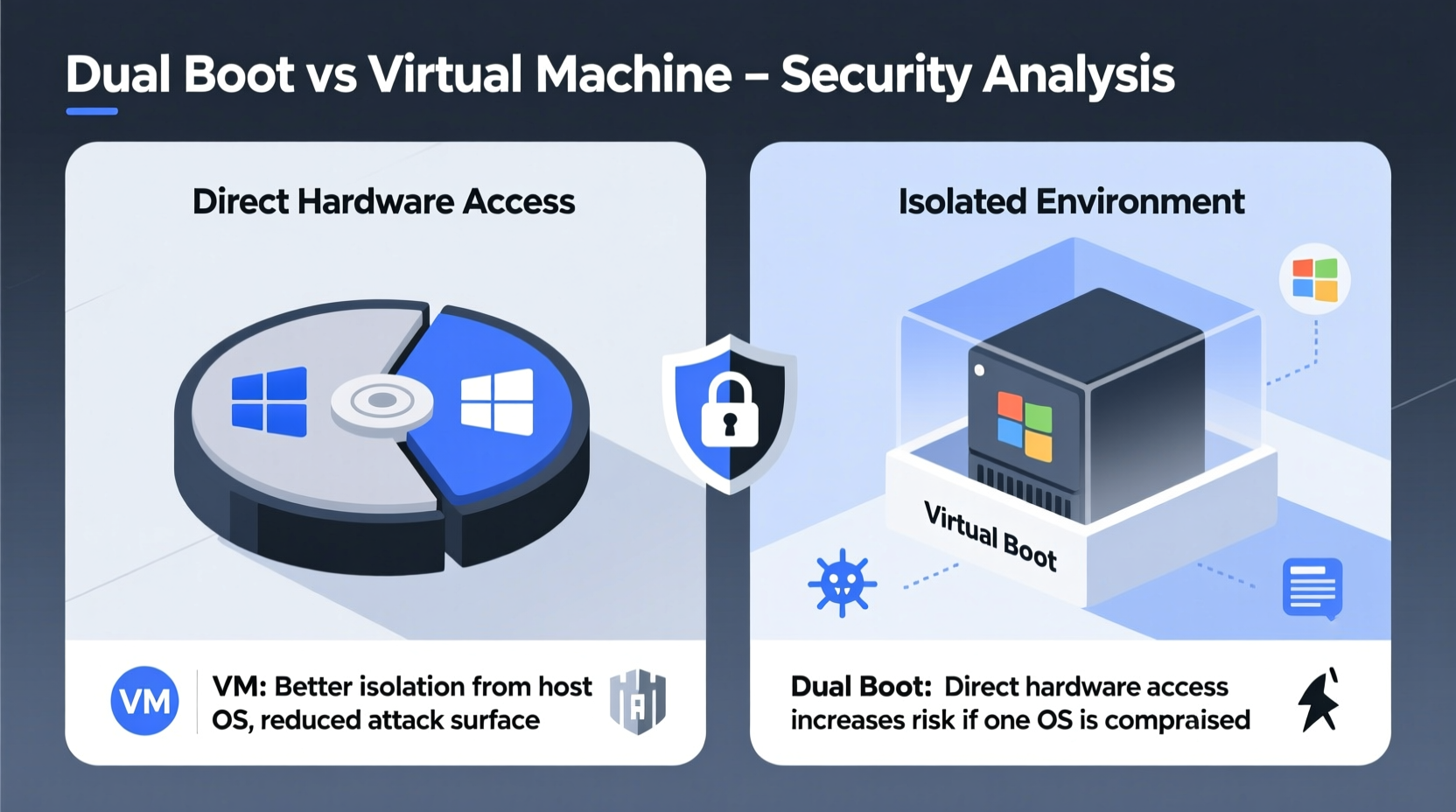
Dual booting involves installing two or more operating systems on separate partitions of the same physical drive. At startup, a bootloader such as GRUB or Windows Boot Manager allows the user to select which OS to load. Once chosen, that OS runs natively, with full access to all hardware resources. In contrast, a virtual machine uses hypervisor software—like VMware, VirtualBox, or Hyper-V—to simulate a complete computer environment within the host OS. The guest OS runs inside this isolated container without direct access to underlying hardware.
This architectural distinction leads to fundamental differences in how each setup handles security threats. A dual-boot system gives each OS unrestricted control when active, meaning malware or misconfigurations can directly affect the entire machine. A VM, however, operates under strict isolation; even if compromised, the damage is typically contained within the virtual environment unless vulnerabilities in the hypervisor are exploited.
Tip: Always keep snapshots of your VM before testing untrusted software—this allows quick rollback in case of infection.Security Implications: Isolation vs Full Access
One of the most critical factors in evaluating safety is isolation. Virtual machines excel here by design. Hypervisors enforce strong boundaries between the host and guest systems, preventing unauthorized access to files, devices, and network interfaces unless explicitly permitted. This containment means that if a virus infects the guest OS, it generally cannot spread to the host unless there’s a flaw in the virtualization layer or shared folders are enabled.
In contrast, dual boot systems offer no such isolation during runtime. When you boot into one OS, it has complete control over the disk, memory, and peripherals. If malware infiltrates one partition—say, through a malicious download on a Windows installation—it could potentially modify the bootloader, corrupt data on adjacent partitions, or even overwrite the Master Boot Record (MBR), rendering other OS installations unbootable.
“Virtualization adds a crucial layer of abstraction that limits attack surface. Even sophisticated rootkits struggle to escape well-configured VMs.” — Dr. Alan Reyes, Cybersecurity Researcher at MIT Lincoln Lab
However, virtual machines are not immune to escalation attacks. Vulnerabilities like VM escape—where malicious code breaks out of the guest into the host—are rare but have occurred in products like VMware Workstation and Xen. These exploits require advanced knowledge and specific conditions, making them unlikely for average users but still a concern in high-security environments.
Performance and Risk Trade-offs
Safety isn’t solely about isolation—it also depends on how securely an environment can be maintained over time. Dual boot systems often perform better because each OS runs natively, leveraging full CPU, GPU, and RAM resources. This makes dual boot ideal for gaming, video editing, or any task requiring peak performance. However, better performance comes at a cost: updates, patches, and firewall configurations must be managed independently for each OS, increasing the likelihood of oversight.
For example, a neglected Linux partition might run an outdated kernel with known vulnerabilities. Since both OSes share the same physical hardware, a breach in one could indirectly expose weaknesses in the other—especially if shared storage is used. Additionally, improper partitioning or misconfigured encryption can leave sensitive data accessible across boots.
Virtual machines, while slightly slower due to emulation overhead, benefit from centralized management. Snapshots, encrypted VM images, and template-based deployments make it easier to maintain secure, consistent environments. You can run a disposable VM for risky tasks—such as opening unknown email attachments—and discard it afterward with minimal impact.
Comparative Overview: Dual Boot vs VM
| Criteria | Dual Boot | Virtual Machine |
|---|---|---|
| Isolation Level | None during operation | High (with proper configuration) |
| Hardware Access | Full native access | Limited/emulated (can be bridged) |
| Malware Risk to Host | High (direct access) | Low to moderate (depends on config) |
| System Recovery | Complex (requires boot repair tools) | Easy (restore from snapshot) |
| Resource Efficiency | Excellent | Moderate (depends on allocation) |
| Setup Complexity | Moderate (partitioning required) | Low (GUI tools available) |
| Best Use Case | Performance-critical tasks, long-term use | Testing, education, temporary workloads |
Real-World Scenario: The Developer’s Dilemma
Consider Maria, a full-stack developer working on a web application that requires testing across Windows, macOS, and Linux environments. She initially sets up a dual-boot system with Windows 11 and Ubuntu. While this works, she finds herself rebooting constantly, losing productivity. More concerning, after downloading a compromised package from a third-party repository, her Ubuntu installation becomes infected with a crypto-mining script. Though contained to Linux, the malware modifies the GRUB configuration, causing Windows to fail booting until manually repaired.
Frustrated, Maria switches to using VMs via VMware Workstation. She creates dedicated virtual machines for each OS, enables snapshots, disables shared clipboard and drag-and-drop, and isolates networking when not needed. Now, when a test VM gets compromised during a security audit exercise, she simply reverts to a clean snapshot—no data loss, no system instability. Her host remains untouched, and workflow interruptions drop significantly.
This shift highlights a broader trend: professionals who prioritize stability and security increasingly favor virtualization for multi-OS workflows, reserving dual boot for scenarios where raw performance is non-negotiable.
Step-by-Step: Securing Your Multi-OS Setup
Regardless of your chosen method, proactive measures enhance safety. Follow this sequence to minimize risks:
- Assess your needs: Determine whether performance or isolation is more important. Gamers and CAD users may lean toward dual boot; developers and IT pros often prefer VMs.
- Choose trusted software: Use reputable hypervisors (e.g., VMware, Hyper-V, Proxmox) and avoid outdated or pirated virtualization tools.
- Enable hardware virtualization: Activate VT-x (Intel) or AMD-V in BIOS/UEFI to improve VM performance and security.
- Segment storage: In dual boot, encrypt sensitive partitions and avoid mounting others automatically. In VMs, store virtual disks on encrypted volumes.
- Use snapshots regularly: Before installing new software or updates in a VM, take a snapshot for easy rollback.
- Limit sharing features: Disable shared folders, clipboard sync, and USB passthrough unless absolutely necessary—they create potential attack vectors.
- Keep everything updated: Patch both host and guest OSes, including the hypervisor itself, to close known exploits.
- Back up critical data: Maintain off-system backups of important files, especially those accessed across environments.
Common Pitfalls to Avoid
- Using default VM settings: Many preconfigured VMs enable unnecessary services or weak firewall rules. Customize network modes (prefer NAT or host-only over bridged when possible).
- Ignoring UEFI firmware security: Ensure Secure Boot is enabled and verify that no rogue boot entries exist after dual-boot installation.
- Storing passwords across OSes: Avoid saving credentials in browsers or keychains accessible from multiple systems.
- Over-allocating resources: Giving a VM too much RAM or CPU can destabilize the host; monitor usage and adjust dynamically.
- Trusting unsigned ISOs: Always verify checksums and digital signatures when downloading OS images for installation.
Frequently Asked Questions
Can a virus in a VM infect my main computer?
It’s rare but possible. Most modern hypervisors prevent direct access, but vulnerabilities like VM escape exploits have existed. Risk increases if you enable shared folders, clipboard syncing, or USB device forwarding. For maximum safety, disable these features when handling untrusted content.
Is dual boot safe for beginners?
Dual booting carries higher risk for inexperienced users due to complex partitioning, potential boot conflicts, and lack of recovery tools. A mistake during setup can render the entire system unbootable. Beginners are advised to start with virtual machines, which are reversible and less disruptive.
Which is better for learning cybersecurity?
Virtual machines are overwhelmingly preferred. They allow safe experimentation with malware, network attacks, and penetration testing tools in isolated labs. Platforms like Hack The Box and TryHackMe rely entirely on VM-based environments for this reason.
Final Recommendation: Prioritize Safety Without Sacrificing Flexibility
When comparing dual boot versus virtual machines in terms of safety, virtualization clearly holds the advantage. Its inherent isolation, ease of recovery, and granular control over resource sharing make it the safer choice for most users. While dual boot delivers superior performance and feels more “real,” it does so at the expense of increased exposure to system-wide threats.
That said, neither option is universally superior. The best strategy often combines both: use a lightweight VM for daily experimentation and risky tasks, and maintain a secondary OS via dual boot only when native performance is essential. This hybrid approach maximizes both security and utility.
🚀 Ready to implement a safer multi-OS workflow? Start by setting up a simple Linux VM today—explore its capabilities, take your first snapshot, and experience the peace of mind that comes with true isolation. Share your journey or ask questions in the comments below.