When your keyboard’s arrow keys stop responding, it can disrupt everything from simple text navigation to gaming and spreadsheet work. Unlike a complete keyboard failure, partial malfunction like this often has subtle or overlooked causes. The good news is that most issues are fixable without replacing hardware. Whether you're using a laptop, desktop, or external keyboard, understanding the root cause is the first step toward a fast resolution.
This guide breaks down the most frequent reasons behind non-functional arrow keys and provides clear, actionable solutions. From software glitches to physical obstructions, we’ll walk through troubleshooting steps that work across Windows, macOS, and even some Linux environments.
Common Causes of Arrow Key Failure
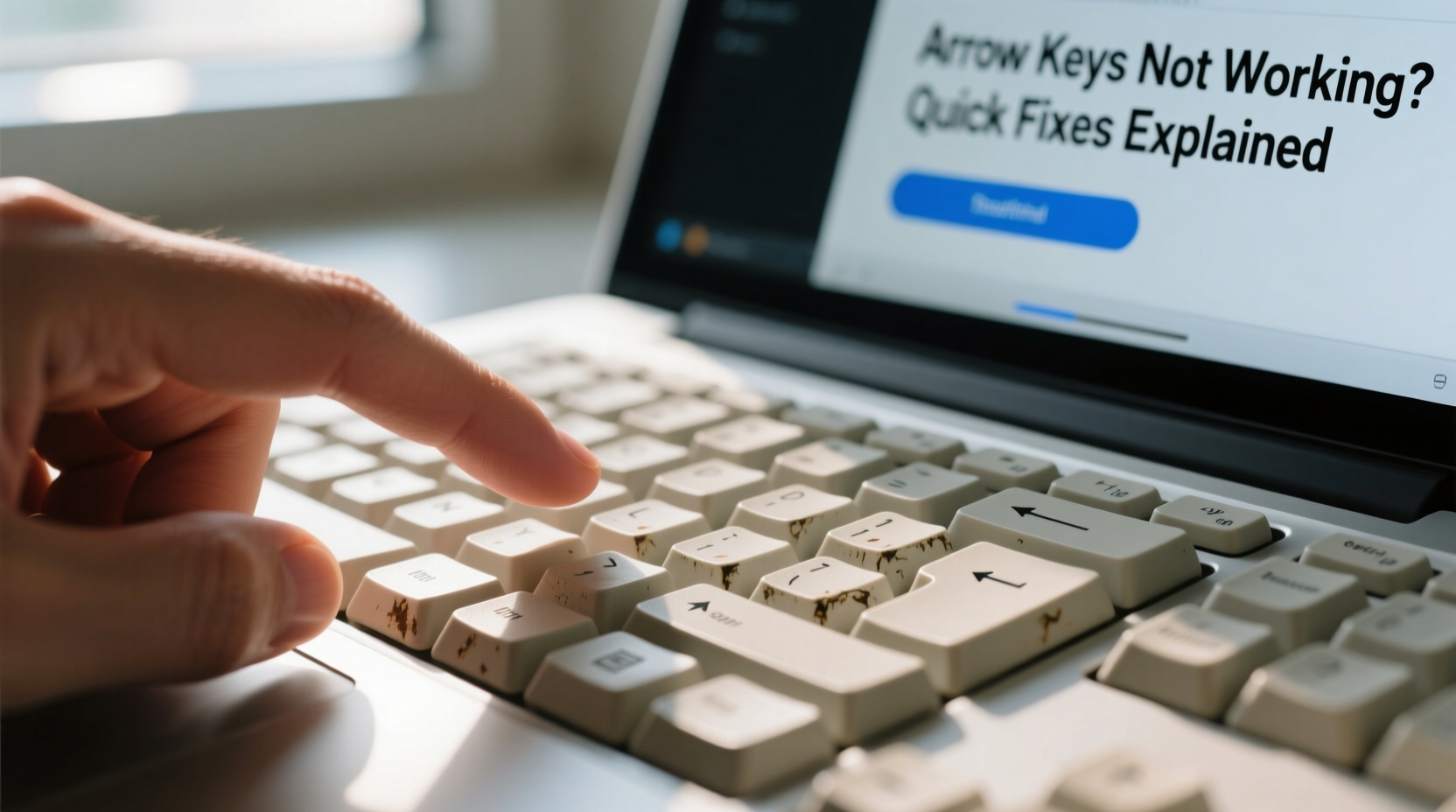
The arrow keys might appear to be failing due to a variety of underlying issues. Identifying which category your problem falls into will save time and effort during troubleshooting.
- Sticky or physically obstructed keys: Dust, crumbs, or liquid spills can jam mechanical components.
- Function (Fn) key lock: On many laptops, arrow keys double as media or navigation shortcuts unless the Fn key is used.
- Num Lock interference: Some compact keyboards repurpose arrow keys when Num Lock is active.
- Driver or software conflicts: Outdated, corrupted, or conflicting keyboard drivers can disable specific keys.
- Filter Keys enabled: An accessibility feature in Windows that ignores brief or repeated keystrokes—can block arrow input.
- Hardware failure: Internal circuitry damage, worn-out switches, or USB connection issues on external keyboards.
- Operating system bugs: Temporary glitches after updates or incorrect system configurations.
Step-by-Step Troubleshooting Guide
Follow this logical sequence to identify and resolve the problem efficiently.
- Restart your computer. A reboot clears temporary software hiccups and reloads drivers.
- Check for physical damage or debris. Inspect the arrow keys for visible obstructions. Gently clean around them with compressed air or a soft brush.
- Test the keyboard layout. Open a text editor and press each arrow key. If nothing happens, proceed to the next steps.
- Toggle the Fn key. Hold down the Fn key and press each arrow key. If they work only when Fn is held, your function key lock may be reversed.
- Disable Filter Keys (Windows). Go to Settings > Accessibility > Keyboard, and turn off “Use Filter Keys.”
- Update or reinstall keyboard drivers. In Device Manager, locate “Keyboards,” right-click your device, and choose “Update driver” or “Uninstall device,” then restart.
- Try an external keyboard. Plug in a known-working USB keyboard to see if the issue persists.
- Boot into Safe Mode. This rules out third-party software conflicts. If arrow keys work in Safe Mode, a background app is likely interfering.
Do’s and Don’ts When Fixing Arrow Keys
| Do’s | Don’ts |
|---|---|
| Use compressed air to clean under keys gently | Don’t pry off keys unless necessary or confident |
| Check keyboard settings in OS accessibility options | Don’t ignore firmware updates for branded keyboards |
| Test with on-screen keyboard (Windows: Win + Ctrl + O) | Don’t assume it's hardware failure without testing software |
| Back up system before major driver changes | Don’t use liquid cleaners directly on keyboard |
Real-World Example: Office Worker Recovers Lost Navigation
Sarah, a financial analyst, suddenly found her arrow keys unresponsive while navigating large Excel sheets. She initially assumed her laptop needed repair. After checking online, she recalled enabling accessibility features weeks earlier. She navigated to Settings > Accessibility > Keyboard and discovered “Filter Keys” was still active. Disabling it instantly restored full arrow key functionality. The entire fix took less than two minutes—no tools, no cost.
This case highlights how easily overlooked settings can mimic hardware failure. Always rule out software toggles before considering replacements.
Expert Insight on Keyboard Reliability
“Over 60% of reported 'broken' keyboards are actually suffering from misconfigured settings or minor debris buildup. Users often overlook built-in OS tools that can diagnose input issues quickly.” — David Lin, Senior Hardware Support Specialist at TechAid Solutions
Quick Fixes Checklist
✔ Quick Fixes Checklist – Arrow Keys Not Working
- ✅ Restart the computer
- ✅ Toggle the Fn key combination
- ✅ Check Num Lock status (especially on compact keyboards)
- ✅ Disable Filter Keys (Windows) or Sticky Keys (macOS)
- ✅ Clean around arrow keys with compressed air
- ✅ Test with on-screen keyboard
- ✅ Update or reinstall keyboard drivers
- ✅ Try a different keyboard or test on another device
- ✅ Boot into Safe Mode to check for software conflict
- ✅ Reset NVRAM/PRAM on Mac (for persistent issues)
Frequently Asked Questions
Why do my arrow keys work in some programs but not others?
This usually indicates application-specific key mapping or focus issues. For example, some games or terminal emulators intercept arrow key input for their own controls. It may also occur if a program is frozen or not accepting keyboard input. Close and reopen the application, or check its keyboard settings.
Can spilled liquid permanently damage arrow keys?
Yes, especially if not addressed promptly. Liquids can corrode internal contacts or cause keys to stick. If a spill occurs, power off the device immediately, disconnect the keyboard (or shut down laptop), and allow it to dry completely for at least 24–48 hours before use. For severe cases, professional cleaning may be required.
How do I reset my keyboard settings to default?
On Windows, go to Settings > Time & Language > Language > Input > Advanced keyboard settings and reset to default. You can also uninstall the keyboard in Device Manager and restart to trigger automatic reinstallation. On macOS, go to System Settings > Keyboard and reset modifier keys to default. Third-party software like Logitech or Razer apps should also be checked for custom mappings.
Preventive Maintenance Tips
Keeping your keyboard in top condition prevents future failures. Regular maintenance extends lifespan and ensures consistent performance.
- Keep food and drinks away: Avoid eating or drinking near your keyboard to prevent spills and crumb buildup.
- Clean monthly: Use a soft brush or compressed air every few weeks to remove dust.
- Avoid aggressive typing: Excessive force can wear out key mechanisms prematurely.
- Monitor software updates: Install OS and driver updates regularly to maintain compatibility.
- Use keyboard covers: Especially on laptops, silicone skins protect against debris and moisture without affecting usability.
Conclusion: Take Action Before Replacing
Non-functional arrow keys are rarely a death sentence for your keyboard. Most issues stem from simple, reversible causes like stuck modifiers, accessibility settings, or minor debris. By methodically testing each possibility—from toggling the Fn key to checking driver status—you can often restore full functionality in minutes. Replacement should always be the last resort, not the first reaction.
💬 Experiencing arrow key issues? Try one fix today and share your results in the comments. Help others troubleshoot by noting what worked for you!