
Auto clickers have become essential tools for users who want to automate repetitive tapping tasks on their iPad. Whether you're streamlining gameplay, automating form submissions, or simply reducing finger fatigue during long sessions, a well-configured auto clicker can save time and effort. However, due to Apple’s strict ecosystem policies, installing traditional third-party automation apps isn’t straightforward. This guide explores safe, functional methods to use auto clickers on your iPad, including built-in accessibility features, legitimate shortcuts, and best practices to avoid security risks.
Understanding Auto Clickers on iPad: What You Need to Know
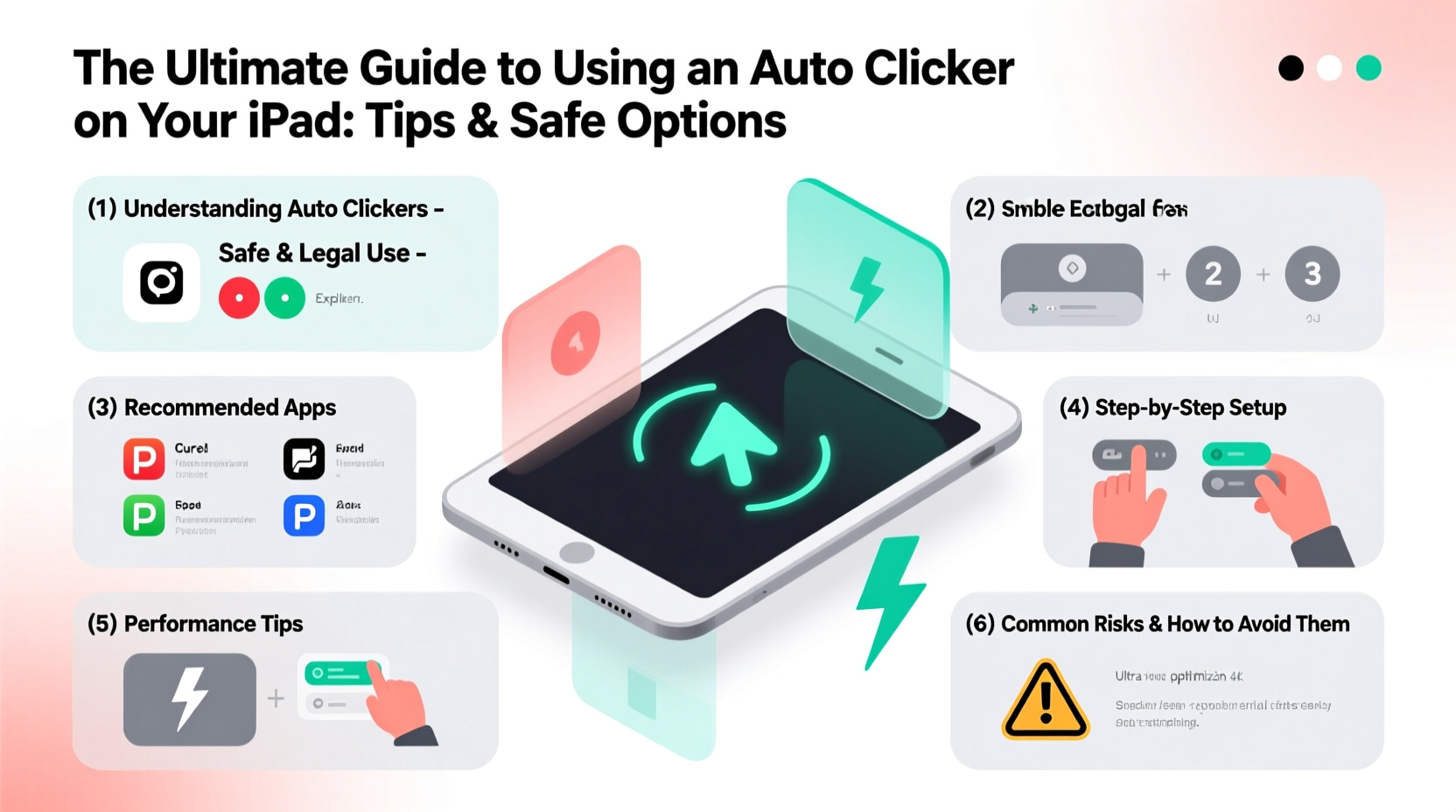
An auto clicker automatically simulates taps at set intervals on your screen. On most platforms, these tools are downloadable apps that run in the background. But iPads operate under iOS and iPadOS restrictions that prevent background processes from freely interacting with other apps—especially those involving simulated touch input.
Because of this, true \"auto clicker apps\" aren’t available on the App Store. Any app claiming full-screen tap automation would violate Apple’s guidelines and likely be removed. Instead, viable solutions rely on Apple-approved automation tools such as Shortcuts, AssistiveTouch, and Switch Control—all designed primarily for accessibility but adaptable for light automation.
It's important to distinguish between unsafe third-party hacks (which often require jailbreaking) and safe, system-level features. The latter protect your device while offering practical functionality.
“Automation on iPad should enhance usability—not compromise security. Leverage native tools like Shortcuts and Accessibility settings instead of unverified downloads.” — Jordan Lee, iOS Security Analyst at TechShield Labs
Safe Methods to Simulate Auto Clicking on iPad
While you can't install conventional auto clickers, several Apple-sanctioned approaches offer similar results without risking malware or violating terms of service.
1. Using AssistiveTouch with Custom Gestures
AssistiveTouch creates a floating button that can trigger pre-recorded gestures. While not a continuous auto clicker, it allows quick replay of taps or swipes.
- Go to Settings > Accessibility > Touch > AssistiveTouch and turn it on.
- Tap “Create New Gesture” and manually record a tap action by touching the screen where needed.
- Save the gesture (e.g., “Double Tap Right”) and assign it to a custom button.
- Use the floating button to repeat the gesture instantly.
2. Automating Tasks with the Shortcuts App
The Shortcuts app lets you build workflows that interact with supported apps. While it cannot simulate arbitrary screen taps, it excels at automating actions within compatible apps like Safari, Notes, or Reminders.
For example, you can create a shortcut that:
- Fills out web forms
- Opens specific links in rapid succession
- Sends repeated messages via iMessage (within limits)
To get started:
- Open the Shortcuts app (download from App Store if missing).
- Create a new shortcut and add actions like “Open URL,” “Wait,” or “Send Message.”
- Add delays between steps using the “Wait” action (e.g., 2 seconds).
- Run the shortcut manually or schedule it with “Automation.”
3. Leveraging Switch Control for Precision Taps
Switch Control is an advanced accessibility tool that enables scanning-based interaction. With proper configuration, it can perform timed selections—functionally mimicking auto clicks.
Steps to configure:
- Navigate to Settings > Accessibility > Switch Control > Switches.
- Add a switch (you can use screen scans or Bluetooth buttons).
- Set up scanning so the cursor moves across predefined areas.
- Assign one zone to your target tap location and adjust scan speed (as fast as 0.5 seconds).
This method works best when targeting fixed UI elements, such as a “Collect Reward” button in a game.
Comparison of Safe Automation Tools on iPad
| Tool | Purpose | Can Simulate Repeated Taps? | Requires Jailbreak? | Best For |
|---|---|---|---|---|
| AssistiveTouch | Accessibility navigation | Limited (manual trigger only) | No | Quick reuse of common gestures |
| Shortcuts App | Workflow automation | Indirectly (within app context) | No | Repetitive digital tasks |
| Switch Control | Hands-free operation | Yes (timed scanning) | No | Targeted, interval-based tapping |
| Third-Party Apps (Unofficial) | Claimed auto clicking | Rarely (often scams) | Often Yes | Not recommended |
Avoiding Risks: What Not to Do
The demand for auto clickers has led to a surge in misleading apps and websites promising powerful automation. Many of these pose serious threats:
- Jailbreak-dependent tools: These bypass iOS security, exposing your device to malware and voiding warranties.
- Phishing apps: Fake auto clickers may steal Apple ID credentials or inject spyware.
- Subscription traps: Some apps offer free trials but charge recurring fees after installation.
Mini Case Study: Boosting Productivity in Daily Workflows
Sophie, a freelance graphic designer, uses her iPad daily to check client emails, upload files, and update project trackers. She noticed she was repeating the same sequence each morning: open browser, log into three sites, refresh dashboards.
Instead of searching for risky auto clicker apps, she used the Shortcuts app to create a “Morning Launch” automation. It opens her required URLs with a two-second delay between each, ensuring all sessions load properly. Triggered with one tap, the shortcut saves her nearly ten minutes every day—without compromising her device’s safety.
Step-by-Step Guide: Setting Up a Timed Tap Automation
Follow this process to configure Switch Control for semi-automated tapping:
- Enable Switch Control: Go to Settings > Accessibility > Switch Control > General and toggle it ON.
- Add a New Switch: Under “Switches,” select “Add New Switch,” then choose “Screen” as the source.
- Configure Scanning Style: Set Layout to “Custom,” then define regions. Place one region over the button you want tapped.
- Adjust Timing: In “Scanning,” reduce the Auto Scan time to 0.7 seconds for faster cycling.
- Test the Flow: Start Switch Control and let it cycle through zones. When it highlights your target area, it will automatically tap.
- Stop When Done: Disable Switch Control manually once the task is complete to prevent unintended inputs.
This method works effectively in games with static interfaces or apps requiring periodic confirmation taps.
Frequently Asked Questions
Can I run an auto clicker in the background on my iPad?
No. Due to iOS security restrictions, no app can simulate touch input while running in the background. All automation must occur within visible, active apps using approved methods like Switch Control or Shortcuts.
Are there any legal auto clicker apps for iPad?
There are no dedicated auto clicker apps on the App Store because they violate Apple’s Human Interface Guidelines. However, using Apple’s own accessibility tools (like Switch Control or AssistiveTouch) for automation is completely legal and encouraged for user convenience.
Will using automation tools get me banned from games?
Possibly. Some online games detect non-human input patterns and may flag or ban accounts using automation—even if achieved through accessibility features. Always review a game’s terms of service before automating interactions.
Final Checklist: Using Auto Clickers Safely on iPad
- ✅ Do:
- Use built-in tools like Shortcuts, AssistiveTouch, and Switch Control.
- Automate repetitive but low-risk tasks like launching workflows.
- Review app permissions and keep iOS updated.
- ❌ Don’t:
- Install apps from outside the App Store that promise auto clicking.
- Use automation in competitive online games without checking rules.
- Leave Switch Control running indefinitely—it may cause accidental inputs.
Conclusion
While the iPad doesn’t support traditional auto clickers, its robust suite of accessibility and automation tools offers safe, effective alternatives. By leveraging features like Switch Control, AssistiveTouch, and the Shortcuts app, you can streamline routine tasks without compromising security or violating platform policies. The key is working with Apple’s ecosystem—not against it.
💬 Have you found a creative way to automate tasks on your iPad? Share your experience in the comments and help others make the most of their devices—safely and efficiently.