Stickers are a common sight on new electronics—brand labels, warranty seals, promotional decals—but removing them often leaves behind stubborn adhesive residue. While it’s tempting to pick at the gunk or reach for harsh chemicals, doing so risks damaging sensitive screens, camera lenses, and polished surfaces. Scratches, clouding, and chemical corrosion can permanently affect both appearance and functionality. The good news: with the right approach, you can remove sticker residue safely, effectively, and without compromising your device’s integrity.
This guide walks through science-backed techniques, material-specific precautions, and real-world tested practices that protect your electronics while restoring their clean, like-new finish.
Why Sticker Residue Is Harder Than It Looks
Adhesives used in stickers are engineered to bond strongly under varying conditions—temperature, humidity, surface texture. On electronics, these adhesives interact with smooth, often chemically treated surfaces like oleophobic-coated glass (common on smartphones and tablets), anodized aluminum, or anti-glare plastics. Over time, especially when exposed to heat or sunlight, the adhesive can polymerize, becoming sticky yet difficult to lift cleanly.
Improper removal methods—such as using sharp tools, abrasive cloths, or solvents not designed for electronics—can compromise protective coatings. Once damaged, these coatings don’t regenerate. A single scratch might seem minor, but micro-abrasions accumulate, increasing glare, reducing touch sensitivity, and making future cleaning harder.
“Many users don’t realize that the screen protector or coating on their device is only microns thick. One aggressive wipe with the wrong solvent can degrade it irreversibly.” — Dr. Lena Tran, Materials Scientist at TechGuard Labs
Safe Tools and Materials: What to Use (and What to Avoid)
The foundation of safe residue removal lies in selecting appropriate tools. Electronics demand gentle care, so every item used should be non-abrasive, non-corrosive, and compatible with delicate finishes.
Tip: Always power off and unplug the device before cleaning. This reduces static risk and prevents accidental input during wiping.| Recommended Tools | Why It Works | Avoid These Alternatives |
|---|---|---|
| Microfiber cloth (lint-free) | Soft, traps particles without scratching; ideal for final wipe-downs | Paper towels, tissues, rough fabrics |
| Plastic pry tool or guitar pick | Lifts edges gently without gouging surfaces | Metal knives, box cutters, keys |
| Isopropyl alcohol (70% or higher, diluted if needed) | Dissolves adhesive safely when used sparingly | Acetone, nail polish remover, window cleaners |
| Cotton swabs (unused tip) | Precise application in tight areas (e.g., around buttons) | Frayed or damp swabs that leave fibers |
| Adhesive remover (electronics-safe, e.g., DeoxIT Gold) | Formulated to break down glue without harming coatings | Generic industrial removers containing benzene or toluene |
Water alone is rarely effective on dried adhesive and poses a risk of seepage into ports or seams. If used, apply via a barely dampened corner of a microfiber cloth—not sprayed directly.
Step-by-Step Guide: Removing Residue Without Damage
Follow this sequence to maximize effectiveness while minimizing risk. The process works on phones, tablets, laptops, monitors, smartwatches, and other screen-based devices.
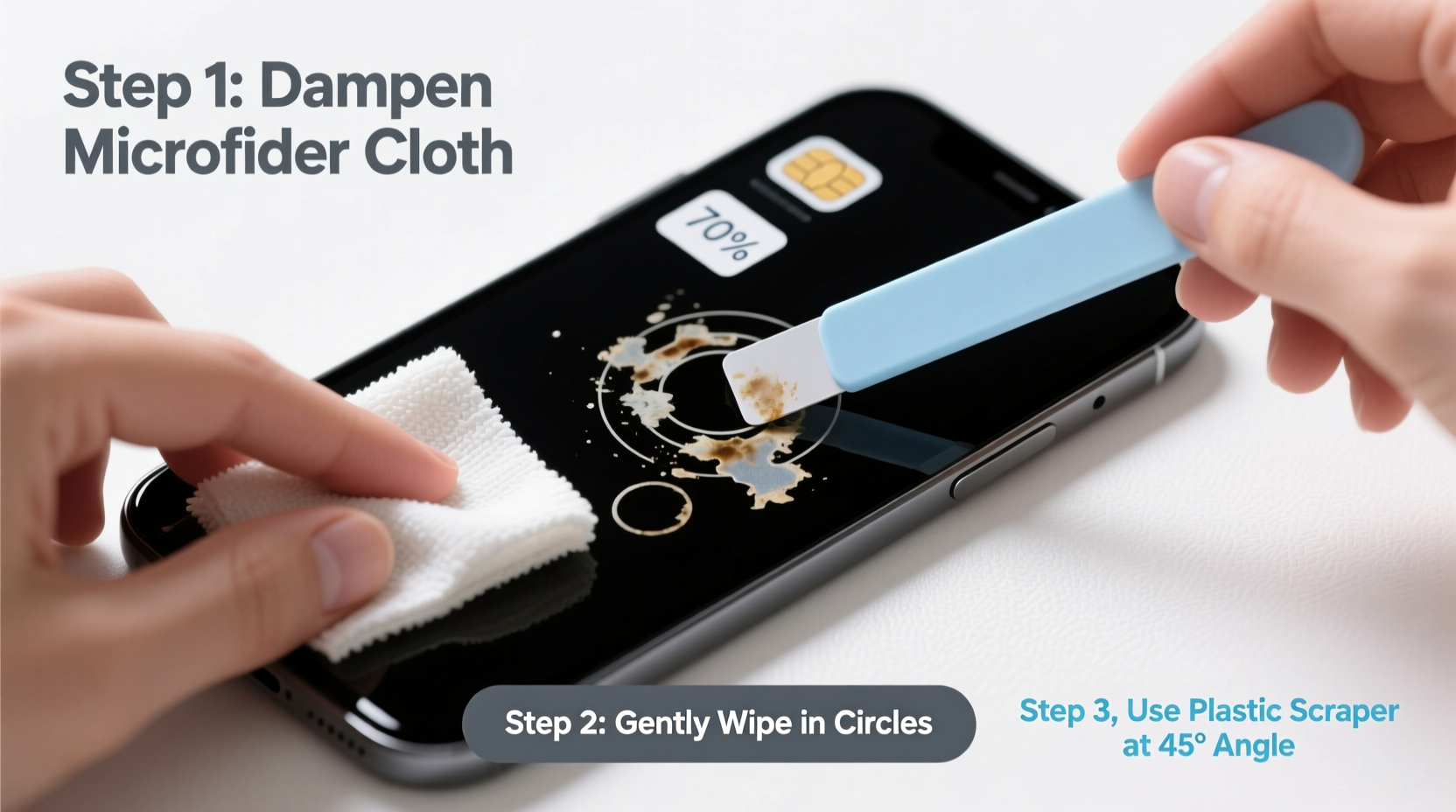
- Peel the sticker slowly: If still intact, lift one corner with a plastic tool. Pull at a 45-degree angle, close to the surface, to reduce adhesive drag. Stop if resistance increases—this means residue is bonding further.
- Inspect the residue: Determine whether it's thin film-like goo or thick clumps. Light residue may respond to dry wiping; thicker deposits need treatment.
- Dampen a cotton swab with isopropyl alcohol (70–90%): Do not soak—just enough to moisten the tip. Gently rub over the residue in small circular motions. Let it sit for 10–15 seconds to loosen the bond.
- Wipe with microfiber cloth: Using light pressure, wipe in one direction. Flip the cloth frequently to avoid re-depositing grime.
- For persistent spots, repeat with minimal reapplication: Never flood the area. Excess liquid can wick under bezels or into sensors.
- Final dry pass: Use a dry section of the microfiber cloth to buff the surface and restore clarity.
If the device has a matte or anti-glare finish (common on some laptops and drawing tablets), avoid alcohol altogether. Instead, use a small amount of distilled water on the cloth, followed by immediate drying. For glossy screens, the alcohol method is generally safe if used sparingly.
Material-Specific Considerations
Not all electronics react the same way to cleaning agents. Understanding your device’s surface helps prevent unintended damage.
- Glass screens (smartphones, tablets): Usually protected with oleophobic coating. Alcohol-based solutions are acceptable in moderation but repeated heavy use degrades the coating over time.
- Plastic displays (older gadgets, budget devices): More vulnerable to solvents. Stick to water-dampened microfiber or specialized plastic-safe wipes.
- Anodized metal (laptop bodies, phone frames): Can tolerate mild alcohol but avoid prolonged exposure. Never use abrasive pads.
- Camera lenses and sensors: Extremely delicate. Use only lens-grade microfiber cloths and avoid liquids unless absolutely necessary. If needed, apply one drop of lens cleaning fluid to the cloth—not the lens.
Real-World Example: Cleaning a Decade-Old Tablet
Mark, a freelance graphic designer, inherited his father’s old iPad Air from 2014. Though functional, it had a yellowed price tag sticker across the top bezel, with residue creeping toward the screen edge. He tried peeling it off, but the adhesive stretched and left a sticky film.
Instead of reaching for household cleaners, he researched safe methods. He used a plastic spudger to lift the remaining paper layer, then applied 70% isopropyl alcohol to a cotton swab. After letting it sit for ten seconds, he wiped gently with a folded microfiber cloth. Within minutes, the residue was gone—no scratches, no haze. He later learned that had he used a paper towel or vinegar solution, he might have dulled the screen’s anti-fingerprint coating permanently.
“I thought it was a lost cause,” Mark said. “But taking it slow and using the right tools made all the difference. It looks almost new.”
Alternative Methods: When Alcohol Isn’t an Option
Some users prefer to avoid alcohol due to concerns about long-term coating wear. Others deal with vintage or rare electronics where manufacturer guidelines are unavailable. In such cases, consider these alternatives:
- Heat application: Use a hairdryer on low heat, held 6–8 inches away, to warm the residue for 10–15 seconds. Heat softens adhesive, making it easier to lift with a plastic tool. Do not overheat—excessive warmth can warp plastic or damage internal components.
- Vegetable oil or olive oil: Apply a tiny drop to the residue and let sit for 5 minutes. Oil breaks down adhesive bonds naturally. Wipe thoroughly afterward with a dry microfiber cloth to avoid greasy film.
- Eraser method (for flat, non-screen surfaces): A clean white vinyl eraser (not rubber) can \"knead\" away residue through friction. Ideal for laptop lids or plastic casings. Not recommended for screens.
“Natural oils work well for initial breakdown, but they must be fully removed afterward. Leftover oil attracts dust and can degrade certain plastics over time.” — Carlos Mendez, Electronics Restoration Technician
Checklist: Safe Sticker Residue Removal
Use this checklist before starting any cleaning process:
- ✅ Power off and disconnect the device
- ✅ Identify the surface type (glass, plastic, metal)
- ✅ Gather tools: microfiber cloth, plastic tool, cotton swabs, isopropyl alcohol (70%+)
- ✅ Test cleaner on a hidden area
- ✅ Work in a dust-free environment
- ✅ Apply solution to cloth/swab—never spray directly
- ✅ Use minimal pressure and circular or linear wiping motion
- ✅ Finish with a dry microfiber buff
- ✅ Inspect under natural light for leftover residue
Frequently Asked Questions
Can I use WD-40 on electronic screens?
No. WD-40 contains petroleum distillates and silicone, which can leave a hazy film and degrade plastic and rubber seals. It’s also flammable and not intended for consumer electronics. Use only products labeled safe for screens.
Will rubbing alcohol damage my phone screen?
When used properly—sparingly, on a cloth, not sprayed—70% isopropyl alcohol will not immediately damage most modern screens. However, frequent or excessive use can wear down oleophobic coatings over months or years. Limit use to necessary cleaning tasks.
What if the residue is near a charging port or speaker grille?
Exercise extreme caution. Avoid letting any liquid run into openings. Use a dry cotton swab to wick away moisture immediately if contact occurs. For residue inside crevices, gently roll the swab along the edge—do not insert deeply.
Conclusion: Protect Your Devices the Right Way
Removing sticker residue doesn’t require magic—or risk. It requires patience, the right materials, and respect for the delicate engineering in modern electronics. By avoiding shortcuts and harsh tools, you preserve not just appearance but performance and longevity. Every scratch avoided, every coating maintained, extends your device’s usable life.
Start with the gentlest method. Escalate only if needed. And remember: slow, deliberate action beats rushed cleanup every time. Whether reviving an old gadget or prepping a new one, treat your electronics with the care they deserve.
💬 Have a success story or a tricky residue challenge? Share your experience below—your insight could help someone save their favorite device.