MacBooks are designed with precision, not just for performance but also for aesthetic elegance. Their sleek aluminum enclosures and minimalist finishes make them a favorite among professionals and creatives alike. Yet many users want to personalize their devices—often turning to stickers as a form of self-expression. The question remains: can you safely apply stickers to a MacBook without harming its surface or resale value?
The answer isn’t a simple yes or no. While stickers themselves don’t inherently damage a MacBook’s finish, the materials used, placement, duration, and removal methods all play critical roles in determining whether your laptop stays pristine or ends up with residue, discoloration, or even micro-scratches. Understanding these factors empowers you to make informed decisions about decorating your device without compromising its integrity.
The Appeal of Stickers on MacBooks
Stickers have long been more than just adhesive labels—they’re cultural signifiers, personal statements, and community badges. From coding bootcamp alumni to open-source contributors, tech enthusiasts often use stickers to showcase affiliations, interests, or achievements. A MacBook becomes a canvas, reflecting identity through design.
Many people enjoy customizing their laptops because it transforms a mass-produced product into something uniquely theirs. In shared workspaces or academic environments, a sticker-covered lid can spark conversations, signal expertise, or simply add a touch of humor to an otherwise sterile environment.
However, this customization comes with trade-offs. Apple designs MacBooks with a focus on longevity, durability, and resale appeal. Any modification—even something as seemingly harmless as a sticker—can affect these qualities if not handled carefully.
Pros of Using Stickers on Your MacBook
- Personalization: Stickers allow you to express individuality, making your device stand out in a sea of silver laptops.
- Professional signaling: Developer logos, framework icons, or conference stickers can subtly communicate your skills or network.
- Protection (limited): In some cases, a well-placed sticker may offer minor protection against light scratches on the lid.
- Emotional connection: Customizing your laptop fosters a sense of ownership and pride in your tools.
- Conversation starter: Unique stickers can break the ice in collaborative settings or remote meetups.
Cons and Risks of Applying Stickers
Despite their popularity, stickers come with real risks that every MacBook owner should consider before applying one.
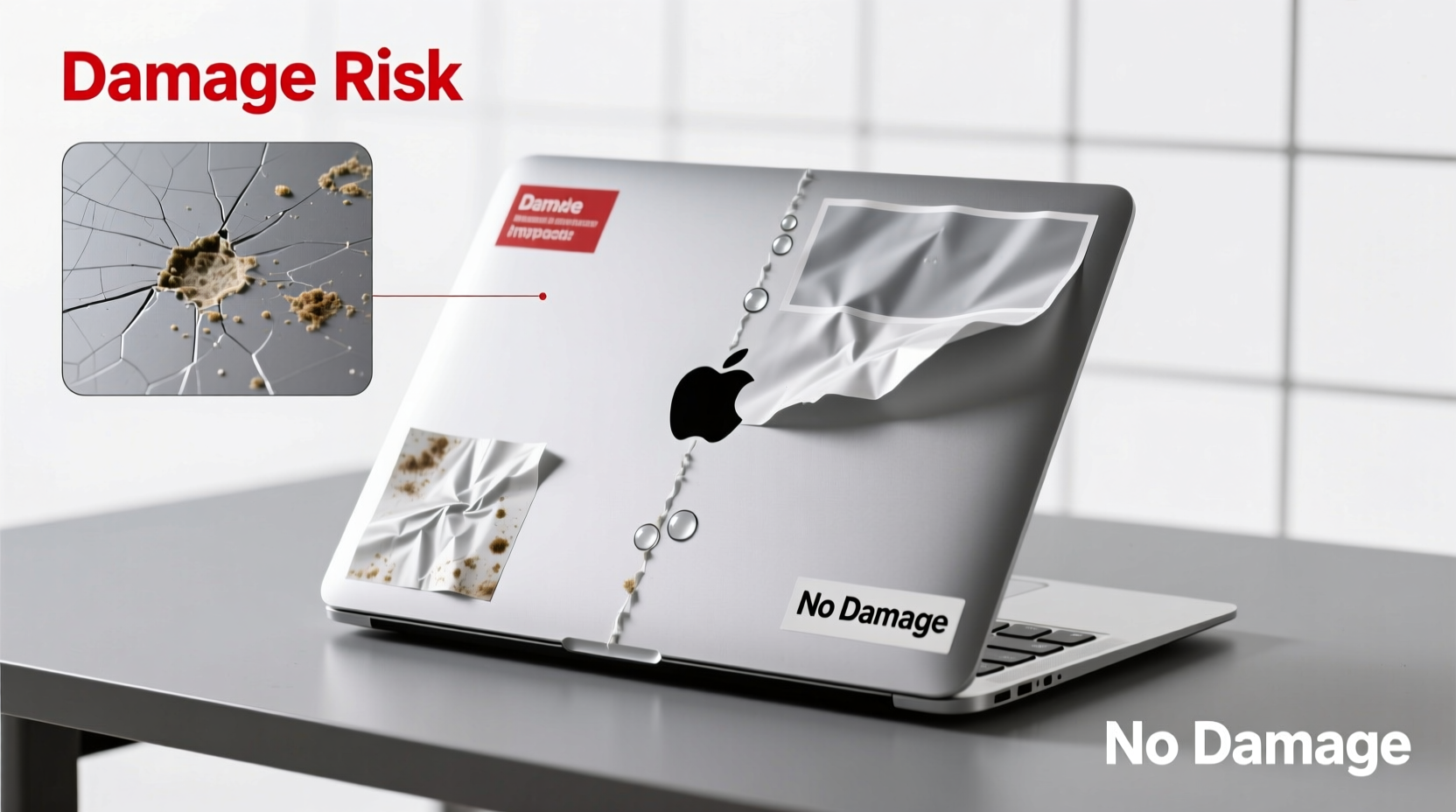
Residue buildup: Over time, especially in warm environments, adhesive can degrade and leave behind a sticky film that’s difficult to remove without solvents. This is particularly problematic near heat vents or where fingers frequently touch.
Finish discoloration: Prolonged exposure to UV light can cause areas around the sticker to fade differently than exposed metal, creating a “halo effect” when the sticker is eventually removed.
Surface lifting: If the sticker is applied over textured surfaces (like older MacBook finishes) or removed improperly, it may peel microscopic layers of coating or paint, especially on matte-finished accessories or third-party skins.
Voiding warranty (myth vs. reality): Contrary to popular belief, Apple does not void warranties solely due to cosmetic modifications like stickers—unless they cause physical damage during service. However, technicians may refuse service if residue interferes with diagnostics or repair processes.
“While stickers won���t break your MacBook, poor-quality adhesives and improper removal techniques can leave lasting marks. It’s not the sticker—it’s how you treat it.” — Jordan Lee, Senior Mac Technician at TechCare Labs
Best Practices for Applying and Removing Stickers Safely
If you choose to decorate your MacBook, doing so responsibly minimizes risk while maximizing enjoyment. Follow this step-by-step guide to ensure safe application and future removal.
Step-by-Step Guide: Applying Stickers Without Damage
- Clean the surface: Wipe the area with a microfiber cloth slightly dampened with isopropyl alcohol (70%) to remove oils and dust.
- Choose the right sticker: Opt for thin, flexible vinyl with low-tack adhesive. Avoid rubber-based glues or thick laminated stickers.
- Apply slowly: Peel the backing gradually and align the sticker precisely before pressing down. Use a credit card to smooth out air bubbles from center to edge.
- Avoid sensitive zones: Keep stickers away from hinges, cooling vents, camera housing, and ports to prevent interference.
- Test removal early: After a few weeks, gently lift a corner to check if adhesion is too strong or if any finish lifts.
How to Remove Stickers Safely
- Warm the adhesive: Use a hairdryer on low heat to soften the glue. Do not overheat—keep the nozzle 6–8 inches away.
- Lift slowly: Use a plastic pry tool or fingernail to gently peel from one corner at a 45-degree angle.
- Clean residue: Apply a small amount of Goo Gone or rubbing alcohol to a lint-free cloth and wipe gently. Never spray directly onto the laptop.
- Buff the area: Once clean, use a dry microfiber cloth to restore shine and check for uneven fading.
Alternative Ways to Customize Your MacBook
If you love personalization but want to avoid permanent changes, several safer alternatives exist.
| Method | Pros | Cons |
|---|---|---|
| Skin wraps (e.g., dbrand, Slickwraps) | Fully removable, wide design options, protects against scratches | Requires precise alignment; can bubble if poorly applied |
| Magnetic decals | No adhesive contact; easy to swap designs | Limited availability; only works on magnetic surfaces |
| Custom case/sleeve | Zero risk to laptop; highly expressive | Only visible when carried; doesn’t personalize the device itself |
| Digital wallpaper + profile icons | Completely reversible; reflects personality on screen | No external visibility; purely aesthetic |
Skin wraps, in particular, have gained traction among users who want bold visuals without commitment. These precision-cut vinyl films adhere smoothly and can be peeled off cleanly months or even years later—with minimal residue when sourced from quality vendors.
Real-World Example: The Developer Who Regretted Her Sticker Choice
Sophie, a software engineer based in Portland, covered her MacBook Pro with stickers from hackathons, programming languages, and feminist tech collectives. For two years, she loved the look and the conversations it sparked at conferences.
When she decided to upgrade and sell her laptop, however, she encountered problems. One sticker—applied over the logo—had left a faint outline after removal. Another, placed near the vent, had yellowed slightly from heat exposure. Despite thorough cleaning, a technician noted minor adhesive traces inside the hinge mechanism, likely transferred by finger contact.
The buyer accepted the machine but negotiated a $50 price reduction due to \"cosmetic wear from customization.\" Sophie learned that while stickers were meaningful in the moment, they impacted the device's second-life value. She now uses removable skins and keeps original stickers in a memory box instead.
Do’s and Don’ts: Quick Reference Checklist
✅ Do:- Use high-quality, removable vinyl stickers
- Apply in cool, dry conditions
- Keep stickers away from moving parts and vents
- Document your setup with photos before and after application
- Plan for eventual removal from day one
- Use glitter, textured, or industrial-grade stickers
- Layer multiple stickers on top of each other
- Place stickers near the trackpad or keyboard deck
- Leave stickers on for more than 2–3 years without inspection
- Use sharp tools or excessive force during removal
Frequently Asked Questions
Will removing a sticker damage my MacBook’s finish?
Not necessarily—but it depends on the sticker type, duration, and removal method. High-adhesion stickers left for years are more likely to pull microscopic coatings or leave residue. Using heat and proper solvents reduces risk significantly.
Are clear sticker overlays safe?
Clear stickers or protective overlays can be safe if made from premium polyurethane or tempered film. However, cheaper versions may yellow over time or trap moisture against the surface, potentially leading to corrosion in rare cases.
Does Apple care if I put stickers on my MacBook?
Apple doesn’t prohibit stickers under warranty terms. However, if a sticker causes complications during repair (e.g., residue interfering with component access), service centers may charge extra for cleaning or decline certain services until the device is cleaned.
Final Thoughts: Balance Expression With Longevity
Putting stickers on a MacBook is ultimately a personal choice—one that balances self-expression against long-term care. There’s no denying the joy of seeing your passions reflected on your daily driver. At the same time, preserving the device’s condition ensures it performs well and retains value when it’s time to upgrade.
The key lies in intentionality. Choose stickers thoughtfully, apply them carefully, and always assume you’ll remove them someday. Whether you go minimalist with a single emblem or embrace full artistic expression, do so with awareness and respect for the craftsmanship of your machine.
💬 What stickers do you have on your MacBook—or why did you decide to keep it clean? Share your story in the comments and help others find the right balance between style and preservation.