
Google accounts are central to modern digital life. Whether you use Gmail, Google Drive, YouTube, or Android devices, losing access can feel like a system-wide shutdown. If you're seeing messages like “Wrong password,” “Account not found,�� or “Sign-in blocked,” don’t panic. Most login problems have clear causes—and solutions. This guide breaks down the most common reasons why you can’t log in and how to regain access quickly and securely.
1. Common Causes of Google Login Failures
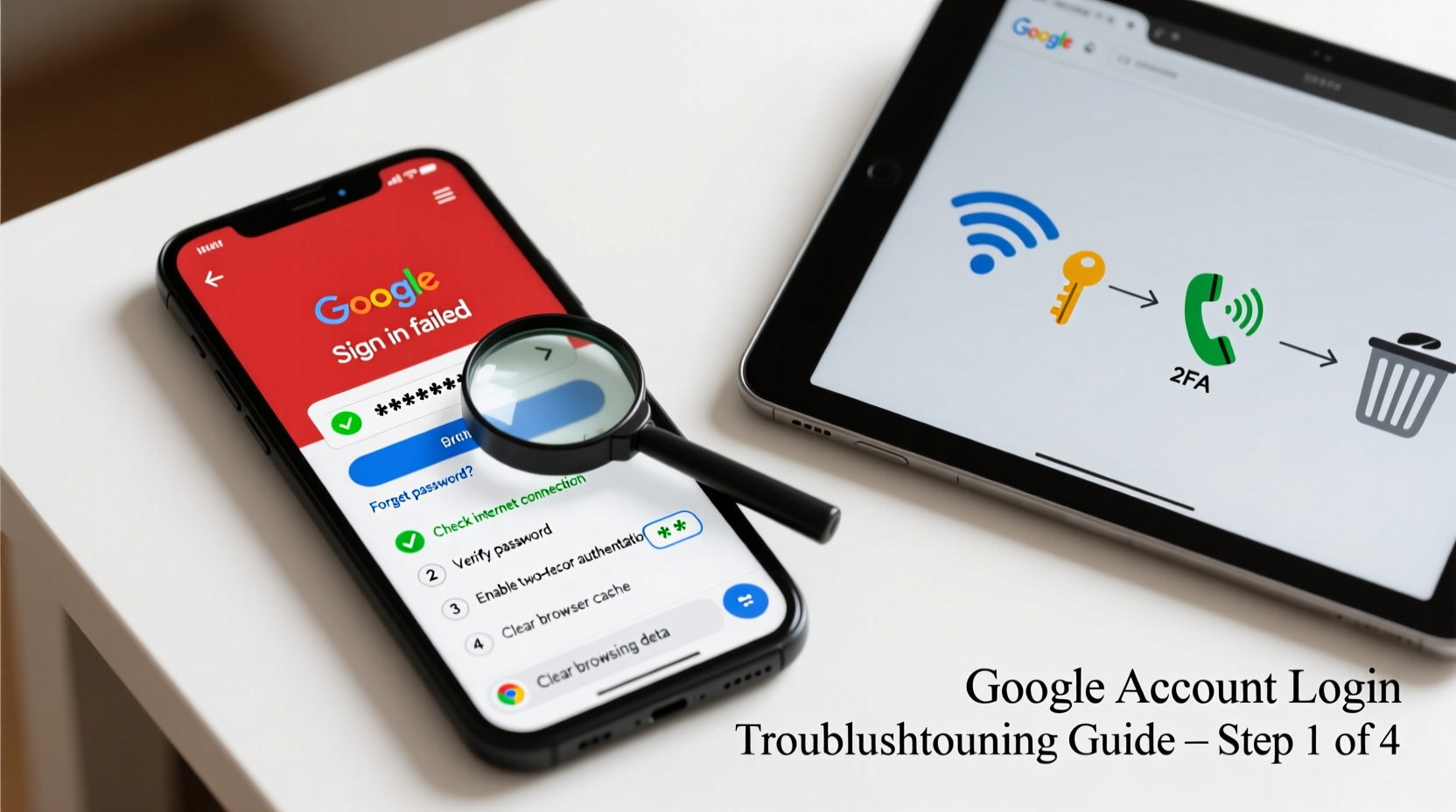
Login issues rarely stem from a single cause. Often, it's a combination of forgotten credentials, browser behavior, or security settings. Understanding the root problem is half the battle.
- Forgotten password or email address – Especially if you have multiple accounts.
- Two-factor authentication (2FA) failure – Lost phone, expired backup codes, or app sync issues.
- Browser or device cache corruption – Stored cookies may conflict with current session data.
- Network or firewall restrictions – Public Wi-Fi, school networks, or corporate firewalls sometimes block Google services.
- Suspicious activity detection – Google may temporarily lock your account after detecting unusual sign-in attempts.
- Phishing or malware interference – Malicious software can redirect login pages or capture credentials.
2. Step-by-Step Recovery Process
Follow this logical sequence to diagnose and fix your login issue. Each step isolates potential problems and increases your chances of regaining access.
- Verify Your Internet Connection
Ensure you’re online and can reach other websites. Try opening news.google.com or youtube.com to confirm connectivity. - Check Google’s Service Status
Visit Downdetector or Google’s Workspace Status Dashboard. If Google is experiencing an outage, wait before proceeding. - Use Incognito Mode
Open Chrome (or another browser) in private/incognito mode. This disables extensions and clears temporary session data that might interfere. - Try a Different Device or Browser
If you can’t log in on your phone, try a laptop. If Chrome fails, test Firefox or Safari. This helps determine if the issue is device-specific. - Double-Check Your Email Address
Make sure you're entering the correct email. A typo like “@gnail.com” instead of “@gmail.com” will trigger a “No account found” error. - Reset Your Password Using Recovery Options
Click “Forgot password?” on the login screen. Google will prompt you to verify identity via:- Recovery email
- Recovery phone number
- Security questions (if previously set)
- Approve via Authenticator App or Backup Code
If 2FA is enabled, open your authenticator app (like Google Authenticator or Authy) for a code. If you’ve lost access, use a saved backup code. - Clear Browser Cache and Cookies
If you suspect corrupted data, go to browser settings and clear all cookies and cached files for accounts.google.com.
3. Advanced Fixes When Standard Methods Fail
Sometimes, even following standard recovery steps doesn’t work—especially if recovery options are outdated or compromised.
Regain Access Without a Recovery Phone or Email
If you no longer have access to your recovery methods, Google offers an alternate path. You’ll need to answer detailed account history questions, such as:
- When was your account created?
- What was your last used device?
- Names of recent contacts or emails you sent?
The more accurate your answers, the higher your chance of approval. Be patient—this process can take up to 72 hours.
Check for Account Compromise
If someone changed your password or recovery info, your account may be hijacked. In this case:
- Go to Google’s sign-in page.
- Enter your email and click “Forgot password?”
- Select “Try another way” and follow prompts to report unauthorized access.
“We recommend users update their recovery information every six months. It significantly improves recovery success when access is lost.” — Nandini Khandelwal, Product Manager, Google Identity
4. Preventive Measures to Avoid Future Issues
Once you’re back in, protect your account proactively. Prevention is faster than recovery.
| Action | Why It Matters | How to Do It |
|---|---|---|
| Add a recovery phone and email | Doubles your recovery pathways | Go to Google Account > Security > Recovery |
| Set up two-factor authentication (2FA) | Blocks 99% of automated attacks | Enable via Google Prompt or Authenticator app |
| Save backup codes offline | Essential when phone is unavailable | Download and print them; store in a safe place |
| Review sign-in activity monthly | Catches suspicious access early | Check “Device activity” under Security settings |
5. Real Example: Recovering a Locked-Out Business Account
A small business owner, Maria, couldn’t access her company’s Google Workspace account after switching phones. Her old device had been factory reset, so she couldn’t receive 2FA codes. She also forgot her password and hadn’t updated her recovery email in three years.
Maria followed Google’s account recovery form but initially failed verification. She then gathered historical data: the date she created the account, names of key clients she emailed, and the model of her previous laptop. On her second attempt, with more precise answers, Google restored access within 24 hours.
Lesson: Keep a personal account log—even a simple note in a secure notebook—with creation dates, recovery details, and major changes.
Troubleshooting Checklist
Print or bookmark this checklist for quick reference during future login issues:
- ✅ Test internet connection
- ✅ Confirm Google services are online
- ✅ Try incognito/private browsing mode
- ✅ Verify email address spelling
- ✅ Attempt password reset using “Forgot password?”
- ✅ Use recovery phone, email, or authenticator app
- ✅ Clear browser cache and cookies
- ✅ Try logging in from another device
- ✅ Update recovery options once access is restored
Frequently Asked Questions
How long does Google account recovery take?
If automated systems can verify you, access may be restored in minutes. If manual review is needed—such as when answering account history questions—it can take up to 72 hours. Google does not provide real-time status updates, so avoid submitting multiple requests.
Can I recover my account if I don’t remember any passwords or recovery info?
Possibly, but it’s difficult. Google relies on behavioral and historical data to confirm ownership. The more accurate your responses about past usage (e.g., old passwords, contacts, service usage), the better your odds. However, without any recovery method, there’s no guarantee.
Why does Google say “No account found” when I enter my email?
This usually means one of three things: you typed the email incorrectly, the account was deleted, or you’re using an alias that isn’t recognized at login. Double-check spelling, including domain (@gmail.com vs @company.com). If the account was deleted, recovery is only possible within a few days of deletion.
Stay Calm, Stay Secure
Being locked out of your Google account is stressful, but it’s rarely permanent. Most issues stem from simple oversights—expired recovery methods, cached data, or typos. By methodically working through the steps above, you increase your chances of regaining access quickly.
More importantly, use this experience as a catalyst to strengthen your account security. Update recovery options, enable 2FA, and keep backup codes accessible. Digital resilience isn’t about avoiding problems—it’s about being prepared when they happen.
💬 Found this guide helpful? Share it with someone who’s struggled to log in. Or leave a comment with your own recovery story—we’d love to hear what worked for you.