
If you've ever opened a video message on your iPhone only to find it pixelated, grainy, or frustratingly unclear, you're not alone. Blurry videos are a common complaint among iPhone users, especially when receiving clips through iMessage, email, or social media apps. While the iPhone’s camera captures stunning 4K footage, the playback experience often falls short due to compression, network limitations, or app-specific restrictions. The good news? Most of these issues are fixable. With the right settings, tools, and habits, you can significantly improve video quality—both in what you receive and how you share.
Why Videos Appear Blurry on iPhone
The root cause of blurry videos isn’t always your iPhone’s hardware or software—it’s usually about how the video was transmitted or stored. When someone sends a video via iMessage, WhatsApp, or even iCloud links, the file may be automatically compressed to save bandwidth or meet platform size limits. Compression reduces file size by stripping out visual data, which leads to lost detail, artifacts, and blurriness.
iMessage, for example, defaults to “Low Quality” mode on cellular networks unless Wi-Fi is enabled. Similarly, social media platforms like Instagram or Facebook aggressively compress uploads. Even if the sender records in 4K, what arrives on your phone might be downscaled to 720p or lower.
Other factors include:
- Poor original lighting or shaky recording: Low-light conditions or unsteady hands during filming create inherently soft footage.
- Storage constraints: If either device is low on space, iOS may prioritize speed over quality during transfers.
- Outdated apps or iOS versions: Older software may not support modern codecs like HEVC (High-Efficiency Video Coding), leading to compatibility-based downgrades.
Step-by-Step Guide to Fix Blurry Received Videos
Follow this sequence to maximize the chances of viewing or restoring video clarity:
- Check the source format: Ask the sender what resolution and method they used to record and transmit the video. Was it shot in 1080p or 4K? Sent via iMessage, email, or a file-sharing service?
- Avoid zooming in: Enlarging a blurry video in the Photos app magnifies imperfections. Instead, view at original scale.
- Download full-resolution version: If the video came via iCloud link or Google Drive, ensure you’ve downloaded the original file—not a preview.
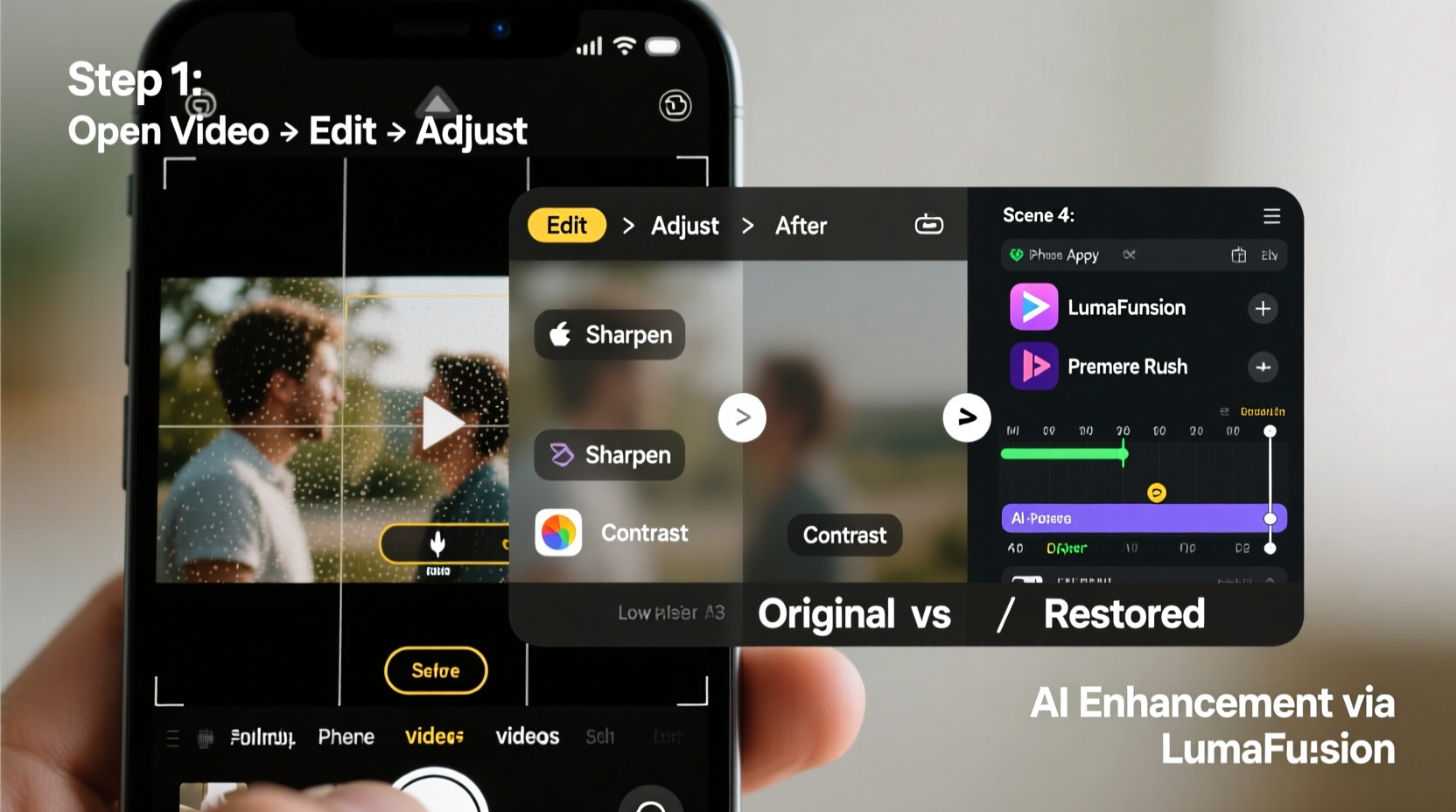
- Use a video enhancement app: Apps like Enhance Video, Remini, or Adobe Premiere Rush use AI to sharpen details and reduce noise. Import the video, apply light sharpening, and export carefully to avoid further degradation.
- Play on larger screen: Sometimes perceived blurriness is due to small display size. Try playing the video on an iPad or Apple TV via AirPlay for better clarity assessment.
Do’s and Don’ts of Handling High-Quality Video Transfers
| Do’s | Don’ts |
|---|---|
| Use AirDrop for direct iPhone-to-iPhone transfers | Send videos via standard text/MMS (highly compressed) |
| Share via iCloud Drive, Dropbox, or WeTransfer links | Upload long videos directly to Instagram Stories or Snapchat |
| Enable “High Efficiency” format in Settings > Camera > Formats | Disable Wi-Fi when sending large videos via iMessage |
| Keep iOS updated to support latest video codecs | Store videos in third-party apps that re-compress media |
Real Example: Recovering a Wedding Clip Shared via iMessage
Sarah received a 30-second clip from her cousin of her sister’s wedding toast. On her iPhone 13, the video looked muddy—the facial expressions were indistinct, and background details blurred. Initially assuming poor filming, she later learned her cousin had recorded in 4K. The issue? It was sent over iMessage using cellular data.
Sarah asked her cousin to resend the same video via iCloud link. This time, the file was 180MB instead of 12MB. Upon downloading the full version, the difference was dramatic: crisp audio, sharp faces, and clear venue lighting. The lesson? The content was never low quality—the delivery method degraded it.
“Over 70% of video quality loss happens before the file reaches the recipient—usually at the transfer stage.” — David Lin, Mobile Media Engineer at Apple Support Partner Network
How to Prevent Blurry Videos When Sending or Receiving
Prevention is more effective than correction. Implement these practices to maintain video fidelity across devices:
- Switch iMessage to Always Send High Quality: Go to Settings > Messages > turn on “Send as SMS” and ensure “Low Quality Mode” is off. Also enable Wi-Fi whenever possible.
- Use HEIF/HEVC Format: In Settings > Camera > Formats, select “High Efficiency.” This preserves quality while reducing file size intelligently.
- Avoid Social Media as a Delivery Tool: Never rely on Instagram DMs or Facebook Messenger for full-quality sharing. These platforms compress all media aggressively.
- Leverage Cloud Sharing: Use iCloud Share Sheets, Google Drive, or Dropbox. Tap and hold the video in Photos, choose “Share,” then select “Copy Link” (with “Full Resolution” enabled).
- Enable iCloud Photos with Full Size & Originals: This ensures backups retain maximum quality and allows retrieval of original files even after compression elsewhere.
FAQ: Common Questions About Blurry iPhone Videos
Can I fix a blurry video after it’s already been received?
Yes, but with limitations. You cannot recover data that has been permanently removed by compression. However, AI-powered enhancement tools can improve perceived sharpness, reduce noise, and upscale resolution slightly. Results vary based on the severity of degradation.
Why does my iPhone make videos look blurry when I send them?
Your iPhone doesn’t intentionally blur videos. But if you’re on cellular data, iMessage may automatically compress videos to save bandwidth. Additionally, sending via MMS (green bubbles) caps video size at around 5 minutes and heavily compresses it. Always use Wi-Fi and blue iMessage bubbles for best results.
Does converting video format improve clarity?
No. Converting a blurry video from MOV to MP4 won’t add missing detail. In fact, re-encoding risks further quality loss. Only convert if required for compatibility, and always work from the original file.
Essential Checklist for Crisp Video Sharing
- ✅ Record in 1080p or 4K (Settings > Camera > Record Video)
- ✅ Enable “High Efficiency” format in Settings > Camera > Formats
- ✅ Ensure Wi-Fi is on before sending large videos
- ✅ Avoid MMS and green message bubbles
- ✅ Use AirDrop, iCloud Links, or file-sharing services for full-quality transfer
- ✅ Confirm recipient downloads the full-resolution file
- ✅ Update iOS regularly to maintain codec support
Conclusion: Take Control of Your Video Quality
Blurry videos on iPhone are rarely a hardware flaw—they’re usually the result of hidden compression layers between sender and receiver. By understanding how video quality is compromised during transmission and adjusting your sharing habits accordingly, you can preserve the richness of every moment captured. Whether it’s a baby’s first steps, a travel highlight, or a heartfelt message, clarity matters. Don’t settle for fuzzy memories. Apply these fixes today, educate your contacts on high-quality sharing, and reclaim the full potential of your iPhone’s powerful camera system.
💬 Have a blurry video success story or tip? Share your experience in the comments and help others see more clearly.