
The copyright symbol (©) is essential for creators, bloggers, business owners, and anyone who wants to protect their original work. Whether you're writing a website footer, publishing an ebook, or registering a design, correctly displaying the copyright notice adds professionalism and legal clarity. Despite its importance, many users struggle to insert the symbol quickly across different platforms. This guide delivers straightforward, tested methods to type the copyright logo on any device—without relying on copy-paste.
Why the Copyright Symbol Matters
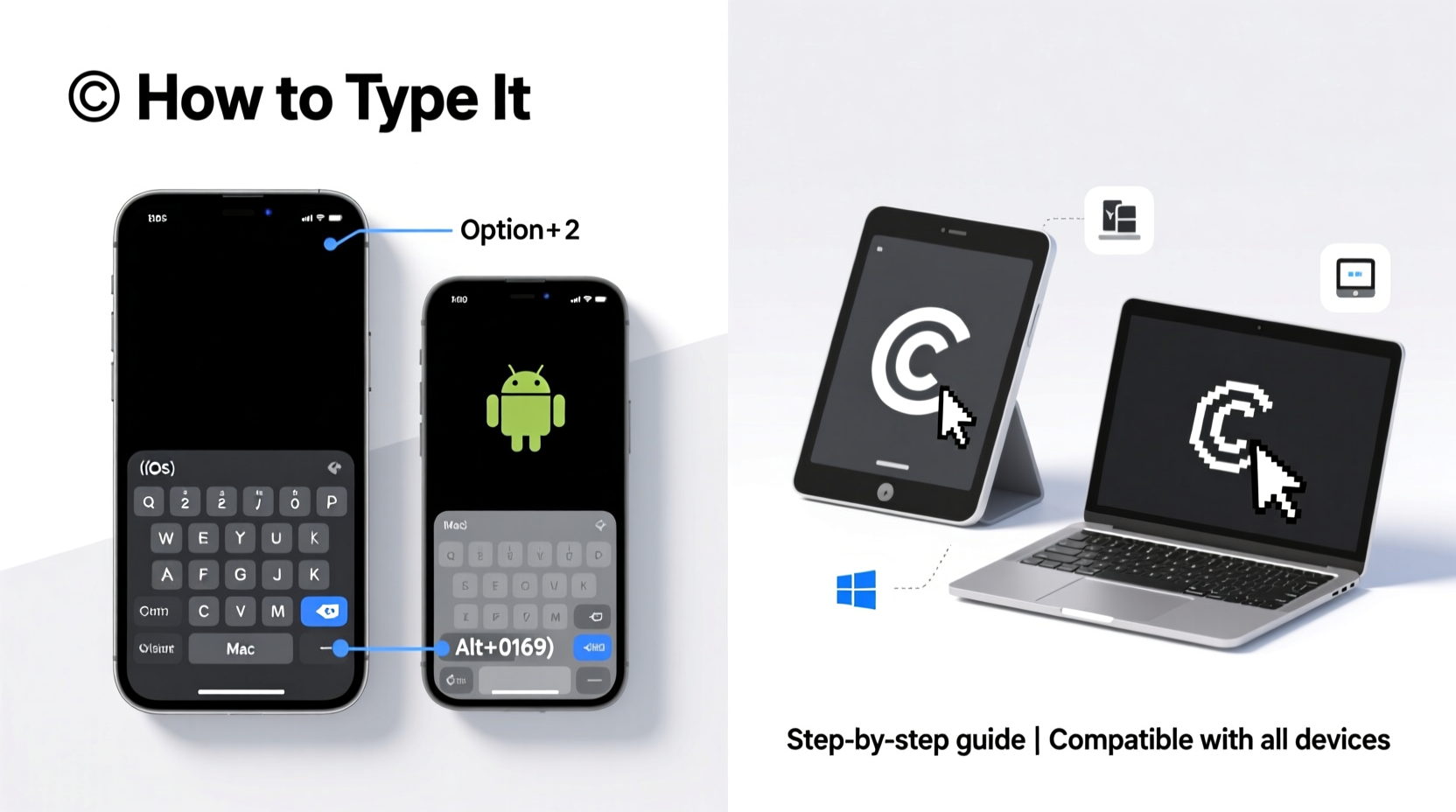
Using the © symbol isn’t just about aesthetics—it’s a clear declaration of ownership. While copyright protection exists automatically upon creation of original work in most countries, including the symbol strengthens your position in disputes. It informs others that the content is protected and identifies the owner and year of publication.
According to the U.S. Copyright Office, “The use of the copyright notice is the responsibility of the copyright owner and does not require advance permission from, or registration with, the Copyright Office.” That means you can—and should—use it freely whenever you publish.
“The moment you create something original and fix it in a tangible form, it’s protected. Adding the © symbol makes that protection visible.” — Sarah Lin, Intellectual Property Attorney
How to Type the Copyright Symbol on Windows
Windows offers several fast methods to insert the copyright symbol, depending on your keyboard and preference.
Alt Code Shortcut (Universal)
This method works in most Windows applications like Word, Notepad, Outlook, and web forms.
- Make sure Num Lock is on.
- Hold down the Alt key.
- On the numeric keypad, type 0169.
- Release the Alt key. The © symbol will appear.
Keyboard Character Map Alternative
If shortcuts don’t work, use the built-in Character Map tool:
- Press Win + S, type “Character Map,” and open the app.
- Search for “copyright” or scroll to find ©.
- Click “Select,” then “Copy.”
- Paste (Ctrl+V) into your document.
Typing © on Mac Devices
Mac users benefit from intuitive keyboard shortcuts that work system-wide.
Simple Keyboard Combination
To insert the copyright symbol instantly:
- Press and hold Option (⌥) + G.
- The © symbol appears immediately.
This shortcut works in Pages, TextEdit, Safari, Mail, and most third-party apps. No need for extra tools or menus.
Emoji & Symbols Menu (macOS 10.15+)
For users who prefer visual selection:
- Place your cursor where you want the symbol.
- Press Control + Command + Space.
- In the emoji panel, search “copyright.”
- Click the © symbol to insert it.
Mobile Devices: Typing © on iPhone and Android
Smartphones lack physical keyboards, but inserting the copyright symbol is still simple.
iOS (iPhone/iPad)
- Open any app with a text field (Notes, Messages, etc.).
- Type “(c)” followed by a space. iOS often auto-replaces it with ©.
- If not, long-press the ( parenthesis key on the default keyboard.
- Slide to select the © symbol from the pop-up options.
Alternatively, add © to your keyboard via Text Replacement:
- Go to Settings → General → Keyboard → Text Replacement.
- Add a new phrase: Enter “©” as the phrase and “(c)” or “cp” as the shortcut.
- Now typing your shortcut will expand to the symbol automatically.
Android
- Tap a text input field to bring up the keyboard.
- Long-press the @ symbol or navigate to the special characters section (varies by keyboard).
- In Gboard (Google Keyboard), tap the ?> key, then =\\<, where © is usually listed.
- Select © to insert it.
Like iOS, Android supports custom text shortcuts. In Gboard settings, go to Text Correction → Personal Dictionary to add “©” with a trigger like “(c).”
| Device/Platform | Method | Shortcut/Code |
|---|---|---|
| Windows | Alt Code | Alt + 0169 (numeric keypad) |
| Mac | Keyboard Shortcut | Option + G |
| iPhone | Long-press Key | Long-press “(“ key |
| Android | Gboard Special Characters | ? > =\\< or long-press @ |
| All Platforms | HTML Entity | © or © |
Advanced Methods: HTML, Unicode, and Automation
For developers, writers using markup, or frequent users, deeper integration saves time.
HTML Entities for Web Publishing
When coding websites, use one of these HTML entities to display ©:
©– Named entity (easiest to remember)©– Decimal Unicode reference©– Hexadecimal Unicode reference
All render as © in browsers. Example:
<p>Copyright © 2025 Jane Doe</p>
Unicode Input Across Systems
The copyright symbol’s Unicode is U+00A9. On systems supporting Unicode entry:
- Linux: Ctrl+Shift+U, then type 00A9, press Enter.
- Windows (Universal): Type 00A9, then Alt+X (in Word only).
Automation Tools
Use text expansion apps like TextExpander (Mac/Windows) or AutoText (Android) to assign shortcuts:
- Create a snippet with trigger “::cp”.
- Set output to “©”.
- Now typing “::cp” anywhere inserts the symbol.
Checklist: Always Have Access to the © Symbol
- ✅ Memorize one keyboard shortcut for your primary device.
- ✅ Set up a text replacement shortcut on mobile.
- ✅ Bookmark the HTML code (©) in your notes.
- ✅ Test the symbol in your target application (email, blog, PDF).
- ✅ Use consistent formatting: © [Year] [Name], e.g., © 2025 Alex Turner.
Frequently Asked Questions
Do I need permission to use the copyright symbol?
No. You can use the © symbol on any original work you’ve created and published. Registration with a government office provides additional legal benefits but is not required to use the symbol.
Is (c) the same as ©?
In informal contexts, (c) may be understood, but it’s not legally equivalent. Always use the proper © symbol in formal publications, websites, and legal notices for clarity and professionalism.
Can I use the copyright symbol without a date or name?
Technically yes, but best practice includes both the year of first publication and the rights holder’s name. For example: © 2025 Jordan Lee. This provides complete notice and strengthens your claim.
Real-World Example: Blog Footer Setup
Maya runs a food blog and wanted to add a professional footer. She uses WordPress on a MacBook. Instead of copying the symbol from Google, she learned Option+G. Now, in her theme’s footer editor, she types:
© 2025 Maya Chen | All Rights Reserved
She also set up “(c)” to auto-replace with © in her Notes app, so her drafts stay consistent. This small change improved her site’s credibility and saved time during updates.
Final Tips for Consistent Usage
Adopting a standardized approach prevents last-minute scrambling. Choose one primary method per device and stick with it. Train yourself to include the symbol whenever you publish—whether it’s a social media caption, PDF report, or printed flyer.
Remember, consistency builds trust. When visitors see a properly formatted copyright notice, they perceive your work as organized, respected, and legitimate.
Conclusion
Knowing how to type the copyright symbol efficiently empowers you to protect and present your work with confidence. From quick Alt codes to smart text replacements, the tools are accessible on every modern device. Don’t rely on outdated copy-paste habits. Master these techniques once, and you’ll apply them effortlessly for years.
🚀 Start today: Pick one method from this guide and use it the next time you publish anything. Share this guide with fellow creators who still hunt for © online!