When your Dell computer fails to start, runs slowly, or freezes unexpectedly, it can disrupt work, delay projects, and cause unnecessary stress. While modern Dell systems are built for reliability, hardware glitches, software conflicts, and power issues can still occur. The good news is that most problems can be resolved with systematic troubleshooting and proper restart techniques. This guide walks you through actionable steps to diagnose, resolve, and prevent recurring issues—ensuring your Dell device returns to peak performance.
Understanding Common Dell Performance Issues
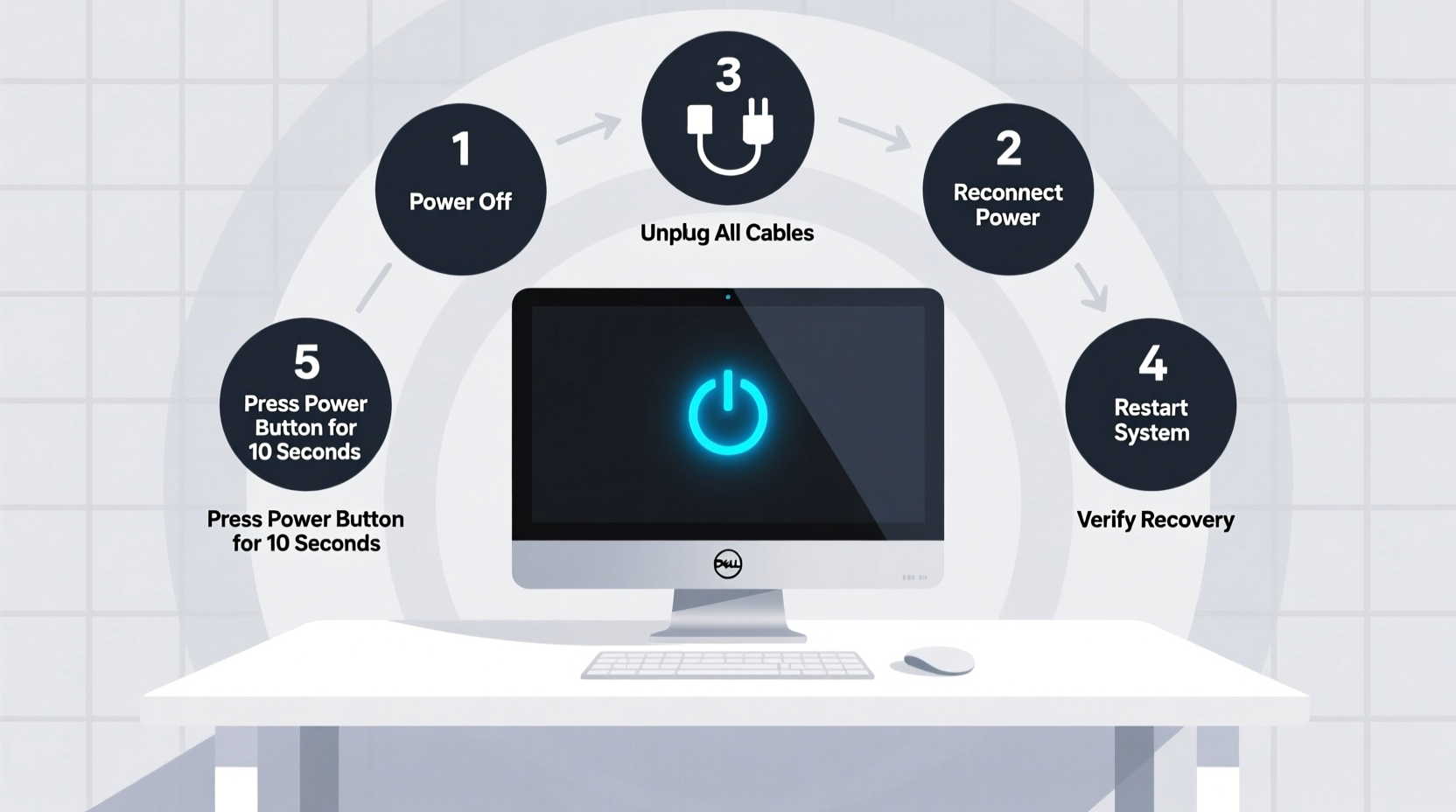
Dell laptops and desktops may encounter a range of operational challenges. Recognizing the symptoms early helps determine the right course of action. Common signs include:
- Failure to power on despite being plugged in
- Stuck on the Dell logo during boot-up
- Blue Screen of Death (BSOD) or error messages
- Excessive fan noise and overheating
- Slow response times or unresponsive applications
- Unexpected shutdowns or restarts
These symptoms may stem from firmware bugs, driver conflicts, corrupted system files, failing hardware, or power supply issues. Before jumping to conclusions, it's essential to follow a structured diagnostic process.
Tip: Always disconnect peripheral devices before troubleshooting. External drives, printers, or USB hubs can interfere with startup.Step-by-Step Guide to Restarting Your Dell for Smooth Recovery
A proper restart does more than just refresh the system—it clears temporary memory, resets services, and can resolve minor software hiccups. Follow this sequence for optimal results:
- Save and close all open programs. Prevent data loss by saving documents and exiting applications normally.
- Click Start > Power > Restart. Use the operating system’s built-in restart function when possible.
- If unresponsive, hold the power button for 10 seconds. This forces a hard shutdown. Wait 30 seconds before powering back on.
- Listen for beep codes or watch LED indicators. Abnormal patterns may signal hardware faults.
- Allow the system to complete POST (Power-On Self-Test). If it halts at the Dell logo, proceed to advanced diagnostics.
This method resolves many transient issues caused by memory leaks or background processes consuming excessive resources.
Advanced Troubleshooting: Diagnosing Boot Failures
When a standard restart fails, deeper intervention is required. Dell includes built-in diagnostic tools accessible during startup. Use the following procedure to identify root causes:
Accessing Dell Pre-Boot System Assessment (PSA)
- Turn off the computer completely.
- Press the power button and immediately begin tapping F12.
- Select Diagnostics from the boot menu.
- Wait for the PSA to run automatically.
- Note any error codes displayed (e.g., “2000-0122” for hard drive failure).
The PSA checks critical components including RAM, storage, motherboard, and battery health. Error codes are specific and can be looked up in Dell’s support database.
| Error Code | Possible Cause | Recommended Action |
|---|---|---|
| 2000-0122 | Hard drive failure | Replace drive; restore from backup |
| 2000-0338 | Memory module not detected | Reseat or replace RAM stick |
| 2000-0146 | SSD failure | Check connections or replace SSD |
| 2000-0311 | CPU thermal issue | Clean fans; check cooling system |
“Running Dell’s built-in diagnostics within the first minute of startup can save hours of guesswork. It’s the fastest way to rule out hardware faults.” — James Lin, Senior Technical Support Engineer at Dell Technologies
Recovering from Software Corruption
If hardware checks pass but the system still won’t boot, software corruption is likely. Windows may fail to load due to missing system files, update failures, or malware. Use these recovery options:
Use Windows Recovery Environment (WinRE)
- Force shut down the PC three times in succession during boot.
- On the fourth attempt, Windows automatically launches WinRE.
- Navigate to Advanced Options > Startup Repair.
- Alternatively, use System Restore to revert to a previous stable point.
If Startup Repair fails, try Command Prompt to run disk checks:
chkdsk C: /f /r
sfc /scannow
These commands scan for disk errors and repair corrupted system files, respectively.
Tip: Always connect your Dell to AC power during recovery procedures to avoid interruption from battery drain.Mini Case Study: Resolving a Frozen Dell Inspiron
Sarah, a freelance graphic designer, experienced her Dell Inspiron 15 freezing daily after updating Windows. The screen would lock mid-project, forcing hard reboots. After ruling out overheating, she accessed WinRE and ran sfc /scannow, which detected and repaired several corrupted DLL files. She then disabled non-essential startup apps via Task Manager, reducing boot load. Since then, her system has remained stable for over six weeks without a single freeze.
This case highlights how software conflicts post-update can mimic hardware failure—and why methodical diagnosis matters.
Preventive Maintenance Checklist
Regular maintenance reduces the need for emergency troubleshooting. Incorporate these practices into your routine:
- ✅ Update BIOS and drivers using Dell SupportAssist or manually via Dell.com/support
- ✅ Run full system scans monthly with Windows Defender or trusted antivirus software
- ✅ Clean dust from vents and fans every 3–6 months using compressed air
- ✅ Monitor storage health using Dell Optimizer or third-party tools like CrystalDiskInfo
- ✅ Perform a clean restart at least once a week to clear cached processes
- ✅ Enable automatic backups using File History or cloud services
Frequently Asked Questions
Why does my Dell keep restarting on its own?
Involuntary restarts are often triggered by Windows Update settings, overheating, or driver crashes. Check Event Viewer under \"Windows Logs > System\" for critical errors preceding the reboot. Adjusting power settings and disabling automatic restarts after failure can help isolate the cause.
What should I do if my Dell won’t turn on at all?
First, verify the power source. Try a different outlet or charger. Remove the battery (if removable), hold the power button for 15 seconds to discharge residual power, then reconnect and attempt to power on. If no lights or sounds occur, contact Dell technical support—this may indicate a failed power supply or motherboard.
Is it safe to use third-party cleaning tools on my Dell?
Exercise caution. Many registry cleaners and optimization utilities can remove critical system entries. Stick to Microsoft-approved tools or Dell’s native applications like SupportAssist and Dell Optimizer for safer, targeted maintenance.
Conclusion: Take Control of Your Dell’s Performance
Effective troubleshooting isn’t about quick fixes—it’s about understanding your system’s behavior and responding with precision. From simple restarts to advanced diagnostics, each step in this guide empowers you to regain control when issues arise. By combining proactive maintenance with structured recovery methods, you extend your Dell’s lifespan and maintain consistent productivity.
🚀 Don’t wait for the next crash. Schedule a monthly maintenance session today—run diagnostics, clean dust, and verify backups. Your future self will thank you when everything runs smoothly.