
Creating a Google email account—commonly known as a Gmail account—is one of the most essential digital steps for personal and professional communication. Over 1.8 billion people use Gmail worldwide, making it the most widely adopted email service. Beyond sending and receiving messages, a Gmail account unlocks access to Google Drive, Calendar, Meet, Docs, and other powerful tools. But setting up an account isn’t just about convenience; it’s also about doing it securely from day one. This guide walks you through every stage of creating a Gmail account with attention to privacy, password strength, and account recovery.
Why Security Matters from the Start
Your email is often the key to resetting passwords for banking, social media, shopping, and work accounts. If compromised, attackers can reset credentials across your digital life. According to Google, over 90% of hacked accounts result from weak or reused passwords and missing recovery options. That’s why security must be prioritized during setup—not added later.
“Setting up strong authentication at the time of account creation reduces the risk of unauthorized access by over 99%.” — Google Security Team, 2023 Transparency Report
Step-by-Step: Creating Your Gmail Account
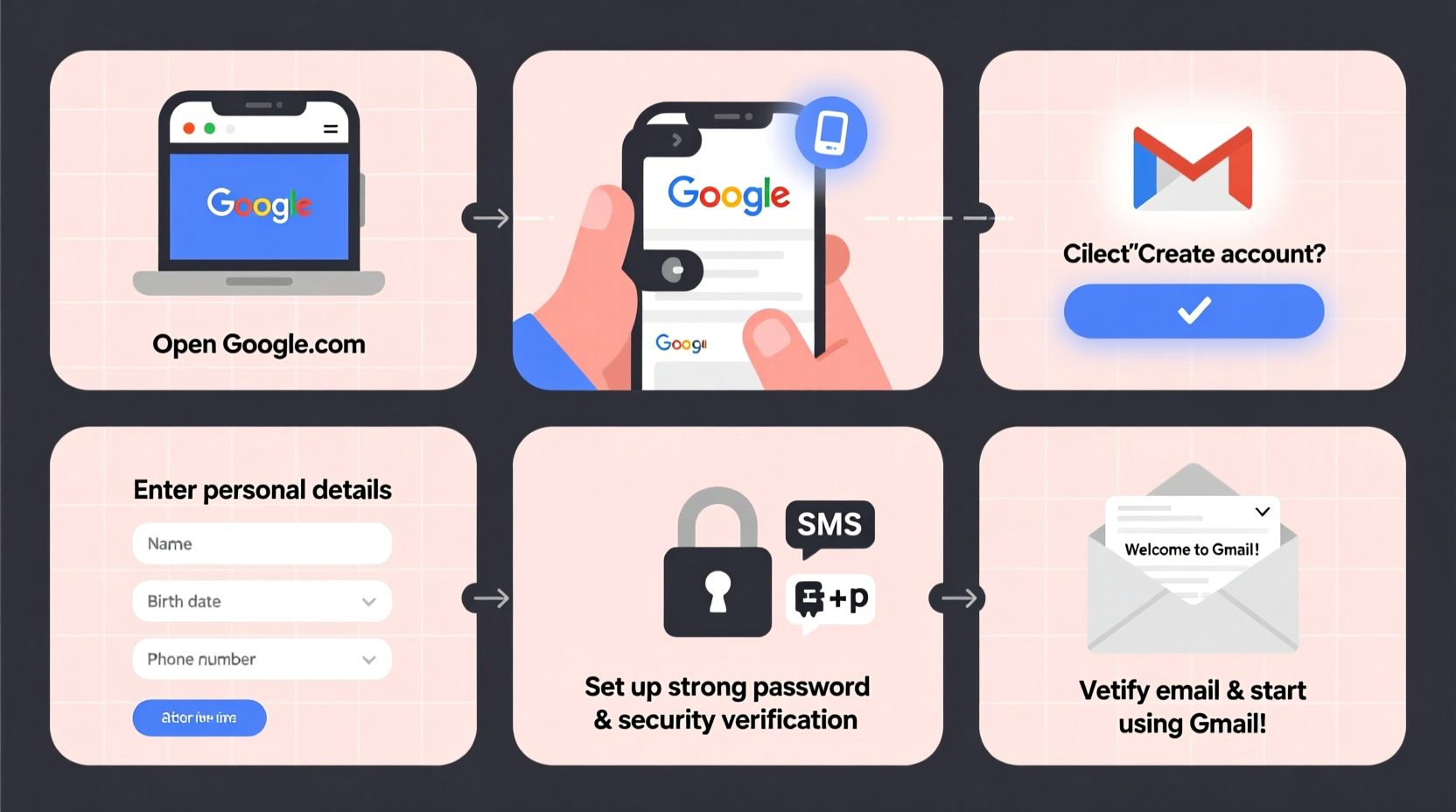
Follow these clear, secure steps to create your Google email account without confusion or unnecessary risks.
- Go to the Gmail Sign-Up Page
Open your browser and navigate to mail.google.com. Click “Create account” in the top-right corner, then select “For myself.” - Enter Your Personal Information
Fill in your first and last name. Avoid using nicknames if this is a professional or long-term account. Google allows changes later, but consistency helps with credibility. - Choose Your Username (Email Address)
Type your desired username in the “Choose your email address” field. Gmail will check availability instantly. If taken, try variations like adding numbers or middle initials. Aim for simplicity and professionalism. - Create a Strong Password
Use at least 12 characters with a mix of uppercase letters, lowercase letters, numbers, and symbols. Avoid common phrases, birthdays, or dictionary words. Google will rate your password strength in real time—aim for “Strong.” - Add Recovery Options
Provide a secondary phone number and a backup email address. These are critical for regaining access if you’re locked out. Use a trusted mobile number that you control long-term. - Verify Your Identity
Google may ask you to verify via SMS or voice call to confirm your phone number. Enter the code sent to your device. - Review Privacy Settings
You’ll be prompted to set up Google’s personalized services (like ads based on your activity). Choose “No” if you prefer minimal data tracking. You can adjust these later in your Google Account settings. - Agree and Finish
Read the Terms of Service and Privacy Policy briefly. If acceptable, click “I agree.” You’ll be redirected to your new inbox.
Essential Post-Creation Security Steps
Creating the account is only the beginning. Strengthen your protection immediately after setup.
Enable Two-Factor Authentication (2FA)
Two-factor authentication adds a second layer of security. Even if someone guesses your password, they won’t get in without your phone or authenticator app.
- Go to myaccount.google.com
- Select “Security” from the left menu
- Under “Signing in to Google,” choose “2-Step Verification”
- Follow prompts to set up text, call, or authenticator app verification
Set Up Backup Codes and Recovery Email
In case you lose your phone, download and print backup codes. Store them in a safe place. Also, ensure your recovery email is active and not tied to a temporary service.
Review App Permissions
Check which third-party apps have access to your Google account. Remove any unfamiliar or outdated ones under “Third-party apps with account access.”
Do’s and Don’ts When Setting Up Gmail
| Do’s | Don’ts |
|---|---|
| Use a strong, unique password | Reuse passwords from other sites |
| Enable two-factor authentication | Skip verification steps for convenience |
| Keep recovery info updated | Use a friend’s phone number permanently |
| Review privacy settings annually | Assume Google automatically protects your data |
| Log out of shared devices | Stay signed in on public computers |
Real Example: Recovering Access After Device Loss
Meet Sarah, a freelance designer who lost her phone while traveling. She had created her Gmail account years ago but never enabled 2FA. Without her phone, she couldn’t receive SMS codes. Worse, her recovery email was an old university account she no longer accessed. It took her nearly a week—and multiple support forms—to prove her identity and regain access.
Had Sarah followed today’s best practices, she could have used an authenticator app or backup code to log in immediately. This scenario underscores why setting up recovery options early is non-negotiable.
Checklist: Secure Gmail Setup in 10 Minutes
Use this quick checklist right after creating your account:
- ✅ Create a strong, unique password
- ✅ Add a verified phone number for recovery
- ✅ Set up a backup email address
- ✅ Enable two-factor authentication
- ✅ Download and store backup codes
- ✅ Review connected apps and remove unused ones
- ✅ Turn off ad personalization if preferred
- ✅ Verify your birthday and location in Google Account settings
Frequently Asked Questions
Can I change my Gmail username after creating the account?
No, Google does not allow changing the actual email address (username) once the account is created. However, you can add a nickname or use a different address as a “send-as” option in Gmail settings. Choose wisely during setup.
Is it safe to use Gmail for sensitive communications?
Gmail uses industry-standard encryption (TLS) for emails in transit and AES encryption for stored data. For highly sensitive information, consider additional end-to-end encryption tools like S/MIME or third-party plugins. Avoid sending passwords or financial details via plain email.
What should I do if I suspect my account has been compromised?
Immediately go to accounts.google.com, sign in, and run the Security Checkup. Change your password, revoke suspicious app access, and check recent activity. If locked out, use Google’s account recovery form at accounts.google.com/signin/recovery.
Final Tips for Long-Term Account Safety
Think of your Gmail account as a digital home base. Protect it like you would your front door. Regularly review login activity under “Security” > “Your devices.” Update recovery options when your phone number or email changes. Consider using a dedicated recovery email that’s rarely used but always accessible.
Also, avoid logging into your Gmail on public Wi-Fi without a secure connection. If necessary, use a trusted virtual private network (VPN) to encrypt your traffic.
Tip: Perform a Google Security Checkup every 90 days. It takes less than five minutes and scans for weak passwords, risky apps, and inactive recovery methods.Conclusion
Starting a Google email account is simple, but doing it securely requires intention and awareness. By following this guide, you’ve not only created a functional email address but also built a foundation for long-term digital safety. From choosing a strong password to enabling two-factor authentication and setting up reliable recovery options, each step strengthens your online presence.
🚀 Take action today: If you haven’t already, create your Gmail account using these steps—or audit your existing one. A few minutes now can prevent major headaches later. Share this guide with someone setting up their first email account and help them start safely too.