
Many iPhone users assume their phone number is readily visible on the home screen or lock screen—but it’s not always that simple. Whether you’ve just switched carriers, received a new device, or simply never checked, retrieving your own number can feel surprisingly tricky. The good news? Apple provides several built-in methods to access your number instantly, and none require calling another phone or digging through carrier paperwork.
This guide walks you through five dependable, no-hassle techniques to locate your iPhone number in under a minute. From navigating Settings to using FaceTime and Messages, these steps work across all modern iOS versions and are ideal for anyone who values efficiency and privacy.
1. Check Your Number in the Settings App
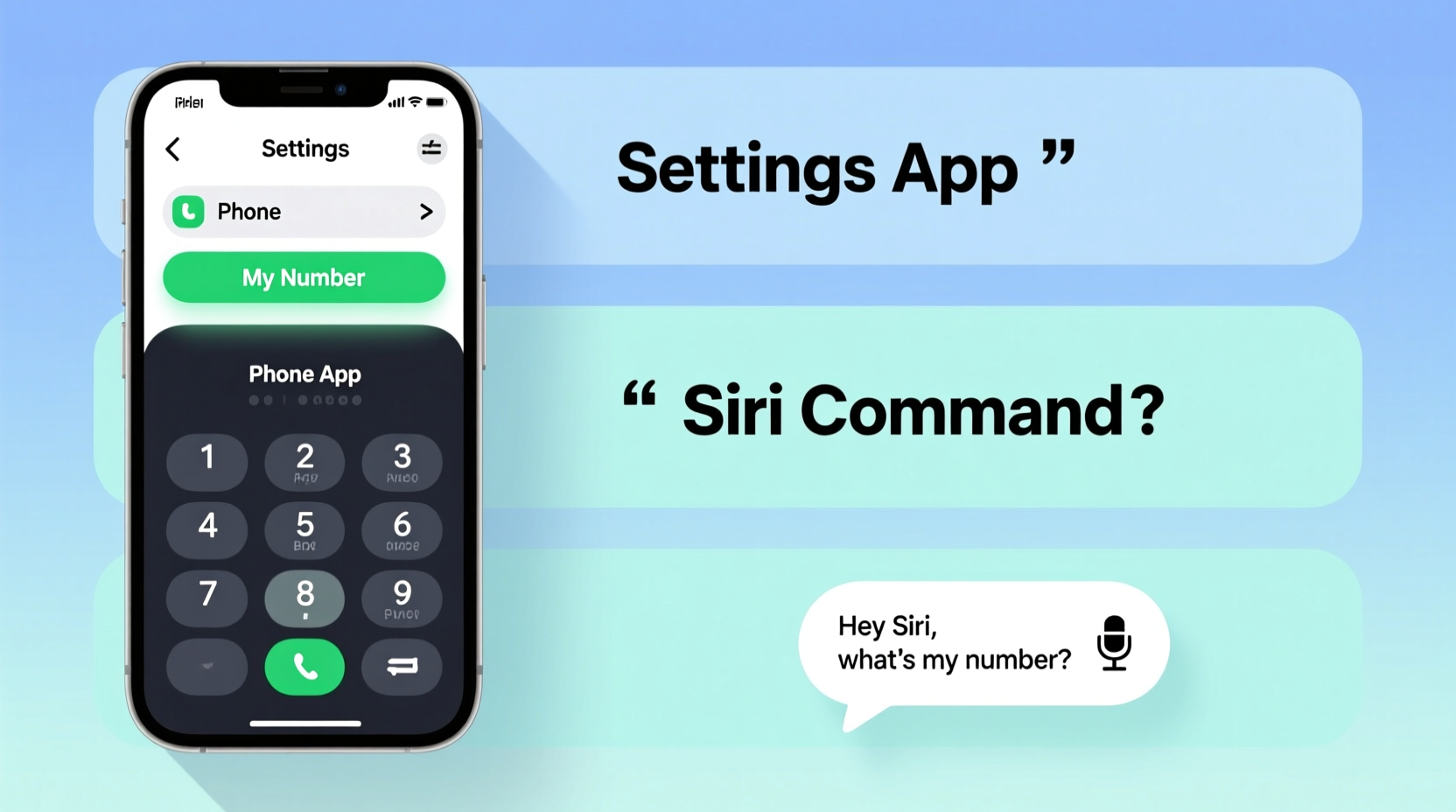
The most direct method to find your iPhone number is through the Settings app. This is the go-to option for most users because it's centralized, secure, and doesn't rely on third-party services.
- Open the Settings app (the gray gear icon).
- Tap on your name at the top of the screen to enter your Apple ID profile.
- Select Phone from the list of services.
- Your phone number will appear under “My Number.”
If you don’t see your number listed here, it may not have synced properly with your carrier. In such cases, restarting your iPhone or toggling airplane mode on and off can prompt a refresh.
Tip: If you use an iPhone with dual SIMs, both numbers will be displayed in this menu—labeled as \"Primary\" and \"Secondary.\"2. Use the Phone App to View Caller ID Information
Your number is also stored within the Phone app, specifically under the \"My Number\" setting used for outgoing calls. This feature determines what appears when you make a call—whether your real number, a hidden ID, or a secondary line.
Steps to Find Your Number via Phone Settings:
- Navigate to Settings → Phone.
- Select My Number.
- Your active SIM number will be clearly displayed.
Note: If this field is blank or shows \"Unknown,\" your carrier may not have provisioned your line correctly. Contacting customer support or reinserting the SIM card often resolves the issue.
3. View Your Number Through FaceTime
FaceTime uses your registered phone number as one of your contact identifiers. If you’ve enabled FaceTime, your number should appear in its settings menu alongside any associated email addresses.
How to Locate It:
- Go to Settings.
- Scroll down and tap FaceTime.
- Look beneath the toggle switch—your phone number will appear next to \"You can be reached by FaceTime at.\"
This method is especially useful if you're unsure whether your current number is linked to your Apple ID. Any discrepancies between your actual number and what appears here could indicate a sync error worth investigating.
Tip: If multiple numbers appear, ensure the correct one is selected as primary for receiving calls and messages.4. Check the Messages App for Automatic Sender Identification
The Messages app automatically associates your iMessage account with your phone number. Even if you primarily use email for iMessage, your number remains tied to SMS functionality.
To Verify Your Number:
- Open Settings → Messages.
- Select Send & Receive.
- Under \"You can be reached by iMessage at,\" look for your phone number in the list.
SMS messages sent from your iPhone will always originate from this number unless you're using Wi-Fi Calling with a different assigned identity.
“Most users overlook the Send & Receive menu, but it’s one of the fastest ways to confirm not only your number but also which devices are linked to your messaging profile.” — David Lin, iOS Support Specialist
5. Use Siri for Instant Voice Assistance
For hands-free convenience, Siri can retrieve your phone number almost instantly—if it has permission to access your contacts.
Try This:
- Press and hold the side button (or say “Hey Siri” if enabled).
- Ask: \"What’s my phone number?\"
- Siri will respond with the number saved in your card under Contacts.
Important: Siri pulls this information from your personal contact entry—usually labeled \"My Card.\" If your number isn’t there, Siri won’t be able to provide it.
How to Set Up \"My Card\" Correctly:
- Go to Settings → Contacts → My Info.
- Select your contact name from the list.
- Ensure your phone number is entered and up to date.
Once configured, Siri becomes a reliable tool for quick lookups—especially helpful when filling out forms or verifying identity.
Comparison of Methods: Speed, Accuracy, and Accessibility
| Method | Speed | Accuracy | Best For |
|---|---|---|---|
| Settings > Phone | Fast | High | First-time checks, dual-SIM users |
| FaceTime Settings | Fast | Medium-High | iMessage/FaceTime users |
| Messages Settings | Fast | High | Verifying iMessage linkage |
| Siri | Instant | Depends on My Card setup | Hands-free situations |
| Apple ID Profile | Moderate | High | Checking overall device identity |
Common Issues and Troubleshooting Tips
Even with these straightforward methods, some users report missing or incorrect numbers. Here’s how to address common problems:
- No number appears: Restart your iPhone or check network connectivity. A poor signal can prevent carrier data from syncing.
- Old number still showing: Remove the old SIM, sign out of iMessage and FaceTime, then sign back in to force an update.
- Siri says “I don’t know”: Confirm your contact card includes your number and is assigned as \"My Info\" in Settings.
Mini Case Study: Recovering a Number After Switching Carriers
Jamie recently ported her number to a new carrier and received an eSIM activation confirmation but couldn’t verify the number on her iPhone. She tried calling a friend, but wanted a faster, more private solution. Instead, she opened Settings → Phone → My Number and saw it was still blank. After toggling airplane mode on and off, the number appeared instantly. Later, she verified it in FaceTime settings to ensure iMessage would function correctly. Within two minutes, she confirmed everything worked—without making a single test call.
Quick Checklist: How to Find Your iPhone Number in Under 2 Minutes
✅ Action Plan:- Open Settings → Tap your name → Go to Phone → Check \"My Number.\"
- If blank, restart the phone or toggle airplane mode.
- Verify in FaceTime or Messages settings.
- Set up \"My Card\" in Contacts for Siri access.
- Confirm both SIMs if using dual-line setup.
Frequently Asked Questions
Why doesn’t my iPhone show my number in Settings?
This usually happens due to a carrier provisioning delay or SIM detection issue. Try restarting your device, ensuring cellular service is active, or contacting your carrier to confirm your line is fully activated.
Can I see my number without Wi-Fi or cellular data?
Yes. All the methods described above rely on locally stored device information and do not require internet access. However, initial syncing of your number does require network connectivity when first setting up the device.
Does changing my SIM card update my number automatically?
In most cases, yes. Once the new SIM is recognized and activated, your iPhone will detect the new number within Settings → Phone after a few moments. Manual restarts or airplane mode toggles can speed up the process.
Final Thoughts: Stay in Control of Your Identity
Your phone number is a key part of your digital identity—it links your device to messages, calls, two-factor authentication, and online accounts. Knowing how to locate it independently gives you greater control and reduces reliance on external help. These methods are designed to be fast, private, and accessible to every iPhone user, regardless of technical skill.
Take a moment today to verify your number using at least two of the methods above. Ensure your \"My Card\" is properly set, and consider saving a screenshot in a secure notes app for emergencies. With these habits in place, you’ll never again scramble to recall your own contact information.
💬 Found your number easily? Share your favorite method in the comments below—and help others skip the frustration!