For years, iTunes has been a go-to platform for managing personal music libraries. Whether you're syncing playlists to an iPhone or building a digital archive of classic albums, a well-organized library makes all the difference. But when songs appear out of order—randomly shuffled despite correct metadata or ignoring artist and album groupings—it can be frustrating. If you’ve noticed that iTunes is not sorting music correctly, you’re not alone. This issue affects users across macOS and Windows, often stemming from subtle but fixable misconfigurations. The good news: most problems have clear solutions.
Why iTunes Music Sorting Fails
The root cause of incorrect sorting in iTunes usually lies in inconsistent or missing metadata. iTunes relies heavily on embedded ID3 tags—data fields like Artist, Album, Track Number, and Genre—to organize your music. When these are incomplete, mismatched, or corrupted, the app’s logic breaks down.
Other common culprits include:
- Manual sort override: A hidden setting allows users to drag-and-drop tracks into custom positions, which overrides automatic sorting.
- File format differences: MP3, AAC, FLAC, and ALAC files may store metadata differently, leading to inconsistencies.
- Multiple versions of the same song: Duplicate entries with slightly different tags confuse sorting algorithms.
- Syncing conflicts: Devices synced from multiple computers can introduce conflicting data.
- Outdated software: Older versions of iTunes may not handle modern tagging standards properly.
“Metadata integrity is the backbone of any digital music library. One missing track number can cascade into widespread disorganization.” — Daniel Reyes, Audio Archiving Specialist
Step-by-Step Guide to Fix Incorrect Sorting
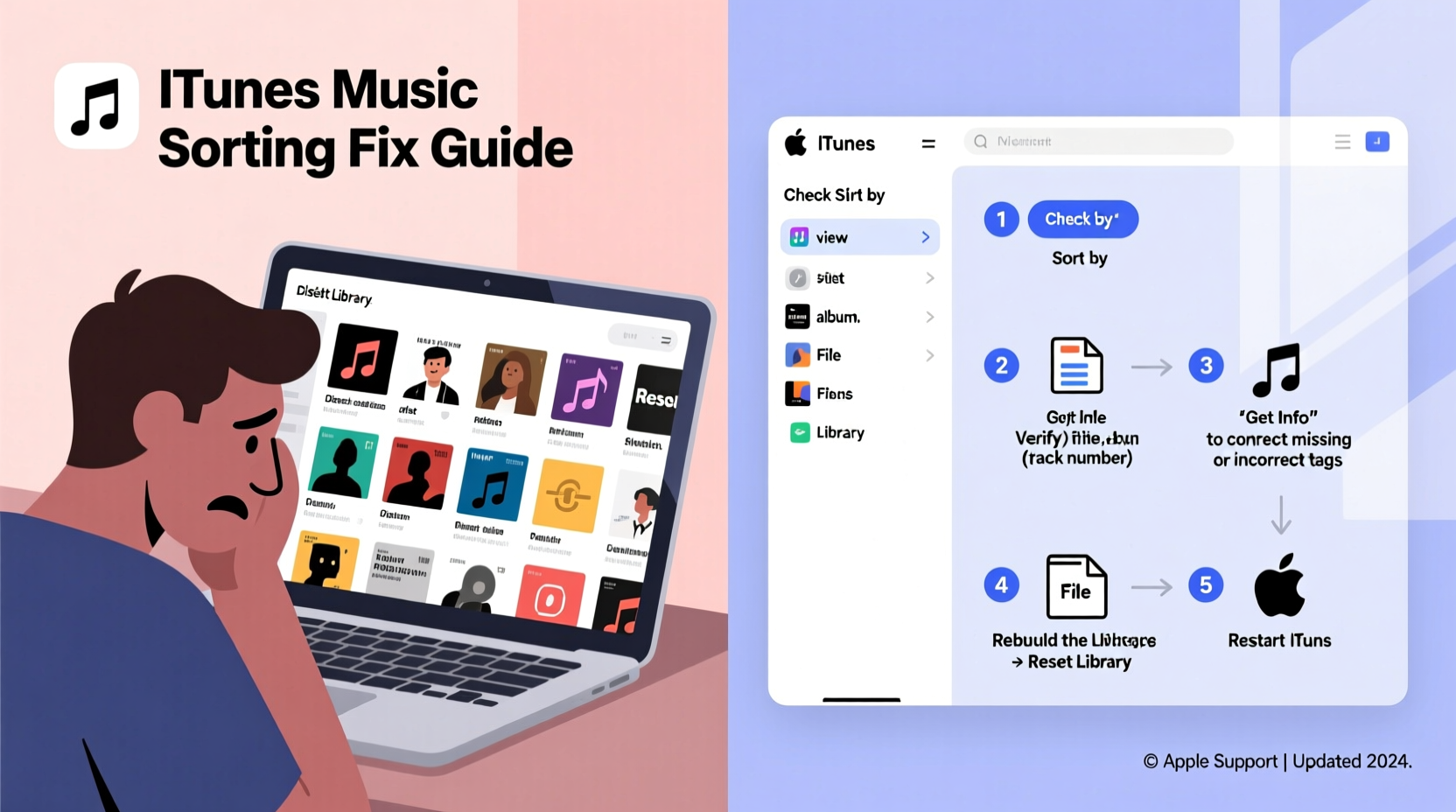
Follow this structured process to restore accurate sorting in your iTunes library. Work through each step carefully—many issues are resolved early in the sequence.
- Check View Options: Right-click (or Ctrl+click) on the column headers in your music library. Ensure “Sort By” isn’t set to “None” or “Custom Order.” Enable “Track Number,” “Artist,” and “Album” columns for visibility.
- Reset Sort Order: Click the top of the “Album” or “Artist” column to sort by that field. If tracks still appear jumbled, proceed to metadata checks.
- Select Problematic Tracks: Highlight the songs displaying incorrect order. Right-click and choose “Get Info.”
- Verify Metadata: In the “Info” tab, confirm that Artist, Album, and Track Number are filled correctly. Avoid extra spaces or typos (e.g., “ Beyoncé” vs. “Beyoncé”).
- Use the Sorting Tab: Go to the “Sorting” tab in Get Info. If values are entered here (e.g., a custom sort name), they override standard fields. Clear them unless intentionally used.
- Apply Changes: Click “OK” and let iTunes reindex the file. Repeat for all affected tracks.
- Rebuild Album Groupings: After correcting metadata, click the “Album” column header to re-sort the entire library.
Common Metadata Issues and How to Fix Them
Inconsistent tagging is the #1 reason for sorting failures. Below is a breakdown of frequent metadata errors and their remedies.
| Issue | Symptom | Solution |
|---|---|---|
| Missing Track Numbers | Songs appear at beginning or end of album | Manually enter sequential numbers in Get Info |
| Inconsistent Artist Names | Same artist split across multiple entries (e.g., “Coldplay” vs. “Coldplay Ltd”) | Standardize spelling across all tracks |
| Compilation Flag Misuse | Albums scattered instead of grouped | Enable “Part of a Compilation” only for true compilations |
| Custom Sort Fields Populated | Tracks ignore Artist/Album settings | Clear fields under the Sorting tab |
| Duplicate Albums with Slight Variations | Two copies of “Thriller” due to capitalization or spacing | Merge by standardizing metadata and deleting duplicates |
Mini Case Study: Restoring a Disorganized Classic Rock Library
Mark, a long-time Mac user, noticed his Beatles collection was split across five different album listings. “Abbey Road” appeared three times, with varying track orders. After checking file properties, he discovered that rips from different sources had inconsistent tagging—some used “The Beatles,” others “Beatles,” and track numbers were missing on live recordings.
He selected all related tracks, opened Get Info, and standardized the artist as “The Beatles.” He manually added track numbers to unnumbered songs and unchecked “Part of a Compilation” where it didn’t apply. Within 20 minutes, the entire discography consolidated into one correctly ordered album. A final click on the “Album” column restored perfect sorting.
Essential Tips for Preventing Future Sorting Issues
Once your library is clean, maintain its integrity with proactive habits.
Tip: Always rip CDs using iTunes’ default settings to ensure consistent metadata formatting.- Use reliable tagging tools: Apps like MusicBrainz Picard or Mp3tag can auto-correct metadata using vast music databases.
- Audit regularly: Set a quarterly reminder to review album consistency, especially after adding new music.
- Standardize naming conventions: Decide whether to include featured artists in titles or keep them in the “Artist” field—and stick to it.
- Backup before bulk edits: Export your library XML file (File > Library > Export Library) before making large-scale changes.
- Disable manual sorting: Avoid dragging tracks into position unless absolutely necessary. Once enabled, it overrides automated organization.
FAQ
Why does one song always appear at the top of my album?
This usually happens when the track number is missing or set to zero. Check the metadata and assign the correct sequential number.
Can I fix sorting for hundreds of songs at once?
Yes. Select all tracks in an album or playlist, right-click, choose “Get Info,” and edit shared fields like Artist or Album. Use third-party tools like Doug's Scripts or iMazing for advanced batch editing.
Does iCloud Music Library affect sorting?
Yes. If you use iCloud Music Library, sorting behavior may differ across devices due to sync delays or server-side processing. Ensure metadata is clean before enabling cloud sync.
Final Checklist: Restore iTunes Music Order
Use this checklist to systematically resolve sorting problems:
- ✔️ Open iTunes and navigate to your Music library
- ✔️ Right-click column headers and enable “Track Number,” “Artist,” “Album”
- ✔️ Click the “Album” column to sort by album
- ✔️ Identify albums with incorrect track order
- ✔️ Select all tracks in the problematic album
- ✔️ Press Cmd+I (Mac) or Ctrl+I (Windows) to open Get Info
- ✔️ Verify and correct Artist, Album, Year, and Track Number
- ✔️ Navigate to the “Sorting” tab and delete any entries
- ✔️ Click “OK” to save changes
- ✔️ Re-sort by clicking the “Album” column again
- ✔️ Test playback to confirm correct sequence
Conclusion
Fixing iTunes' music sorting issues doesn't require technical expertise—just attention to detail and a methodical approach. By understanding how metadata drives organization and taking steps to maintain consistency, you regain full control over your digital music experience. Don’t settle for chaotic playlists or fragmented albums. Apply these fixes today, and enjoy a seamlessly sorted library that works the way it should.
🚀 Your music deserves order. Take 30 minutes this week to audit your library, correct inconsistencies, and rediscover the joy of perfectly organized playlists.