If your iPhone is sending calls directly to voicemail without ringing, it can be both frustrating and concerning—especially if you're expecting an important call. This behavior rarely has a single cause; instead, it stems from a mix of software settings, carrier issues, or hardware conditions. The good news is that most cases are fixable with straightforward troubleshooting. Understanding the root causes and knowing which steps to take can get your phone back to working normally in minutes.
Common Reasons Your iPhone Goes Straight to Voicemail
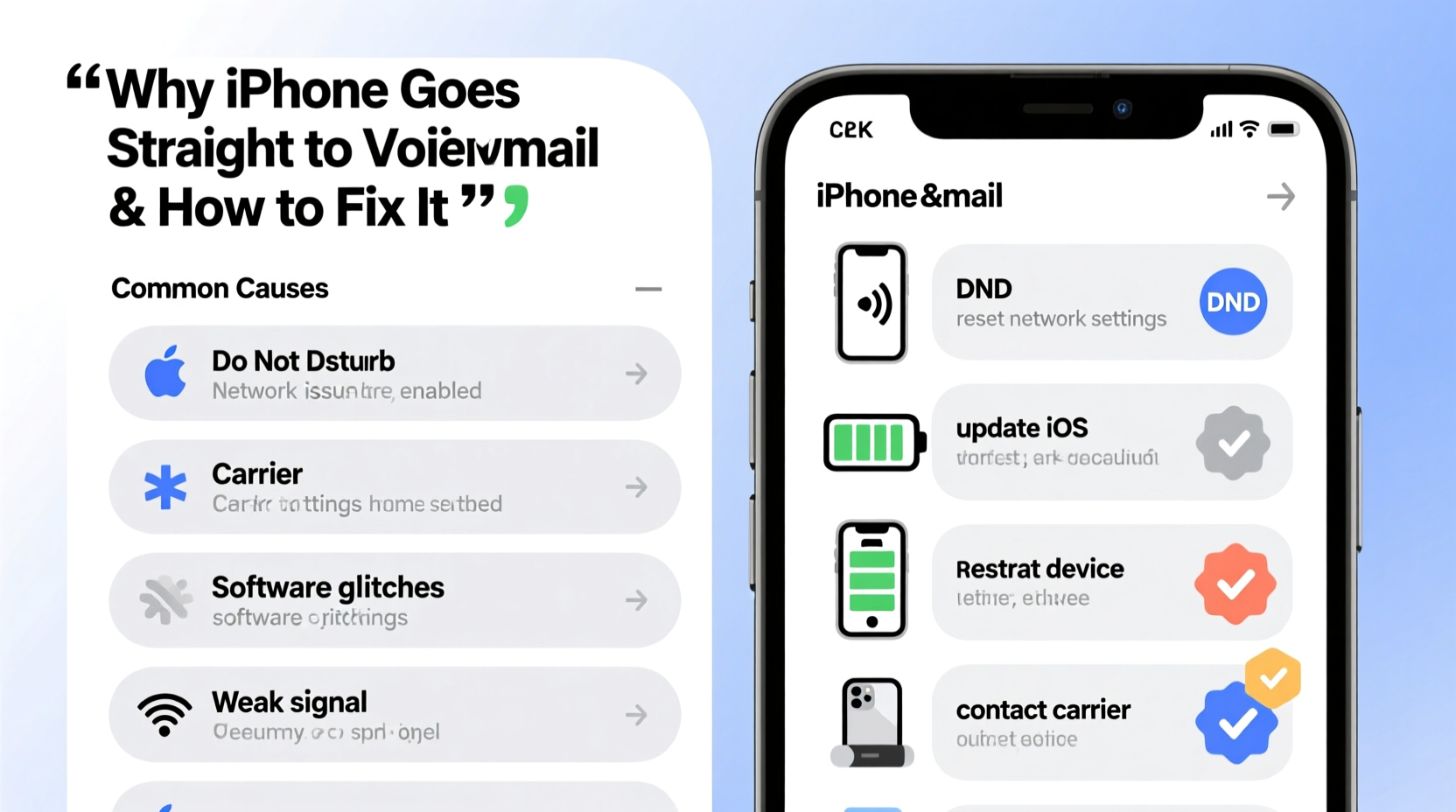
Before diving into solutions, it's essential to identify what might be triggering the issue. iPhones route incoming calls to voicemail for several reasons, some intentional and others unintentional.
- Do Not Disturb mode is enabled – This setting silences all notifications and calls unless exceptions are set.
- Call forwarding is active – Calls may be redirected to voicemail due to misconfigured forwarding settings.
- Airplane Mode is on – This disables cellular connectivity, preventing incoming calls.
- No network signal or poor reception – Without a stable connection, calls fail to reach your device.
- Carrier-related issues – Problems with your SIM card or account settings can disrupt service.
- Blocked caller or number – If someone is blocked, their calls go straight to voicemail.
- Software bugs after iOS updates – Occasionally, system glitches interfere with call handling.
Step-by-Step Troubleshooting Guide
Follow this logical sequence to diagnose and resolve the problem efficiently.
- Check Do Not Disturb Settings
Go to Settings > Focus > Do Not Disturb. Ensure it’s turned off. You can also swipe down from the top-right corner (iPhone X and later) to access Control Center and look for the crescent moon icon. Tap it to disable. - Verify Airplane Mode
In Control Center, ensure the airplane icon is not highlighted. If it is, tap it to disable. Alternatively, go to Settings and toggle Airplane Mode off. - Ensure Cellular Service is Active
Check for signal bars at the top of your screen. If “No Service” appears, restart your iPhone or manually select your carrier under Settings > Cellular > Network Selection. - Disable Call Forwarding
Navigate to Settings > Phone > Call Forwarding. If enabled, turn it off. Even if you didn’t set it up, a carrier glitch or update could have activated it. - Restart Your iPhone
A simple reboot clears temporary glitches. Press and hold the side button and either volume button, then slide to power off. Wait 30 seconds, then turn it back on. - Check for Blocked Numbers
Go to Settings > Phone > Blocked Contacts. Review the list. If a contact is mistakenly blocked, remove them. - Update Carrier Settings
Sometimes carriers push silent updates. Go to Settings > General > About. If an update is available, a prompt will appear. - Reinsert or Replace the SIM Card
Power off the phone, eject the SIM tray, inspect the card for damage, clean if necessary, and reinsert. For dual-SIM models, test using only one line at a time. - Reset Network Settings
As a last resort, go to Settings > General > Transfer or Reset iPhone > Reset > Reset Network Settings. This clears Wi-Fi passwords and cellular configurations but often resolves deep-seated issues.
Troubleshooting Checklist
Quick Fix Checklist: iPhone Going to Voicemail
- ☐ Disable Do Not Disturb mode
- ☐ Turn off Airplane Mode
- ☐ Confirm cellular signal strength
- ☐ Disable Call Forwarding
- ☐ Restart the iPhone
- ☐ Check Blocked Contacts list
- ☐ Update iOS and carrier settings
- ☐ Re-seat the SIM card
- ☐ Reset network settings if needed
When Software Isn't the Issue: Hardware and Carrier Factors
Sometimes, the problem lies beyond user settings. A damaged SIM card, water exposure, or network outage on the carrier’s end can mimic software failure.
For example, if you recently traveled internationally, your carrier might not have fully reconnected your line upon return. Or, if your iPhone was dropped, internal antenna damage could impair cellular reception even if the screen works fine.
| Issue Type | Signs | Solution Path |
|---|---|---|
| Carrier Outage | No service for multiple users in same area | Contact provider or check outage map |
| Damaged SIM | “Invalid SIM” error, intermittent service | Replace SIM via carrier |
| Hardware Damage | Poor signal despite location, other phones work | Visit Apple Store or authorized repair |
| iOS Bug | Issue started after update, affects multiple apps | Install latest patch or restore via iTunes |
“Over 70% of ‘no ring’ issues are resolved by checking Do Not Disturb or call forwarding. Users often overlook these simple toggles.” — Carlos Mendez, Senior Apple Support Technician
Real-World Example: Sarah’s Work Crisis
Sarah, a freelance designer, missed three client calls in one morning. Each time, her iPhone showed no notification—calls went straight to voicemail. Panicked, she assumed her number had been disconnected.
She began troubleshooting: first, she noticed the moon icon in her status bar. Do Not Disturb was on—but she hadn’t turned it on manually. She disabled it, but calls still didn’t come through. Next, she checked call forwarding under Phone settings and found it was enabled to her old voicemail box. Likely triggered during a recent iOS update, the system auto-forwarded calls. After disabling it and restarting her phone, calls resumed normally.
The issue wasn’t hardware, carrier, or sabotage—it was two overlooked settings interacting unexpectedly. Her experience underscores the importance of methodical checks, even when the problem seems severe.
Frequently Asked Questions
Why do some people’s calls go to voicemail while others ring?
This usually indicates selective blocking or custom Focus modes. Check if specific contacts are blocked or if a Focus filter (like “Work”) only allows calls from certain people.
Can low battery mode cause calls to go to voicemail?
No, Low Power Mode conserves energy by reducing background activity but does not affect call routing. However, if the phone dies due to low battery, incoming calls will go to voicemail—just as they would if powered off.
What should I do if none of the fixes work?
If all troubleshooting fails, contact your carrier to verify your account status and line activation. If the line is active, schedule a diagnostic with Apple Support—they can test the cellular module and determine if hardware repair is needed.
Final Steps and Prevention Tips
Once your iPhone is receiving calls again, take preventive measures to avoid recurrence. Regularly audit your Focus modes and call settings, especially after iOS updates. Avoid installing third-party call management apps that may interfere with native functions. Keep your carrier’s customer service number saved for quick access during outages.
Also, consider enabling Wi-Fi Calling (Settings > Phone > Wi-Fi Calling) if your carrier supports it. This feature routes calls over internet when cellular signal is weak, reducing the chance of missed connections.
“Modern iPhones are designed to stay connected. When they don’t, it’s almost always a configuration issue—not a failure.” — Lisa Tran, Mobile Network Consultant
Conclusion: Take Control of Your Connection
Your iPhone should work reliably, especially for something as fundamental as receiving calls. While going straight to voicemail can feel alarming, the solution is often simpler than expected. By understanding the common triggers—from forgotten Do Not Disturb sessions to rogue call forwarding—you gain the power to fix it yourself, quickly and confidently.
💬 Did you resolve your voicemail issue using these steps? Share your experience or ask questions in the comments—your insight could help another user restore their connection today.