
In an age where smartphones are more powerful than ever, capturing cinematic-quality video no longer requires expensive gear. With the right approach, both iPhone and Android devices—especially when using Pro mode—can produce footage that rivals professional cameras. The key lies not in the hardware alone, but in mastering the tools at your disposal: manual controls, lighting, composition, and post-processing. Whether you're filming travel vlogs, short films, or social media content, understanding how to leverage Pro mode unlocks creative control and elevates your visual storytelling.
Understanding Pro Mode: What It Offers on iPhone and Android
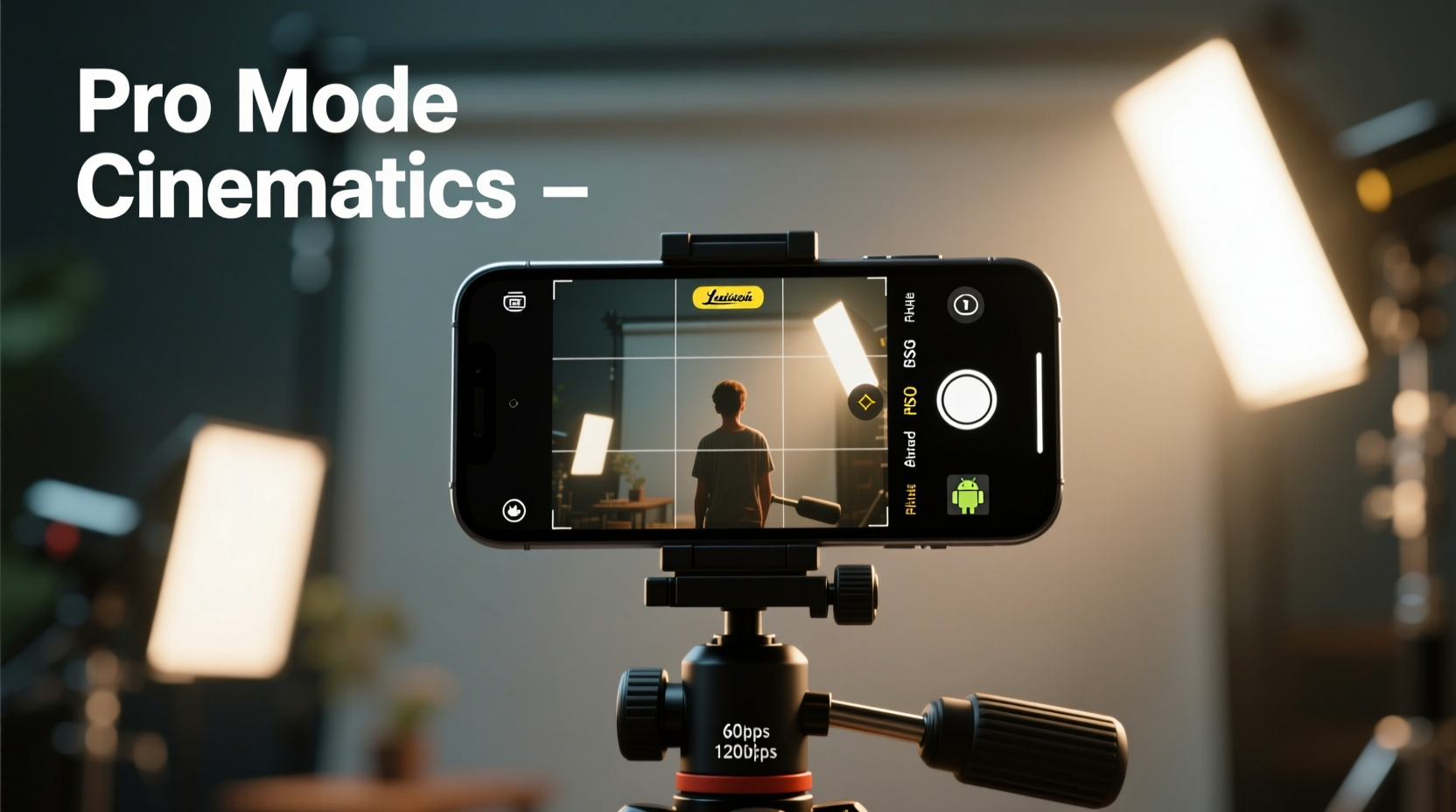
Pro mode (or Manual mode) gives users direct control over core camera parameters typically handled automatically by the phone’s software. While iPhones don’t label it “Pro mode” outright, recent models offer robust manual control through the native Camera app or third-party apps like Filmic Pro. On many Android devices—especially Samsung Galaxy, Google Pixel, and OnePlus phones—Pro mode is built directly into the default camera app.
Key settings available in Pro mode include:
- ISO: Controls the sensor’s sensitivity to light. Lower ISO (100–200) reduces noise in bright conditions; higher ISO helps in low light but may introduce grain.
- Shutter Speed: Determines how long the sensor is exposed to light. Fast speeds freeze motion; slow speeds create motion blur, ideal for dreamy effects.
- White Balance: Adjusts color temperature to match lighting conditions (e.g., warm indoors, cool outdoors).
- Focus: Manual focus lets you set the exact point of sharpness, essential for rack focuses or maintaining clarity in dynamic scenes.
- Exposure Compensation: Fine-tunes overall brightness without altering individual settings.
Step-by-Step Guide to Shooting Cinematic Mobile Video
Cinematic doesn’t mean complex. It means intentional. Follow this sequence to consistently capture high-quality, film-like videos using your smartphone’s Pro mode.
- Choose Your Device Settings
Select 4K resolution at 24 or 30fps. For a true cinematic look, 24fps mimics the frame rate used in Hollywood films. - Stabilize Your Phone
Use a mini tripod, gimbal, or lean against a stable surface. Even slight hand movements become obvious in video. - Set Shutter Speed to Double the Frame Rate
If shooting at 24fps, set shutter speed to 1/48 sec (or 1/50 if unavailable). This creates natural motion blur. - Adjust ISO Manually
Start with ISO 100 in daylight and increase only as needed. Avoid auto-ISO for consistent exposure across shots. - Lock Focus and White Balance
Tap to set focus, then lock it. Set white balance manually based on environment (e.g., 5500K for daylight). - Frame with Composition in Mind
Apply the rule of thirds, leading lines, or symmetry. Leave space in front of moving subjects. - Record High-Quality Audio Separately if Possible
Smartphone mics often pick up handling noise. Use an external mic or record audio later for voiceovers.
Lighting Techniques for a Film-Like Look
No amount of post-processing can fix poorly lit footage. Natural light remains the best resource for mobile cinematography.
Morning golden hour (just after sunrise) and evening golden hour (before sunset) provide soft, directional light that adds depth and warmth. Harsh midday sun creates unflattering shadows—diffuse it using sheer fabric, trees, or position your subject in open shade.
For indoor scenes, position your subject near windows with indirect sunlight. Use reflectors (even white foam boards or bedsheets) to bounce light onto shadowed areas. Avoid overhead artificial lights, which cast uneven shadows.
| Lighting Condition | Recommended ISO | Shutter Speed | White Balance (Kelvin) |
|---|---|---|---|
| Bright Daylight | 50–100 | 1/50 sec | 5000–6500K |
| Golden Hour | 100 | 1/50 sec | 3500–4500K |
| Indoor (Near Window) | 200–400 | 1/30 sec | 5500K |
| Low Light (Evening/Night) | 800–1600 | 1/25 sec | 3200–4000K |
Real Example: Filming a Travel Vlog in Lisbon
Sophie, a freelance content creator, traveled to Lisbon to film a personal vlog showcasing the city’s alleys, trams, and ocean views. She used her iPhone 15 Pro with the native camera app in manual mode and a small handheld gimbal.
Each morning, she scouted locations during golden hour. She set her camera to 4K at 24fps, locked ISO at 100, and adjusted shutter speed to 1/50 sec. By manually setting white balance to 5500K, she preserved the warm tones of the terracotta rooftops without oversaturation.
One scene involved tracking a tram moving down a steep street. She mounted her phone on the gimbal, walked backward slowly, and kept the tram centered using manual focus locked at medium distance. The resulting clip had smooth motion, rich colors, and a filmic depth that viewers later commented looked “shot on a DSLR.”
The entire production relied on natural light and careful planning—not expensive gear.
“Cinematic quality isn’t about the camera—it’s about control. When you master exposure, focus, and movement, even a phone can tell a powerful story.” — Marcus Tran, Mobile Filmmaker & Director
Essential Accessories for Professional Results
While modern phones are capable, accessories bridge the gap between casual clips and polished content.
- Gimbal Stabilizer: Devices like the DJI OM 6 or Zhiyun Smooth 5 eliminate shake and allow fluid pans, tilts, and tracking shots.
- External Microphone: Lavalier mics (like Rode Wireless GO II) or shotgun mics (Saramonic Blink 500) drastically improve audio clarity.
- ND Filters: Neutral density filters reduce light entering the lens, allowing slower shutter speeds in bright conditions—critical for achieving motion blur without overexposure.
- Portable LED Panel: Small lights like the Amaran COB 60d help balance exposure indoors or add catchlights to eyes.
- Matte Box or Lens Kit: Optional wide-angle or anamorphic lenses can enhance field of view or add cinematic flares.
Checklist: Pre-Shoot Preparation
Before hitting record, run through this checklist to ensure optimal results:
- ✅ Charge your phone fully and close background apps to prevent overheating
- ✅ Clean the lens with a microfiber cloth
- ✅ Enable 4K resolution and desired frame rate (24/30fps)
- ✅ Disable Auto-Brightness on screen to avoid exposure shifts while monitoring
- ✅ Mount phone securely on tripod or gimbal
- ✅ Set ISO, shutter speed, white balance, and focus manually
- ✅ Test recording and review playback for focus accuracy and exposure
- ✅ Ensure sufficient storage space (4K video consumes ~350MB per minute)
Avoid These Common Mistakes
Even experienced creators fall into traps that degrade video quality. Here’s what to avoid:
| Do’s | Don’ts |
|---|---|
| Use manual focus for consistency | Rely on autofocus during recording (causes hunting) |
| Shoot in 4K at 24fps for cinematic motion | Use 60fps unless you need slow motion |
| Lock exposure in changing light | Let the phone auto-adjust brightness mid-shot |
| Use headphones to monitor audio | Assume the built-in mic is enough |
| Keep movements slow and deliberate | Zoom digitally while recording (reduces quality) |
Digital zoom should be avoided entirely. Instead, physically move closer or use a clip-on optical lens. Also, refrain from applying heavy filters in-app—they limit flexibility in post-production.
Post-Processing: Enhancing Cinematic Quality
Raw footage rarely looks finished straight out of the camera. Editing refines mood, color, and pacing.
Use apps like DaVinci Resolve (free), Adobe Premiere Rush, or LumaFusion to grade your footage. Start by adjusting exposure and contrast, then apply a color LUT (Look-Up Table) to achieve a filmic tone—many free cinematic LUTs are available online.
Desaturate greens slightly and boost teal and orange tones for a modern cinematic palette. Add subtle vignetting and sharpen details sparingly. Keep edits minimal; over-processing draws attention to the effect rather than the story.
Tip: Export final videos at 4K resolution with H.264 encoding for broad compatibility and high quality.Frequently Asked Questions
Can I shoot cinematic video with an older iPhone or Android phone?
Yes. While newer phones have better sensors and stabilization, even iPhone 8 or Samsung Galaxy S9 can produce cinematic results with proper lighting, manual settings via third-party apps, and careful composition. The principles remain the same—control over exposure and focus matters more than megapixels.
Why should I shoot at 24fps instead of 30fps or 60fps?
24 frames per second has been the standard in film for decades. It creates a slightly more fluid, dreamlike motion compared to the hyper-real look of 60fps. Use 24fps for narrative content, music videos, or travel films. Reserve 60fps for action shots you plan to slow down in editing.
Do I need a third-party camera app?
On iPhone, yes. The native camera app lacks full manual control. Apps like Filmic Pro or Moment Camera give access to adjustable ISO, shutter speed, focus, and LOG recording. On many Android phones, the built-in Pro mode is sufficient, though apps like Open Camera offer additional features and customization.
Final Thoughts: Start Creating with Confidence
The barrier to cinematic filmmaking has never been lower. With an iPhone or Android phone and a willingness to learn manual settings, anyone can produce visually compelling stories. It’s not about having the latest device—it’s about understanding light, motion, and emotion. Use Pro mode to take control, stabilize your shots, prioritize audio, and edit with intention.
You don’t need permission to create. The tools are in your pocket. Go shoot something meaningful today.
🚀 Ready to make your first cinematic short? Grab your phone, switch to Pro mode, and film one intentional scene today. Share your experience or ask questions in the comments—your journey starts now.