Roblox has become one of the most popular digital platforms for children and teens, blending entertainment with education through user-generated games and immersive experiences. Its open-ended nature encourages creativity, problem-solving, and collaboration—qualities parents want to nurture. However, with freedom comes risk: unmoderated chat, exposure to inappropriate content, and uncontrolled spending can concern even the most tech-savvy guardians.
The challenge lies in striking a balance. How do you protect your child without stifling their ability to explore, build, and connect? The answer is thoughtful, layered parental control settings that prioritize safety while preserving creative expression. With the right configuration, Roblox can remain a space where imagination thrives under responsible supervision.
Understanding Roblox’s Safety Framework
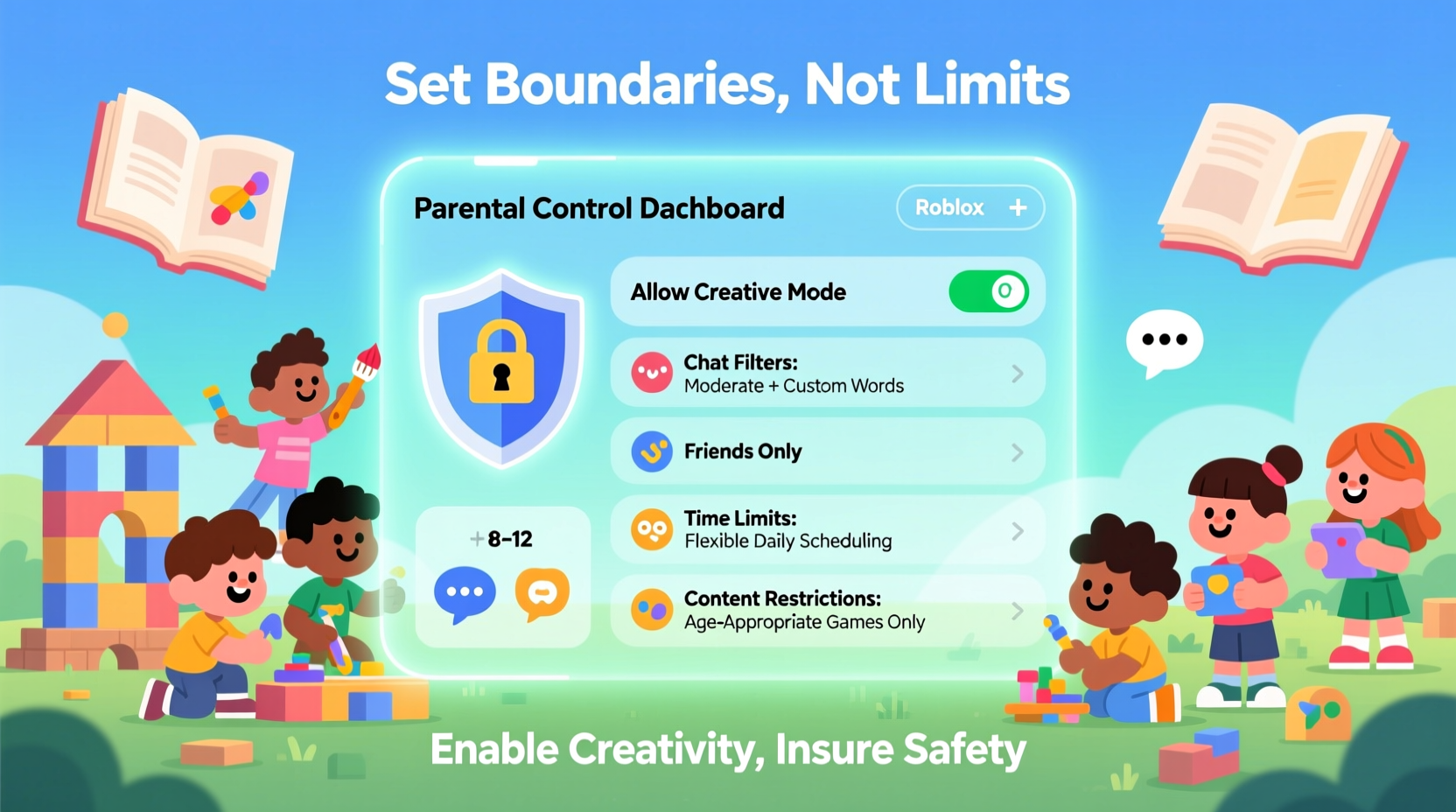
Roblox operates on a tiered safety model designed to accommodate different age groups and maturity levels. At its core is the concept of privacy settings, account restrictions, and communication filters—all customizable by parents through a secure account dashboard. These tools are not meant to lock down the experience entirely but to provide guardrails that evolve as children grow.
Roblox automatically assigns new accounts under age 13 to a stricter safety level known as “Restricted Account.” This includes default chat limitations, filtered friend requests, and curated game access. While helpful, these defaults may be too restrictive for older children or those demonstrating responsible online behavior. The key is gradual adjustment based on trust and maturity, not blanket restrictions.
Importantly, Roblox also employs AI moderation and human review teams to detect harmful content and behavior. But automated systems aren’t foolproof. Parental oversight remains essential—not as surveillance, but as guidance.
Tip: Use Roblox’s \"Account Restrictions\" feature during school hours and loosen them on weekends when supervision is possible.Step-by-Step Guide to Configuring Parental Controls
Setting up effective parental controls requires navigating several layers of settings. Below is a clear, actionable sequence to follow.
- Create a Parent Account: Sign up at roblox.com using your email. This will serve as the manager for your child’s account.
- Link Your Child’s Account: Go to the Parent Dashboard and add your child’s username. You’ll need to verify ownership via email or SMS.
- Enable Two-Factor Authentication (2FA): Protect both accounts from unauthorized access by enabling 2FA in the Security settings.
- Adjust Privacy Settings: Navigate to the Privacy tab and set who can send friend requests, messages, and join your child’s games. Start with “Friends Only” and expand gradually.
- Set Communication Limits: Under Communications, choose between “No Chat,” “Filtered Chat,” or “Full Chat.” For ages 8–12, “Filtered Chat” strikes a good balance.
- Manage Spending: Disable automatic purchases and set monthly spending limits. Require PIN approval for any transaction.
- Review Game Access: Use the “Allowed Experiences” filter to restrict play to age-appropriate or educational games.
- Monitor Activity Weekly: Check the activity log to see what games were played and who they interacted with.
This process takes less than 20 minutes initially and should be revisited every few months as your child demonstrates responsibility.
Preserving Creativity Within Safe Boundaries
One of the greatest strengths of Roblox is its creation suite—Roblox Studio—which allows users to design their own games, scripts, and virtual worlds. Overly strict controls can block access to this powerful learning tool. The goal isn’t to prevent creation but to ensure it happens safely.
For example, disabling all external communication might prevent cyberbullying, but it also cuts off collaboration with peers on group projects. Instead, consider allowing message exchanges only within approved games or development teams. Many schools now use Roblox Education Edition, which provides a walled-garden environment for students to code and create without public exposure.
Likewise, limiting game discovery to “Recommended” or “Educational” categories still exposes children to thousands of high-quality experiences—from physics puzzles to historical simulations—while reducing the chance of stumbling upon violent or mature themes.
“Digital literacy isn’t about isolation—it’s about equipping kids with the judgment to navigate complex spaces responsibly.” — Dr. Lena Torres, Child Development & Technology Researcher, Stanford University
Do’s and Don’ts: Balancing Safety and Freedom
| Do | Don't |
|---|---|
| Allow access to Roblox Studio if your child shows interest in coding or design | Block all chat functions permanently—even filtered ones |
| Set time limits instead of banning play after school | Use tracking software that hides from your child (undermines trust) |
| Co-play occasionally to understand the games they enjoy | Assume all user-generated content is safe just because it's on Roblox |
| Encourage joining moderated clubs or educational servers | Let unrestricted spending on Robux without prior discussion |
| Have regular conversations about online friendships | Punish mistakes harshly—use them as teaching moments |
Real Example: The Patel Family’s Balanced Approach
The Patels have two children—Aria, 10, and Jay, 13—who both love building games on Roblox. When Aria first joined, her parents enabled full restrictions: no chat, no friends, and only curated experiences. After three months of consistent, positive behavior, they allowed her to send friend requests to classmates she knew offline.
Jay, being older, wanted to collaborate on a multiplayer adventure game with friends. His parents reviewed the project, met his teammates via video call (with avatars only), and agreed to let him use filtered chat within that specific group. They also set a rule: no late-night development sessions past 8:30 PM on school nights.
By linking privileges to responsibility, the Patels maintained safety without sacrificing engagement. Both kids now participate in a school-sponsored Roblox coding club, where their projects have been showcased district-wide.
Tip: Schedule a monthly “Roblox Review Night” where your child shows you what they’ve built or played. It builds trust and insight.Essential Checklist for Parents
- ✅ Create and verify your parent account on the Roblox Parent Dashboard
- ✅ Enable two-factor authentication for both parent and child accounts
- ✅ Set appropriate chat and messaging filters based on age and maturity
- ✅ Disable auto-purchase and set a spending limit for Robux
- ✅ Approve or restrict friend requests to “Friends Only” or “No One”
- ✅ Allow access to Roblox Studio if creativity is a priority
- ✅ Limit screen time with scheduled play windows (e.g., 1 hour after homework)
- ✅ Review activity logs weekly and discuss findings openly
- ✅ Encourage participation in moderated, educational, or school-affiliated groups
- ✅ Hold regular conversations about online interactions and digital citizenship
Frequently Asked Questions
Can my child still use Roblox Studio with parental controls enabled?
Yes. Roblox Studio is separate from in-game chat and social features. As long as your child can log in and download the app, they can create games. You can further enhance safety by encouraging work within private teams or classroom environments that don’t require public sharing.
What’s the difference between “Filtered Chat” and “No Chat”?
“Filtered Chat” uses automated systems to block inappropriate language and personal information in real-time. It allows communication with friends or within games but sanitizes messages. “No Chat” disables all text and voice communication, which may hinder collaborative play or team-based creation. Most experts recommend “Filtered Chat” for ages 9–12 as a middle ground.
How do I know if a game is truly safe for my child?
Check the game’s rating, read community reviews, and look for developer badges (e.g., “Official” or “Educational”). You can also play the game yourself first. Roblox labels experiences with content descriptors like “Mild Fantasy Violence” or “User-Generated Content,” helping you make informed decisions.
Maintaining Trust While Ensuring Safety
Effective parental control isn’t about control—it’s about coaching. The objective is not to police every click but to guide your child toward becoming a discerning, ethical digital citizen. Open dialogue matters more than locked settings. When children understand *why* certain boundaries exist, they’re more likely to respect them—and eventually self-regulate.
Transparency is crucial. Let your child know what settings are in place and invite feedback. Ask questions like, “Do you feel safe in this game?” or “Has anyone ever made you uncomfortable online?” These conversations reinforce that safety is a shared responsibility.
As children grow, so should their autonomy. Consider creating a “digital responsibility ladder” where increased privileges—like expanded chat access or longer playtimes—are earned through consistent, respectful behavior. This turns safety into a developmental journey rather than a restriction.
Conclusion: Empowerment Through Smart Controls
Setting up parental controls on Roblox doesn’t mean dimming creativity or cutting off social growth. With intentional configuration, you can create a secure environment where imagination, learning, and connection flourish. The tools are there—account restrictions, chat filters, spending limits, and monitoring dashboards—but their true power lies in how you use them: not as walls, but as supportive scaffolding.
Start with strong defaults, then gradually loosen constraints as trust and maturity develop. Stay involved, stay informed, and above all, keep the conversation going. Your child’s digital life is an extension of their real world—one that deserves guidance, not fear.
💬 Ready to take the next step? Log into your Roblox parent account today, review your child’s settings, and schedule your first co-play session. Share your experience or questions in the comments—let’s build a safer, smarter Roblox community together.