In an age where digital wallets are increasingly central to daily transactions, Google Pay offers convenience and speed for purchases across apps, websites, and in-store terminals. However, there are valid reasons you might want to disable or fully deactivate the service — whether due to switching devices, concerns about account security, or simply opting out of contactless payments. The key is doing so safely, without leaving residual access points or exposing sensitive payment information. This guide walks you through every step required to properly deactivate Google Pay, ensuring your data remains protected throughout the process.
Why Deactivate Google Pay?
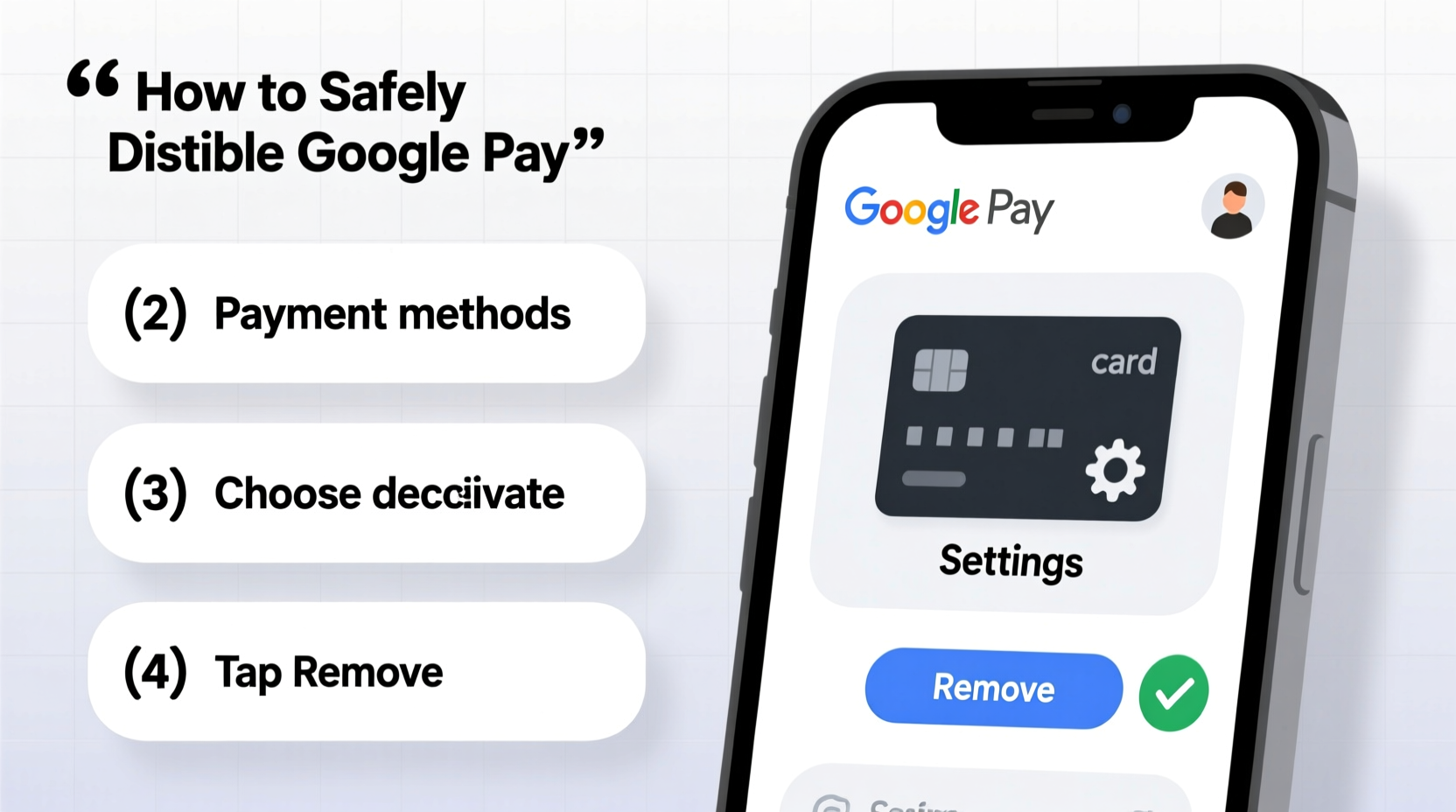
Before diving into the technical steps, it’s important to understand why someone might choose to disable Google Pay. Common scenarios include:
- Device loss or theft: Preventing unauthorized transactions after losing a phone.
- Switching to another digital wallet: Transitioning to Apple Pay, Samsung Pay, or a bank-specific app.
- Privacy concerns: Reducing digital footprint and limiting stored card data on cloud services.
- Account compromise: Responding to suspected breaches or phishing attempts.
- Reducing spending triggers: Removing quick-access payment methods to support budgeting efforts.
Whatever your reason, deactivation should be thorough. Simply uninstalling the app isn’t enough — Google Pay may still retain tokenized card data, device authorizations, or transaction history linked to your Google Account.
Tip: Always sign out of Google Pay before selling or recycling your phone, even if you’ve factory reset the device.Step-by-Step Guide to Disable Google Pay
To ensure full deactivation, follow these sequential actions. Each step addresses a different layer of access and data storage.
- Open the Google Pay app on your Android device. If you're using an iOS device, open the app from your home screen.
- Tap your profile icon (usually in the top-right corner) to access settings.
- Select Payments & subscriptions, then tap Payment methods.
- Remove all saved credit and debit cards by tapping each one and selecting Remove card. Confirm when prompted.
- Return to the main menu and go to Settings → Google Pay settings.
- Scroll down and select Deactivate Google Pay or Turn off Google Pay. This option may appear under “Account preferences” or “Security.”
- Confirm your choice. You may need to enter your PIN, password, or use biometric authentication.
- After deactivation, consider uninstalling the Google Pay app to prevent accidental reactivation.
This process disables active transaction capabilities and removes stored payment instruments from immediate use. However, some metadata may remain associated with your Google Account unless further action is taken.
Permanently Delete Google Pay Data from Your Account
Disabling the service stops usage, but doesn’t erase historical data. To fully remove traces of your Google Pay activity:
1. Clear Payment History via Google Dashboard
Visit myaccount.google.com and log in. Navigate to:
- Data & privacy
- Under “History settings,” click Web & App Activity
- Select Manage activity and filter by “Google Pay”
- Delete relevant entries or clear all activity within a date range
2. Remove Payment Methods from Google Wallet
As of 2023, Google has transitioned many features to Google Wallet. Even if you deactivated Google Pay, your cards might still exist in Wallet. Open wallet.google.com, sign in, and delete any remaining passes or payment cards.
3. Revoke Device Access
If you’re concerned about lost or compromised devices:
- Go to Find My Device
- Select the device previously used with Google Pay
- Choose Secure device or Erase device to remotely wipe all data, including tokenized cards
“Simply turning off a digital wallet leaves dormant access tokens that could be exploited if a device falls into the wrong hands.” — Marcus Tran, Cybersecurity Analyst at Digital Shield Labs
Do’s and Don’ts When Deactivating Google Pay
| Do | Don't |
|---|---|
| Remove all saved cards before deactivation | Assume uninstalling the app deletes your data |
| Use Find My Device to lock or wipe old phones | Share screenshots of your payment screen during troubleshooting |
| Check both Google Pay and Google Wallet for duplicates | Ignore email confirmations from Google about account changes |
| Update your backup payment method elsewhere | Leave cards active while reporting a lost device |
Real-World Example: Recovering Control After Theft
Sophie, a freelance designer from Portland, had her phone stolen at a coffee shop. She immediately logged into her Google Account from a friend’s laptop. Within minutes, she used Find My Device to lock the phone and accessed Google Wallet online to remove all linked cards. Though she hadn’t formally deactivated Google Pay before, this rapid response prevented any fraudulent transactions. A week later, after receiving a replacement phone, she chose not to reinstall Google Pay, instead switching to a hardware-based authenticator for future payments.
Her experience underscores the importance of acting quickly — and knowing exactly where your payment data resides.
FAQ: Common Questions About Disabling Google Pay
Will deactivating Google Pay affect my Google Account?
No. Disabling Google Pay only removes payment functionality and stored cards. Your Gmail, Drive, YouTube, and other Google services remain unaffected.
Can I reactivate Google Pay later?
Yes. You can reinstall the app and re-enable the service at any time. However, you’ll need to re-add your payment methods manually, as they are permanently removed during deactivation.
Is my data really deleted after deactivation?
While active payment tools are removed, Google may retain anonymized transaction logs for up to 18 months for fraud prevention and system integrity. These logs do not include full card numbers or personal identifiers accessible to third parties.
Final Checklist Before Deactivation
Use this checklist to ensure a complete and secure exit from Google Pay:
- ✅ Removed all credit and debit cards from the app
- ✅ Turned off Google Pay in app settings
- ✅ Checked Google Wallet online and deleted duplicate cards
- ✅ Cleared Web & App Activity related to Google Pay
- ✅ Secured or erased any old devices via Find My Device
- ✅ Notified your bank if deactivation follows suspicious activity
- ✅ Set up an alternative payment method for daily use
Take Control of Your Digital Financial Life
Disabling Google Pay isn’t just about stopping a service — it’s about making intentional choices regarding your financial privacy and digital security. With cyber threats evolving and mobile fraud rising year over year, taking proactive steps to manage your digital footprint is more important than ever. By following this guide, you ensure that convenience never comes at the cost of safety.
💬 Have questions about securing your digital wallet? Share your experience or ask for advice in the comments below — your insight could help others protect their financial data too.