
In today’s remote-first world, Zoom has become a staple for work meetings, virtual classrooms, and social gatherings. Yet one persistent issue undermines the experience: background noise. Whether it’s barking dogs, keyboard clatter, or distant traffic, unwanted sounds can disrupt communication, reduce professionalism, and fatigue listeners. The good news? You don’t need expensive hardware or software to fix this. With a few smart techniques and free tools, you can significantly reduce or eliminate background noise during your Zoom calls.
This guide walks through proven, accessible methods—leveraging built-in features, open-source software, and intelligent settings—to help you speak clearly and be heard without interference. These solutions are tested across different operating systems and devices, ensuring broad usability regardless of your tech setup.
Why Background Noise Matters on Zoom
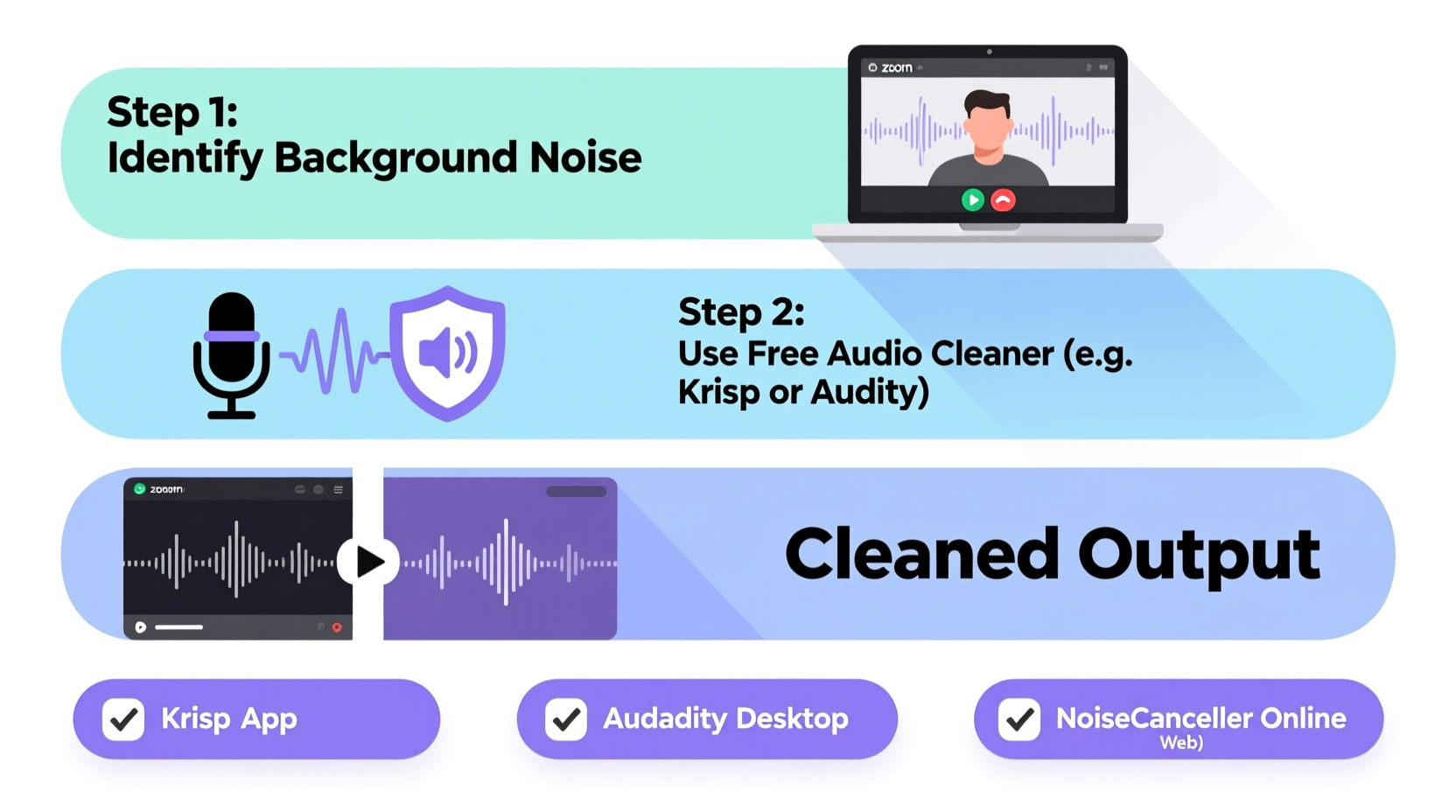
Audio quality is often more critical than video in virtual communication. Poor sound distracts participants, forces repetition, and creates frustration. Studies show that excessive background noise increases cognitive load, making it harder for listeners to focus and retain information. In professional environments, consistent audio issues can reflect poorly on reliability and attention to detail.
Zoom does include basic noise suppression, but its default settings only filter out “constant” noise like fans or AC units. Sudden or irregular sounds—such as a door slamming or a child calling out—are typically unaffected. This limitation means users must take additional steps to ensure clean audio.
“Even subtle background noise can erode trust in a virtual meeting. Listeners subconsciously associate clear audio with preparedness and competence.” — Dr. Lena Torres, Communication Researcher at MIT Media Lab
Free Tools That Actually Work
The key to removing background noise lies in real-time audio processing. Fortunately, several free and open-source tools offer advanced noise cancellation far beyond Zoom’s native capabilities. Below are the most effective options available at no cost.
1. Krisp – AI-Powered Noise Cancellation (Free Tier)
Krisp uses artificial intelligence to separate human voice from ambient noise. It works as a virtual microphone and speaker, inserting itself between your physical mic and Zoom. The free version allows up to 60 minutes of noise-canceling per day—ideal for daily meetings under an hour.
- Blocks background speech, typing, pets, and household sounds
- Available for Windows and macOS
- Easy setup with no technical knowledge required
- Also removes echo and prevents feedback
2. NVIDIA RTX Voice (Now Broadcast) – For GPU Users
If you have an NVIDIA RTX graphics card (or even some GTX models), NVIDIA Broadcast offers powerful noise suppression. Originally designed for streamers, it functions as a high-quality audio filter that integrates seamlessly with Zoom.
Though marketed for RTX cards, many users report success with older GTX 10-series GPUs. The tool uses AI to isolate voice frequencies and suppress everything else, including dog barks, washing machines, and street noise.
3. Audacity + Real-Time Audio Processing (Advanced)
Audacity is a well-known free audio editor. While not designed for live calls, you can use it in conjunction with virtual audio cables to process your microphone input in real time. This method requires more setup but gives full control over noise reduction parameters.
You’ll need:
- Audacity (free)
- VBCable (Virtual Audio Cable, free)
- Noise reduction plugin (built into Audacy)
This approach is best suited for users comfortable with system-level audio routing.
4. Discord’s Voice Enhancement (Hidden Gem)
While not a direct Zoom tool, Discord includes a robust noise suppression feature that can be repurposed. By setting Discord as your audio processor and routing its output back to Zoom, you can leverage its AI filters. Enable “Noise Suppression” in User Settings > Voice & Video > Audio Subsystem.
Tip: Use headphones when testing audio tools to avoid feedback loops and ensure accurate monitoring.Step-by-Step Guide: Setting Up Krisp with Zoom
Krisp offers the easiest entry point for most users. Follow these steps to get it working with Zoom in under five minutes.
- Download and Install Krisp: Visit krisp.ai and download the app for your OS. Install and launch it.
- Grant Microphone Access: Allow Krisp to access your microphone when prompted.
- Start Krisp: Click “Start Noise Cancellation.” Two new virtual devices will appear: “Krisp Microphone” and “Krisp Speaker.”
- Open Zoom Settings: Launch Zoom and go to Settings > Audio.
- Change Microphone Source: Under “Microphone,” select “Krisp Microphone” from the dropdown.
- Adjust Speaker Output (Optional): If others report echo, set your speaker to “Krisp Speaker.”
- Test Your Audio: Use Zoom’s “Test Speaker and Microphone” tool to confirm the connection.
- Join a Meeting: Your voice will now pass through Krisp’s noise filter automatically.
During a call, Krisp runs silently in the background. A small indicator shows active noise cancellation. After 60 minutes, the free version pauses until the next day—but resets at midnight local time, allowing multiple short sessions.
Optimize Your Environment and Hardware
Software can only do so much. Pairing digital tools with physical adjustments maximizes results. Consider these low-cost improvements:
- Use a directional microphone: Built-in laptop mics pick up sound from all directions. An external USB mic (even budget ones under $30) focused on your voice reduces ambient pickup.
- Position matters: Sit with your back to noisy areas. Place the mic closer to your mouth—within 6–12 inches—for stronger signal-to-noise ratio.
- Add soft furnishings: Carpets, curtains, and bookshelves absorb echoes and dampen outside noise.
- Close windows and doors: Simple but effective for blocking street noise.
| Solution | Cost | Setup Difficulty | Best For |
|---|---|---|---|
| Krisp (Free Tier) | Free | Easy | Daily professionals with short meetings |
| NVIDIA Broadcast | Free (requires compatible GPU) | Moderate | Users with NVIDIA graphics cards |
| Audacity + VBCable | Free | Hard | Tech-savvy users seeking full control |
| Discord Noise Suppression | Free | Moderate | Those already using Discord |
| Zoom Built-in Suppression | Free | Very Easy | Basic filtering of constant noise |
Mini Case Study: Remote Teacher Reduces Distractions
Sarah, a middle school teacher in Chicago, transitioned to online instruction during the pandemic. Her apartment, located near a busy intersection, made her morning classes difficult—students complained about sirens and construction noise interrupting lessons.
She tried Zoom’s default settings but found they didn’t block sudden sounds. After researching free tools, she installed Krisp. Within minutes, she noticed a dramatic improvement. Even when garbage trucks passed outside, her students could hear her clearly.
Over two months, parent feedback improved significantly. One noted, “It feels like Sarah is teaching from a quiet classroom now.” Sarah credits the change not to new equipment, but to leveraging free software effectively. She now starts every school day with Krisp running and keeps her mic muted when not speaking—a simple habit that further reduces background transmission.
Checklist: Eliminate Background Noise in 7 Steps
Follow this actionable checklist to achieve clean audio on your next Zoom call:
- ✅ Download and install Krisp (or another free noise-canceling app)
- ✅ Test microphone access and permissions
- ✅ Set the virtual mic (e.g., Krisp Microphone) as your input in Zoom
- ✅ Position your mic close to your mouth, away from noise sources
- ✅ Reduce room echo with rugs, curtains, or foam panels
- ✅ Mute when not speaking to prevent accidental noise pickup
- ✅ Test audio with a colleague before important meetings
Common Mistakes That Undermine Noise Reduction
Even with the right tools, poor habits can weaken their effectiveness. Avoid these common pitfalls:
- Using speakers instead of headphones: Causes echo and reduces noise filter accuracy.
- Placing the mic too far away: Forces the system to amplify all sounds, including background noise.
- Running multiple audio processors: Can cause conflicts, distortion, or latency.
- Ignoring room acoustics: No software can fully compensate for a highly reflective or noisy environment.
- Skipping audio tests: What sounds fine to you may be unclear to others.
Frequently Asked Questions
Can I use these tools on Linux?
Krisp officially supports Windows and macOS only. However, Linux users can run it via Wine or use PulseAudio-based noise suppression tools like RNNoise. Some distributions support noise-cancelling through PipeWire with integrated filters.
Does Zoom’s built-in noise suppression work well?
It helps with steady background noises like fans or HVAC systems, but struggles with intermittent sounds like voices, barks, or keyboard taps. For better results, pair it with a third-party tool like Krisp.
Will using these tools slow down my computer?
Most modern laptops handle noise cancellation smoothly. Krisp uses minimal CPU, while NVIDIA Broadcast leverages GPU power, reducing strain on your processor. Older machines (pre-2018) may experience slight lag if running multiple apps simultaneously.
Final Thoughts and Action Plan
Clean audio isn’t a luxury—it’s a necessity for effective virtual communication. You don’t need premium gear or subscriptions to achieve it. Free tools like Krisp, NVIDIA Broadcast, and smart environmental tweaks can transform your Zoom presence overnight.
The difference is immediate: fewer interruptions, clearer speech, and greater credibility. Whether you’re leading a team meeting, teaching a class, or catching up with family, eliminating background noise ensures your message comes through loud and clear.
🚀 Take action today: Download Krisp, test it with a friend, and join your next Zoom call with confidence. Share this guide with colleagues who struggle with noisy environments—better audio benefits everyone.