In today’s digital ecosystem, mobile and desktop applications require access to various device resources—contacts, location, camera, microphone, storage, and more. While these permissions enable powerful features, they also pose privacy risks when granted unnecessarily or left unchecked. Striking the right balance between usability and security is essential. Managing app permissions wisely doesn’t mean rejecting every request; it means understanding what’s truly needed, why it’s requested, and how to maintain control without disrupting the experience you rely on.
With data breaches and surveillance concerns rising, users are increasingly aware of how their personal information is accessed and used. Yet, many still accept permissions out of habit or fear that denying them will break core app functions. This article provides a structured, realistic approach to managing app permissions—empowering you to protect your privacy while preserving functionality.
Understanding App Permissions: What They Are and Why They Matter
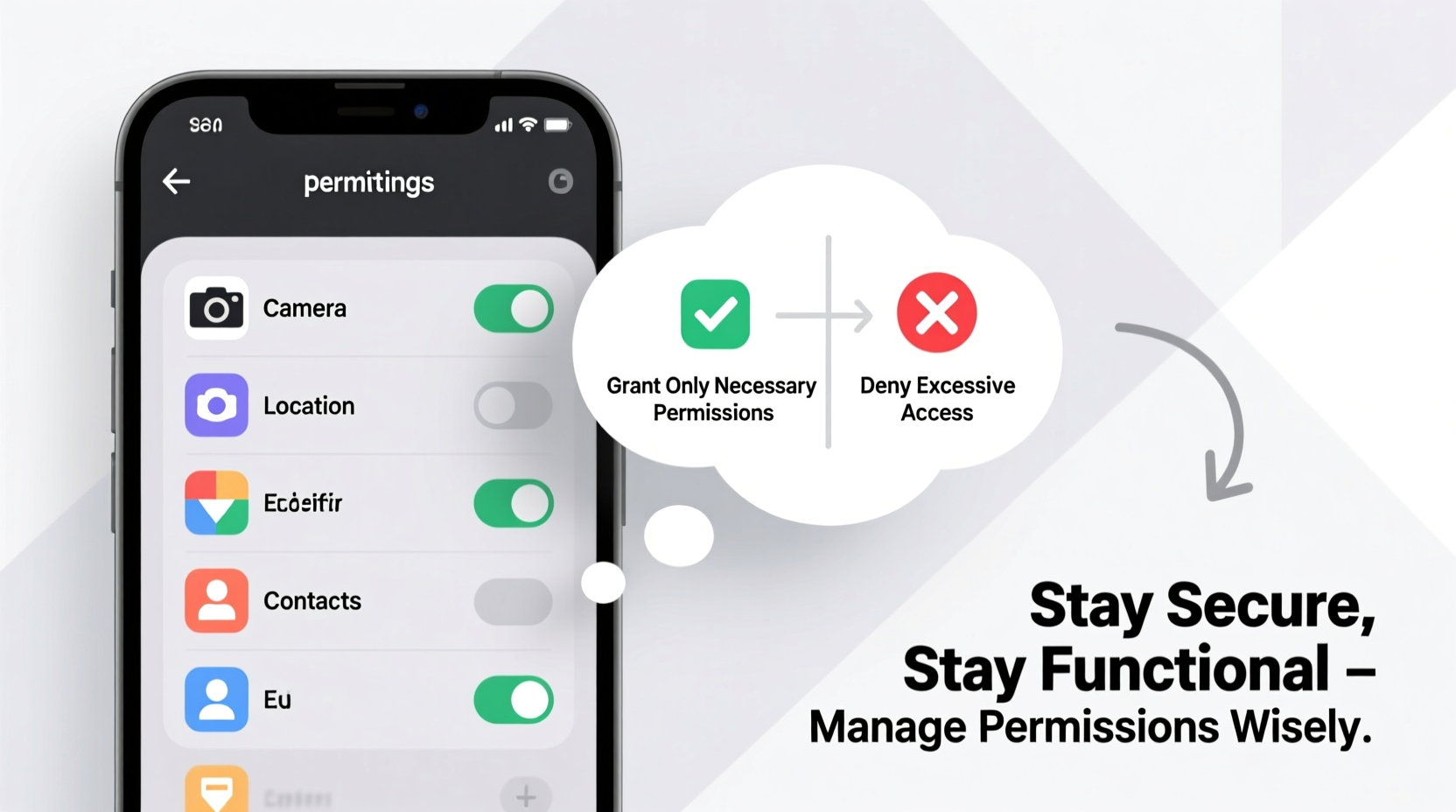
App permissions are access rights granted by users to software applications, allowing them to interact with specific hardware components or data stored on a device. These range from basic access (like network connectivity) to highly sensitive capabilities (such as recording audio or reading SMS messages).
Operating systems like Android, iOS, Windows, and macOS categorize permissions based on risk level:
- Normal permissions: Low-risk access (e.g., internet usage, Wi-Fi state).
- Dangerous permissions: High-risk access requiring explicit user consent (e.g., location, camera, contacts).
- Special permissions: Require additional steps (e.g., system alert windows, modifying system settings).
The key issue isn’t that apps request permissions—it’s that many request more than they need. A flashlight app shouldn’t require access to your contacts. A calculator shouldn’t track your location. Over-permissioned apps increase attack surface for data misuse, tracking, or exploitation in case of compromise.
“Just because an app asks for permission doesn’t mean it needs it. Users should treat each request as a negotiation, not a default.” — Dr. Lena Torres, Cybersecurity Researcher at the Center for Digital Trust
A Step-by-Step Guide to Auditing and Managing Permissions
Managing permissions effectively requires regular review and informed decision-making. Follow this six-step process to take control without sacrificing utility.
- Inventory installed apps: List all apps currently on your device, especially those with background activity or frequent updates.
- Review active permissions: Navigate to Settings > Apps > [App Name] > Permissions (varies by OS). Note which permissions are enabled.
- Categorize by necessity: Group apps into three buckets:
- Essential: Apps that genuinely require certain access (e.g., maps app needing location).
- Situational: Permissions only needed occasionally (e.g., camera access for QR scanning).
- Unjustified: Apps requesting excessive access (e.g., games requesting SMS).
- Adjust settings accordingly: Disable unjustified permissions. For situational ones, use temporary access options (e.g., “Allow Only Once” on iOS/Android).
- Test functionality post-adjustment: Use the app normally to confirm core features still work. If something breaks, re-evaluate whether the permission is truly necessary.
- Schedule quarterly reviews: Revisit your permission settings every few months or after major app updates.
Do’s and Don’ts: Permission Management Best Practices
To avoid common pitfalls and make smarter decisions, refer to the following comparison table summarizing recommended actions.
| Do | Don't |
|---|---|
| Grant location access only when the app actively uses it (e.g., navigation). | Allow background location tracking for weather or news apps unless strictly necessary. |
| Use one-time or temporary permissions for cameras and microphones. | Give permanent microphone access to note-taking apps unless dictation is a core feature. |
| Deny contact access to social media apps unless syncing connections is required. | Assume all social apps need your full contact list—many can function via username search. |
| Restrict file access to specific folders instead of full storage (where supported). | Allow broad storage access to photo editors or utilities that only need image files. |
| Check app update notes before accepting new permission requests. | Blindly accept new permissions during routine updates without reviewing changes. |
Real Example: Fixing a Broken Calendar Sync Without Over-Permissioning
Consider Maria, a freelance designer using two calendar apps: Google Calendar for personal events and Outlook for client meetings. After updating her phone, she noticed Outlook stopped syncing contacts. The app prompted her to grant \"Contacts\" permission. She almost accepted—but paused.
Maria asked: *Does Outlook actually need full contact access just for calendar sync?* She tested denial first. Sure enough, the calendar continued syncing appointments, but she couldn’t auto-fill attendee names from her address book. That was acceptable; she could type emails manually.
Still, she wanted convenience. Instead of granting permanent access, she checked if selective sharing was possible. She discovered that on Android, she could allow Outlook to access only work-related contacts by creating a restricted contact group. By doing so, she restored partial functionality while limiting exposure of personal contacts.
This case illustrates that even when functionality breaks, there may be middle-ground solutions. Denial isn’t always failure—it’s often the start of smarter configuration.
Expert Strategies for Maintaining Functionality While Reducing Risk
Security experts emphasize proactive management over reactive fixes. Here are advanced techniques used by privacy-conscious professionals:
- Leverage sandboxed environments: Use secondary accounts or work profiles (available on Android Enterprise and some iOS MDM setups) to isolate high-risk apps.
- Utilize permission-focused tools: Apps like TrackerControl (Android) or built-in features like App Privacy Report (iOS 15+) show exactly when and how often apps access sensors.
- Prefer web versions over native apps: Many services (e.g., Twitter, Instagram) offer functional web interfaces that don’t require installation or deep system access.
- Disable unused permissions globally: Turn off ad personalization, advertising ID access, and cross-app tracking in system settings.
Another effective strategy is behavioral testing: temporarily revoke a permission and observe whether the app crashes, shows errors, or simply operates with reduced features. Often, apps continue working fine—proving the permission wasn’t essential.
Tip: On iOS, use “Approximate Location” instead of “Precise Location” for apps like weather or delivery services where exact GPS isn’t critical.Comprehensive Checklist: Secure Your Device in 10 Minutes
Apply these actions immediately to tighten permission control across your devices:
- Open your device’s app settings and navigate to the permissions manager.
- Identify the top five apps with the most permissions (especially location, microphone, camera).
- Revoke unnecessary access (e.g., disable location for offline games).
- Switch persistent permissions to “Ask Every Time” or “Only This Time” where available.
- Turn off background location for non-navigation apps.
- Disable microphone and camera access for messaging apps unless video calling is used regularly.
- Remove contact access from apps that don’t require people integration.
- Enable operating system-level privacy reports (iOS Settings > Privacy & Security > App Privacy Report).
- Uninstall or replace apps that demand excessive permissions with minimal justification.
- Bookmark your OS’s permission settings page for quick future access.
Frequently Asked Questions
Will denying permissions cause apps to stop working?
Not necessarily. Many apps degrade gracefully, meaning they disable certain features but remain usable. For example, denying location access to a food delivery app might prevent automatic restaurant sorting, but manual ZIP code entry usually restores functionality. Always test after revocation—you may find the impact is negligible.
How do I know if an app is misusing a permission?
Modern OS features help detect abuse. On iOS, a green dot appears in the status bar when the camera is active; orange indicates microphone use. Similarly, Android shows indicators in the notification shade. Unexpected activation alerts you to potential misuse. Additionally, privacy reports log access frequency, helping spot anomalies (e.g., a calculator opening the mic daily).
Are third-party permission managers safe to use?
Most aren’t necessary and can be risky. Operating systems now provide robust native tools. Third-party apps claiming to “boost privacy” often require admin privileges themselves, creating new vulnerabilities. Stick to built-in controls unless you’re technically proficient and trust the source.
Conclusion: Take Control Without Compromise
Managing app permissions wisely isn’t about paranoia—it’s about proportionality. Every permission should serve a clear purpose aligned with how you use the app. Blind acceptance erodes privacy; blanket denial disrupts utility. The goal is intentional configuration: granting access thoughtfully, reviewing it regularly, and adjusting as needs evolve.
You don’t need to become a tech expert to protect yourself. Simple habits—like pausing before accepting a permission prompt, checking what apps have access, and removing outdated ones—can significantly reduce digital exposure. Technology should empower you, not exploit you. By applying the strategies outlined here, you preserve both functionality and autonomy.
🚀 Start today: Pick one app, review its permissions, and adjust one setting. Small steps lead to lasting control. Share this guide with someone who clicks \"Allow\" too quickly—they’ll thank you later.