Facebook remains one of the most widely used social platforms globally, serving both personal and professional purposes. Whether you've recently changed your name due to marriage, legal reasons, or simply want to reflect your current identity more accurately, keeping your profile updated is essential. An accurate name and profile information improve recognition among friends, colleagues, and followers. This guide walks you through the entire process of updating your name and other key profile details on Facebook—clearly, securely, and without hassle.
Why Updating Your Profile Matters
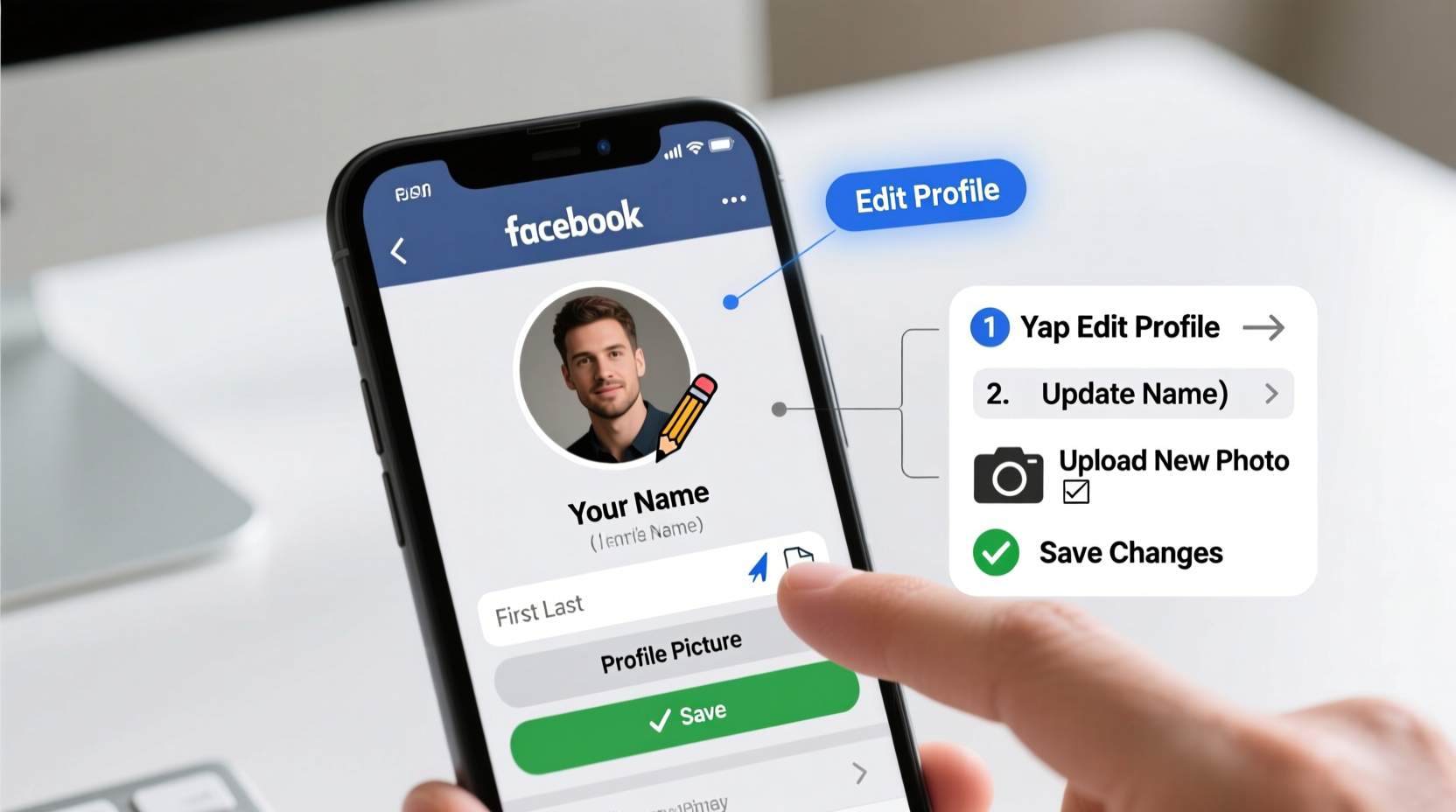
Your Facebook profile acts as your digital identity. Inaccurate or outdated information can lead to confusion, missed connections, or even security concerns. A consistent name across platforms strengthens authenticity, especially if you use Facebook for networking, freelancing, or business promotion. Additionally, Facebook’s verification systems rely on accurate personal data to protect your account from impersonation or unauthorized access.
Updating your name isn’t just about appearance—it supports trust, clarity, and online safety. However, many users hesitate because they’re unsure about the steps involved or fear losing access to their account. The truth is, Facebook has streamlined the process to be intuitive and secure.
Step-by-Step: How to Change Your Name on Facebook (Desktop)
- Log in to Facebook using your credentials at facebook.com.
- In the top-right corner, click your profile icon to open the menu, then select Settings & Privacy, followed by Settings.
- In the left sidebar, click Personal Information.
- Under the “Name” section, click the pencil/edit icon next to your current name.
- Enter your new first name, last name, and any optional middle or alternate names.
- Click Review Change. You may be prompted to enter your password for security verification.
- Confirm the change. Facebook will notify you that the update may take up to 24 hours to fully reflect across all devices and features.
Changing Your Name via Mobile App (iOS/Android)
The Facebook mobile app offers nearly identical functionality to the desktop version, optimized for touch navigation.
- Open the Facebook app and tap the three-line menu icon (☰) in the bottom right (iOS) or top right (Android).
- Scroll down and tap Settings & Privacy, then select Settings.
- Tap Personal Information under the Account Settings section.
- Tap Name, enter your desired name, and tap Review Change.
- Re-enter your password when prompted and confirm the update.
Note: After submission, Facebook may display a message indicating that your name change is under review. This is normal and typically resolves within a day.
Understanding Facebook’s Name Policy
Facebook enforces a real-name policy to maintain authenticity and reduce fake accounts. According to their guidelines:
- You must use your authentic name as it appears on official identification (e.g., driver's license, passport).
- Symbols, numbers, unusual capitalization, titles (like Dr. or Sir), or offensive words are not allowed.
- You can only change your name once every 60 days unless verified with documentation.
“Using your real name helps build trust in the community and ensures others can connect with you safely.” — Facebook Help Center
If Facebook rejects your chosen name, you’ll receive a notification explaining why. In some cases, such as stage names or cultural naming conventions, you may need to submit supporting documents like a utility bill or government ID.
Updating Other Key Profile Details
Beyond your name, several profile elements contribute to your online presence. These can also be edited directly from the same settings panel.
Email Address and Phone Number
To ensure account recovery and notifications work properly:
- Go to Settings & Privacy > Settings > Contact.
- Add or edit your email address or phone number.
- Verify any new contact method via confirmation code.
Profile Picture and Cover Photo
Your visuals shape first impressions.
- Navigate to your profile page.
- Hover over your current profile picture (on desktop) or tap it (on mobile), then select Edit.
- Upload a new image, adjust cropping, and save.
- Repeat for the cover photo by clicking or tapping it directly.
Username (Custom URL)
A custom username makes your profile easier to find and share.
- Visit Settings > Username.
- Enter your preferred handle (e.g., johnsmith).
- If available, click Create Username. Note: Once set, changes are limited.
Checklist: Complete Profile Update Routine
Use this checklist to ensure no detail is overlooked when refreshing your Facebook presence:
- ✅ Change full name (first, middle, last)
- ✅ Update profile picture with a clear, recent image
- ✅ Refresh cover photo to reflect current interests or branding
- ✅ Verify and add primary email address
- ✅ Confirm mobile number for two-factor authentication
- ✅ Set or update username for easy sharing
- ✅ Review privacy settings for each updated field
Real Example: Maria’s Name Change After Marriage
Maria had been using her maiden name on Facebook for over a decade. After getting married, she wanted to update her profile to reflect her new surname but was concerned about losing messages or being unrecognizable to friends.
She followed the desktop steps outlined above, changing her name to include her husband’s surname as a last name. Within an hour, Facebook displayed a subtle note on her profile: “Maria Chen is now Maria Rivera.” Friends saw a notification in their feed, which preserved continuity. She also updated her profile picture with a recent photo and added a wedding album to signal the change visually. By maintaining consistency and using Facebook’s built-in transition tools, Maria smoothly updated her identity without confusion.
Do’s and Don’ts When Updating Facebook Profile Information
| Do’s | Don’ts |
|---|---|
| Use your legal or commonly recognized name | Don’t use symbols, emojis, or fake titles |
| Update contact info regularly for security | Don’t leave old or inactive emails connected |
| Choose a high-quality, recognizable profile photo | Don’t use blurry, dark, or group photos as your main image |
| Set a simple, memorable username | Don’t frequently change usernames or names |
Frequently Asked Questions
How often can I change my name on Facebook?
You can change your name once every 60 days without submitting documentation. Frequent changes may trigger a review requiring ID verification.
Will my friends be notified when I change my name?
Yes. Facebook automatically posts a small update in your friends’ news feeds stating that you’ve changed your name. This helps avoid confusion and keeps connections informed.
Can I revert to a previous name after changing it?
Yes, as long as you haven’t exceeded the 60-day window. If you’ve already used a name before, you can switch back to it following the same editing process.
Final Thoughts: Keep Your Digital Identity Current
Your Facebook profile is more than a social space—it’s a reflection of who you are today. Life events like marriages, relocations, career shifts, or personal growth warrant updates to your online presence. Taking a few minutes to revise your name and profile details ensures that your digital footprint aligns with your real-world identity.
The process is straightforward, secure, and designed to protect your authenticity. Whether you're on a computer or smartphone, Facebook provides intuitive tools to make these changes seamlessly.
🚀 Ready to refresh your profile? Log into Facebook now and take control of your digital identity. Share this guide with someone who might need it—or leave a comment below with your experience updating your account.