
In an era of information overload, staying informed doesn’t mean consuming everything—it means curating what matters most to you. Google News, one of the most widely used news aggregation platforms, offers powerful tools to tailor your experience. But many users rely on the default feed, missing out on opportunities to filter noise, prioritize trusted sources, and receive timely updates on topics they care about. With a few strategic adjustments, you can transform Google News from a generic headline stream into a personalized intelligence dashboard.
Understanding How Google News Works
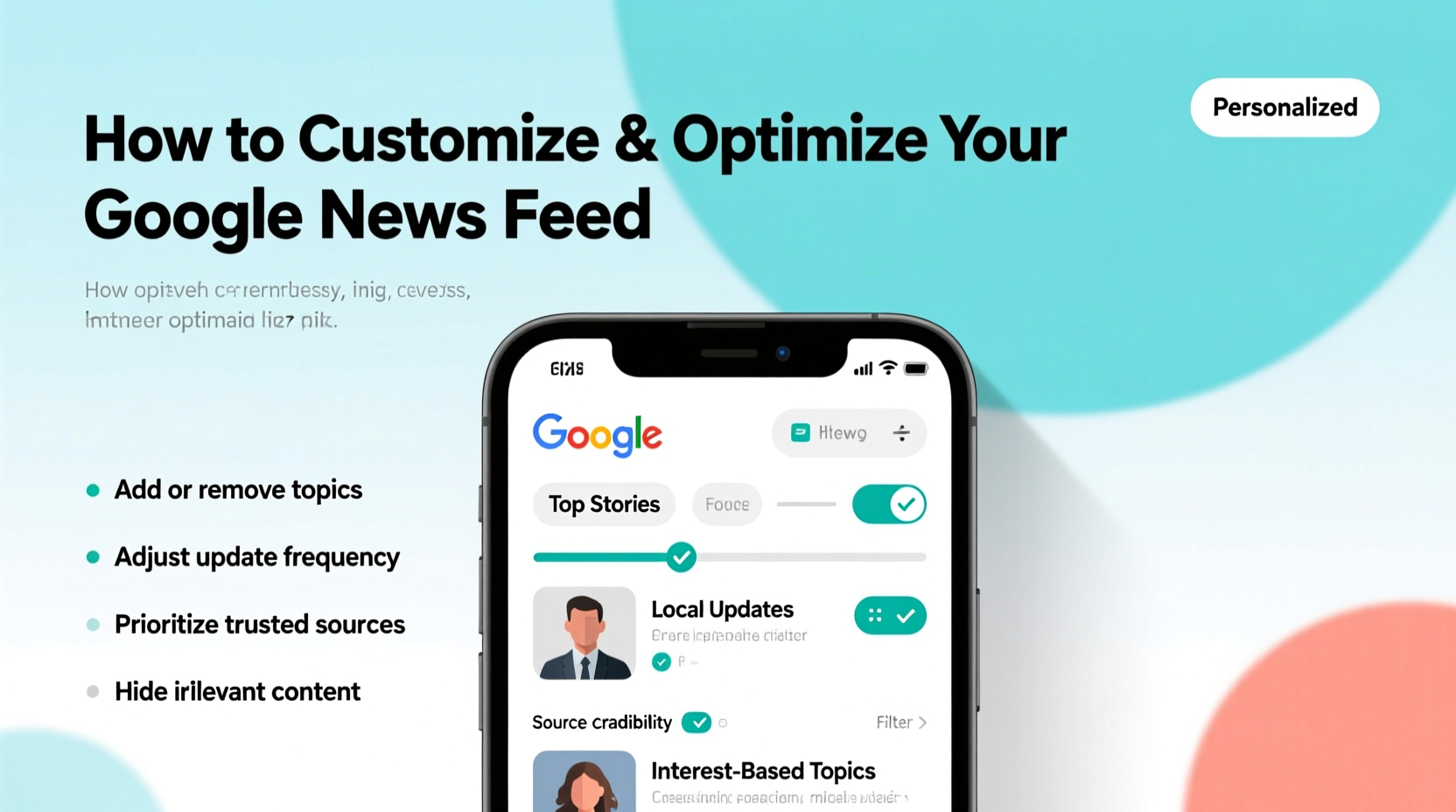
Google News uses a combination of machine learning, user behavior, and editorial signals to determine which stories appear in your feed. It analyzes your search history, location, device usage, and interaction patterns—such as clicks, time spent reading, and skipped articles—to predict what’s relevant to you. While this automation provides a baseline level of personalization, it often defaults to trending or sensational content rather than depth or specificity.
The key to optimization lies in shifting from passive consumption to active curation. By guiding the algorithm with deliberate choices, you gain control over the quality, diversity, and focus of your news intake.
Tip: Clear your news-related search history occasionally if you want a fresh start or are exploring new topics without algorithmic bias.Step-by-Step Guide to Customizing Your Feed
Customization is not a one-time task but an ongoing process. Follow these steps to shape your Google News experience according to your evolving interests.
- Access Google News via Web or App: Open news.google.com on desktop or download the Google News app (available on Android and iOS).
- Sign In with Your Google Account: Personalization features require login. This syncs your preferences across devices.
- Explore the “For You” Tab: This is your primary feed. Scroll through and observe initial recommendations.
- Interact Intentionally: Click on articles that interest you and skip those that don’t. The more you engage, the faster the system adapts.
- Use the “+” Button to Follow Topics: When you see a topic (e.g., “Renewable Energy,” “European Football”), tap the “+” icon to follow it. These will appear in your feed regularly.
- Follow Specific Publishers: If you trust certain outlets like The Guardian, BBC, or MIT Technology Review, search for them and follow directly.
- Adjust Location Settings: Tap your profile icon > Settings > Location to ensure local news reflects your current region or preferred geographic focus.
Within a week of consistent interaction, most users report a noticeable improvement in relevance and signal-to-noise ratio.
Optimizing for Depth and Diversity
A common pitfall of algorithm-driven feeds is the creation of echo chambers—reinforcing existing views while filtering out dissenting or unfamiliar perspectives. To avoid this, apply strategies that promote intellectual balance.
- Follow Contrarian Sources: Deliberately add reputable publications with differing editorial stances (e.g., both progressive and conservative-leaning outlets) to maintain perspective.
- Use Topic Filters: In the app or web interface, navigate to “Following” to review and refine your list. Remove oversaturated topics and add niche areas like “Climate Policy” or “AI Ethics.”
- Set Up Alerts for Breaking News: Enable notifications for high-priority topics such as elections, public health updates, or financial market shifts.
- Leverage the “Full Coverage” Feature: On major stories, Google aggregates timelines, related analyses, and multimedia. Use this to go beyond headlines.
“Personalization should enhance awareness, not limit it. The best news diets include both expected and unexpected insights.” — Dr. Lena Patel, Media Literacy Researcher at Stanford University
Checklist: Optimize Your Google News Feed in 10 Minutes
Action Plan:
- ✅ Sign in to Google News
- ✅ Follow 3–5 core topics (e.g., Tech, Health, Local News)
- ✅ Follow 2–3 trusted news publishers
- ✅ Unfollow irrelevant or low-quality topics
- ✅ Enable notifications for critical subjects
- ✅ Review location and language settings
- ✅ Spend 5 minutes daily engaging with content
Real Example: From Overwhelmed to Informed
Sarah, a software engineer in Seattle, used to scroll through her Google News feed during breakfast, frustrated by repetitive celebrity gossip and alarmist headlines. She rarely found tech policy updates or advancements in open-source development—topics central to her work and curiosity.
After spending 15 minutes adjusting her settings, Sarah followed specific tags like “Artificial Intelligence,” “Cybersecurity,” and “Washington State Politics.” She unfollowed “Entertainment” and muted tabloid-style publishers. Within days, her feed began highlighting in-depth reports from Wired, Ars Technica, and local investigative journalism outlets. She also enabled alerts for “data privacy legislation,” ensuring she didn’t miss developments affecting her industry.
Six weeks later, Sarah reported spending less time reading news—but feeling better informed. Her feed had become a tool, not a distraction.
Do’s and Don’ts: Managing Your News Experience
| Do | Don’t |
|---|---|
| Follow niche topics for deeper insight | Rely solely on trending sections |
| Review followed topics monthly | Ignore irrelevant recommendations |
| Enable location-specific news if applicable | Assume the algorithm knows your priorities |
| Use incognito mode to reset temporary biases | Click sensational headlines out of habit |
Frequently Asked Questions
Can I use Google News without a Google account?
Yes, you can browse news.google.com without signing in, but you’ll lose all personalization features. Your feed will default to general regional and trending content, and changes won’t sync across devices.
How do I stop seeing political news I’m not interested in?
Long-press or hover over a political article in your feed, then select “Not interested” or “Mute topic.” You can also go to your “Following” list and unfollow broad categories like “U.S. Politics” or individual subtopics.
Does Google News include paywalled content?
Yes, Google News aggregates headlines and snippets from paywalled sites. While you may see summaries, full access requires a subscription. However, Google’s “Subscribe with Google” feature allows seamless logins for participating publishers.
Final Thoughts: Take Control of Your Information Diet
Your relationship with news shapes your understanding of the world. Left unmanaged, algorithms can amplify outrage, repetition, and irrelevance. But when guided with intention, tools like Google News become conduits for growth, awareness, and informed decision-making.
Customization isn’t just about convenience—it’s about responsibility. By curating your feed, you decide what influences your thinking, what sparks conversation, and what drives action. The effort you invest today in refining your digital news environment pays dividends in clarity, efficiency, and peace of mind tomorrow.
💬 Ready to upgrade your news experience? Spend 10 minutes today optimizing your Google News feed—and notice the difference by next week. Share your favorite customization tip in the comments!