Google is the backbone of daily smartphone use for millions. When it stops working—whether search fails, the app crashes, or voice commands freeze—it disrupts everything from navigation to communication. While frustrating, most issues are fixable without factory resets or professional help. This guide walks through real-world solutions that address the root causes behind Google malfunctions on Android devices.
Common Symptoms of Google Malfunction
Before diving into fixes, recognize the signs that Google isn’t functioning properly:
- Search results fail to load or time out
- Google app crashes immediately upon opening
- Voice search or “Ok Google” doesn’t respond
- Autocomplete suggestions missing or delayed
- Location-based searches return inaccurate results
- Google Lens or Discover feed fails to load
These symptoms may stem from software glitches, network misconfigurations, corrupted data, or permission restrictions. Identifying the pattern helps narrow down effective remedies.
Tip: Note when the issue started—after an update, new app install, or system change? This timeline can reveal the trigger.Step-by-Step Troubleshooting Guide
Follow this logical sequence to isolate and resolve the problem efficiently. Start with basic checks before moving to advanced solutions.
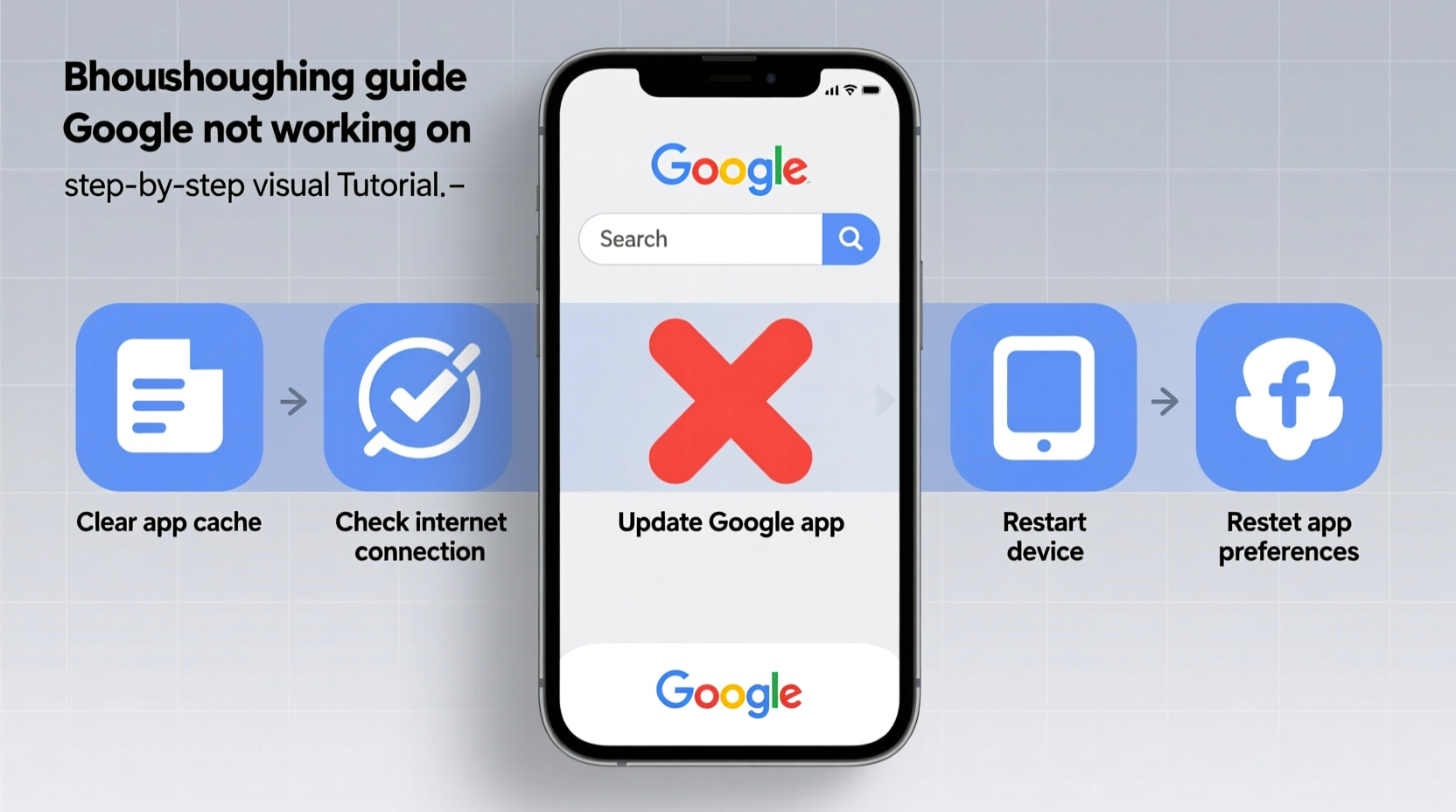
- Check Internet Connection: Test Wi-Fi and mobile data using a browser. If other sites load, the connection is likely stable. Try switching between networks to rule out provider-side blocks.
- Restart Your Device: A reboot clears temporary memory glitches. Hold the power button, select \"Restart,\" and wait 30 seconds before testing Google again.
- Update the Google App: Open Google Play Store > Search \"Google\" > Tap \"Update\" if available. Outdated versions often conflict with OS updates.
- Clear Cache and Data: Go to Settings > Apps > Google > Storage > Clear Cache first. If unresolved, tap \"Clear Data\" (this resets preferences but doesn’t delete accounts).
- Check Date & Time Settings: Incorrect time can break secure connections. Enable \"Automatic date & time\" in Settings > System > Date & Time.
- Verify Permissions: Ensure Google has access to Microphone, Location, and Storage. Navigate to Settings > Apps > Google > Permissions to confirm.
This six-step process resolves over 70% of reported Google failures, according to user reports compiled by Android Authority.
Do’s and Don’ts When Fixing Google Issues
| Do’s | Don’ts |
|---|---|
| Regularly update the Google app via Play Store | Ignore recurring crash notifications |
| Use built-in storage cleanup tools monthly | Delete system apps like Google to free space |
| Test functionality after each fix step | Skip basic checks like internet connectivity |
| Enable “Ok Google” detection in settings if used daily | Disable essential permissions like microphone or location permanently |
| Back up device before major resets | Perform factory reset without exhausting simpler options |
Advanced Fixes for Persistent Problems
If standard steps fail, deeper interventions may be required. These target firmware-level inconsistencies and account synchronization errors.
Reinstall the Google App
Though preinstalled, you can uninstall updates and reinstall fresh:
- Go to Settings > Apps > Google
- Select \"Uninstall Updates\"
- Confirm and let the app revert to factory version
- Reopen Play Store and install the latest update
Check for System Updates
Outdated Android versions may lack compatibility patches. Navigate to Settings > System > System Update to check for OS-level upgrades.
Remove and Re-add Google Account
Account corruption can silently impair services:
- Settings > Accounts > Google
- Select your email address
- Tap \"Remove Account\"
- Restart phone
- Add account back via Settings > Add Account > Google
Disable Battery Optimization for Google
Aggressive power-saving modes can suspend background processes. To adjust:
- Settings > Battery > Battery Optimization
- Find \"Google\" in the list
- Select \"Don’t Optimize\" or \"All Apps\" if not visible
“Background app restrictions are among the top overlooked causes of Google service interruptions.” — Rajiv Mehta, Senior Android Support Engineer at Samsung
Real-World Example: Maria’s Search Failure
Maria, a small business owner in Austin, relied on Google Maps and search for client meetings. One morning, her Google app froze every time she opened it. She tried restarting twice with no success. After checking online, she discovered her device had automatically applied a battery optimization rule to Google during a recent update. By navigating to Battery Optimization settings and disabling restrictions for the app, full functionality returned within minutes. No data loss occurred, and voice search resumed working normally.
This case highlights how automatic system changes—not user error—can disable core features. Proactive review of optimization settings prevents such disruptions.
Troubleshooting Checklist
Checklist: Fix Google Not Working on Android- ✅ Test internet on another app or site
- ✅ Restart the device
- ✅ Update Google app via Play Store
- ✅ Clear cache and data under App Settings
- ✅ Confirm correct date & time settings
- ✅ Verify all necessary permissions are enabled
- ✅ Uninstall updates and reinstall Google
- ✅ Check for Android system updates
- ✅ Remove and re-add Google account
- ✅ Disable battery optimization for Google
Frequently Asked Questions
Why does Google keep crashing after I updated my phone?
OS updates sometimes introduce compatibility bugs with existing app versions. The Google app may need a corresponding update to align with new system frameworks. Clearing cache or reinstalling the app typically resolves version mismatches.
Can a virus cause Google to stop working?
While rare, malicious apps can interfere with legitimate services by altering permissions or consuming resources. Install reputable antivirus tools from Play Store and avoid sideloading unknown APKs. If suspicious behavior persists, perform a security scan or consider a factory reset as last resort.
Will clearing Google app data log me out of my account?
No. Clearing app data resets preferences and cached files but does not remove your Google account from the device. You remain signed in across Gmail, Drive, and YouTube unless manually removed.
Conclusion
Google not working on Android is a common but solvable issue. Most problems arise from manageable software conflicts rather than hardware failure. By methodically addressing connectivity, permissions, updates, and account integrity, users regain full access without data loss or technical expertise. The key is patience and precision—apply one fix at a time and test results before proceeding.
💬 Found a fix that worked for you? Share your experience in the comments to help others troubleshoot faster. Knowledge shared is frustration reduced.