
The App Store is a cornerstone of the iOS experience. It’s where users download new apps, update existing ones, and manage subscriptions. So when the App Store icon vanishes from your iPhone or iPad home screen, it can feel like losing access to an essential tool. While alarming at first glance, this issue is usually fixable—and often has simple explanations. Whether it was accidentally deleted, hidden by Screen Time settings, or affected by a system glitch, there are proven methods to bring it back quickly.
This guide walks through the most common causes and solutions for a missing App Store, offering clear steps, expert insights, and real-world scenarios to help you restore full functionality without needing technical support.
Why the App Store Might Disappear
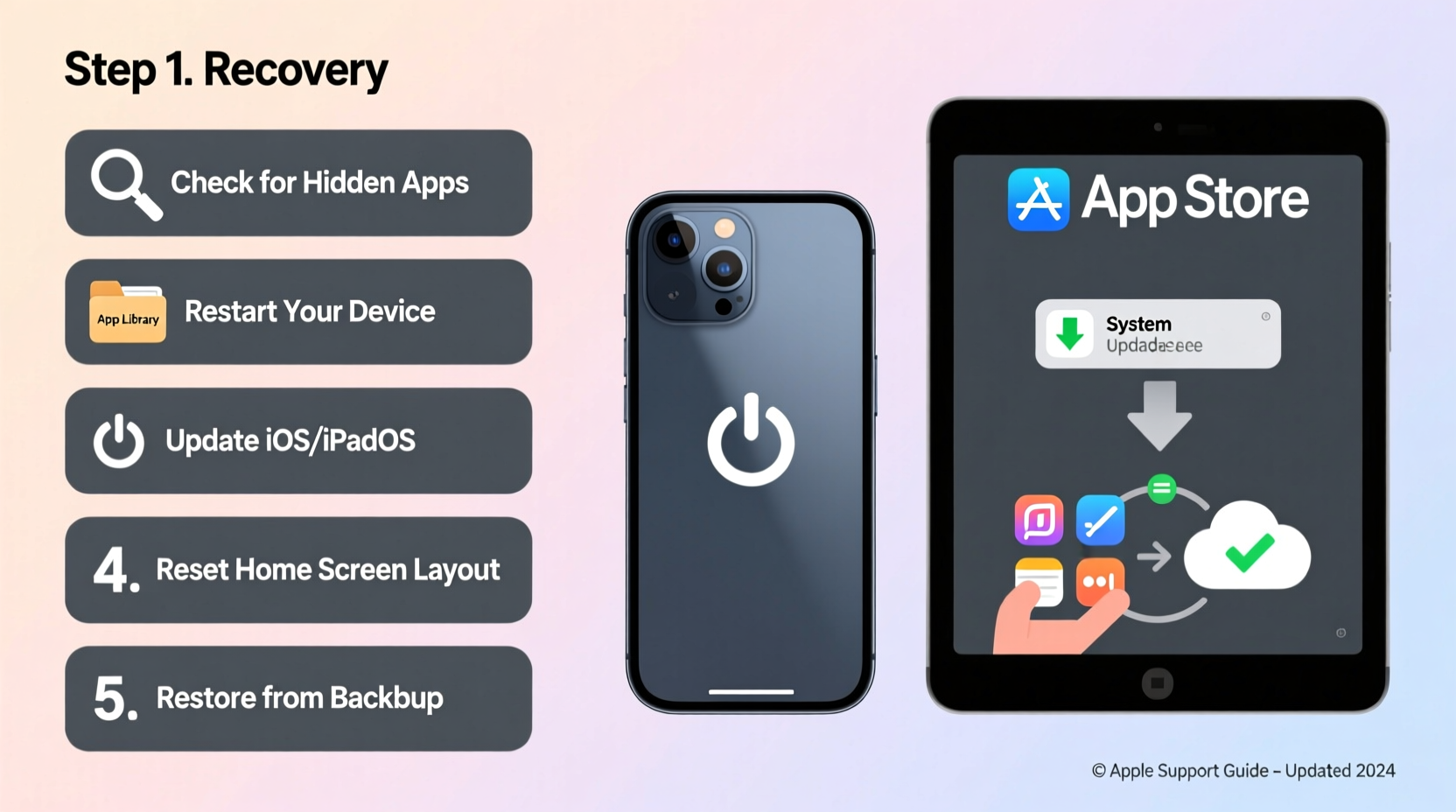
The App Store cannot be uninstalled like third-party apps, but it can be hidden or restricted. The most frequent reasons include:
- Screen Time Restrictions: Parental controls may have disabled access to the App Store.
- Accidental Home Screen Removal: The icon might have been removed from the home screen but still exists in the App Library.
- iOS Update Glitches: After an update, some icons temporarily disappear due to caching issues.
- Profile or Configuration Conflicts: MDM (Mobile Device Management) profiles or enterprise configurations may restrict app visibility.
- Search Indexing Delays: Rarely, Spotlight Search fails to locate the App Store immediately after setup.
Understanding the root cause streamlines recovery. Most cases stem from user settings rather than hardware failure.
Tip: Before troubleshooting, double-check all home screen pages and swipe to the App Library—search for “App Store” using the search bar at the top.Step-by-Step Guide to Restore the App Store
Follow this logical sequence to diagnose and resolve the issue efficiently.
- Check the App Library
Swipe left past your last home screen page to reach the App Library. Use the search bar at the top and type “App Store.” If found, long-press the icon and tap “Add to Home Screen.” - Verify Screen Time Restrictions
Navigate to Settings > Screen Time > Content & Privacy Restrictions > iTunes & App Store Purchases. Ensure “Installing Apps” and “Deleting Apps” are set to “Allow.” - Review Content Restrictions
Still in Screen Time, go to Content Restrictions > Content Ratings > Apps. Confirm the rating limit isn’t set too low (e.g., “4+ Only”), which would hide the App Store. - Restart Your Device
A soft reboot clears temporary glitches. Press and hold the side button and either volume button until the power slider appears. Slide to power off, wait 30 seconds, then turn it back on. - Update iOS
Go to Settings > General > Software Update. Install any pending updates—bugs causing missing icons are often patched in newer versions. - Reset Home Screen Layout
If all else fails, go to Settings > General > Transfer or Reset iPhone > Reset > Reset Home Screen Layout. This restores default icons to the first home screen but won’t delete personal data.
Common Mistakes That Make Recovery Harder
While attempting to fix the issue, users sometimes unintentionally complicate matters. Avoid these pitfalls:
| Mistake | Why It’s Problematic | Better Approach |
|---|---|---|
| Assuming the App Store was deleted permanently | iOS doesn't allow deletion of core Apple apps; they can only be hidden | Check App Library or reset home layout instead |
| Disabling Screen Time without checking restrictions first | May temporarily lift limits but doesn’t fix underlying settings | Adjust specific permissions under Content & Privacy |
| Erasing all content and settings prematurely | Unnecessary data loss when simpler fixes exist | Try software reset before factory reset |
Mini Case Study: Recovering the App Store in a School iPad
In a middle school classroom in Portland, Oregon, a teacher noticed that students’ iPads no longer displayed the App Store after a district-wide profile update. The devices were managed via MDM (Mobile Device Management), and although teachers could install pre-approved apps, students couldn’t access the store independently.
The IT administrator reviewed the configuration profile and discovered that a recent policy push had inadvertently set “App Installation” to “Blocked” for student accounts. By adjusting the restriction rule in the MDM console and pushing a corrected profile, the App Store reappeared within minutes across all devices.
This case highlights how institutional management tools can override standard settings—and why verifying configuration profiles is crucial in shared or managed environments.
Expert Insight: What Apple Support Recommends
“The App Store app is integral to iOS and cannot be permanently removed. In nearly all cases, its absence is due to configuration settings, not corruption. Always check Screen Time restrictions first—they account for over 70% of reported ‘missing App Store’ cases.” — Lisa Tran, Former Apple Support Advisor, AppleCare Global Team
Troubleshooting Checklist
Use this checklist to ensure no step is missed during recovery:
- ✅ Searched for “App Store” in the App Library
- ✅ Checked Screen Time > Content & Privacy Restrictions
- ✅ Verified app installation permissions are allowed
- ✅ Restarted the device
- ✅ Installed latest iOS update
- ✅ Reset home screen layout if needed
- ✅ Reviewed installed configuration profiles (Settings > General > VPN & Device Management)
Frequently Asked Questions
Can the App Store be permanently deleted from an iPhone?
No. Unlike third-party apps, the App Store is a system-critical application and cannot be uninstalled. It can only be hidden from the home screen or restricted via settings.
Why does the App Store keep disappearing after I add it back?
This typically indicates an active restriction or profile conflict. If a Screen Time passcode is set, someone with access may be reapplying restrictions. Alternatively, a mobile device management (MDM) profile could be enforcing policies that hide the app upon each reboot.
Will resetting all settings delete my photos or messages?
No. Resetting settings (via Settings > General > Transfer or Reset iPhone > Reset All Settings) only clears system preferences like Wi-Fi passwords, display settings, and privacy options. It does not erase personal data such as photos, messages, or downloaded apps.
Final Steps and Long-Term Prevention
Once the App Store is restored, take preventive measures to avoid recurrence. If managing children’s devices, create a clear Screen Time profile with appropriate limits without disabling essential functions. For shared or work devices, document configuration changes and test them on a single unit before deployment.
Additionally, enable automatic updates (Settings > App Store > Automatic Downloads > Updates) to minimize disruptions caused by outdated software. Regular maintenance reduces the likelihood of interface bugs affecting core apps.
“User education prevents most App Store disappearance cases. Knowing where to look—and what settings affect visibility—saves hours of frustration.” — Marcus Reed, iOS Systems Trainer, TechEd Labs
Conclusion
Losing access to the App Store doesn’t mean it’s gone forever. With methodical troubleshooting, you can recover it in minutes using built-in iOS tools. From checking the App Library to reviewing Screen Time restrictions and resetting home layouts, every solution preserves your data while restoring functionality.
💬 Have you recovered a missing App Store recently? Share your story or tip in the comments—your experience could help another user get back on track!