
Losing precious video footage—whether it’s a child’s first steps, a wedding toast, or a travel moment—can be distressing. The good news is that most deleted videos aren’t gone forever. When you delete a video from your phone, the file often remains on the device until new data overwrites it. This window of opportunity allows for recovery using various proven techniques. Whether you’re using an iPhone or Android, this guide walks you through reliable, step-by-step methods to retrieve those lost files safely and effectively.
How Deletion Works on Mobile Devices
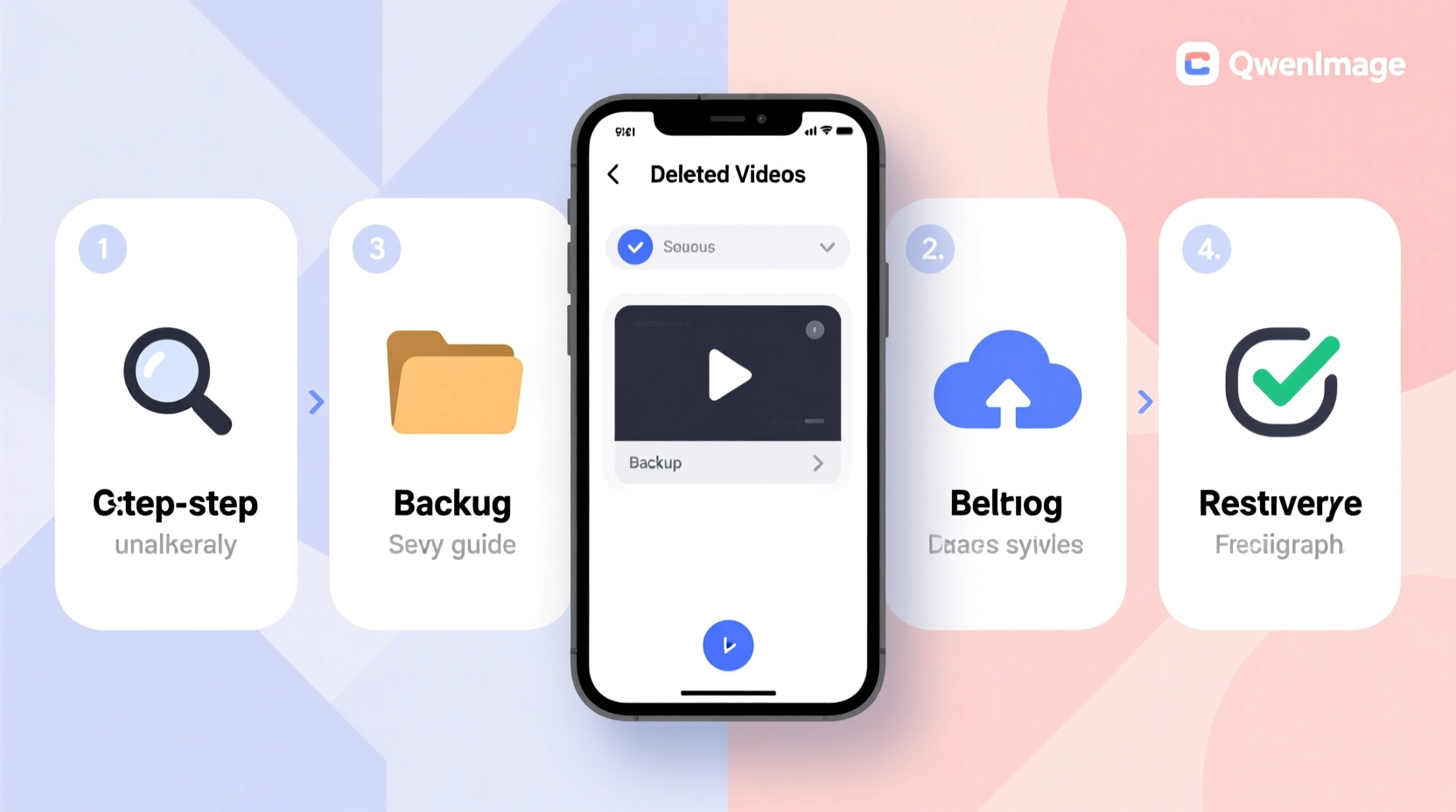
When you tap “Delete” on a video, your phone doesn’t immediately erase the data. Instead, it marks the space occupied by the file as available for new data. The actual video remains intact in the storage system until overwritten. This process is similar to removing a book’s title from a library catalog—the book still exists on the shelf, but it’s no longer visible through standard searches.
This principle underpins all recovery efforts: the sooner you act, the higher your chances. Continued use of your phone—especially recording new videos or downloading apps—increases the risk of permanent data loss.
Tip: Stop using your phone immediately after realizing a video has been deleted to prevent overwriting.Step-by-Step Recovery Methods by Device Type
Method 1: Check Built-in Recycle Bins (iOS & Android)
Both major mobile operating systems include temporary storage for deleted media.
- For iPhone Users: Open the Photos app → Tap “Albums” → Scroll to “Recently Deleted.” Videos remain here for up to 30 days before permanent deletion.
- Select the video(s) you want to recover → Tap “Recover” → Confirm.
- For Android Users: Open Google Photos → Tap “Library” at the bottom → Select “Trash” (bin icon).
- Hold down on the desired video → Tap “Restore” at the bottom.
Note: If you're using a manufacturer-specific gallery app (e.g., Samsung Gallery), check its “Recycle Bin” or “Trash” section. These typically retain files for 15–30 days.
Method 2: Restore from Cloud Backups
If you’ve enabled automatic backups, your videos may already be stored securely in the cloud.
| Platform | Backup Source | Recovery Steps |
|---|---|---|
| iOS | iCloud Photos | Go to Settings → [Your Name] → iCloud → Photos → Enable “iCloud Photos.” Wait for sync. Deleted videos reappear if backup was active. |
| Android | Google Photos | Ensure backup was on. Reinstall Google Photos or sign in on a new device. Restored items appear automatically. |
| Third-party | Dropbox, OneDrive, etc. | Log into the app or website → Navigate to “Deleted Files” or “Version History” → Restore. |
“Over 70% of users who lose media don’t realize their cloud backup was already active. Always verify your sync settings immediately after data loss.” — David Lin, Data Recovery Specialist at SecureData Labs
Method 3: Use Professional Recovery Software
When built-in options fail, third-party tools can scan your phone’s internal storage for remnants of deleted videos. These programs work best when used quickly and on devices that haven’t been heavily used post-deletion.
Recommended Tools:
- Dr.Fone – Data Recovery (iOS/Android): User-friendly interface with high success rates.
- Disk Drill (Android via PC connection): Deep scanning capabilities.
- iMyFone D-Back (iOS): Supports recovery without iTunes backup.
Step-by-Step Guide Using Dr.Fone (Android Example):
- Download and install Dr.Fone on your computer.
- Connect your Android phone via USB cable.
- Enable USB Debugging on your phone (Settings → Developer Options).
- In Dr.Fone, select “Data Recovery” → Choose “Video” as the file type.
- Start the scan. The software will search for recoverable files.
- Preview found videos and select the ones to restore.
- Click “Recover” and save them to your computer.
Note: For iPhones, some tools require no jailbreak and can recover directly from the device or existing iTunes/iCloud backups.
Tip: Always save recovered files to a computer or external drive—not back onto the same phone—to avoid corruption or overwriting.What If Your Phone Is Damaged or Unresponsive?
Physical damage complicates recovery but doesn’t make it impossible. Water damage, cracked screens, or boot loops require specialized approaches.
In such cases:
- Use a data extraction service: Companies like Gillware or DriveSavers offer forensic-level recovery for damaged devices.
- Check for prior syncs: Even if the phone won’t turn on, cloud backups may have synced your videos hours before failure.
- Avoid DIY fixes: Opening the phone or attempting repairs can destroy data permanently.
Mini Case Study: Recovering Wedding Videos from a Water-Damaged Phone
Sarah accidentally dropped her Android phone in a pool during her sister’s outdoor wedding. Though the device wouldn’t power on, she remembered enabling Google Photos backup weeks earlier. She logged into her account from a friend’s tablet and discovered all ceremony videos had synced the night before. While the phone was beyond repair, Sarah preserved over two hours of footage. A local technician later extracted additional unsynced clips using a chip-off method—a last-resort technique involving direct memory access.
This case underscores the importance of both proactive backups and timely professional intervention.
Prevention Checklist: Avoid Future Loss
Recovery isn’t always guaranteed. Building smart habits reduces future risks.
- ✅ Enable automatic cloud backup (iCloud, Google Photos).
- ✅ Review backup status weekly.
- ✅ Use multiple storage layers (phone + cloud + external drive).
- ✅ Label and organize important videos in dedicated folders.
- ✅ Avoid clearing cache or storage aggressively after accidental deletions.
- ✅ Educate family members on how to avoid accidental deletes.
Common Mistakes That Prevent Recovery
Certain actions drastically reduce the odds of retrieving lost videos:
| Mistake | Why It’s Harmful | Better Alternative |
|---|---|---|
| Continuing to use the phone after deletion | New data overwrites deleted files | Switch to airplane mode and stop usage |
| Factory resetting the device | Clears nearly all recoverable traces | Attempt recovery before reset |
| Using unverified recovery apps from app stores | Many are scams or malware | Stick to reputable desktop software |
| Ignoring backup settings | No safety net when deletion occurs | Set up automatic sync with notifications |
Frequently Asked Questions
Can I recover a video deleted more than 30 days ago?
Possibly. If no cloud backup exists, your only option is using data recovery software—if the file hasn’t been overwritten. Success depends on device usage after deletion. The older the deletion, the lower the likelihood.
Do I need a computer to recover videos?
For advanced recovery, yes. Most powerful tools run on Windows or macOS and require connecting your phone via USB. Basic restorations (e.g., from Recently Deleted) can be done directly on the phone.
Are free video recovery apps safe?
Most free mobile apps claiming to recover deleted videos are ineffective or malicious. They cannot access protected system storage. Trusted solutions are typically paid and used via desktop. Exercise caution and read reviews before installing.
Conclusion: Act Fast, Recover Smarter
Deleted videos don’t vanish instantly. With prompt action and the right approach, you can reclaim lost moments across both iOS and Android platforms. Start with built-in recovery bins and cloud backups—they’re the fastest and safest routes. If those fail, turn to professional-grade software or services without delay. Most importantly, use this experience to build better digital hygiene: enable automatic backups, monitor storage health, and educate yourself on data preservation.
💬 Have you successfully recovered a lost video? Share your story or tips in the comments—your insight could help someone else save a priceless memory.