Discord has become a central hub for gamers, remote teams, and communities to communicate in real time. But when your microphone stops working, it disrupts conversations, ruins gameplay coordination, and can be incredibly frustrating. The good news is that most microphone issues on Discord are fixable with the right steps. This guide walks through proven troubleshooting methods across operating systems, offering clear instructions and expert-backed insights to get your voice back online.
Check Basic Settings First
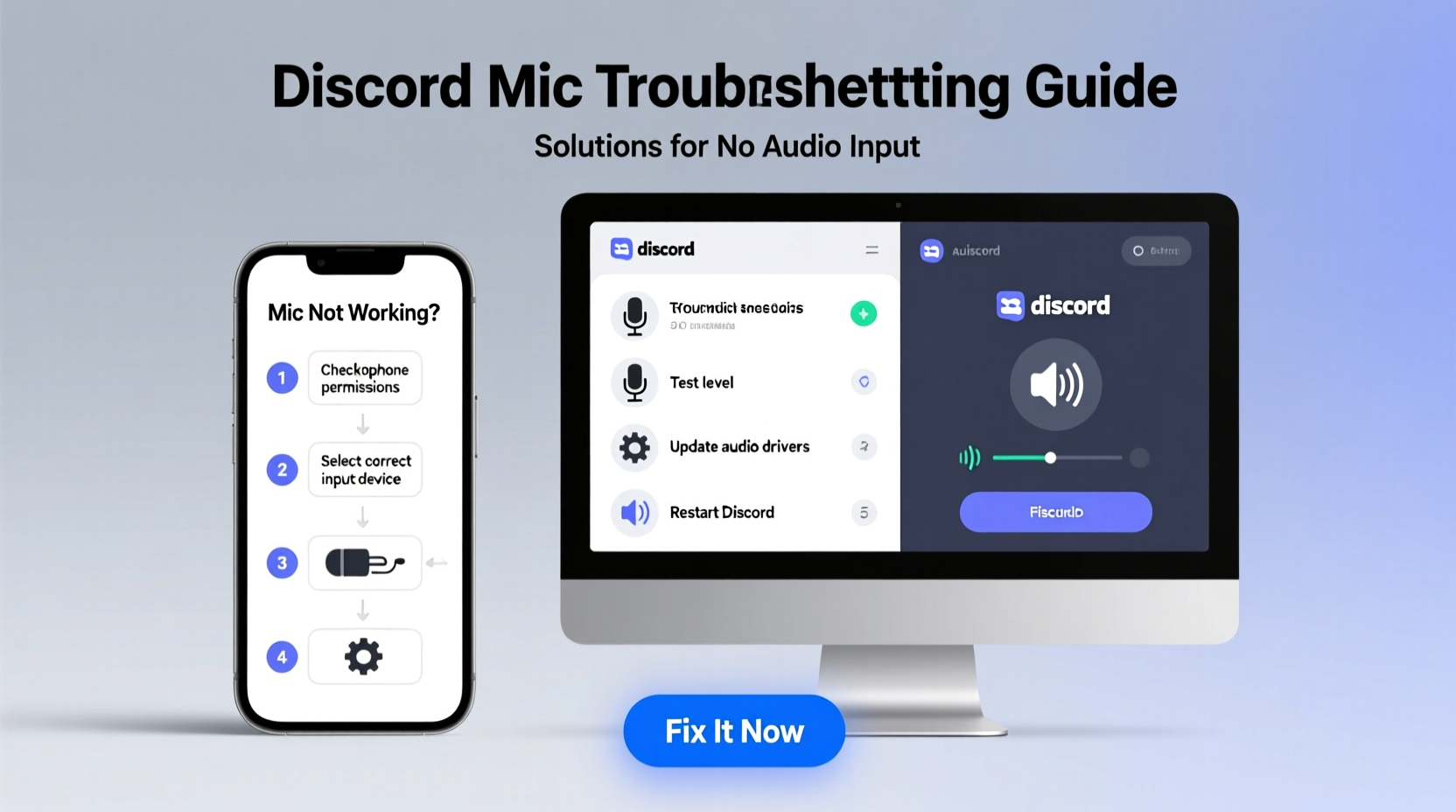
Before diving into advanced fixes, confirm the fundamentals. Many \"mic not working\" problems stem from simple oversights in settings or hardware connections.
- Ensure your microphone is physically connected (for external mics) or enabled (for built-in mics).
- Verify that Discord has permission to access your microphone.
- Confirm the correct input device is selected in Discord’s voice settings.
- Make sure your mic isn’t muted—check both software mute (in Discord) and hardware mute (on headset or keyboard).
Step-by-Step Troubleshooting Process
Follow this logical sequence to isolate and resolve the root cause of your microphone problem.
- Restart Discord – Close and relaunch the app. Sometimes temporary glitches prevent proper mic detection.
- Test your mic in another app – Use Voice Recorder (Windows), QuickTime (Mac), or any voice chat app to verify if the mic works outside Discord.
- Update audio drivers – Outdated or corrupted drivers often cause input failures. Update via Device Manager (Windows) or System Preferences (Mac).
- Run Discord as Administrator – On Windows, right-click the Discord shortcut and select “Run as administrator” to bypass permission blocks.
- Reinstall Discord – If settings reset doesn’t help, uninstall and download the latest version from the official site.
Advanced Fixes for Persistent Issues
If basic steps don’t resolve the problem, consider deeper system-level causes.
- Reset Voice & Video Settings: In Discord, go to User Settings > Voice & Video > Scroll down and click “Reset Voice Settings.” This clears corrupted preferences.
- Disable Audio Enhancements: On Windows, go to Sound Settings > Manage audio devices > Select your mic > Properties > Disable all enhancements under the “Enhancements” tab.
- Check Exclusive Mode Settings: In the same mic properties window, under the “Advanced” tab, uncheck “Allow applications to take exclusive control of this device.”
- Change Input Sensitivity: In Discord, set input mode to “Push to Talk” temporarily to rule out automatic gain issues. Adjust input volume slider manually if needed.
Operating System-Specific Fixes
Different platforms handle audio permissions differently. Tailor your approach based on your OS.
| OS | Key Fix | Steps |
|---|---|---|
| Windows 10/11 | Microphone Privacy Permissions | Settings > Privacy & Security > Microphone > Ensure “Allow apps to access your microphone” is ON and Discord is listed. |
| macOS | App Permissions in Security & Privacy | System Settings > Privacy & Security > Microphone > Enable checkbox next to Discord. |
| Mobile (iOS/Android) | App-Level Permissions | Device Settings > Apps > Discord > Permissions > Grant microphone access. |
Common Conflicts and Software Interference
Third-party applications can interfere with Discord’s microphone access. Common culprits include voice changers, communication tools (like Zoom or Teams), and audio routing software (Voicemeeter, OBS).
For example, if you use a virtual audio cable or stream deck software, it may redirect your mic input away from Discord. Similarly, some antivirus programs block mic access by default for security reasons.
“Over 40% of reported mic issues in Discord stem from conflicting audio software or misrouted input devices.” — Alex Rivera, Senior Support Analyst at TechVoice Solutions
To diagnose conflicts:
- Close background apps one by one and test your mic after each closure.
- Boot into Safe Mode (Windows) or Safe Boot (Mac) to run Discord without third-party interference.
- Use the Windows Audio Troubleshooter: Settings > System > Sound > Input > Troubleshoot.
Mini Case Study: Resolving a Frozen Mic on Windows 11
Jamal, a streamer using Discord alongside OBS, noticed his mic worked in OBS but not in Discord. He confirmed permissions were enabled and tried restarting the app multiple times. The breakthrough came when he disabled “Stereo Mix” in his sound settings and turned off “Allow exclusive mode” for his microphone. After resetting Discord’s voice settings, his mic appeared live immediately. The root cause was a driver conflict triggered by OBS’s virtual audio setup overriding Discord’s input path.
Preventive Checklist for Long-Term Stability
Keep your Discord microphone functioning smoothly with regular maintenance.
- ✅ Update Discord and operating system regularly.
- ✅ Verify mic permissions after system updates.
- ✅ Clean microphone ports and connectors monthly (especially on headsets).
- ✅ Avoid installing multiple voice-modification tools simultaneously.
- ✅ Test your mic weekly using Discord’s input meter.
- ✅ Use high-quality USB or 3.5mm headsets with dedicated drivers if available.
Frequently Asked Questions
Why does my mic work everywhere except Discord?
This usually points to a permissions issue, incorrect input selection in Discord, or a software conflict. Double-check that Discord is set to use the correct microphone in Voice & Video settings and has been granted system-level access.
How do I reset Discord voice settings to default?
Go to User Settings > Voice & Video > Scroll to the bottom and click “Reset Voice Settings.” This restores defaults and often resolves configuration errors.
Can antivirus software block my Discord mic?
Yes. Some security suites restrict microphone access for certain apps. Temporarily disable your antivirus to test, then add Discord to the exception list if confirmed.
Expert Insight: When Hardware Matters
Not all microphones perform equally under real-time communication loads. Low-end headsets or built-in laptop mics may struggle with background noise suppression or fail under prolonged use.
“Investing in a reliable headset with a noise-canceling mic reduces troubleshooting needs by up to 70%. It’s not just about quality—it’s about consistent performance.” — Lena Park, Audio Engineer at StreamWell Studios
Consider upgrading if you frequently experience dropouts, static, or inconsistent input levels—even after software fixes.
Conclusion
A non-working microphone on Discord doesn’t have to derail your conversations or gaming sessions. By methodically checking permissions, updating drivers, eliminating software conflicts, and verifying hardware functionality, most issues can be resolved within minutes. Whether you're on Windows, Mac, or mobile, the key is understanding where the breakdown occurs—input selection, access rights, or system interference—and addressing it directly.
🚀 Take action today: Open Discord, test your mic, and run through the checklist above. Share your success story or ask questions in the comments—your experience could help someone else get back on mic faster.