For millions of customers, the Citi Mobile app is a vital tool for managing finances—checking balances, paying bills, transferring money, and even locking lost cards. When the app stops working, it can disrupt daily routines and cause real stress. Whether you're seeing error messages, login failures, or a complete crash, understanding how to diagnose and fix the issue quickly is essential. This guide walks through the most common causes, current outage trends, and step-by-step solutions to get your Citi Mobile experience back on track.
Check the Current Status of the Citi Mobile App
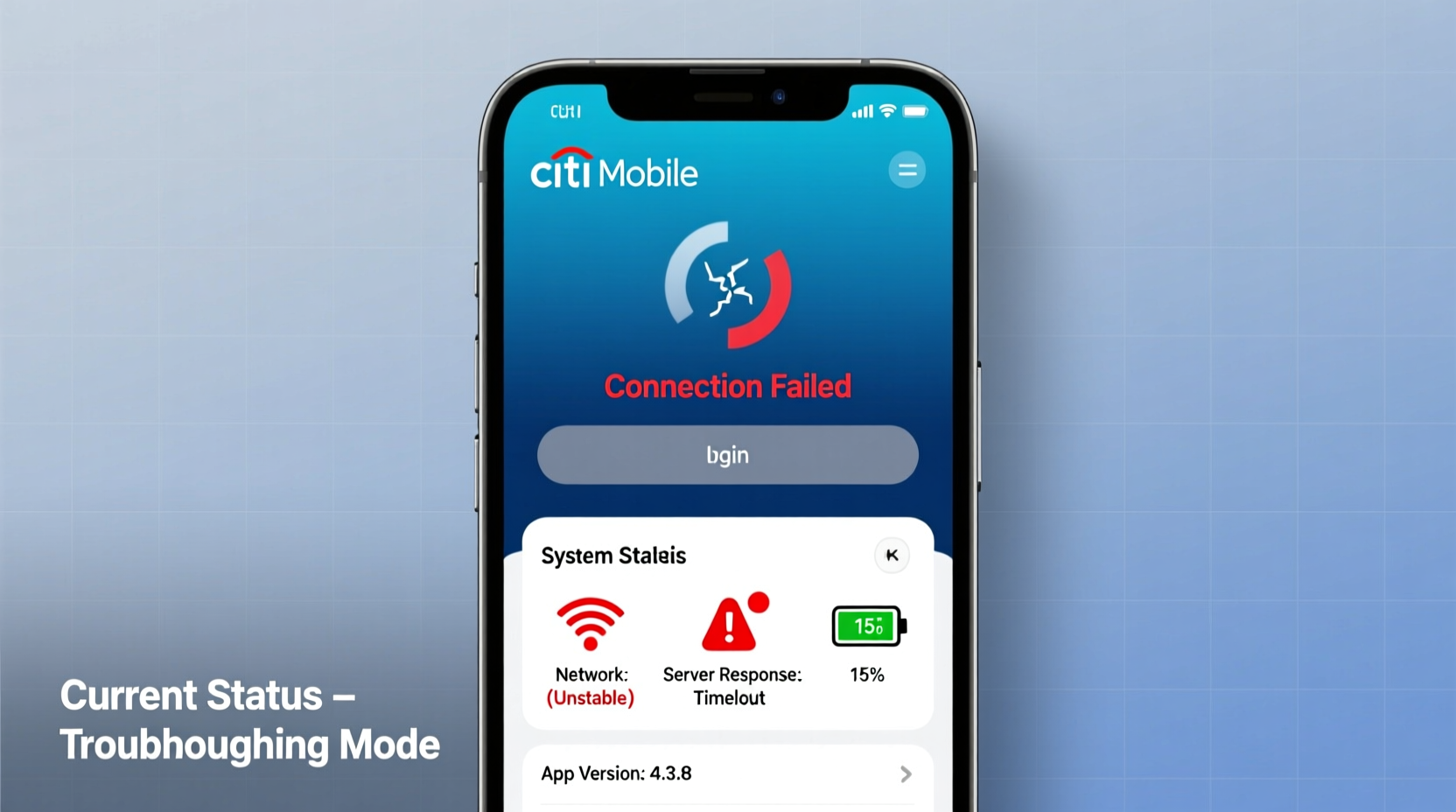
Before diving into device-specific troubleshooting, confirm whether the problem is on your end or part of a broader service disruption. Citibank services occasionally face outages due to maintenance, server overloads, or cybersecurity updates.
Several independent platforms monitor the real-time status of financial apps:
- Downdetector.com – Aggregates user reports to show spikes in complaints about the Citi Mobile app.
- Outage.Report – Tracks global outages and maps affected regions.
- Citi’s official X (Twitter) account (@AskCiti) – Often posts updates during known issues.
If hundreds or thousands of users are reporting problems at the same time, especially concentrated around the same error (“Login Failed,” “Server Not Responding”), it's likely a system-wide outage. In such cases, no local fix will work until Citibank resolves the backend issue.
Tip: Bookmark Downdetector’s Citi Mobile page to check real-time service status before troubleshooting your device.Step-by-Step Troubleshooting Guide
If the broader service appears stable, the issue may be isolated to your device or account. Follow this logical sequence to identify and resolve the root cause.
- Force Close and Reopen the App
Simple but often overlooked. Swipe the app away from your recent apps list (iOS or Android), then relaunch it. - Check Your Internet Connection
The app requires a stable connection. Try switching between Wi-Fi and cellular data. Test connectivity by loading a website in your browser. - Restart Your Device
A reboot clears temporary memory glitches that can interfere with app performance. - Update the Citi Mobile App
Outdated versions may contain bugs or lack compatibility with new security protocols. Visit the App Store or Google Play Store to ensure you’re running the latest version. - Clear App Cache (Android Only)
Go to Settings > Apps > Citi Mobile > Storage > Clear Cache. This removes corrupted temporary files without deleting your login data. - Delete and Reinstall the App
If all else fails, uninstall the app completely, restart your phone, then reinstall from the official store. You’ll need to log in again, but your account remains intact.
Common Errors and What They Mean
Understanding error messages helps determine whether the issue is technical, authentication-related, or systemic. Below is a reference table of frequent alerts and their likely causes.
| Error Message | Possible Cause | Solution |
|---|---|---|
| \"Unable to connect to server\" | Network issue or server downtime | Check internet; verify outage status |
| \"Invalid username or password\" | Typo, caps lock, or reset needed | Reset credentials via Citi website |
| \"Session expired\" | Inactivity timeout or app glitch | Log out and back in; update app |
| \"Security certificate expired\" | Device date/time incorrect or SSL issue | Set correct date/time; reinstall app |
| App crashes on launch | Corrupted install or OS conflict | Delete and reinstall; check OS updates |
Account and Security Considerations
Sometimes, the app isn’t malfunctioning—it’s responding to a legitimate security flag. For example, if you recently changed your password, enabled multi-factor authentication, or logged in from a new device, the app may require re-verification.
Citibank employs advanced fraud detection systems. Unusual login attempts or repeated failed entries can trigger a temporary lockout. In such cases:
- Wait 15–30 minutes before retrying.
- Use the \"Forgot Password\" option if locked out.
- Call Citi customer service at 1-800-950-5114 to verify your identity and lift restrictions.
“Mobile banking apps today are designed with layered security. Sometimes what looks like a malfunction is actually a protective measure kicking in.” — Daniel Reyes, Cybersecurity Analyst at Finovate Group
Mini Case Study: Resolving a Persistent Login Loop
Jamal, a small business owner in Atlanta, found himself stuck in a login loop every time he opened the Citi Mobile app. After entering his credentials, the screen would flash and return to the login page. He tried multiple times over two days, growing increasingly frustrated.
He first checked Downdetector and saw no widespread reports. Then he confirmed his internet worked fine. After force-closing and restarting, the issue persisted. He noticed his phone had not installed a system update in three months. Upon updating his Android OS, the app launched normally.
The root cause? An outdated operating system conflicted with the app’s new encryption standards. Once Jamal updated his device, compatibility was restored.
Troubleshooting Checklist
Keep this checklist handy when the Citi Mobile app fails:
- ✅ Check Downdetector for active outages
- ✅ Confirm internet connection (Wi-Fi/cellular)
- ✅ Force close and reopen the app
- ✅ Restart your smartphone
- ✅ Ensure the app is updated to the latest version
- ✅ Clear app cache (Android) or offload app (iOS)
- ✅ Verify device date, time, and timezone settings
- ✅ Delete and reinstall the app if necessary
- ✅ Attempt login via Citi’s desktop site to test account status
- ✅ Contact Citi support if all steps fail
Frequently Asked Questions
Why does the Citi Mobile app keep logging me out?
This can happen due to app bugs, background refresh settings, or security policies. Try enabling background app refresh in your phone settings. If the problem continues, delete and reinstall the app after ensuring your OS is up to date.
Can I access my account if the app isn’t working?
Yes. Visit Citi.com using a secure browser. Your full account features—including transfers, bill pay, and customer service chat—are available online. Use this as a reliable backup during app outages.
How do I contact Citi support for app issues?
You can call Citi customer service at 1-800-950-5114 24/7. For faster help, use the secure messaging feature in your online banking portal. Avoid sharing sensitive details over unsecured channels.
Final Steps and When to Escalate
If you’ve completed all troubleshooting steps and the app still won’t function, consider these final actions:
- Try another device – Install the app on a different phone or tablet. If it works there, the issue is tied to your original device.
- Check for OS compatibility – Very old iOS or Android versions may no longer support the latest app build.
- Contact Citibank directly – Persistent errors could indicate account-level blocks or unrecognized device flags that only support can resolve.
Remember: occasional disruptions are normal in digital banking. What matters most is having a clear plan to diagnose and respond efficiently.
🚀 Don’t let a frozen app freeze your finances. Apply these steps now to regain control. Share your experience in the comments—your solution might help someone else get back online faster.