In a world where every second counts, optimizing how you interact with your smartphone can make a noticeable difference in efficiency. The Android launcher is the gateway to everything on your phone—your apps, settings, notifications, and routines. Yet most users leave it in its default state, missing out on opportunities to reduce friction and save time. With thoughtful customization, you can transform your home screen into a productivity engine that anticipates your needs, reduces taps, and accelerates daily tasks. This guide dives deep into practical, tested strategies for rethinking your Android launcher setup—not for aesthetics alone, but for measurable gains in speed and usability.
1. Streamline App Access with Smart Shortcuts
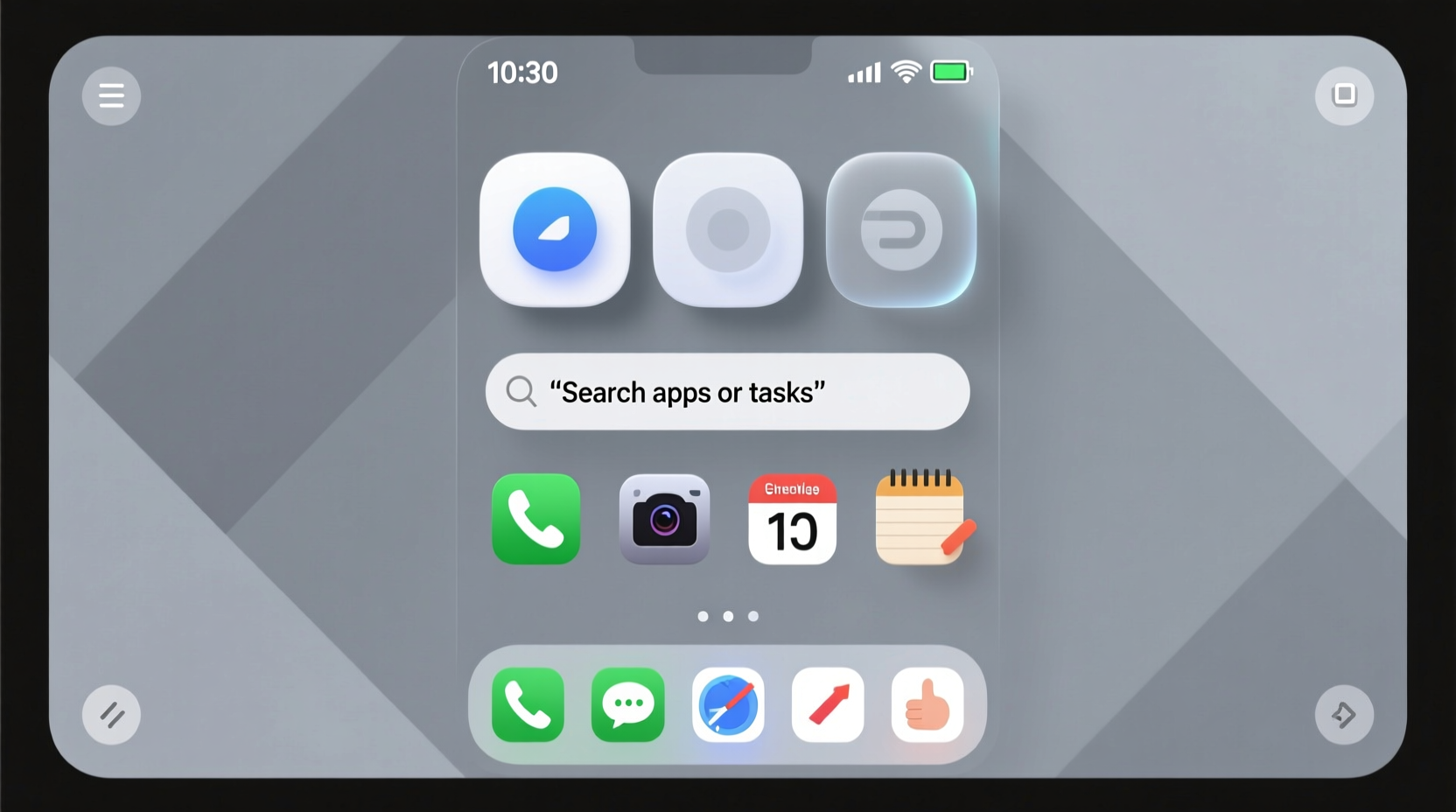
Every tap adds up. If you're opening the same apps repeatedly—messaging, calendar, camera, or music—you’re likely wasting dozens of taps per day. One of the fastest ways to reduce interaction time is by leveraging app shortcuts directly on your home screen.
Long-press any installed app icon to reveal contextual shortcuts (if supported). For example, long-pressing WhatsApp might show options like “New Group,” “Status,” or “Calls.” You can drag these shortcuts to your home screen for instant access. This bypasses launching the app first, then navigating through menus.
Tip: Use app shortcuts for high-frequency actions like starting a new email, creating a calendar event, or scanning a QR code.Not all launchers support this equally. Pixel Launcher, Nova Launcher, and Microsoft Launcher offer robust shortcut integration. Check compatibility with your favorite apps—Google Keep, Gmail, and Spotify are particularly effective when their sub-functions are one tap away.
2. Optimize Home Screen Layout for Thumb Efficiency
Your thumb’s natural range determines how quickly you can reach icons. Placing frequently used apps in hard-to-reach corners forces unnecessary hand adjustments, slowing you down over time. Apply ergonomic design principles to your layout.
Divide your home screen into zones based on accessibility:
- Primary Zone (Bottom center): Most accessible. Ideal for messaging, phone, camera, and voice assistant.
- Secondary Zone (Bottom left/right): Easy reach. Reserve for social media, browser, or music controls.
- Tertiary Zone (Top half): Less accessible. Best for infrequently used utilities or folders.
Consider using only one home screen instead of multiple pages. Each swipe costs time. Consolidate essential apps on a single page, and tuck less-used ones into an organized app drawer.
“Reducing physical effort in UI interaction leads to measurable gains in task completion speed.” — Dr. Lena Torres, Human-Computer Interaction Researcher, MIT Media Lab
3. Leverage Folders and Smart Grouping
Folders aren’t just for decluttering—they’re speed tools when used strategically. Instead of scrolling through dozens of apps, group related functions so you can access them faster via labeled containers.
Create functional folders such as:
- Work Tools: Email, Calendar, Slack, Zoom
- Finance: Banking, Budgeting, Payment Apps
- Quick Actions: Flashlight, Timer, Calculator, Notes
Name folders clearly and place them near the bottom of the screen. Avoid nesting folders within folders—this increases cognitive load and navigation depth.
Folder Optimization Checklist
- Limit folders to 6–8 apps max for fast scanning
- Use consistent naming conventions (e.g., “Travel,” “Health”)
- Place high-use folders within thumb reach
- Avoid generic names like “Misc” or “Utilities”
- Update folder contents monthly based on usage patterns
4. Harness Gestures and Swipe Actions
Modern launchers support gesture-based navigation that eliminates the need for buttons or extra taps. By assigning actions to swipes, you unlock faster pathways to common functions.
For example, in Nova Launcher:
- Swipe up from the home button area to open the app drawer.
- Swipe down on the home screen to access search or widgets.
- Assign a two-finger swipe to launch your preferred note-taking app.
Third-party launchers like Action Launcher and Lawnchair allow custom gestures such as:
- Swipe left on a specific app to call a contact
- Swipe right to message them directly
- Double-tap home to toggle flashlight
These micro-interactions eliminate steps. Instead of unlocking, opening the app drawer, finding the flashlight, and tapping—it becomes a single double-tap.
Step-by-Step: Enable Double-Tap to Wake/Action
- Open your launcher settings (e.g., Nova Launcher Prime).
- Navigate to “Gestures” or “Home Screen” settings.
- Select “Tap Actions” or “Double Tap Home.”
- Choose an action: Launch app, toggle setting, or run automation.
- Test the gesture and adjust sensitivity if needed.
5. Integrate Contextual Widgets for Instant Information
Widgets are among the most underused speed tools. They deliver real-time information without opening apps—saving both time and battery. A well-placed widget can answer a question in a glance.
Instead of opening your calendar to check your next meeting, place a compact agenda widget on your home screen. Rather than launching a weather app, use a minimalist forecast widget that shows current conditions and hourly outlook.
Recommended High-Impact Widgets
| Widget Type | Purpose | Time Saved Per Day |
|---|---|---|
| Calendar Agenda | View next 2–3 events instantly | ~15 seconds per check |
| Weather (Minimal) | Check conditions without app launch | ~10 seconds |
| Music Player | Skip tracks or pause without unlocking | ~20 seconds |
| Task List (To-Do) | See top priority item at a glance | ~12 seconds |
| Quick Settings Tile Grid | Toggle Wi-Fi, Bluetooth, Dark Mode, etc. | ~8 seconds per toggle |
Keep widget sizes small and focused. Large, data-heavy widgets slow down launcher performance and create visual noise. Use transparent backgrounds and match font styles to maintain a clean look without sacrificing function.
Mini Case Study: Reducing Morning Routine Time
Jamie, a project manager in Toronto, was spending nearly seven minutes each morning unlocking her phone, checking email, reviewing her calendar, turning off Do Not Disturb, and starting her commute playlist. After customizing her Samsung phone with One UI Home, she implemented the following changes:
- Added a vertical calendar widget on the left side of the home screen.
- Placed a compact email preview widget showing unread messages.
- Set a double-tap gesture to disable Do Not Disturb.
- Added a music widget with one-tap play for her “Morning Focus” playlist.
- Created a “Daily Start” folder with Weather, Traffic, and To-Do apps.
The result? Jamie reduced her morning phone routine to under two minutes. She reported feeling more in control and less rushed, with fewer instances of missing urgent emails or being late due to traffic surprises.
6. Customize Search and Voice Assistant Placement
Search is often the fastest way to launch an app or find info—but only if it's easy to access. Many launchers bury search behind a swipe or extra tap. Make it instantly available.
In Google Pixel Launcher, the search bar sits at the top by default. On other launchers like Nova, you can enable a persistent search bar or assign a swipe-down gesture to trigger global search.
Similarly, position your voice assistant (Google Assistant, Bixby) for rapid activation. Options include:
- “Hey Google” hotword (ensure it’s responsive)
- Side-key press (customizable on many devices)
- Double-press power button (available on Pixel and some OEMs)
7. Automate App Suggestions and Hide Clutter
Some launchers, like Google’s Pixel Launcher and Microsoft Launcher, feature AI-driven app suggestions. These appear either above the app drawer or on a dedicated home screen panel. While useful, they can become irrelevant over time.
Train your launcher by dismissing apps you don’t use. Long-press a suggested app and select “Don’t suggest this app.” Over time, the suggestions become more accurate, surfacing your next likely app before you even think of it—like reminding you to open Maps when you leave work.
Equally important: hide apps you never use. In Nova Launcher or Action Launcher, go to the app drawer settings and disable rarely used or system apps from appearing. This reduces visual noise and speeds up mental search time.
Do’s and Don’ts of App Drawer Management
| Do | Don’t |
|---|---|
| Alphabetize apps for predictable navigation | Leave unused bloatware visible |
| Enable search within the app drawer | Use multiple pages unless necessary |
| Pin 3–5 most-used apps at the top | Allow AI suggestions to clutter main view |
| Use dark mode to reduce eye strain | Ignore slow-loading drawers—optimize if lagging |
FAQ
Will customizing my launcher slow down my phone?
Most modern launchers are optimized for performance. Lightweight options like Nova Launcher or Evie Launcher actually improve speed compared to bloated manufacturer skins. Avoid excessive animations, live wallpapers, or too many active widgets, which can impact responsiveness.
Can I revert to the default launcher if I don’t like the changes?
Yes. Android allows multiple launchers to be installed simultaneously. To switch back, go to Settings > Apps > Default Apps > Home App and select your original launcher. No data is lost during the transition.
Are third-party launchers safe to install?
Launchers from trusted developers (like Nova, Action, or Microsoft) are safe and widely used. Download only from the Google Play Store, read permissions carefully, and avoid obscure launchers requesting unnecessary access like SMS or contacts.
Conclusion
Customizing your Android launcher isn’t about making your phone look flashy—it’s about engineering it to work faster for you. Every tap saved, every gesture refined, and every piece of information made instantly visible compounds into meaningful time savings over days, weeks, and months. Whether you’re rushing between meetings, managing family schedules, or simply trying to reduce digital friction, a thoughtfully tuned launcher becomes an invisible assistant that keeps pace with your life.
The best part? These changes take less than an hour to implement but can last for months with minor upkeep. Start with one change today—reposition your most-used app, add a widget, or set up a gesture. Build from there. Your future self will unlock your phone a little faster, breathe a little easier, and wonder why you didn’t optimize sooner.
🚀 Ready to cut the clutter and speed up your phone? Pick one tip from this guide and apply it now—then share your favorite launcher hack in the comments below.