
Managing group communication efficiently is essential for teams, families, clubs, or any recurring collaboration. Google Mail (Gmail) doesn’t have a native “email group” feature like some enterprise platforms, but it integrates seamlessly with Google Contacts and Google Workspace to offer a powerful solution. By creating contact groups, you can send emails to multiple recipients at once, keep your inbox organized, and streamline daily communication.
This guide walks through the complete process of setting up, using, and maintaining email groups in Gmail—whether you're on a personal account or using Google Workspace for business.
Why Use Email Groups in Gmail?
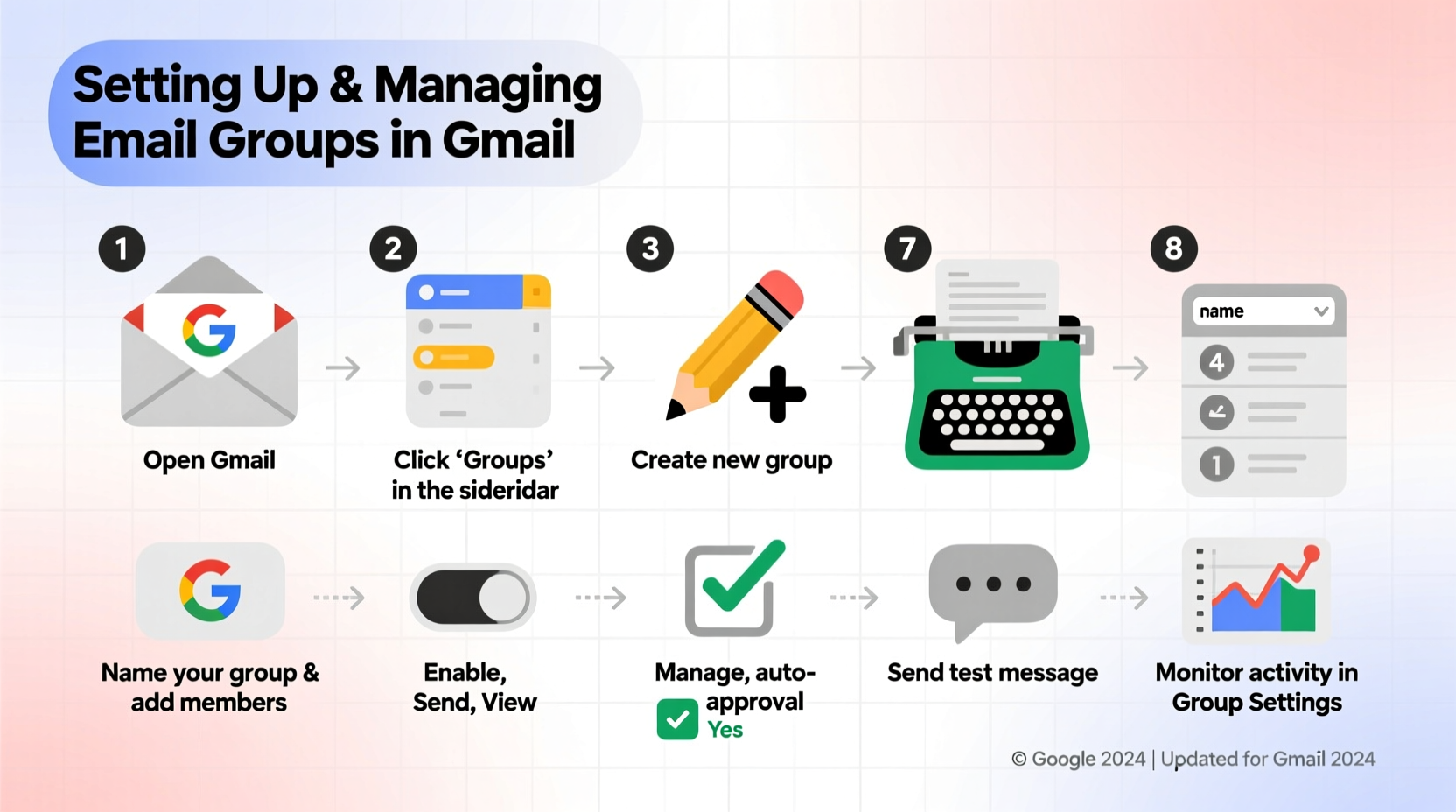
Email groups eliminate the need to manually enter multiple addresses every time you send a message. They reduce errors, save time, and ensure consistency across communications. Whether you're sending weekly updates to your project team or holiday greetings to extended family, contact groups turn repetitive tasks into one-click actions.
Additionally, well-managed groups improve professionalism. Instead of cluttering the \"To\" field with 20 names, you can address the entire team under a single label like \"Marketing Team\" or \"Board Members.\"
Tip: Use descriptive, consistent naming for your groups (e.g., \"Team-Lead-Dev\", \"Family-Members\") to make them easy to find and avoid confusion.Step-by-Step: Creating an Email Group in Gmail
The foundation of email groups in Gmail lies in Google Contacts. You’ll create a contact group there, then use it directly from Gmail when composing messages.
- Open Google Contacts
Navigate to contacts.google.com while signed into your Google account. - Select Contacts to Add
In the left panel, click “People.” Check the boxes next to the contacts you want to include in your new group. - Create a New Group
Click the “Labels” icon (folder symbol) at the top, then select “Create new label.” Enter a name for your group (e.g., “Project Alpha Team”) and click “Create.” - Add More Contacts Later
You can always edit the group by clicking on the label under “Labels” in the left menu, then adding or removing contacts as needed. - Verify in Gmail
Now, when you compose a new email in Gmail and type the group name in the “To,” “Cc,” or “Bcc” field, it will auto-suggest the group. Select it, and all members will be included.
Note: If you're using Google Workspace, administrators can also create shared contact groups visible across the organization, enabling company-wide distribution lists.
Best Practices for Managing Contact Groups
Creating a group is just the beginning. To maintain clarity and efficiency over time, follow these management principles.
- Review membership quarterly – People change roles, leave organizations, or switch email addresses. Regular audits prevent outdated contacts from receiving irrelevant messages.
- Use nested groups strategically – In Google Workspace, you can nest groups within other groups (e.g., “All-Employees” includes “Sales,” “Engineering,” etc.), which simplifies large-scale communication.
- Respect privacy with Bcc – When emailing external groups or sensitive lists, use Bcc instead of To or Cc to protect recipient email addresses.
- Avoid overlapping memberships unless necessary – Having someone in five similar groups can lead to duplicate emails and confusion.
“Efficient group communication starts with clean data. A well-maintained contact list reduces bounce rates and increases engagement.” — David Lin, IT Systems Manager at NexusTech Solutions
Comparison: Personal Gmail vs. Google Workspace Group Features
| Feature | Personal Gmail | Google Workspace |
|---|---|---|
| Create Contact Groups | Yes (via Google Contacts) | Yes |
| Shared Organization-Wide Groups | No | Yes |
| Group Email Address (e.g., team@company.com) | No | Yes (via Google Groups integration) |
| Nested Groups | Limited | Full support |
| Moderated Posting & Archives | No | Yes (with Google Groups) |
For businesses, Google Workspace unlocks advanced capabilities such as assigning owners to groups, setting posting permissions, and archiving discussions—features critical for compliance and transparency.
Real-World Example: Streamlining School Volunteer Coordination
Sarah, a parent volunteer coordinator at Lincoln Elementary, used to spend hours each week emailing individual classroom helpers, PTA members, and event planners. After learning about contact groups, she created separate lists: “RoomParents-Grade3”, “FieldTripDrivers”, and “FundraisingCommittee”.
Now, she sends reminders and updates in seconds. When a new parent joins a committee, Sarah simply adds their email to the appropriate group. The system reduced her weekly email prep time from 3 hours to under 30 minutes—and response rates improved because messages were more consistent and timely.
This small change had a ripple effect: fewer missed communications, better attendance at events, and stronger team cohesion—all thanks to structured group management in Gmail.
Integrating Google Groups for Advanced Functionality
If you need more than simple contact grouping—such as discussion forums, moderation, or public archives—consider using Google Groups alongside Gmail.
With Google Groups, you can:
- Create a dedicated group email address (e.g., support@yourorg.com)
- Allow members to post without revealing everyone’s email
- Set up Q&A forums or announcement-only channels
- Archive all conversations for future reference
To link Google Groups with Gmail:
- Go to groups.google.com
- Create a new group and choose its settings (type, access level, moderation)
- Add members via their email addresses
- Invite members to join; they’ll receive an email notification
- Once set up, email the group using its unique address from any Gmail account
Frequently Asked Questions
Can I use email groups if I don’t have Google Workspace?
Yes. Personal Gmail users can create and use contact groups via Google Contacts. However, features like shared group emails or centralized administration are only available with Google Workspace.
How do I remove someone from a contact group?
Go to Google Contacts > Labels > [Your Group Name] > Uncheck the person you want to remove. Alternatively, open the contact card and uncheck the group under “Labels.”
Will people know they’re part of a group when I email it?
Only if you use the “To” field. To maintain privacy, use “Bcc” when sending to large or mixed groups. Recipients will receive the email but won’t see who else was included.
Essential Checklist for Setting Up Your First Email Group
- ☐ Sign in to Google Contacts
- ☐ Select existing contacts or add new ones
- ☐ Click “Create label” and name your group
- ☐ Assign contacts to the group
- ☐ Test by sending a sample email from Gmail
- ☐ Review and update group membership monthly
- ☐ Consider Google Groups for discussion-based or public-facing teams
Conclusion: Simplify Communication Starting Today
Email groups in Gmail are a quiet powerhouse for anyone managing regular communication. From family reunions to corporate projects, organizing your contacts into smart, reusable groups saves time, reduces errors, and enhances professionalism.
The setup takes less than five minutes. The long-term benefits—clarity, speed, and reliability—are invaluable. Whether you're coordinating a small team or leading a department, taking control of your contact structure is one of the simplest yet most impactful productivity upgrades you can make.
🚀 Ready to streamline your inbox? Open Google Contacts now and create your first group. One small step today can transform how you communicate tomorrow.