
In an age where digital footprints grow larger every day, understanding how to manage your personal data is no longer optional—it's essential. Google collects vast amounts of information from its users across services like Search, Gmail, YouTube, Maps, and Android. While this powers personalized experiences, it also raises valid concerns about privacy and control. The good news? You can download, review, and manage all your Google data with just a few clicks. This guide walks you through the process clearly, safely, and securely.
Why Downloading Your Google Data Matters
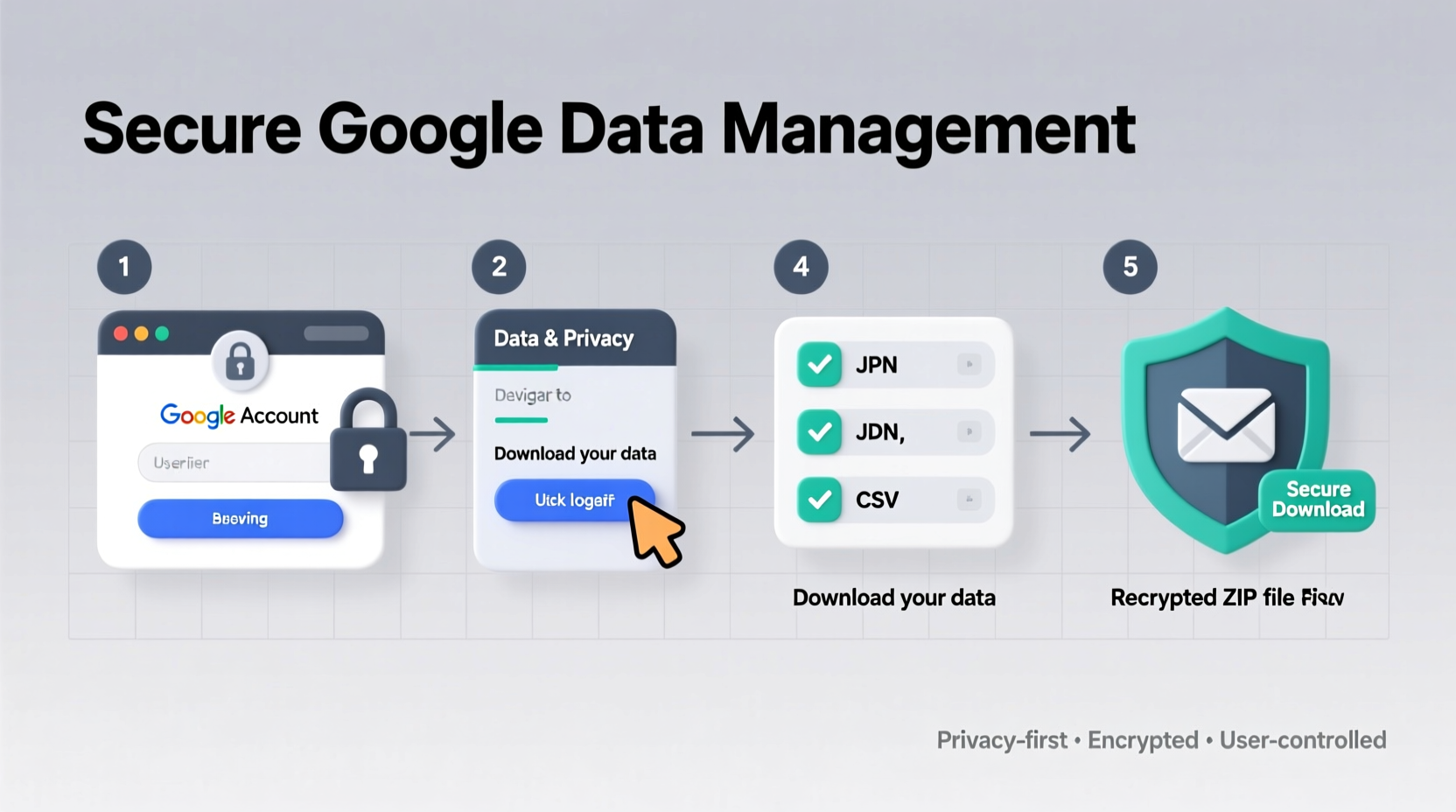
Downloading your data gives you transparency into what Google knows about you. It reveals your search history, location patterns, voice recordings, app activity, and more. Beyond awareness, having a local copy serves practical purposes: backup, migration to other platforms, or simply peace of mind knowing you’re not locked into one ecosystem.
Equally important is the ability to delete or limit data collection. Many users are unaware they can pause certain tracking features or remove years of stored activity in minutes. Taking control strengthens your digital hygiene and reduces exposure in case of breaches or unwanted profiling.
Tip: Review your downloaded data at least once a year to stay informed about your digital footprint.Step-by-Step: How to Download Your Google Data
Google’s Takeout tool makes exporting your data straightforward. Follow these steps to create a complete archive:
- Go to Google Takeout — Visit takeout.google.com while signed into your Google account.
- Select Data to Include — By default, all services are selected. To customize, click “Deselect all” and choose only the ones you want (e.g., Gmail, Drive, Photos, Location History).
- Choose Export Format — Most data exports as .zip files. You can set file types (e.g., JSON for metadata, HTML for readable summaries) and archive size (from 2GB up to 50GB).
- Pick Delivery Method — Choose between direct download links sent via email or automatic upload to cloud storage (Google Drive, Dropbox, OneDrive, etc.).
- Create Export — Click “Create export.” Depending on data volume, processing may take minutes to days.
Once ready, you’ll receive an email with secure download links valid for one week. Save the files in an encrypted folder on your device or external drive.
“Owning a copy of your digital life empowers you to make informed decisions about privacy and service use.” — Dr. Lena Torres, Digital Privacy Researcher, Stanford University
Managing and Securing Your Downloaded Data
After downloading, securing the archive is critical. These files often contain sensitive details: messages, locations, passwords (if exported from Chrome), and media. Treat them like any confidential document.
Best Practices for Data Security
- Encrypt the Archive: Use tools like VeraCrypt (free) or built-in encryption (BitLocker on Windows, FileVault on Mac) to lock the folder with a strong password.
- Avoid Public Cloud Uploads: Never store unencrypted Google Takeout files on public-facing drives without access controls.
- Delete Temporary Copies: After verifying the download, clear browser cache and temporary folders where partial data might remain.
- Use Strong Passwords: Protect both the archive and the device storing it. Enable two-factor authentication on associated accounts.
Data Management Checklist
Follow this checklist to maintain ongoing control over your Google data:
- ✅ Use Google Takeout to download your data annually
- ✅ Verify contents: check timestamps, message threads, and location logs
- ✅ Encrypt the downloaded archive using trusted software
- ✅ Store copies offline or in password-protected, encrypted cloud storage
- ✅ Delete old exports when no longer needed
- ✅ Review Google Account settings monthly for active permissions
- ✅ Pause unnecessary data collection (e.g., Web & App Activity, Location History)
What to Do With Old or Unwanted Data
Not all data needs to be kept forever. Retaining outdated archives increases risk without benefit. Decide what to keep based on purpose: legal records, sentimental photos, or communication history.
| Data Type | Keep? | Action |
|---|---|---|
| Emails older than 5 years | Only if legally relevant | Delete or archive separately |
| Location History | Rarely | Delete after review |
| Photos & Videos | Yes (personal value) | Back up and encrypt |
| Voice & Audio Recordings | No | Delete immediately post-review |
| Chrome Browsing History | Optional | Review for saved logins; then discard |
Real Example: Maria Reclaims Her Digital Life
Maria, a freelance writer from Portland, decided to audit her digital presence after noticing eerily accurate ads following her private conversations. She used Google Takeout to download two years of data across Gmail, YouTube, and Location History. To her surprise, the archive included hundreds of voice snippets recorded via her Android phone—even when she hadn’t activated Assistant.
She reviewed the files, deleted unnecessary logs, and encrypted the rest. Then, she disabled Web & App Activity and turned on auto-delete for location data every 3 months. Within a week, targeted ads became less invasive. More importantly, Maria felt reconnected to her digital identity—with clarity and confidence.
FAQ: Common Questions About Google Data Management
Can Google still track me after I download my data?
Yes, unless you change your settings. Downloading doesn’t stop future collection. To limit tracking, go to your Google Account > Data & Privacy and disable options like “Web & App Activity” or set them to auto-delete after 3 or 18 months.
Is it safe to download Google data on a public Wi-Fi network?
No. Public networks are vulnerable to snooping. Always use a secure, private connection—preferably with a trusted VPN—to download large data packages containing personal information.
What happens if I lose my downloaded data file?
If the file is unencrypted, anyone who finds it could access your personal history. Always back up encrypted versions and avoid storing them on shared devices. If lost, assume compromise and consider reviewing account security (passwords, 2FA).
Conclusion: Take Control of Your Digital Identity
Your data is yours—not just in theory, but in practice. Google provides the tools to access, download, and manage it, but the responsibility lies with you to act. Whether you're auditing privacy, preparing for a platform switch, or simply curious about your digital trail, taking ownership starts with one export.
Don’t wait for a breach or algorithmic misstep to prompt action. Schedule time this month to download your Google data, secure it properly, and clean up what you no longer need. Small steps today build lasting digital resilience tomorrow.
💬 Have questions about your Google data or want to share your experience? Leave a comment below and join the conversation on smarter digital living.