
Responsive design isn't optional—it's essential. With over 60% of global web traffic coming from mobile devices, ensuring your website performs flawlessly on smartphones and tablets is non-negotiable. Google Chrome’s Developer Tools offer a powerful, built-in solution for simulating mobile environments without needing physical devices. Yet, many users only scratch the surface of its capabilities. Mastering mobile view in Chrome goes beyond toggling a device icon; it involves understanding screen metrics, network conditions, touch emulation, and debugging tools that replicate real-world user experiences.
This guide walks through the full spectrum of Chrome’s mobile emulation features, empowering developers, designers, and QA testers to preview websites with professional precision. Whether you're troubleshooting layout issues or validating responsiveness across screen sizes, these techniques will elevate your workflow.
Step-by-Step: Accessing and Navigating Mobile View
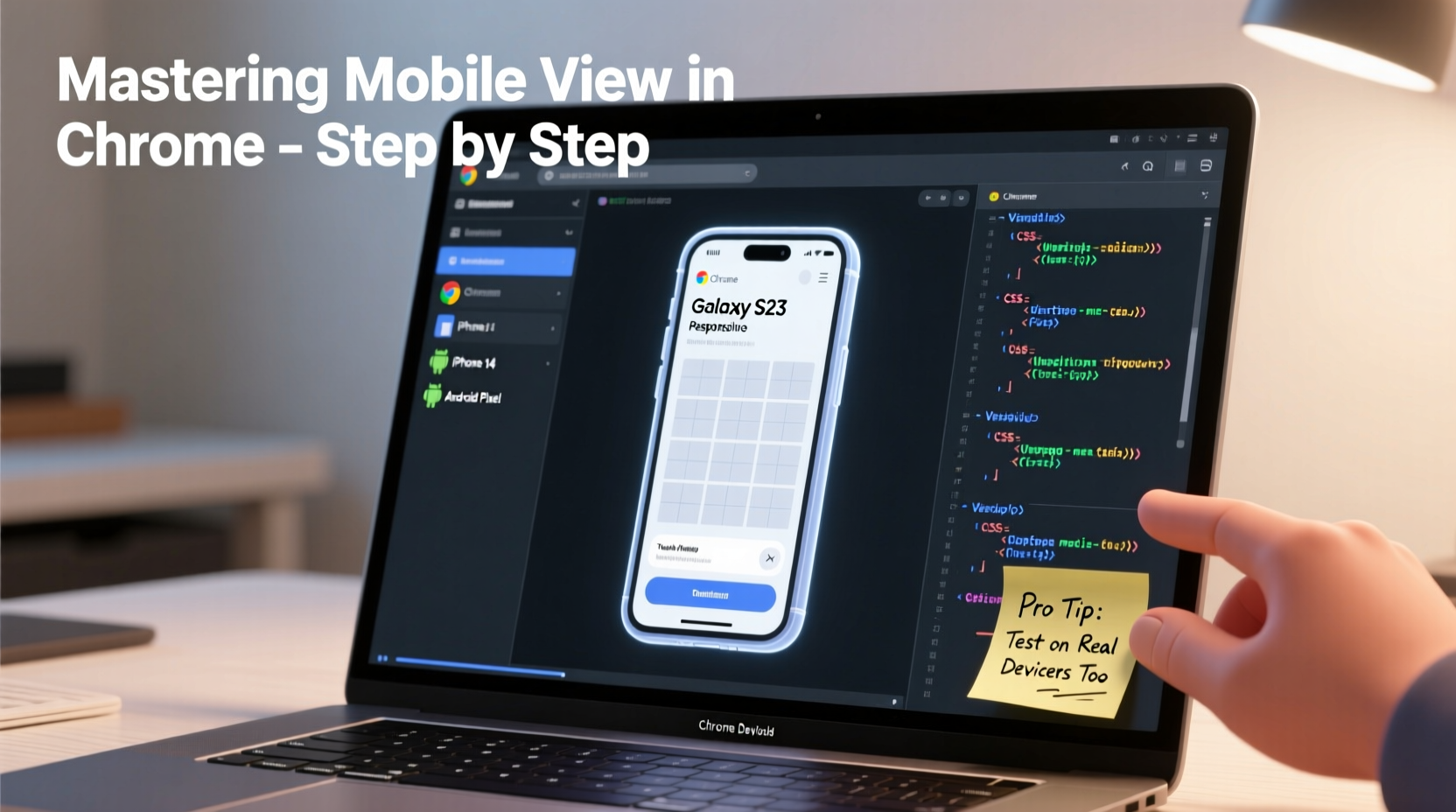
The foundation of mobile preview lies in Chrome’s DevTools. Activating and navigating this environment correctly ensures accurate testing.
- Open Chrome and navigate to the website you want to test.
- Right-click anywhere on the page and select Inspect, or press Ctrl+Shift+I (Windows/Linux) or Cmd+Option+I (Mac).
- In the top-left corner of DevTools, click the Toggle Device Toolbar icon (a small phone and tablet symbol), or press Ctrl+Shift+M.
- The viewport will resize to simulate a mobile screen. By default, it loads a common device size like iPhone X or Pixel 5.
- Use the dropdown menu above the viewport to select predefined devices or customize dimensions manually.
Choosing the Right Device Presets and Custom Sizes
Chrome includes a curated list of popular devices with accurate screen resolutions, pixel densities, and orientation settings. These presets eliminate guesswork when testing across platforms.
To access them, open the device dropdown in Device Toolbar mode. You’ll find options such as:
- iPhone 12, 13, 14 Pro
- Pixel 5, Pixel 7
- Galaxy S22, S23
- iPad Mini, iPad Pro
- Kindle Fire HD
Selecting any preset automatically adjusts resolution, device pixel ratio (DPR), and user agent string—critical for JavaScript and CSS media queries. For projects targeting niche markets or unique form factors, use the Edit option to create custom devices.
| Device | Resolution (px) | DPR | User Agent |
|---|---|---|---|
| iPhone 14 Pro | 393 × 852 | 3 | Mobile Safari |
| Pixel 5 | 393 × 851 | 2.75 | Mobile Chrome |
| iPad Air | 820 × 1180 | 1.5 | Mobile Safari |
| Custom (Phablet) | 414 × 896 | 2.6 | Custom UA |
When adding a custom device, specify width, height, device pixel ratio, and preferred orientation. This is especially useful for testing foldables or emerging screen formats not yet included in defaults.
Advanced Emulation: Network Throttling and Touch Simulation
A true mobile experience isn’t just about screen size—it includes slower connections, latency, and touch-based interaction. Chrome allows simulation of these conditions to reflect real-world performance.
Under the Network tab in DevTools, use the throttling dropdown to switch between profiles:
- No throttling – Full bandwidth
- Slow 3G – ~500ms RTT, 50 Kbps down
- Fast 3G – ~150ms RTT, 1.5 Mbps down
- Custom – Define your own values
Pairing slow network settings with device emulation reveals loading bottlenecks, unoptimized assets, or layout shifts during progressive rendering—issues often missed on high-speed desktops.
Additionally, enable Touch under the device controls bar to simulate tap behavior. This affects hover states, which don’t exist on touchscreens, helping catch UX flaws like hidden menus that rely solely on mouseover.
“Testing under constrained conditions uncovers performance debt before users do.” — Lara Chen, Frontend Performance Lead at Mozilla
Real-World Example: Debugging a Responsive Navbar Collapse
A frontend developer at a fintech startup was tasked with fixing a navigation menu that failed to collapse properly on mobile. On desktop, the hamburger icon worked perfectly, but users reported missing menu items on Android phones.
Using Chrome’s mobile view, the team replicated the issue by:
- Selecting “Pixel 5” from the device list.
- Enabling vertical orientation and touch simulation.
- Triggering the menu toggle and inspecting the DOM.
They discovered the problem: a third-party script was injecting inline styles that overrode the media query’s display: none rule. The fix involved increasing CSS specificity and deferring the script load. Without mobile emulation, this bug might have reached production, impacting usability for thousands of users.
Essential Checklist for Professional Mobile Testing
Before declaring a site mobile-ready, run through this checklist using Chrome DevTools:
- ✅ Toggle Device Toolbar and test at least three common screen widths (e.g., 360px, 375px, 414px)
- ✅ Verify font readability without zooming (minimum 16px recommended)
- ✅ Check tap target sizes (minimum 48px for accessibility)
- ✅ Test form inputs: ensure keyboards trigger appropriately
- ✅ Simulate slow 3G to assess loading UX and skeleton states
- ✅ Validate viewport meta tag presence:
<meta name=\"viewport\" content=\"width=device-width, initial-scale=1\"> - ✅ Inspect for horizontal scrolling or overflow issues
- ✅ Confirm touch interactions work (no hover-only menus)
Frequently Asked Questions
Can Chrome mobile view detect actual touch events?
While Chrome emulates touch behavior (like disabling hover), it doesn’t register physical touch input. However, it accurately mimics event handling via JavaScript (e.g., ontouchstart) and updates the user agent accordingly, making it reliable for logic testing.
Why does my site look different on a real phone than in Chrome emulation?
Minor discrepancies can occur due to differences in default fonts, OS-level UI rendering, or browser-specific interpretation of CSS. Always complement emulation with real-device testing before launch. That said, Chrome’s simulation is highly accurate for layout and functionality checks.
Is mobile view available in all versions of Chrome?
Yes, Device Mode has been fully supported since Chrome 32. Ensure you’re using an updated version to access the latest device presets and performance tools.
Conclusion: Preview Like a Pro, Deliver with Confidence
Mastering mobile view in Chrome transforms how you build and test responsive websites. It’s not just about shrinking the browser window—it’s about replicating the full context of mobile usage: screen constraints, network variability, and touch-driven interaction. By leveraging device presets, network throttling, and touch simulation, you gain insight into how real users experience your site, long before deployment.
Integrate these practices into your daily workflow. Make mobile preview a standard step, not an afterthought. The difference between a good website and a great one often lies in the details visible only at 375 pixels wide.
🚀 Ready to refine your development process? Open DevTools today, emulate a new device, and see your site through the eyes of a mobile user.