
Home videos from the 1980s and 1990s often live on VHS tapes tucked away in closets or basements. These analog recordings capture priceless moments—first steps, weddings, holidays—but they’re vulnerable to degradation, magnetic decay, and mechanical failure. The average VHS tape has a lifespan of about 10 to 30 years, and many are already past their prime. Converting them to digital format is not just convenient; it’s essential for long-term preservation.
Digital conversion allows you to store, share, and edit your footage across devices without further quality loss. The good news: transferring VHS to digital doesn’t require advanced technical skills. With the right tools and a methodical approach, anyone can complete the process at home efficiently and affordably.
Why Digitizing VHS Tapes Matters
VHS tapes were never designed for archival use. Over time, the magnetic particles that store video data degrade. Environmental factors like heat, humidity, and dust accelerate this deterioration. Even tapes stored in ideal conditions may suffer from sticky shed syndrome—a condition where the binder holding the magnetic layer breaks down, causing playback issues.
Once digitized, your videos become immune to physical wear. You can back them up to cloud storage, external drives, or DVDs, ensuring multiple copies exist. Digital files also enable easy sharing with family members who may have never seen the original recordings.
“Every year you wait to digitize your tapes increases the risk of losing irreplaceable memories. The window to preserve them is closing.” — David Lin, Media Archivist at the National Film Preservation Society
Equipment You’ll Need for VHS-to-Digital Transfer
The core idea behind digitization is capturing the analog signal from a working VHS player and converting it into a digital file using a computer. This requires four key components:
- A functional VHS player (preferably with S-Video output)
- A VHS-to-digital converter (also called a capture device)
- A computer with sufficient storage and USB ports
- Connection cables (RCA, S-Video, or both)
While modern TVs lack analog inputs, many older VCRs still work perfectly. If yours no longer functions, secondhand models are widely available online or at thrift stores. Look for brands like Panasonic, JVC, or Sony known for durability.
The capture device acts as a bridge between the VCR and your computer. Popular models include the Elgato Video Capture, Diamond VC500, and Roxio Easy VHS to DVD. These plug into your computer via USB and come with basic software for recording and saving video.
Tip: Test your VCR before starting. Play a tape briefly to ensure the heads are clean and tracking is stable.Step-by-Step Guide to Transferring VHS to Digital
Follow this structured workflow to convert your tapes reliably and maintain the best possible quality.
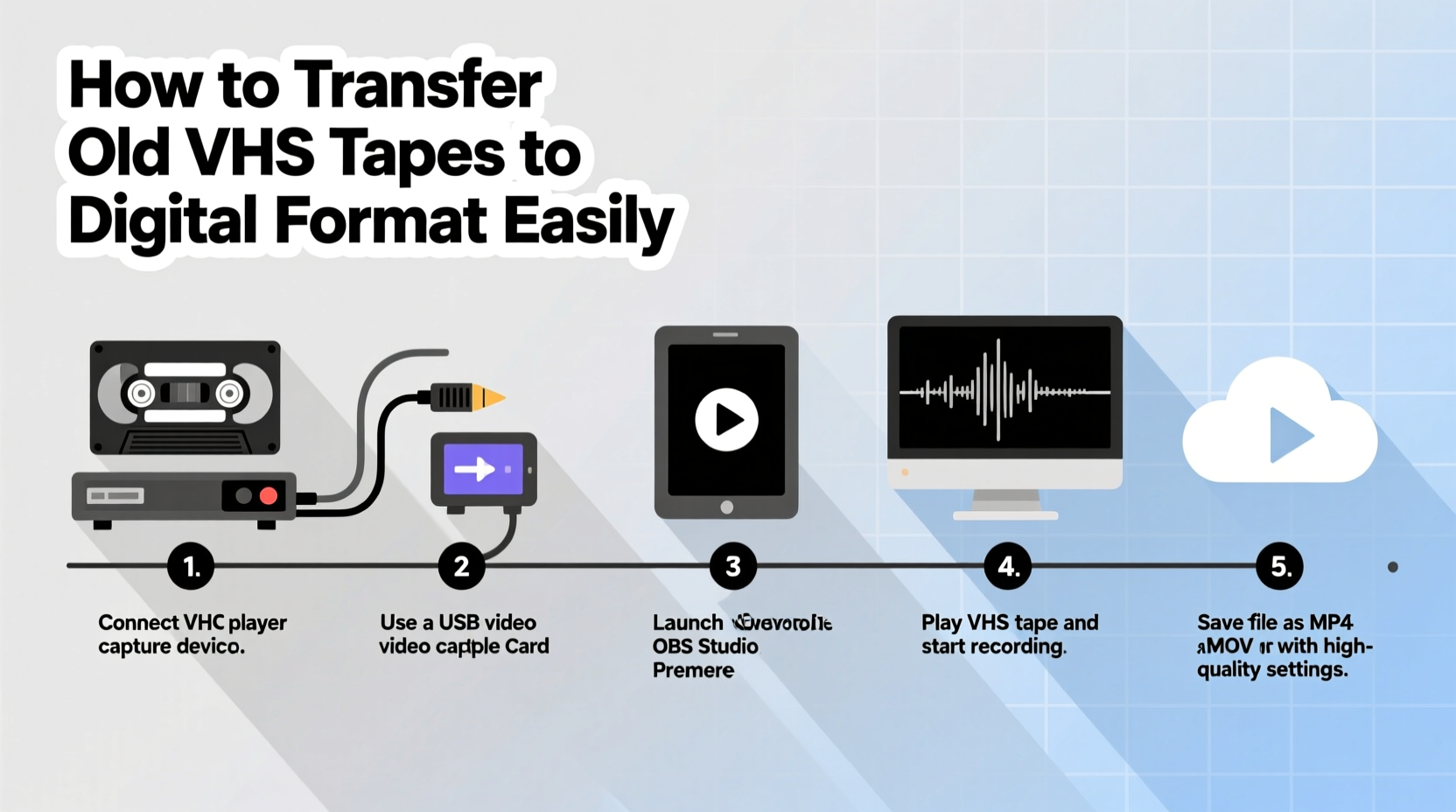
- Inspect and clean your VHS tapes. Remove dust and debris gently. Avoid touching the magnetic surface. If a tape is damaged or moldy, consider professional restoration.
- Set up your VCR and connect it to the capture device. Use RCA (red-white-yellow) or S-Video cables for better picture quality. S-Video separates luminance and chrominance signals, reducing color bleed.
- Connect the capture device to your computer. Install any required drivers or software. Most modern converters are plug-and-play on Windows and macOS.
- Perform a test recording. Play a short segment and record it digitally. Check for audio sync, brightness, and clarity. Adjust VCR tracking if needed.
- Begin full transfer. Rewind the tape to the beginning. Start recording on your computer, then press play on the VCR. Let the entire tape play through uninterrupted.
- Save and name your file. Choose a descriptive filename (e.g., “Family_Reunion_1995”) and save in a dedicated folder. MP4 is recommended for compatibility.
- Review and edit. Trim blank sections, split into chapters, or enhance contrast using free software like DaVinci Resolve or Shotcut.
- Back up your digital files. Store copies on an external hard drive, NAS, and cloud service like Google Drive or Dropbox.
Transferring one tape typically takes as long as its runtime—transferring a two-hour tape requires two hours of real-time playback. Plan accordingly and avoid multitasking that could interrupt the recording process.
Choosing the Right Software and File Format
Your capture device may come with proprietary software, but third-party options offer more control and features. Here’s a comparison of popular tools:
| Software | Platform | Best For | Cost |
|---|---|---|---|
| Open Broadcaster Software (OBS Studio) | Windows, macOS, Linux | Free, customizable capture with real-time preview | Free |
| VirtualDub (Windows only) | Windows | Simple interface, lightweight processing | Free |
| iMovie (with adapter) | macOS | Easy editing after capture | Free |
| Adobe Premiere Pro | Windows, macOS | Professional-grade editing and noise reduction | Paid subscription |
For file formats, MP4 (H.264) offers the best balance of quality and compatibility. It plays on nearly all devices and platforms. AVI files are larger and less efficient but may be useful if you plan extensive editing. Avoid WMV or FLV unless required for specific legacy systems.
Tip: Record in 720x480 resolution (NTSC) or 720x576 (PAL) to match standard definition VHS quality. Higher resolutions won’t improve image fidelity.Avoiding Common Pitfalls
Even experienced users make mistakes during digitization. Being aware of these issues can save time and prevent frustration.
- Ignoring tape condition: Old tapes may shed oxide or jam in the VCR. Clean them with a demagnetizer or use a professional cleaning tape first.
- Using low-quality cables: Poor connections introduce static, color distortion, or audio dropouts. Invest in shielded RCA or S-Video cables.
- Interrupting the recording: Pausing or stopping mid-transfer creates fragmented files. Let the entire tape run uninterrupted.
- Over-compressing files: Excessive compression reduces quality and introduces artifacts. Use moderate bitrates (5–8 Mbps for H.264).
- Failing to back up: Losing a single hard drive could erase decades of memories. Always keep at least two copies in separate locations.
“Digitization isn’t just about technology—it’s about stewardship. You’re not just copying a tape; you’re rescuing history.” — Lena Patel, Digital Archiving Consultant
Real Example: Preserving a Family Legacy
Susan Thompson, a retired teacher from Portland, Oregon, inherited over 40 VHS tapes from her parents. They documented everything from her childhood birthday parties to her father’s military service reunion in 2001. After discovering that several tapes wouldn’t play due to sticky shed, she researched home digitization methods.
She purchased a used Panasonic AG-W1 VCR and an Elgato Video Capture device for under $180 total. Over six weekends, she transferred each tape using OBS Studio, naming files by date and event. She enhanced audio levels using Audacity and burned edited versions to DVDs for her siblings.
“One tape had my mom singing lullabies to me as a baby,” Susan said. “Now my grandchildren can hear her voice. I wish I’d done this sooner—but I’m grateful I didn’t wait another year.”
Checklist: How to Transfer VHS to Digital Successfully
Use this checklist to stay organized and ensure every step is completed:
- ☐ Gather all VHS tapes and sort by priority (family events, rare footage, etc.)
- ☐ Obtain a working VCR with audio/video outputs
- ☐ Purchase or borrow a USB video capture device
- ☐ Acquire necessary cables (RCA or S-Video + audio)
- ☐ Install capture software on your computer
- ☐ Test the setup with a short recording
- ☐ Clean tapes and VCR heads if needed
- ☐ Transfer each tape in real time, monitoring for errors
- ☐ Save files with clear names and timestamps
- ☐ Edit out blank segments and split long recordings
- ☐ Back up files to external drive and cloud storage
- ☐ Label digital folders and create a viewing index
Frequently Asked Questions
Can I convert VHS tapes without a computer?
Yes, some standalone DVD recorders allow direct VHS-to-DVD conversion. However, these devices offer limited editing options and produce lower-quality results than computer-based methods. Additionally, DVDs are less durable and harder to back up than digital files.
How much storage space do digitized VHS tapes require?
A typical two-hour VHS tape converted to MP4 at 6 Mbps requires about 5–6 GB of storage. High-bitrate captures (10+ Mbps) may need up to 9 GB per tape. Plan for at least 10 GB per tape when accounting for backups and temporary files.
What should I do if my VHS tape gets stuck or breaks?
Do not force it. Power off the VCR and carefully open the casing if possible. If the tape is tangled, spliced, or moldy, consult a professional restoration service. Companies like YesVideo or ScanCafe specialize in repairing and digitizing damaged tapes.
Final Thoughts and Next Steps
Converting VHS tapes to digital format is one of the most meaningful things you can do for your family’s legacy. These recordings are more than home movies—they’re cultural artifacts, personal histories, and emotional touchstones. The process may seem daunting at first, but with patience and the right tools, it becomes manageable and even rewarding.
Start with one tape. Test your setup. Learn the rhythm of the transfer. Once you’ve mastered the workflow, the rest will follow. Don’t wait for the perfect moment—your tapes are aging every day.
💬 Ready to preserve your memories? Pick up your first VHS tape today, connect your capture device, and press record. Your future self—and your family—will thank you.