
For many users, staying informed without constantly checking their phones is a top priority. Samsung’s built-in Message Announcements feature in the “Voice Assistant” settings offers a hands-free way to hear incoming messages—especially useful while driving, cooking, or multitasking. However, the default settings may not suit everyone. Some users find announcements too frequent, too quiet, or mispronouncing names. Personalizing this feature ensures you get only the information you want, delivered clearly and at the right time.
Taking control of how and when your Samsung device reads messages aloud enhances both usability and privacy. With a few adjustments, you can tailor voice announcements to match your lifestyle, reduce distractions, and improve accessibility.
Understanding Message Announcements on Samsung Devices
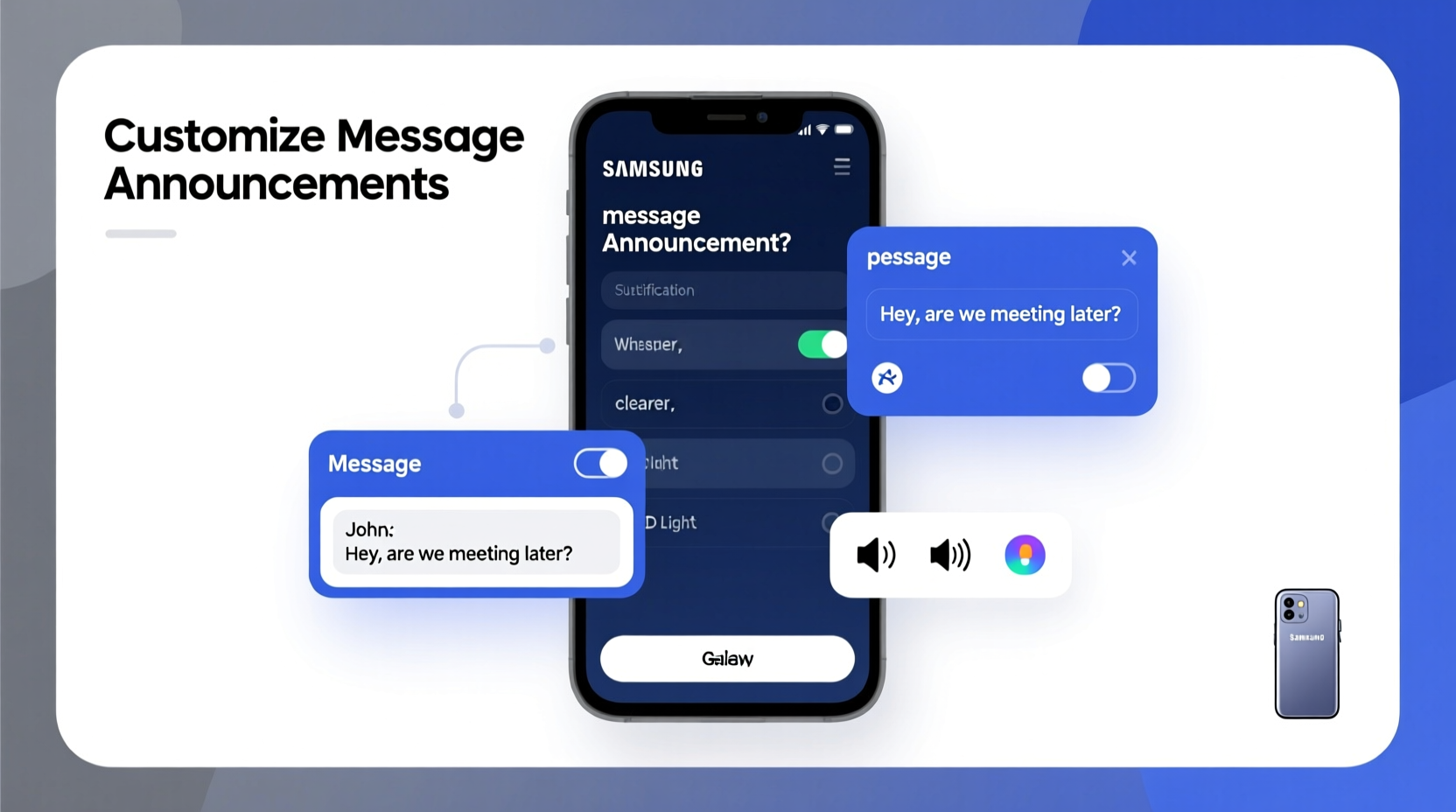
Message Announcements is a feature integrated into Samsung’s Bixby Voice system. When enabled, it uses text-to-speech technology to audibly read incoming messages from apps like Messages, WhatsApp, and others—provided they are supported. The function activates under specific conditions: when your headphones are connected or when driving mode is detected via Bluetooth car connection.
This feature relies on Android’s notification access permissions and works best when paired with Samsung’s ecosystem services. It does not announce every single message by default; instead, it filters based on app support and user-defined preferences. Knowing what triggers the announcement helps in customizing it effectively.
Tip: Enable Message Announcements only when using wired or Bluetooth headphones to avoid unintended public playback of private messages.Step-by-Step Guide to Enabling and Customizing Message Announcements
Follow these steps to set up and fine-tune message announcements on your Samsung Galaxy phone (compatible with most models running One UI 3.1 and above):
- Open Settings → Tap “Advanced Features” → Select “Bixby Voice.”
- Scroll down and tap “Message Announcements”.
- Toggle the switch to enable the feature.
- Choose your preferred activation method:
- With Headphones: Announces messages only when headphones are connected.
- While Driving: Activates when connected to a car via Bluetooth.
- Select which apps should be allowed to trigger announcements. Supported apps include Samsung Messages, WhatsApp, Telegram, and others that use standard Android notifications.
- Adjust the voice speed and volume under “Text-to-Speech Output” in Accessibility settings if needed.
Once enabled, test the feature by sending yourself a message through one of the selected apps while wearing headphones. Listen carefully to ensure clarity and proper pronunciation.
Optimizing Announcement Clarity and Privacy
Hearing your messages clearly is only part of the equation. Ensuring the content is intelligible—and appropriate for your environment—is equally important.
Samsung allows you to customize how much information is read aloud. For example, you can choose whether to hear just the sender’s name or the full message body. This level of control prevents sensitive details from being broadcast unexpectedly.
| Setting | Option | Effect |
|---|---|---|
| Announcement Mode | Sender Only | Voice says “Message from [Name]” without reading content. |
| Announcement Mode | Full Message | Reads entire message aloud after announcing sender. |
| App Filtering | Custom Selection | Only chosen messaging apps will trigger announcements. |
| Voice Language | Multiple Options | Change language or dialect for better pronunciation accuracy. |
To further enhance clarity, consider adjusting the speech rate:
- Navigate to Settings → Accessibility → Text-to-Speech Output.
- Select Samsung’s default engine (e.g., “Samsung TTS”).
- Modify the speech rate slider to a slower pace if words sound rushed.
- Test different voices to find one with natural intonation and clear enunciation.
“We’ve seen a significant improvement in user engagement with voice features when personalization options are fully utilized.” — Dr. Lena Park, Senior UX Researcher at Samsung Mobile Division
Real-World Example: Using Message Announcements While Commuting
Consider Maria, a project manager who commutes 45 minutes daily by car. She used to miss urgent client texts because she avoided looking at her phone while driving. After enabling Message Announcements with her car’s Bluetooth system, she now hears critical updates hands-free.
Maria customized her settings to allow only messages from her team’s work chat app and direct SMS from clients. She disabled announcements for social media DMs and promotional messages. By setting the mode to “Sender Only” for less important contacts, she avoids distraction while still knowing who reached out. If the message is urgent, she pulls over to respond manually or uses voice reply.
This setup reduced her stress, improved response times, and enhanced safety—all thanks to thoughtful customization of a built-in feature most users overlook.
Common Issues and How to Fix Them
Even with correct setup, some users experience problems such as missed announcements, robotic-sounding voices, or incorrect name pronunciation.
Tip: If names are mispronounced, try spelling them phonetically in your contacts (e.g., “Xavier” as “Za-vy-ay”) to guide the text-to-speech engine.Here are common issues and solutions:
- No announcements playing: Check that headphones or car Bluetooth are connected. Also verify that the messaging app has notification permissions enabled.
- Messages read too fast: Reduce speech rate in Accessibility > Text-to-Speech settings.
- Wrong voice or accent: Change the language pack or select a different voice model in TTS settings.
- Too many interruptions: Limit announced apps to essential ones only—avoid including spam-prone platforms.
Frequently Asked Questions
Can I use Message Announcements with earbuds like Galaxy Buds?
Yes. As long as your Galaxy Buds or other Bluetooth headphones are connected, the feature will work seamlessly. The announcement plays directly through the earbuds, ensuring privacy and clarity.
Does this feature work with third-party keyboards or encrypted messaging apps?
It depends. Apps like Signal may restrict access due to security policies. Ensure the app allows notification previews and grants permission to Bixby Voice. Some encrypted apps disable text extraction for privacy, which prevents message reading.
Is there a way to pause announcements temporarily without disabling the feature?
Yes. Simply disconnect your headphones or turn off Bluetooth. Alternatively, swipe down the notification panel and disable Bixby Voice quickly from the toggles if available.
Final Checklist: Optimize Your Message Announcement Experience
- ✅ Enable Message Announcements in Bixby Voice settings.
- ✅ Choose activation method: headphones or driving mode.
- ✅ Select only necessary messaging apps for announcements.
- ✅ Adjust speech rate and voice for optimal clarity.
- ✅ Test with sample messages to confirm functionality.
- ✅ Review contact names for correct pronunciation.
- ✅ Disable during meetings or quiet environments to maintain discretion.
Take Control of Your Notifications Today
Your smartphone should adapt to your life—not the other way around. By personalizing message announcements on your Samsung phone, you gain a smarter, safer way to stay connected. Whether you're navigating traffic, working out, or simply keeping your eyes on the road, hearing your messages clearly and selectively makes all the difference.
Don’t settle for generic defaults. Explore the settings, experiment with voice options, and build a notification system that respects your time, attention, and privacy. A well-tuned announcement setup isn’t just convenient—it’s empowering.
💬 Have you customized your message announcements? Share your favorite tip or challenge in the comments below—we’d love to hear how you make your Samsung work smarter!