In a world where digital efficiency meets analog charm, the debate between digital and paper planners isn’t just about preference—it’s about how we manage our time, energy, and attention. With iPads now powerful enough to replace notebooks, calendars, and sticky notes, many are asking: can you truly stay organized using a digital planner on an iPad? The answer isn’t simple, but it is revealing.
For years, paper planners have been the gold standard for personal organization. Their tactile feedback, lack of distractions, and psychological satisfaction of crossing off tasks made them indispensable. But digital tools—especially on devices like the iPad with Apple Pencil support—offer unmatched flexibility, searchability, and integration with other apps. So which system actually helps you stay on track?
The Core Differences: How Digital and Paper Planners Work
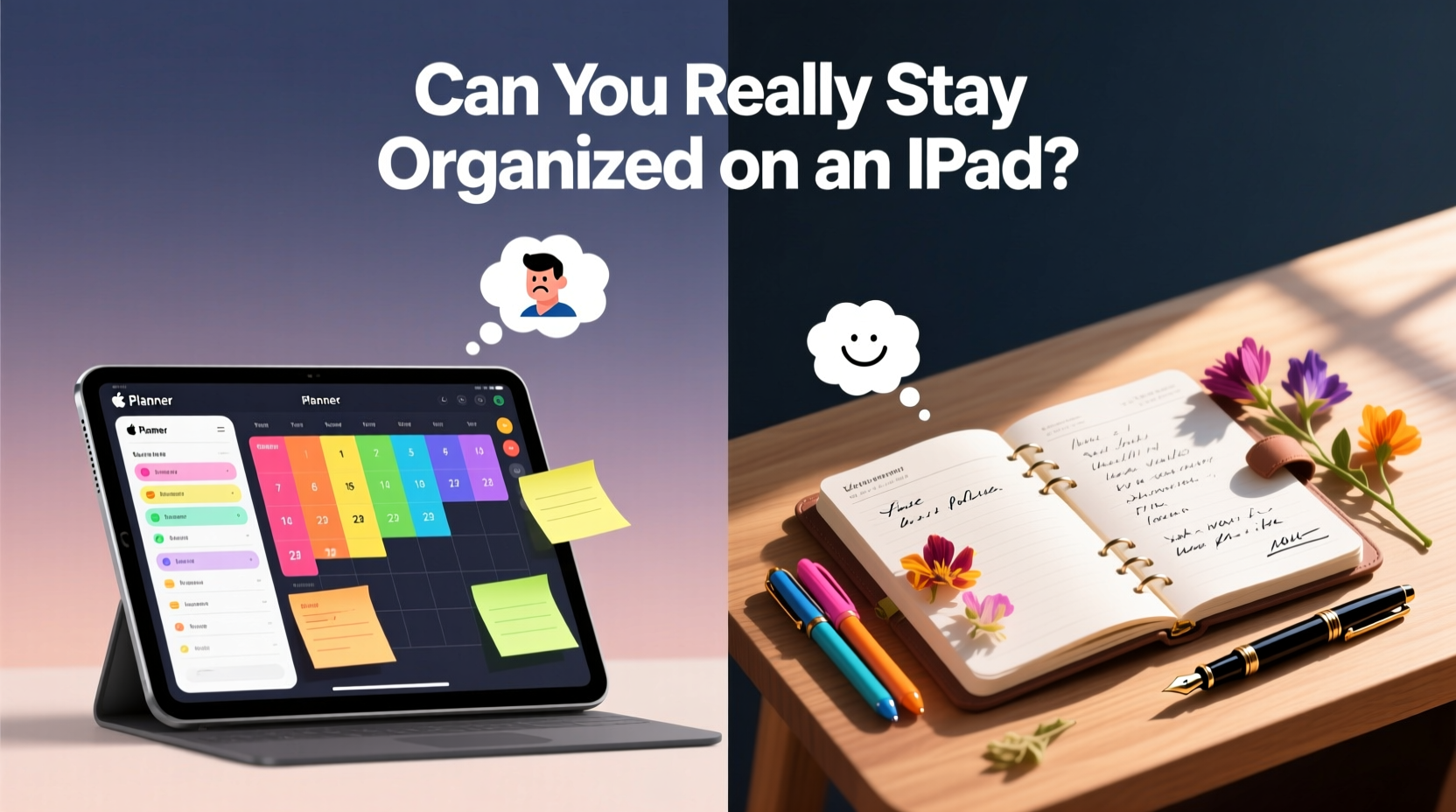
The fundamental difference lies in interaction and functionality. A paper planner operates on simplicity: blank or structured pages where you write by hand. There’s no learning curve, no syncing issues, and no battery life to worry about. You open it, write, and close it. It’s immediate and linear.
A digital planner on an iPad, on the other hand, functions more like a dynamic workspace. Using apps such as GoodNotes, Notability, or specialized digital planning systems like Planner Pro, you can create hyperlinked tabs, embed checklists, attach files, set reminders, and even back up your data to the cloud. You’re not limited to one layout—you can switch weekly spreads, add new sections instantly, or duplicate monthly templates with a tap.
But this power comes with complexity. Setting up a digital planner requires initial setup time. You must choose templates, organize folders, and learn gestures or app-specific features. And unlike a notebook that works in a blackout, your iPad needs charging.
Tip: Start simple when switching to a digital planner—use basic templates first before adding layers of customization.Pros and Cons: A Balanced Comparison
| Feature | Paper Planner | Digital Planner (iPad) |
|---|---|---|
| Portability | High – lightweight, always ready | High – but requires device and stylus |
| Customization | Low – limited to writing and stickers | Very High – templates, links, multimedia |
| Ease of Use | Instant – no setup needed | Moderate – learning curve involved |
| Searchability | None – manual scanning required | Full text search across all entries |
| Durability | Prone to damage, no backups | Cloud backups, password protection |
| Cognitive Load | Lower – focused, distraction-free | Higher – potential for multitasking |
| Cost Over Time | Recurring – buy new each year | One-time or subscription-based |
This table reveals a key insight: paper wins in immediacy and focus; digital excels in scalability and retrieval. If your goal is deep work and minimal tech interference, paper may be better. But if you juggle multiple projects, deadlines, and digital assets, the iPad offers unmatched organizational leverage.
Can You Really Stay Organized on an iPad?
The short answer is yes—but only if the system aligns with your habits. Research from the University of California, Los Angeles suggests that handwriting information improves memory retention compared to typing. However, that doesn’t mean digital planning is ineffective. It means the method must be adapted to preserve cognitive engagement.
Using an Apple Pencil on an iPad mimics handwriting closely, preserving some of the neurological benefits of analog note-taking while gaining digital advantages. Apps like GoodNotes simulate lined paper, allow freehand drawing, and support voice memos linked to specific pages. This hybrid approach bridges the gap between tactile experience and functional power.
“People don’t fail systems—they fail mismatched systems. The best planner is the one you’ll actually use consistently.” — Dr. Laura Chen, Cognitive Behavioral Specialist
The real challenge with digital planners isn’t technical capability—it’s consistency. It’s easy to download a beautiful template, play with colors, and then abandon it after two weeks. Success depends less on the tool and more on routine integration.
A Real Example: Sarah’s Transition from Paper to Digital
Sarah, a freelance graphic designer, used paper planners for over a decade. She loved the ritual of writing her schedule every Sunday night. But as client demands grew, she found herself losing track of deadlines buried in handwritten notes. After missing a delivery date, she decided to try a digital planner on her iPad.
At first, it felt unnatural. She missed the texture of paper and accidentally deleted a page. But within three weeks, she customized her planner with project dashboards, linked client briefs, and recurring task templates. She set up color-coded tags for urgency and began syncing her calendar automatically.
Today, Sarah says she’s more organized than ever. “I still journal by hand,” she explains, “but my planning lives on the iPad. I can search for ‘client X deadline’ in seconds instead of flipping through months of notes.”
Her story illustrates a critical point: digital planners aren’t inherently better, but they can become superior tools when tailored to complex workflows.
How to Build a Sustainable Digital Planning System on iPad
Switching to a digital planner isn’t just about downloading an app. It requires intentional design. Follow this step-by-step guide to build a system that lasts:
- Choose the Right App: Test GoodNotes, Notability, or Freeform. Look for features like handwriting recognition, folder hierarchy, and cloud sync.
- Select Minimal Templates First: Avoid overwhelming yourself with flashy designs. Start with a basic weekly layout and expand later.
- Create a Folder Structure: Organize by categories—Work, Personal, Finance, Goals—just like physical file folders.
- Enable Syncing: Use iCloud or Google Drive to back up your planner. Losing data defeats the purpose of going digital.
- Integrate with Calendar & Reminders: Link important dates from your iPhone calendar to avoid duplication.
- Set Up a Weekly Review Routine: Every Sunday, review past week’s tasks, migrate unfinished items, and plan ahead.
- Add Only What Serves You: Don’t clutter your planner with unused trackers. Add habit grids or budget sheets only if they drive action.
Checklist: Launch Your iPad Planner Successfully
- ✅ Back up existing notes or paper planner content
- ✅ Install and test 1–2 digital planner apps
- ✅ Download or design a starter template
- ✅ Set up cloud backup (iCloud/Google Drive/Dropbox)
- ✅ Import key dates from your current calendar
- ✅ Practice navigating between sections using tabs or links
- ✅ Schedule a 15-minute daily check-in for the first month
When Paper Still Wins
Despite the advantages of digital tools, there are scenarios where paper remains superior. Brainstorming sessions, creative ideation, and emotional journaling often benefit from the unrestricted space of a blank page. There’s also a psychological component: studies show that physically writing down goals increases commitment.
Moreover, digital devices carry the risk of distraction. Even with focus mode enabled, the temptation to switch to email or social media exists. A paper planner eliminates that entirely. For individuals seeking mindfulness or reducing screen time, paper provides a sanctuary.
Some users adopt a hybrid model: using a paper journal for reflection and a digital planner for logistics. This combines the best of both worlds—emotional clarity from handwriting, operational precision from searchable databases.
Frequently Asked Questions
Is a digital planner on iPad worth it for students?
Absolutely. Students benefit from organizing lecture notes, assignments, and exam schedules in one place. With search functionality, reviewing material becomes faster. Many university students use iPads with digital planners to manage coursework, part-time jobs, and extracurriculars efficiently.
Can I print my digital planner pages?
Yes, most apps allow exporting as PDF. You can print weekly spreads for meetings or backup purposes. However, printing loses dynamic features like hyperlinks and searchability.
What if my iPad breaks or gets lost?
This is why cloud backup is non-negotiable. As long as your planner syncs to iCloud or another service, you can restore it on a new device. Always enable automatic backups and consider using password protection for sensitive data.
Final Thoughts: Choosing What Works for You
The choice between a digital planner on an iPad and a traditional paper planner isn’t about which is objectively better—it’s about alignment with your lifestyle, workflow, and cognitive preferences. The iPad offers powerful tools for those managing complex schedules, collaborating remotely, or integrating multimedia into their planning. Its ability to evolve with your needs makes it a compelling option.
Yet, paper retains its value for those who prioritize presence, simplicity, and sensory engagement. There’s undeniable satisfaction in flipping through a filled notebook at year’s end, seeing tangible proof of progress.
Ultimately, staying organized isn’t dependent on the medium. It depends on consistency, intentionality, and self-awareness. Whether you choose sleek digital interfaces or classic bullet journals, what matters is showing up for yourself daily.
🚀 Ready to upgrade your organization? Pick one small change today—try a digital template, redesign your paper layout, or start a weekly review. Small steps lead to lasting systems.