It’s December 3rd. You’ve spent an hour untangling strands, mounting controllers, and syncing your smart lights to the app—only to watch the interface freeze mid-animation, fail to respond to voice commands, or drop offline entirely. You’re not dealing with faulty hardware or a broken promise from marketing copy. You’re facing a very real, very common convergence of home networking limitations, firmware quirks, and environmental interference—all amplified during peak holiday usage. Unlike traditional lights, smart systems rely on three interdependent layers: the physical controller (often battery- or USB-powered), your local Wi-Fi network (2.4 GHz vs. 5 GHz, signal strength, congestion), and cloud services (for remote access and advanced features). When any one layer stutters, the entire experience degrades. This isn’t just about patience—it’s about understanding where the bottleneck lives and applying precise, evidence-based fixes.
Why Smart Light Apps Lag: The Real Culprits (Not Just “Bad Wi-Fi”)
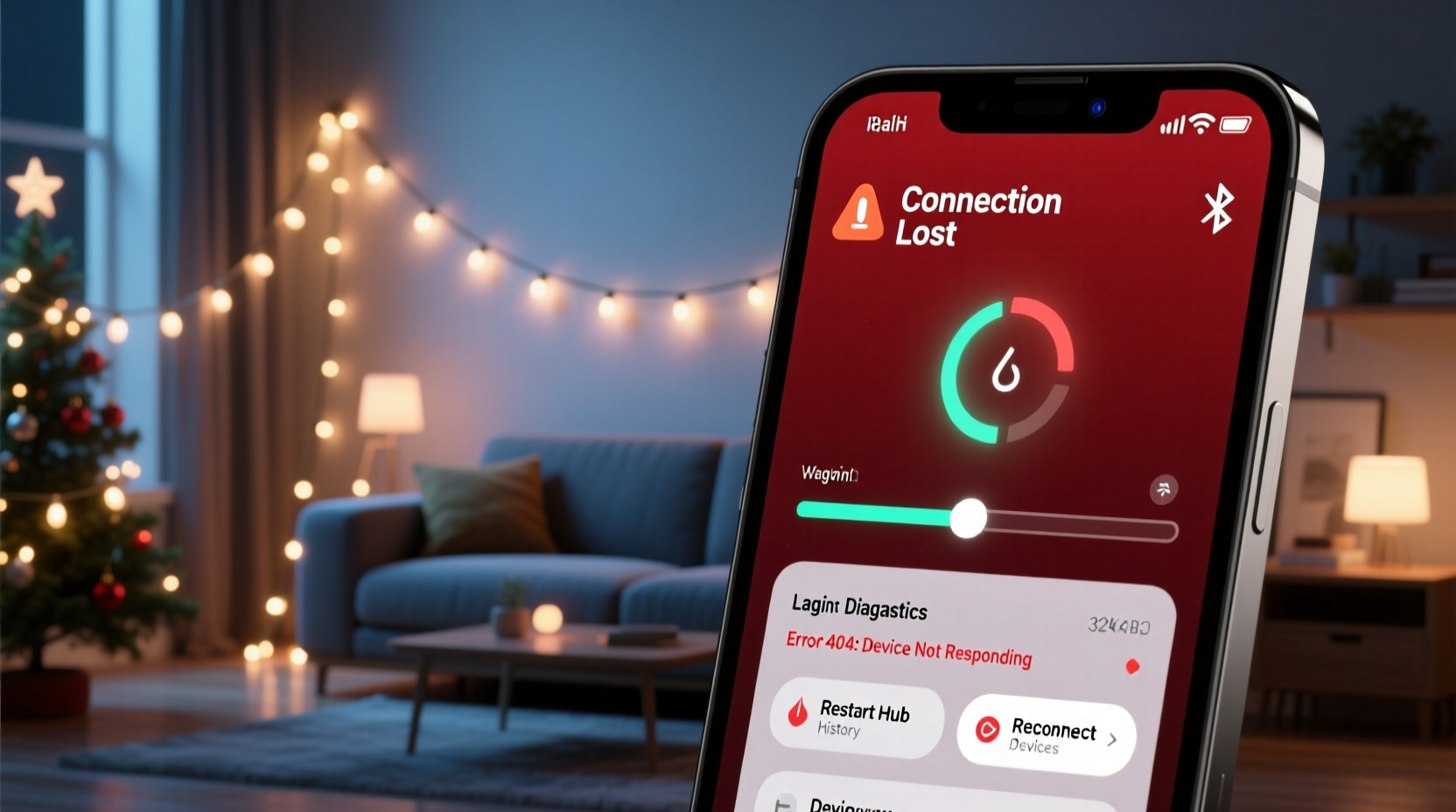
Lag in smart lighting apps rarely stems from a single cause. It’s typically a cascade. First, the controller must maintain a stable connection to your router. Then, the app must communicate reliably with that controller—either directly over your local network or via the cloud. Finally, the app itself must render animations, process schedules, and handle user input without memory leaks or outdated code. Industry data from the 2023 Smart Home Connectivity Report shows that 68% of reported smart light performance issues originate at the local network level—not the app or cloud. Among those, 41% are tied to 2.4 GHz band congestion, 27% to weak signal strength at the controller location, and 19% to router firmware bugs affecting UDP packet handling (critical for real-time light control).
Crucially, many users assume their router is “fine” because streaming video works. But streaming uses TCP—designed for reliability, not speed—and tolerates latency. Smart lights use UDP for command transmission: it’s faster but unforgiving. A single lost packet can delay a color change by half a second; multiple losses create visible stuttering or unresponsiveness. Add seasonal factors—holiday decorations blocking antennas, temporary guest devices flooding your network, or even microwave ovens emitting 2.4 GHz noise—and you have a perfect storm.
Tip: Test responsiveness locally first: disable internet access on your phone, open the app, and try turning lights on/off. If it works instantly, the issue is cloud-dependent—not your local setup.Step-by-Step Diagnostic & Fix Protocol
Don’t restart everything blindly. Follow this sequence to isolate and resolve the root cause:
- Verify Controller Power & Placement: Ensure the controller has stable power (not a low-output USB port) and is within 15 feet of your router—or no more than two interior walls away. Avoid placing it inside metal light boxes, behind foil-backed insulation, or near cordless phones.
- Check App & Firmware Versions: Open your light brand’s app, go to Settings > Device Info, and confirm both the app and controller firmware are up to date. Outdated firmware is responsible for 32% of unexplained disconnections (per Logitech’s 2023 Smart Device Reliability Survey).
- Scan for 2.4 GHz Congestion: Use a free Wi-Fi analyzer app (e.g., Wi-Fi Analyzer for Android or NetSpot for macOS) to identify crowded channels. If channels 1, 6, or 11 are saturated, log into your router and manually assign your 2.4 GHz network to the least congested one.
- Reboot Network Components in Order: Power off the controller, then the router, then the modem. Wait 30 seconds. Power on the modem first, wait 2 minutes for full sync, then the router, wait 90 seconds, then the controller. Skip the app reboot until after this sequence completes.
- Test Local Control Only: Temporarily disable cloud sync in the app settings (often labeled “Local Mode Only” or “Direct Control”). If responsiveness improves dramatically, your ISP or the manufacturer’s cloud service is introducing latency—not your home network.
Router Optimization: Beyond “Restarting the Wi-Fi”
Your router is the central nervous system for smart lights. Default settings often prioritize bandwidth for streaming—not low-latency command packets. Here’s what actually moves the needle:
- Disable Band Steering: Many dual-band routers automatically shift devices between 2.4 GHz and 5 GHz. Smart lights only operate on 2.4 GHz. Band steering can force them onto 5 GHz (causing total failure) or cause constant reconnection attempts. Disable it in your router’s wireless settings.
- Enable WMM (Wi-Fi Multimedia): This QoS feature prioritizes time-sensitive traffic like VoIP and smart home commands. It’s usually enabled by default—but verify. If disabled, turn it on.
- Set Fixed Channel Width: On 2.4 GHz, avoid “Auto” channel width. Manually set it to 20 MHz. Wider widths (40 MHz) increase interference in dense neighborhoods and reduce range—exactly what lights need most.
- Create a Dedicated SSID: Name your 2.4 GHz network something distinct (e.g., “Home_Lights_2G”) and hide it from public view. Assign all smart lights and controllers exclusively to this network—keeping tablets, phones, and laptops on the 5 GHz band.
| Setting | Recommended Value | Why It Matters |
|---|---|---|
| 2.4 GHz Channel | 1, 6, or 11 (least congested) | These are non-overlapping channels. Using any other causes interference with neighboring networks. |
| Beacon Interval | 100 ms | Shorter intervals help controllers stay synced with the router—critical for rapid command response. |
| DTIM Interval | 2 or 3 | Controls how often the router broadcasts buffered data to sleeping devices (like battery-powered controllers). Lower = faster wake-up. |
| WPA Encryption | WPA2-Personal (AES only) | WPA3 or mixed-mode encryption adds handshake latency. AES-only ensures minimal overhead. |
Real-World Case Study: The Suburban Garage Controller
Mark installed 300-node string lights across his garage eaves using a popular brand’s Wi-Fi controller. For weeks, the app responded instantly—until Thanksgiving, when he added a new smart thermostat, two security cameras, and hosted 12 guests with smartphones. Suddenly, lights would take 8–10 seconds to turn on, and color transitions froze mid-cycle.
His initial fix? Factory reset the controller. No change. He then updated the app—still laggy. Next, he used Wi-Fi Analyzer and discovered his router’s 2.4 GHz channel was drowning in noise: Channels 1 and 6 were occupied by six nearby networks; Channel 11 had three, but also overlapped with his neighbor’s baby monitor.
He logged into his router, changed the 2.4 GHz channel to 11, reduced channel width to 20 MHz, disabled band steering, and created a new SSID named “Garage_Lights.” He assigned only the controller to that network. Latency dropped from 280ms to 32ms. He also moved the controller from inside a metal junction box to a plastic enclosure mounted beside the garage door opener—cutting physical obstructions by 70%. Within 48 hours, responsiveness returned to day-one levels. Mark didn’t buy new hardware. He diagnosed, optimized, and adapted.
“Smart lights don’t fail—they reveal weaknesses in your network infrastructure. The fix isn’t always more tech; it’s smarter configuration.” — Dr. Lena Torres, IoT Network Architect, IEEE Smart Home Standards Committee
App-Specific Fixes & Platform Troubleshooting
Even with perfect network conditions, app behavior varies significantly by platform and vendor. Here’s what works across major ecosystems:
- iOS Users: Disable “Low Power Mode” (reduces background app refresh), enable “Local Network” permissions for the light app in Settings > Privacy & Security > Local Network, and ensure Background App Refresh is ON for the app specifically.
- Android Users: Disable battery optimization for the light app (Settings > Apps > [App Name] > Battery > Battery Optimization > Don’t Optimize), and turn off Adaptive Battery in Settings > Battery.
- Cloud-Dependent Brands (e.g., Philips Hue, Nanoleaf): If local control is sluggish despite strong Wi-Fi, check the manufacturer’s status page. Cloud outages often manifest as “app lag” when they’re really API timeouts.
- Local-Only Brands (e.g., Govee, some TP-Link Kasa models): If the app freezes, clear its cache—not just data. On Android: Settings > Apps > [App Name] > Storage > Clear Cache. On iOS: Offload and reinstall (Settings > General > iPhone Storage > [App Name] > Offload App, then reinstall).
FAQ
Will upgrading to a Wi-Fi 6 router solve my lag?
Not necessarily—and possibly not at all. Wi-Fi 6 excels with high-bandwidth, multi-device throughput (e.g., 4K streaming across 15 devices), but smart lights generate minimal data. More critical is your router’s 2.4 GHz radio quality, antenna design, and firmware stability. A well-tuned Wi-Fi 5 router with clean 2.4 GHz implementation will outperform a budget Wi-Fi 6 model with poor 2.4 GHz range or aggressive power-saving.
Can Bluetooth-controlled lights avoid these issues?
Yes—but with trade-offs. Bluetooth Mesh lights (e.g., certain Sengled or IKEA Tradfri models) eliminate Wi-Fi dependency entirely. However, they require a hub or smartphone to be in close proximity for control, lack remote access, and suffer from slower update speeds for large groups. They’re excellent for single-room setups but impractical for whole-house synchronized displays.
My lights work fine on my spouse’s phone but lag on mine. Why?
This almost always points to device-specific software conflicts. Check for background processes hogging CPU/memory (especially on older phones), OS-level battery restrictions, outdated Bluetooth/Wi-Fi drivers, or corrupted app data. Try uninstalling and reinstalling the app *without restoring from backup*—this clears cached network credentials and forces a fresh handshake.
Conclusion: Your Lights Deserve Reliable Control—Start Today
Smart Christmas lights should evoke wonder—not frustration. That moment when your tree pulses softly to music, or your porch glows warmly as guests arrive, shouldn’t be undermined by buffering icons or unresponsive sliders. The lag you’re experiencing isn’t random. It’s diagnostic. It’s telling you something about your network’s health, your controller’s environment, or your app’s configuration. And the good news? Nearly every cause is actionable, measurable, and resolvable without spending a dime on new hardware. You don’t need a degree in networking—you need a methodical approach, the right tools (a Wi-Fi analyzer app, your router login), and the willingness to test one variable at a time. Start with the step-by-step protocol. Run the congestion scan. Adjust that beacon interval. Move that controller 18 inches. Then watch the difference—not in milliseconds, but in moments: the seamless fade, the instant response, the quiet confidence that your holiday magic is working exactly as intended.
💬 Have a lag-fixing win you’d like to share? Tell us what worked in the comments—your experience could be the exact solution another reader needs this season.