For many households, the holiday season means more than just decorations—it’s about sharing joy. If you’ve spent weeks perfecting a synchronized light display set to music, why limit the audience to passersby? With today’s technology, you can broadcast your Christmas light show live to loved ones across the country—or even the world. Whether your sister in California is snowed in or your grandparents can’t make the trip due to health concerns, a live stream turns your front yard into a shared experience.
Streaming your Christmas lights doesn’t require a Hollywood budget or technical degree. What it does require is planning, the right gear, and a clear understanding of how to deliver a stable, high-quality video feed. From choosing a streaming platform to troubleshooting weather-related challenges, this guide walks you through everything you need to know to bring your dazzling display to screens everywhere.
Choose Your Streaming Platform Wisely
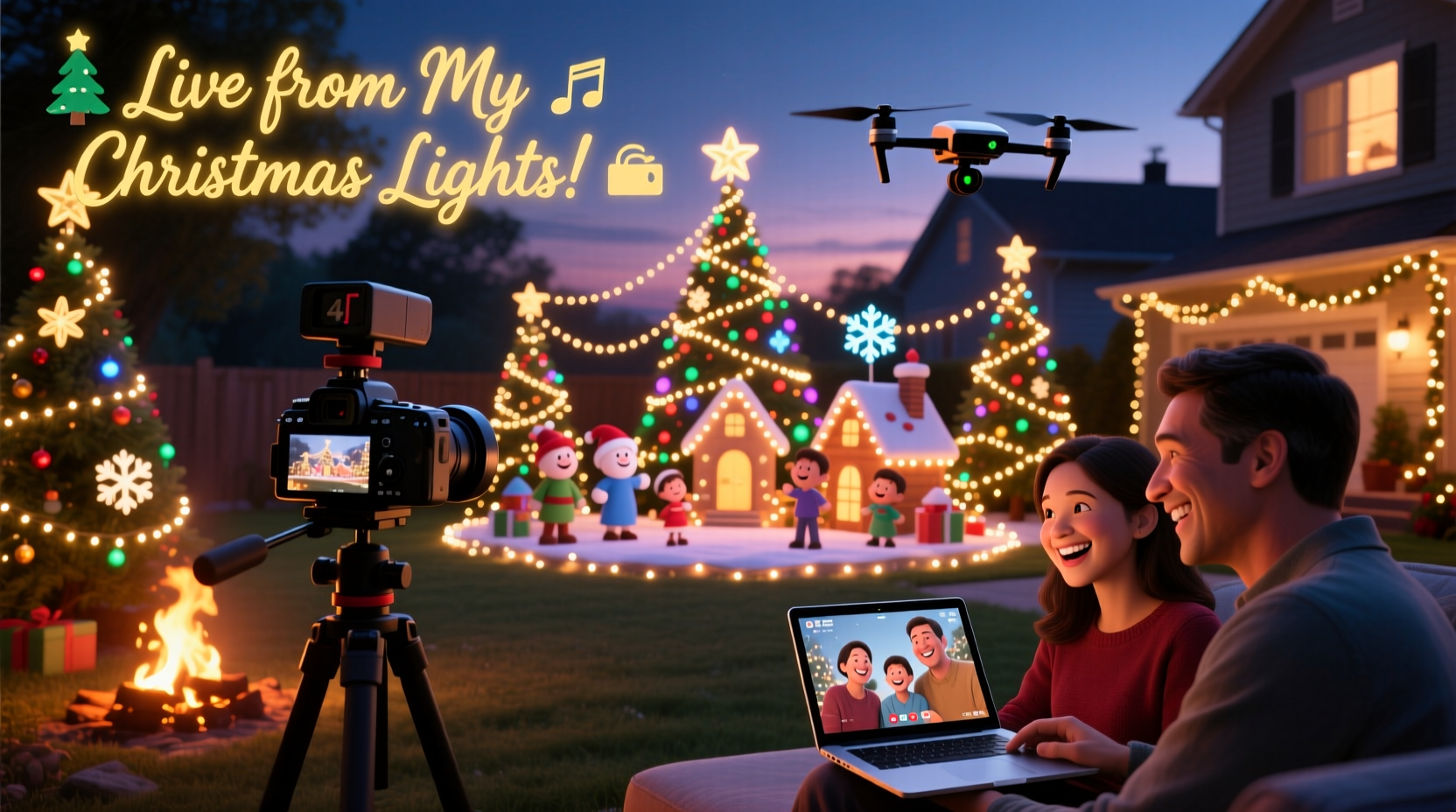
The first decision you’ll make is where to broadcast your light show. The platform you choose affects accessibility, viewer capacity, and ease of setup. Not all platforms are created equal when it comes to live events, especially those involving outdoor video feeds.
YouTube Live is one of the most popular choices for holiday streams. It supports high-resolution video, allows unlimited viewers, and integrates easily with social media. You can schedule your stream in advance, send reminders, and even monetize donations if you’re raising funds for charity. However, setting up YouTube Live requires linking your account to an encoder (like OBS Studio) or using a compatible camera.
Facebook Live offers simplicity and wide reach, particularly among older demographics. Since many people already use Facebook, sharing a link is effortless. Viewers can comment in real time, adding interactivity. The downside? Video quality caps at 720p unless you use external software, and algorithm changes may limit organic reach unless you promote the event.
Twitch, while typically associated with gaming, has become a go-to for niche live events—including holiday light shows. It supports high bitrates, low latency, and excellent chat engagement. But its user base skews younger, so consider whether your audience is active there.
For maximum compatibility, consider going multi-platform using a service like Restream.io, which broadcasts your stream simultaneously across YouTube, Facebook, and Twitch. This ensures no one misses out based on their preferred platform.
Tip: Test your stream privately before going live. Most platforms allow unlisted or “private” mode testing so only invited guests can view.Essential Equipment for a Stable Outdoor Stream
Streaming from indoors is straightforward—your router, power, and camera are all under one roof. Outdoors, conditions change everything. Cold temperatures, wind, moisture, and distance from your Wi-Fi signal all pose risks to a smooth broadcast.
You’ll need three core components: a camera, a reliable internet connection, and a power source.
A weather-resistant security camera with night vision and wide-angle capability is ideal. Models like the Arlo Pro 4 or Reolink Argus 3 offer 2K resolution, local storage, and Wi-Fi connectivity. Alternatively, a DSLR or mirrorless camera paired with an HDMI-to-USB capture card can deliver cinematic quality��but requires more setup and protection from the elements.
Your internet connection must support consistent upload speeds. For 1080p streaming, aim for at least 5 Mbps upload speed. Use a tool like speedtest.net near your planned camera location to verify performance. If Wi-Fi is weak outdoors, consider a Wi-Fi extender or a point-to-point wireless bridge. Better yet, run a long Ethernet cable from your router to the camera site—wired connections are far more stable.
Power is another challenge. Battery-powered cameras work for short durations but won’t last through a full evening. Instead, use a heavy-duty outdoor extension cord connected to a surge protector. For remote setups, a portable power station like the Jackery Explorer 500 can run cameras and small routers for several hours.
“Reliability trumps resolution when streaming outdoors. A steady 720p stream is better than a buffering 4K feed.” — Daniel Reeves, Broadcast Engineer at HolidayStream Solutions
Step-by-Step Guide to Launching Your Live Stream
Follow this timeline to ensure your stream runs smoothly on show night.
- Two Weeks Before: Finalize your streaming platform and create an event page. Invite family and friends early so they can mark their calendars.
- One Week Before: Set up your camera in the intended location. Conduct a test recording and check lighting angles. Make sure trees or roofs aren’t blocking the view.
- Three Days Before: Run a full live test. Go live for 10 minutes, invite a few relatives to join, and gather feedback on video clarity and audio sync.
- Day Before: Secure all cables with conduit or cable covers. Check the weather forecast. If rain or snow is expected, enclose electronics in waterproof boxes with ventilation.
- One Hour Before: Power on all devices. Confirm the camera is transmitting, the internet is stable, and the audio system (if used) is synced.
- Show Time: Start the stream 10–15 minutes early. Greet viewers as they arrive. Display a countdown or welcome message on screen until the show begins.
During the stream, monitor the chat if possible. Assign a family member to respond to comments or share fun facts about the display. After the final song ends, thank viewers and let them know when next year’s show might happen.
Do’s and Don’ts: Avoiding Common Streaming Mistakes
Even seasoned streamers make avoidable errors. Use this table to steer clear of pitfalls that could ruin your holiday broadcast.
| Do | Don’t |
|---|---|
| Use a tripod or mounted bracket for steady footage | Handhold the camera or place it on unstable surfaces |
| Test audio sync between lights and music | Assume your music plays perfectly in sync without checking |
| Label all cables and keep a backup charger | Leave loose wires exposed to foot traffic or pets |
| Start streaming early to catch latecomers | Begin the music the moment you hit “Go Live” |
| Share the link via multiple channels (email, text, social) | Rely solely on one method of communication |
Real Example: The Johnson Family Light Show Goes Viral
The Johnsons in Minneapolis spent six months building a 128-channel light display choreographed to holiday classics. In previous years, crowds gathered nightly—but during the pandemic, they worried their efforts would go unseen.
They invested in a $200 4K security camera, mounted it on a second-story eave, and ran a 100-foot Cat6 cable to their basement router. Using OBS Studio, they streamed to both YouTube and Facebook. They promoted the event through Nextdoor, local news stations, and a simple website: johnsonlights.com.
The night of the premiere, over 2,300 people tuned in from 17 countries. Grandparents watched from Florida, cousins from Germany, and neighbors who didn’t want to brave the cold. The family even added a PayPal donation link for a children’s hospital—and raised over $1,800.
“We never expected that kind of response,” said Mark Johnson. “But seeing comments like ‘This made my mom cry happy tears’—that’s what the holidays are about.”
Checklist: Prepare Your Stream in 7 Steps
Before show night, confirm each of these items:
- ✅ Choose primary and backup streaming platforms
- ✅ Set up weatherproof camera with clear line of sight
- ✅ Verify upload speed meets minimum requirements (5 Mbps for HD)
- ✅ Secure power supply and protect cords from damage
- ✅ Test audio-video sync with a short playback
- ✅ Share the stream link with family and post on social media
- ✅ Have a friend monitor chat or technical issues during the show
Frequently Asked Questions
Can I stream without a computer?
Yes. Many modern IP cameras support direct streaming to YouTube or Facebook via RTMP. Check your camera’s app settings for “Live Stream” or “RTMP Setup.” Enter the server URL and stream key provided by your platform, and you can broadcast without a PC running.
What if my internet goes down during the show?
Have a backup plan. Some cellular hotspots offer failover routing when your main connection drops. Alternatively, record the show locally and upload it afterward. While not live, it still lets people experience your display.
How do I sync the music with the lights for viewers?
If your lights are controlled by software like xLights or Falcon Player, export the audio track used for sequencing. Play that same track through your streaming setup. Avoid relying on ambient sound—always use direct audio input to prevent echo or delay.
Make This Holiday Season More Connected Than Ever
Streaming your Christmas light show isn’t just about technology—it’s about inclusion. It bridges distances, connects generations, and transforms a personal tradition into a shared celebration. With modest investment and careful preparation, you can turn your home into a beacon of holiday spirit for anyone with an internet connection.
Start small if needed. Even a single camera pointed at your tree can mean the world to someone who can’t be there. As your confidence grows, you might add multiple angles, interactive chat features, or even a virtual Santa visit.
💬 Ready to shine bright this season? Pick a date, gather your gear, and press “Go Live.” Then come back and tell us how it went—we’d love to hear your story.