Creating a personalized anime phone wallpaper is more than just a visual upgrade—it’s a way to express your fandom, reflect your style, and bring joy every time you unlock your device. With the right approach, even beginners can design stunning, high-quality wallpapers that stand out. This guide walks you through each stage of the process, from selecting source material to finalizing your image for mobile use. No prior design experience is required—just a passion for anime and a willingness to experiment.
Choose Your Anime and Scene Wisely
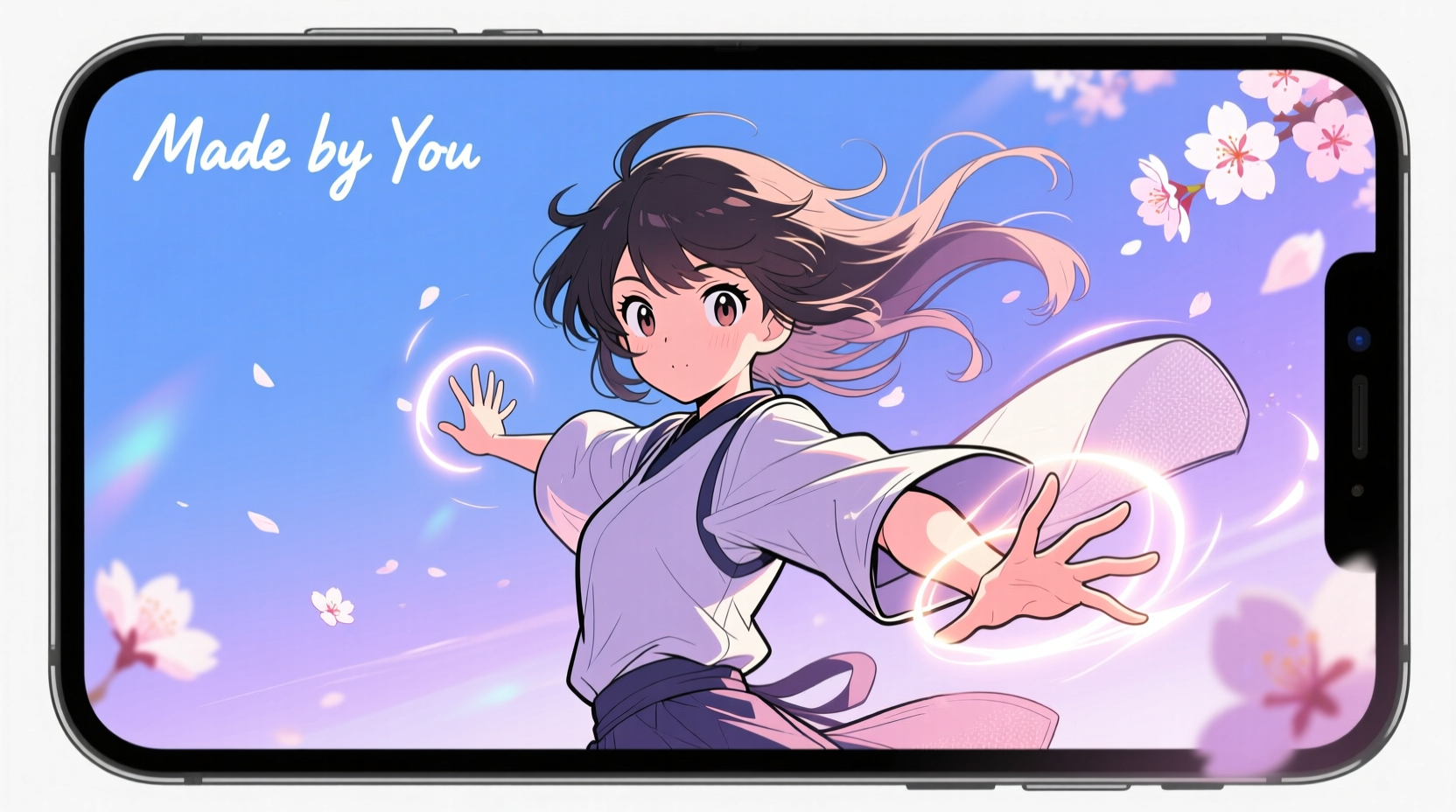
The foundation of any great wallpaper is a strong visual. Start by identifying which anime resonates with you most—whether it’s the emotional depth of *Your Name*, the dynamic action of *Demon Slayer*, or the whimsical charm of *My Hero Academia*. Once you’ve chosen a series, select a scene or character that captures its essence.
Focus on moments that are visually striking: dramatic poses, serene landscapes, or emotionally charged expressions. Avoid cluttered frames or scenes with too many characters unless you’re aiming for a collage-style design.
Tip: Use official promotional art or high-resolution screenshots whenever possible—they offer better clarity and fewer compression artifacts.Consider the mood you want your phone to convey. A peaceful sakura scene might promote calmness, while a fiery battle pose could energize your day. The emotional tone of your wallpaper should align with how you want to feel when glancing at your screen.
Gather Tools and Resources
You don’t need expensive software to create a professional-looking wallpaper. Several free and accessible tools can help you achieve polished results. Here’s what you’ll need:
- Image editing software: GIMP (free alternative to Photoshop), Canva, or Photopea (browser-based).
- Anime image sources: Official websites, anime art books (scanned), Pixiv, or reputable fan galleries that credit artists.
- Mobile resolution reference: Know your phone’s screen dimensions (e.g., 1080x2340 for many Android devices, 1170x2532 for iPhone 14 Pro).
- Color palette tools: Coolors.co or Adobe Color to extract and match colors from your chosen image.
When sourcing images, always respect copyright. If you plan to share your wallpaper publicly, avoid using copyrighted stills without permission. Instead, consider commissioning fan art or using Creative Commons-licensed illustrations.
“Design isn’t just about aesthetics—it’s about intention. Every color, crop, and layer should serve a purpose.” — Lila Chen, Digital Artist & UI Designer
Step-by-Step Design Process
Follow this structured workflow to turn your idea into a finished wallpaper. Each step builds on the last, ensuring a clean and intentional result.
- Set up your canvas: Open your editing software and create a new project with your phone’s exact screen resolution. Set the DPI to 300 for clarity, even though mobile screens display at lower densities.
- Import and crop your base image: Place your chosen anime screenshot or artwork onto the canvas. Use the crop tool to focus on the central subject—ideally a character’s face or upper body—to ensure visibility at small scale.
- Adjust composition: Position the main subject slightly off-center (using the rule of thirds) to leave space for icons and status bars. Most phones place app icons along the bottom, so keep critical details in the upper two-thirds of the image.
- Enhance colors and contrast: Use adjustment layers to boost saturation, brightness, and sharpness. Be subtle—over-editing can make the image look artificial. Try increasing vibrance rather than saturation to preserve skin tones.
- Add background effects: Blur the background slightly to create depth, or overlay a gradient or texture that complements the scene. For example, a soft pink glow works well behind a romantic moment, while a dark particle effect suits intense battle scenes.
- Incorporate text or symbols (optional): Add a meaningful quote in Japanese calligraphy or the character’s name in a stylish font. Keep text minimal and legible—small fonts often become unreadable on screen.
- Apply subtle overlays: Use a semi-transparent black or white layer (set to Multiply or Overlay mode) to darken or lighten areas and improve readability of icons.
- Save in the correct format: Export as PNG for transparency and quality, or JPEG at maximum quality (90–100%) for smaller file size. Avoid BMP or TIFF for mobile use.
Optimize for Real-World Use
A beautiful image isn’t enough—it must function well as a daily-use wallpaper. Consider usability alongside aesthetics. App icons need to be visible, and important interface elements shouldn’t clash with the design.
| Design Element | Do | Don’t |
|---|---|---|
| Color Contrast | Use dark backgrounds for light-themed launchers, light for dark themes | Avoid mid-tone grays that blend with icons |
| Focal Point | Place key visuals in top corners or center-top | Don’t center the subject dead-middle if icons crowd around it |
| Text Legibility | Add drop shadows or outlines to readable text | Never place white text over light skies or bright backgrounds |
| File Size | Keep under 5MB for smooth performance | Avoid exporting ultra-high-res files unnecessarily |
One effective technique is to simulate your phone’s home screen layout during editing. Overlay a transparent grid showing where icons typically sit. Many design templates for popular phone models are available online and can be imported into GIMP or Photopea.
Mini Case Study: Creating a *Spirited Away* Inspired Wallpaper
Maya, a university student and Studio Ghibli fan, wanted a calming wallpaper featuring Chihiro from *Spirited Away*. She began by downloading a high-resolution still of Chihiro standing before the spirit bathhouse. Using GIMP, she cropped the image to emphasize her silhouette against the glowing lights.
To enhance the dreamy atmosphere, Maya added a soft radial blur to the background and overlaid a faint starry texture at 20% opacity. She darkened the bottom third using a black gradient to ensure her white app icons would remain visible. Finally, she included the Japanese kanji for “courage” in delicate brush script near the top-right corner, adding personal meaning without distracting from the scene.
After testing it on her iPhone, she noticed the status bar blended too much with the sky. She solved this by adding a thin semi-transparent black bar at the very top—a small fix that greatly improved functionality. Her final wallpaper became a daily source of inspiration.
Checklist: Create Your Anime Wallpaper in 10 Minutes
Use this quick-reference checklist for efficient design sessions:
- ✅ Confirm your phone’s screen resolution
- ✅ Choose a high-quality anime image or artwork
- ✅ Crop and position the subject strategically
- ✅ Adjust brightness, contrast, and color balance
- ✅ Apply background blur or atmospheric effects
- ✅ Ensure icon visibility with contrast zones
- ✅ Add optional text with proper styling
- ✅ Preview on your actual device
- ✅ Compress file size if needed
- ✅ Save and set as wallpaper
Frequently Asked Questions
Can I use screenshots from streaming sites?
Yes, but quality varies. Screenshots from platforms like Crunchyroll or Netflix are often compressed and may have watermarks. For best results, capture the frame at the highest playback resolution and avoid fast-moving scenes to reduce blur.
How do I make my wallpaper look unique?
Combine multiple elements—layer a character over a different background, add weather effects like rain or snow, or blend two anime styles. You can also hand-draw custom borders or use anime filter apps to stylize the image further.
Why does my wallpaper look blurry on my phone?
This usually happens when the image resolution doesn’t match your screen size. Always resize your canvas to your exact phone dimensions before exporting. Also, avoid stretching low-resolution images—they lose clarity when enlarged.
Final Thoughts and Call to Action
Designing your own anime phone wallpaper is a rewarding blend of creativity and practicality. It transforms passive viewing into active expression, letting you carry a piece of your favorite stories wherever you go. With free tools and a thoughtful approach, anyone can craft a wallpaper that’s both beautiful and functional.
Start small—pick one character, one scene, and one edit. Refine it until it feels right. Over time, you’ll develop an eye for composition, color harmony, and usability. Share your creations with friends or online communities. You might inspire someone else to start their own design journey.
🚀 Ready to bring your anime passion to life? Open your favorite editor today and create your first custom wallpaper. Tag your designs with #MyAnimeWallpaper—we’d love to see what you make!