For many iPhone users, photos are among the most valuable digital assets—capturing memories, milestones, and everyday moments. While Apple promotes iCloud as the default solution for photo backup, not everyone wants to rely on it. Whether due to cost, privacy concerns, or limited storage space, there’s a growing demand for alternative ways to safeguard photos. The good news is that iCloud isn’t the only option. You can securely back up your iPhone photos using your computer, external hardware, or third-party cloud services—all without ever syncing to Apple’s ecosystem.
Why Avoid iCloud for Photo Backup?
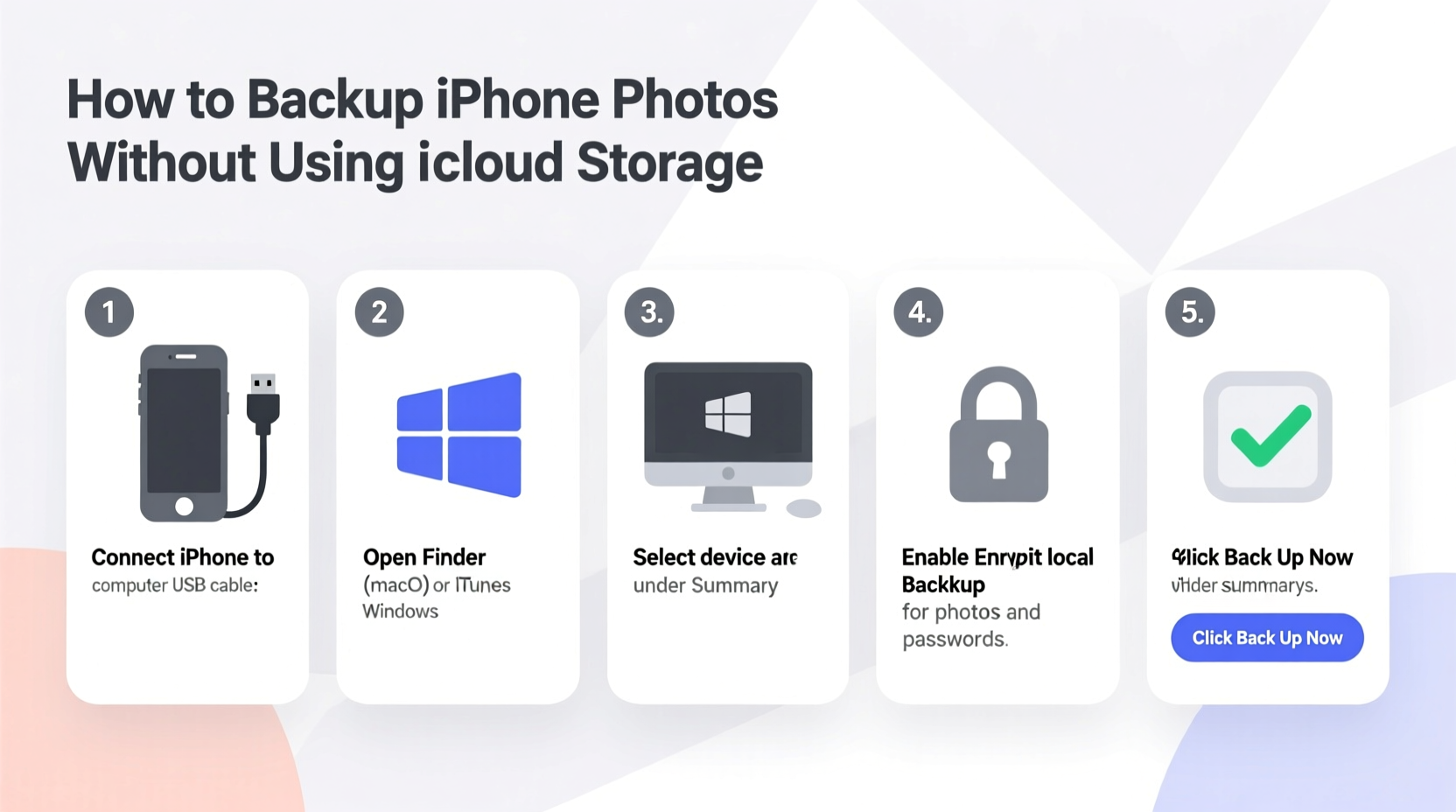
iCloud offers convenience, but it comes with limitations. The free tier provides only 5GB of storage, which fills up quickly with high-resolution photos and videos. Upgrading requires a monthly subscription, adding recurring costs. Additionally, some users are wary of storing sensitive personal data on remote servers controlled by large tech companies. Others simply prefer having full control over their files, stored locally or in private cloud environments they manage themselves.
Backing up photos outside of iCloud also reduces dependency on Apple’s ecosystem. If you switch devices or operating systems in the future, locally stored media remains accessible regardless of platform compatibility.
Tip: Regular backups should be automatic or scheduled to prevent accidental data loss during device updates or malfunctions.Method 1: Transfer Photos to a Computer (Mac or PC)
One of the most straightforward and secure ways to back up iPhone photos is by transferring them directly to a computer. This method gives you complete ownership of your files and avoids any third-party subscriptions.
On a Mac Using Photos App
If you own a Mac, Apple provides a seamless way to import photos without enabling iCloud Photos:
- Connect your iPhone to your Mac using a USB cable.
- Unlock your iPhone and tap \"Trust This Computer\" if prompted.
- Open the Photos app on your Mac.
- Your iPhone should appear in the sidebar under \"Devices.\"
- Select the device, then choose which photos or albums to import.
- Click Import Selected or Import All New Photos.
The imported photos will be saved in your local Photos library. To access the actual image files, go to ~/Pictures/Photos Library.photoslibrary, right-click, and select \"Show Package Contents.\" However, this is advanced—most users can simply export images via File > Export from within the app.
On Windows Using File Explorer
Windows users can treat the iPhone as a portable camera device:
- Connect your iPhone to the PC via USB.
- Unlock the phone and allow trust when prompted.
- Open File Explorer and locate your iPhone under \"This PC.\"
- Navigate to
Internal Storage > DCIMfolder. - Select the folders containing your photos (typically numbered like 100APPLE).
- Copy and paste them into a designated folder on your computer (e.g., “iPhone Backups”).
This method preserves original file names and formats, including HEIC (High Efficiency Image Format), though some older Windows versions may require a codec to view HEIC files.
“Direct computer transfers eliminate reliance on internet connectivity and give users full control over file organization.” — David Lin, Data Management Consultant
Method 2: Use External Hard Drives or SSDs
For long-term archival, especially with large photo libraries, external storage is ideal. Unlike internal drives, portable SSDs and hard drives offer physical portability and redundancy.
To use an external drive:
- Connect the drive to your computer.
- Transfer photos from your iPhone to the computer first (as shown above).
- Move the copied folder to the external drive.
- Safely eject the drive after transfer completes.
Some newer accessories, like the SanDisk iXpand Drive or WD My Passport Wireless, connect directly to Lightning ports, allowing direct transfer without a laptop. These drives come with companion apps that automate the process:
- Plug the drive into your iPhone’s charging port.
- Launch the manufacturer’s app (e.g., iXpand Sync).
- Select photos to copy.
- Tap “Backup” to save directly to the drive.
These tools are excellent for travelers or those who want offline backups while on the go.
Tip: Label your external drives clearly (e.g., “iPhone Photos – Jan 2024”) and store them in fireproof safes or offsite locations for disaster protection.Method 3: Leverage Third-Party Cloud Services
If you want cloud-based backup without iCloud, several secure and user-friendly platforms offer robust alternatives.
| Service | Free Storage | Paid Plan (Starting) | Key Benefit |
|---|---|---|---|
| Google Photos | 15 GB (shared across Gmail, Drive) | $1.99/month for 100GB | AI-powered search, easy sharing |
| Amazon Photos | Unlimited full-resolution for Prime members | Free with Prime ($14.99/month) | Best value for Amazon Prime subscribers |
| Microsoft OneDrive | 5 GB | $1.99/month for 100GB | Tight integration with Windows |
| Flickr | 1,000 photo limit | $7.99/month for unlimited | Photographer-focused community |
How to Upload to Google Photos
- Download and install the Google Photos app from the App Store.
- Sign in with your Google account.
- Go to Settings > Backup & Sync and toggle it on.
- Choose upload size: High Quality (free) or Original (uses storage quota).
- Ensure Wi-Fi is enabled for automatic background uploads.
Note: As of June 2021, all new uploads count toward your 15GB free limit unless compressed under “Storage Saver” mode.
Using Amazon Photos for Unlimited Backup
Prime members gain a significant advantage here:
- Install the Amazon Photos app.
- Log in with your Amazon account.
- Enable Auto-Save in settings.
- All photos upload in full resolution with no cap.
This makes Amazon one of the few truly unlimited cloud options available today.
Mini Case Study: Sarah’s Cross-Platform Backup Strategy
Sarah, a freelance photographer based in Portland, needed a way to preserve her personal iPhone shots without cluttering her iCloud or paying extra. She uses an Android tablet at home and a MacBook Pro for editing, so cross-platform access was essential.
Her solution? She connects her iPhone weekly to her MacBook and imports new photos into the Photos app. After review, she exports selected batches to a Seagate portable SSD labeled “Family Archive.” Simultaneously, she enables Google Photos backup for real-time syncing when traveling. Her primary criteria were reliability, accessibility, and cost-efficiency—all achieved without touching iCloud.
“I don’t trust one single place with my memories,” she says. “Having both a physical drive and a cloud copy gives me peace of mind.”
Checklist: Complete iPhone Photo Backup Without iCloud
Follow this checklist to ensure your photos are safely backed up:
- ✅ Disable iCloud Photos (Settings > [Your Name] > iCloud > Photos > toggle off)
- ✅ Connect iPhone to computer weekly or after major photo sessions
- ✅ Import photos using native tools (Photos app on Mac, File Explorer on Windows)
- ✅ Organize files into dated folders (e.g., “2024-04_Trip_to_Yosemite”)
- ✅ Copy folder to external drive and verify integrity
- ✅ Set up automatic backup via Google Photos or Amazon Photos
- ✅ Test restoration: Try retrieving one photo from each backup source
- ✅ Update backup schedule every three months
Common Mistakes to Avoid
Even with the best intentions, users often make errors that compromise their backup efforts:
- Assuming photos are saved just because they’re on the phone: Device failure can erase everything instantly.
- Not verifying backups: Always open a few files post-transfer to confirm they copied correctly.
- Using outdated cables or software: Old USB connectors may fail mid-transfer; keep iOS and computer OS updated.
- Ignoring file formats: HEIC files may not open on older systems. Convert to JPEG if broader compatibility is needed.
- Leaving only one copy: Follow the 3-2-1 rule—three copies, two media types, one offsite.
“The 3-2-1 backup rule is timeless: three copies of your data, on two different types of storage, with one copy offsite.” — National Digital Stewardship Alliance
FAQ
Can I delete photos from my iPhone after backing them up?
Yes, once you’ve confirmed the backup is complete and verified across multiple sources, you can safely delete photos from your iPhone to free up space. Just ensure you have at least two independent copies before doing so.
Will backing up to a computer reduce photo quality?
No. When transferred directly via USB or exported from the Photos app, images retain their original resolution and format (including HEIC). Compression only occurs if manually converted or uploaded to certain cloud services in “high-quality” mode.
Is it safe to use third-party apps for photo backup?
Most reputable apps like Google Photos, Amazon Photos, and manufacturer-specific tools (e.g., SanDisk iXpand) are secure. Always download from official app stores, review permissions, and avoid unknown developers requesting unnecessary access.
Conclusion
Backing up iPhone photos without iCloud is not only possible—it’s often smarter. By leveraging computers, external drives, and trusted cloud platforms, you maintain control over your data, avoid recurring fees, and build a resilient backup system. Technology fails; human memory fades. But well-protected photos endure.
Start today. Plug in your phone, move your latest memories to a secure location, and set up a routine that works for your lifestyle. Your future self will thank you when years pass and every moment remains vividly intact.
🚀 Take action now: Pick one method from this guide and back up your iPhone photos before the day ends. Share your preferred strategy in the comments to help others build better habits!