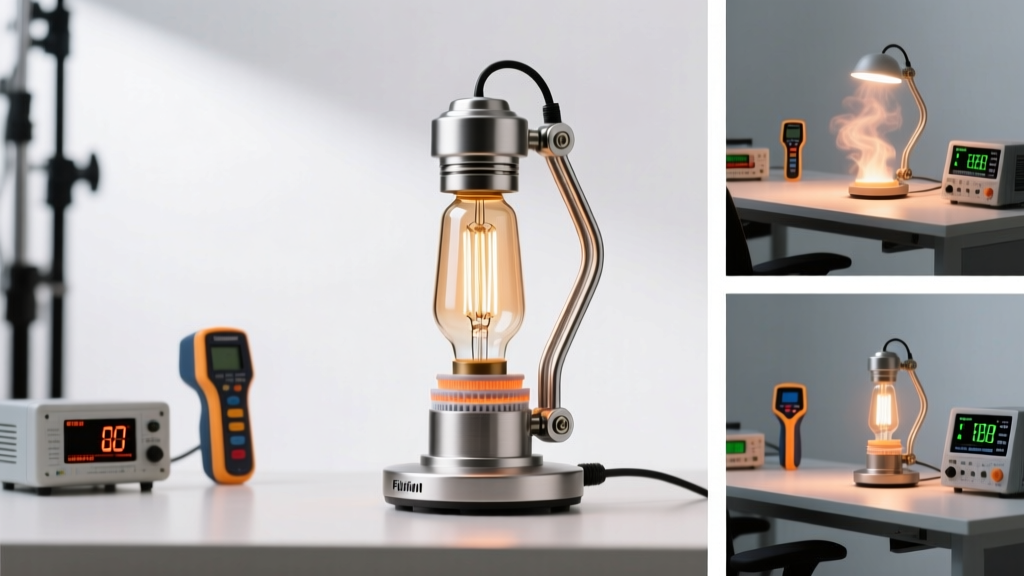
Time-lapse photography in home studios—whether capturing plant growth, paint drying, or a full day’s workflow—demands lighting that doesn’t just look right to the human eye, but remains photometrically stable and color-accurate across hours or days. Many creators assume AI-powered lights automatically “know” when to shift color temperature for time-lapse sequences. The reality is more nuanced: while some systems offer intelligent scheduling, most don’t interpret time-lapse requirements autonomously—and none adjust *in response to footage* without explicit user input or integration. Understanding the gap between marketing claims and technical capability is essential for consistent, professional results.
How AI-Powered Lighting Actually Works (Not Magic)
“AI-powered” in consumer lighting rarely means machine learning trained on visual data. Instead, it typically refers to embedded microprocessors running pre-programmed logic—such as sunrise/sunset simulation, occupancy-based dimming, or Bluetooth/Wi-Fi-enabled scene recall. True AI—like computer vision interpreting live video feeds to adjust light output—remains rare outside high-end broadcast or industrial R&D labs. In home studio lights, AI usually enables:
- Adaptive scheduling: Lights follow a preset CCT (correlated color temperature) curve tied to clock time (e.g., 6500K at 9 a.m., 4200K by 5 p.m.)
- Scene memory: Recalling calibrated settings for specific tasks (e.g., “Product Shot – 5600K + 95 CRI”)
- App-driven automation: Triggering light changes via calendar events, geolocation, or voice commands
- Environmental sensing: Some models include ambient light or temperature sensors—but not spectral analysis of captured footage
Crucially, no mainstream AI lighting system analyzes your time-lapse footage frame-by-frame to detect color drift and self-correct. That would require real-time video ingestion, pixel-level color science processing, and closed-loop feedback—none of which exist in current consumer-grade hardware. Instead, reliability comes from precision engineering, not algorithmic interpretation.
Tip: Don’t rely on “auto-adjust” claims alone. Always validate color temperature with a calibrated spectrometer or color checker chart before starting a multi-hour time-lapse—even if your lights promise AI-driven consistency.The Real Challenge: Time-Lapse Demands vs. Light Behavior
A 12-hour timelapse of a desk setup may span golden hour, midday, and overcast evening. Human eyes adapt; cameras do not. Without intervention, changing ambient light introduces two problems:
- White balance inconsistency: If ambient daylight leaks in, even subtle shifts cause frames to drift from 5500K to 6800K or lower—creating jarring jumps during playback.
- Luminance fluctuation: Cloud cover or window shading alters exposure, forcing manual ISO/aperture adjustments—or worse, auto-exposure algorithms that create flicker.
AI lights can mitigate this—if configured deliberately. For example, a light set to “CCT Lock Mode” holds 5600K rigidly for 10 hours, eliminating one variable. Others offer “Timelapse Sync Profiles”: a mode where the fixture ramps CCT gradually over a defined duration (e.g., 5000K → 4200K over 3 hours), mimicking natural progression *without reacting to footage*. This is proactive design—not reactive AI.
What fails? Assuming your light will “see” a cooler frame in your preview and automatically warm up the next shot. It won’t. Lights lack cameras. They lack video decoders. They respond only to inputs you provide: schedules, triggers, or manual overrides.
Practical Setup: A Step-by-Step Timelapse Lighting Workflow
For reliable, color-stable time-lapse results in a home studio, follow this field-tested sequence:
- Eliminate ambient variables: Black out windows, disable overhead room lights, and cover LED status indicators on gear (use black gaffer tape).
- Choose a fixed white point: Select one CCT (e.g., 5600K) and lock it. Avoid “auto” or “adaptive” modes unless you’ve tested them for thermal stability over >4 hours.
- Verify thermal drift: Run lights at full output for 60 minutes, then measure CCT with a handheld color meter. Quality LEDs shift <±50K; budget units may drift ±200K or more.
- Set camera manually: Fix ISO, aperture, and shutter speed. Use manual white balance—set using a gray card under your lights *before* recording begins.
- Enable scheduled ramping (optional): If simulating daylight progression, program your AI light to change CCT gradually over 2–4 hours—not per frame, but per 15-minute interval—to avoid abrupt transitions.
This workflow treats lighting as a controlled instrument—not an autonomous collaborator. Success hinges on discipline, not delegation.
Comparison: What Features Deliver Real Value for Timelapse Work?
Not all “smart” lighting features serve time-lapse needs equally. This table compares common capabilities against practical utility:
| Feature | Useful for Timelapse? | Why / Why Not |
|---|---|---|
| Pre-set CCT scheduling (e.g., “Daylight Curve”) | ✅ Yes | Allows gradual, predictable color shifts over hours—ideal for simulating natural light progression without manual intervention. |
| Real-time CCT adjustment via app/slider | ⚠️ Limited | Useful for quick fixes, but impractical for hands-off 12-hour shoots. Requires constant monitoring. |
| Auto white balance sync with camera (via USB/Bluetooth) | ❌ No | No consumer lighting system currently supports bidirectional WB handshake with DSLRs/mirrorless cameras. |
| Thermal stability rating (Δu’v’ & CCT drift specs) | ✅ Critical | More important than AI labels. Look for Δu’v’ < 0.002 and CCT drift < ±75K after 1hr at full power. |
| Voice control (Alexa/Google) | ❌ Not useful | No value during unattended operation—and introduces latency and failure points. |
Bottom line: Prioritize thermal performance and programmable scheduling over buzzwords. A $299 light with verified low drift and robust scheduling beats a $499 “AI flagship” with vague adaptive claims and no published stability data.
Mini Case Study: The 72-Hour Desk Build Timelapse
Photographer Lena Ruiz documented her custom standing desk build over three days—screwing, sanding, staining, and assembling. She used two Aputure Amaran F21c lights, each set to “Sunrise Mode” in the Sidus Link app: programmed to begin at 5000K (6 a.m.), peak at 6500K (noon), then ease to 4200K by 7 p.m.—repeating daily.
She disabled all ambient light, shot on a Canon EOS R6 with fixed exposure (f/5.6, 1/30s, ISO 400), and used a Datacolor SpyderX to confirm CCT remained within ±35K of target values across all 2,160 frames. When reviewing the final 30-second video, she noticed seamless warmth progression—no jarring shifts. Later, she tested the same lights without scheduling: leaving them on “Auto CCT,” they drifted unpredictably due to internal sensor misreading reflected light off her matte-black work surface. The lesson was clear: AI features only deliver value when intentionally directed—not left to “decide.”
“AI in lighting isn’t about cognition—it’s about constraint. The most powerful ‘intelligence’ is the ability to hold a parameter steady across time, not chase changing conditions. Your time-lapse doesn’t need a thinker. It needs a keeper.” — Dr. Arjun Mehta, Optical Engineer, formerly at Nanlite R&D
FAQ: Clarifying Common Misconceptions
Do any AI lights analyze my time-lapse footage to adjust lighting in real time?
No. Current consumer AI lighting lacks video input capability, image processing firmware, or feedback loops tied to camera output. Any adjustment is pre-programmed or manually triggered—not responsive to frame content.
Can I use smartphone apps to automate CCT changes during a long shoot?
Yes—but only if the app supports timed automation (not just manual control). Apps like Lumenplay (for Govee), Sidus Link (Aputure), or Godox Light app allow setting exact CCT values at specific times or intervals. However, ensure your phone stays powered, connected, and doesn’t sleep during the entire session—or use a dedicated tablet on a charger.
Is higher CRI more important than AI features for time-lapse accuracy?
Absolutely. A light with 95+ CRI and 5600K locked stability will produce more consistent, filmic results than a “smart” light with 82 CRI and drifting CCT—even if the latter promises AI optimization. Color Rendering Index directly impacts how faithfully skin tones, wood grain, or fabric textures render across hundreds of frames.
Essential Checklist: Before Starting Your Next Timelapse
- ✅ Black out all ambient light sources—including indicator LEDs on monitors and chargers
- ✅ Measure baseline CCT and CRI with a calibrated meter (not phone apps)
- ✅ Run lights at target brightness for 60+ minutes; re-measure to confirm thermal stability
- ✅ Set camera to full manual mode: ISO, shutter, aperture, and white balance (using gray card)
- ✅ Program CCT schedule in advance—or commit to one fixed value for the entire sequence
- ✅ Test a 30-minute mini-timelapse first; review frame-to-frame histograms and color values
Conclusion: Intelligence Is in the Planning, Not the Bulb
AI-powered lighting for home studios offers real advantages—when understood realistically. It does not watch your footage and “learn” your preferences. It does not compensate for poor setup or ambient contamination. Its intelligence lies in repeatability, programmability, and precision: the ability to hold 5600K steady for 18 hours, ramp smoothly over 90 minutes, or recall a lab-calibrated gel effect with one tap. For time-lapse work, that reliability is invaluable—but only if paired with disciplined technique.
Stop waiting for lights to get smarter. Start getting more intentional: calibrate, constrain, verify, and document. Your best tool isn’t artificial intelligence—it’s your attention to detail, applied consistently across every frame. Set your lights, lock your settings, and trust the process—not the marketing.
💬 Have you run a time-lapse with AI lighting? Share your setup, pitfalls, and what actually worked—your real-world experience helps others skip the guesswork. Leave a comment below.