
Running out of iCloud storage can be frustrating. Photos fail to back up, messages disappear, and app data gets stuck in limbo. Apple’s cloud service is essential for keeping your digital life synced across devices—but the default 5GB isn’t enough for most users. The good news: upgrading your iCloud storage is fast, secure, and entirely manageable from your iPhone. This guide walks you through every step, explains what happens after purchase, and helps you choose the right plan based on your usage.
Why You Might Need More iCloud Storage
iCloud automatically backs up key parts of your iPhone: photos, device settings, app data, messages, and Health records. If you take frequent photos or videos, use multiple Apple devices, or rely on iCloud Drive for file storage, 5GB fills up quickly. When storage runs out:
- Photos stop uploading to iCloud Photo Library
- Your iPhone stops backing up automatically
- iMessage attachments may not sync across devices
- Documents saved to iCloud Drive may fail to save
Instead of manually deleting old backups or turning off syncing features, upgrading your plan ensures everything continues working seamlessly.
Tip: Check your current iCloud usage before purchasing more space—this helps avoid overpaying for unnecessary storage.How to Check Your Current iCloud Usage
Before buying additional storage, determine how much you’re currently using. This reveals whether a small bump (50GB) will suffice or if you need something larger (200GB or 2TB).
- Open the Settings app on your iPhone.
- Tap your name at the top (Apple ID banner).
- Select iCloud.
- Wait a moment while your usage loads under “iCloud” at the top.
- Review the bar showing used vs. total storage and tap “Show All Apps” to see which services consume the most space.
You’ll typically find that Photos, Messages, and Backups are the biggest contributors. For example, a single iPhone backup can range from 3GB to over 20GB depending on media and app data.
Step-by-Step: How to Buy More iCloud Storage on iPhone
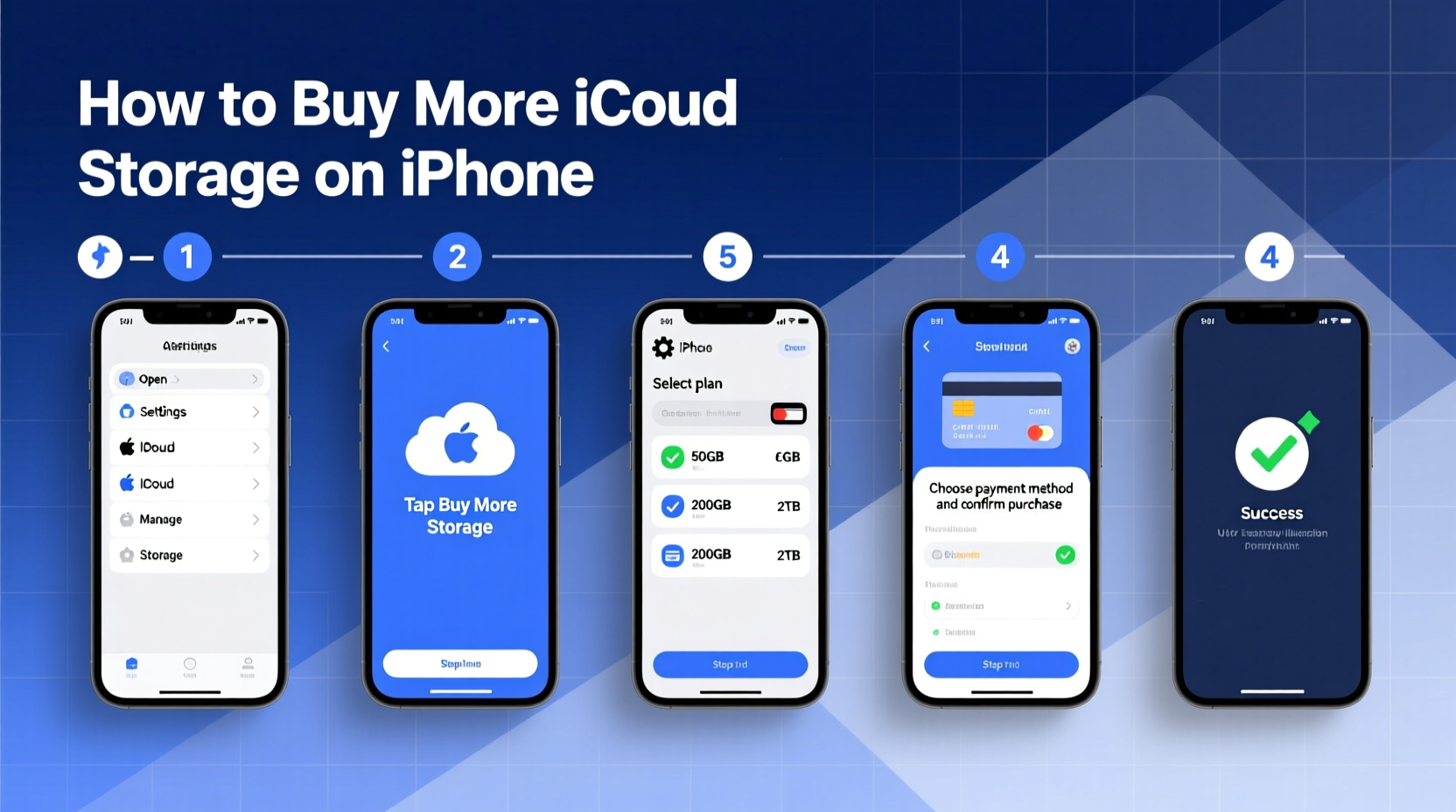
Upgrading iCloud storage takes less than two minutes and doesn’t require a computer. Follow these steps carefully to ensure a smooth transaction.
- Go to Settings > [Your Name] > iCloud.
- Tap Manage Storage or Change Storage Plan, depending on your iOS version.
- If prompted with a message like “Upgrade & Continue,” tap it to proceed.
- You’ll see a list of available plans. Choose one that fits your needs (more on selection below).
- Confirm your choice by tapping Buy or Upgrade.
- Enter your Apple ID password or authenticate with Face ID/Touch ID.
- Wait for confirmation: “Your iCloud storage has been updated.”
Once confirmed, your new storage limit applies immediately. Existing backups will resume, and iCloud Photos will begin syncing any pending items.
| Storage Plan | Price (Monthly) | Best For |
|---|---|---|
| 50GB | $0.99 | Single user, light photo backup, basic app sync |
| 200GB | $2.99 | Frequent photographers, families sharing via Family Sharing |
| 2TB | $9.99 | Power users, video creators, multi-device households |
Choosing the Right iCloud Storage Plan
Not all users need the same amount of space. Consider these factors when selecting a plan:
- Photo and video habits: Do you shoot in 4K? Keep Live Photos enabled? Those files add up fast.
- Number of devices: Each iPhone, iPad, or Mac using iCloud contributes to your total backup size.
- App data stored in iCloud: Apps like Notes, Pages, and third-party tools may store significant data here.
- Family needs: A 200GB plan supports multiple people under Family Sharing; ideal for parents managing kids’ devices.
“We recommend starting with 200GB for most households. It balances cost and capacity while allowing room to grow.” — Sarah Lin, Apple Support Advisor
If you're unsure, start with 50GB or 200GB. You can always upgrade later. Downgrading is also possible but requires freeing up space first.
What Happens After You Upgrade?
After purchasing more storage, several background processes begin:
- Backups resume: Your iPhone will automatically start backing up to iCloud within 24 hours—or immediately if connected to Wi-Fi and charging.
- Photos sync: Any photos stuck in “Waiting to Upload” will begin transferring to iCloud Photos.
- Messages reappear: If iMessage history was disabled due to lack of space, enabling it again restores older conversations.
To force an immediate backup:
- Go to Settings > [Your Name] > iCloud > iCloud Backup.
- Ensure iCloud Backup is turned on.
- Connect your iPhone to Wi-Fi and power.
- Tap “Back Up Now.”
The process may take minutes to hours depending on how much data needs to upload.
Mini Case Study: Solving Maria’s Backup Problem
Maria, a freelance photographer, noticed her iPhone no longer backed up to iCloud. She received alerts saying, “iCloud Storage Full.” Her 5GB plan couldn’t handle RAW photos and daily videos. After checking usage, she saw Photos alone consumed 7.2GB.
She upgraded to the 200GB plan ($2.99/month) directly from her iPhone. Within 15 minutes of connecting to Wi-Fi, her photos began syncing. Two days later, her full library—including years of memories—was securely backed up. She now shares albums with clients and accesses them from her iPad without issue.
This simple upgrade eliminated constant manual management and gave her peace of mind during shoots.
Common Mistakes to Avoid
While buying iCloud storage is straightforward, some users make preventable errors:
- Buying too much too soon: Start small unless you have clear evidence of high usage.
- Ignoring family sharing benefits: One 200GB+ plan can cover six people—don’t pay individually.
- Not reviewing app storage: Old game saves or unused app data can waste space.
- Assuming storage resets monthly: iCloud is continuous; unused space rolls over but doesn’t refresh like cellular data.
FAQ: Common Questions About iCloud Storage
Can I downgrade my iCloud storage plan?
Yes, but only after ensuring your current usage fits within the smaller limit. Go to Settings > [Your Name] > iCloud > Manage Storage > Change Storage Plan, then select a lower tier. You’ll be prompted to free up space if needed.
Is my data safe when I upgrade?
Absolutely. Upgrading doesn’t delete or alter your existing data. It simply increases your available space. Apple encrypts your backups and uses secure servers to protect your information.
Do I lose access to my files if I cancel iCloud+?
If you downgrade or cancel, you enter a grace period (usually 30 days). During this time, you can still access everything. Afterward, restricted features apply—like losing access to iCloud Private Relay or Home Hub functionality—and you won’t be able to back up until space is freed.
Final Checklist Before You Upgrade
- ✅ Checked current iCloud usage in Settings
- ✅ Reviewed which apps use the most storage
- ✅ Compared pricing and family sharing options
- ✅ Backed up important local data just in case
- ✅ Chosen a plan that matches long-term needs
Take Control of Your Digital Life Today
Running out of iCloud storage shouldn’t mean sacrificing memories or productivity. With just a few taps, you can expand your digital footprint and keep everything—from baby photos to business documents—safe and accessible. Whether you're a casual user or manage multiple devices, the right iCloud plan simplifies your life. Take action now: open Settings, review your usage, and choose the storage level that empowers your lifestyle. Your future self will thank you when everything is backed up, organized, and ready when you need it.
💬 Have questions about managing iCloud storage? Share your experience or ask for advice in the comments—we’re here to help!