Low-light video footage often appears grainy, noisy, or muddy—especially when compared to crisp, well-lit recordings. This degradation in quality isn’t just a flaw of budget equipment; even high-end cameras struggle under dim conditions. The root cause lies in the physics of digital imaging and the compromises cameras make to capture usable footage when light is scarce. Understanding these mechanisms is the first step toward producing cleaner, more professional-looking videos regardless of lighting conditions.
Graininess, technically known as \"image noise,\" becomes increasingly apparent as your camera tries to amplify weak light signals. While modern sensors and processors have made great strides in noise reduction, there are still limits. Fortunately, with the right combination of technique, gear, and post-production workflow, you can significantly reduce or even prevent grainy video in low light.
The Science Behind Video Grain in Low Light
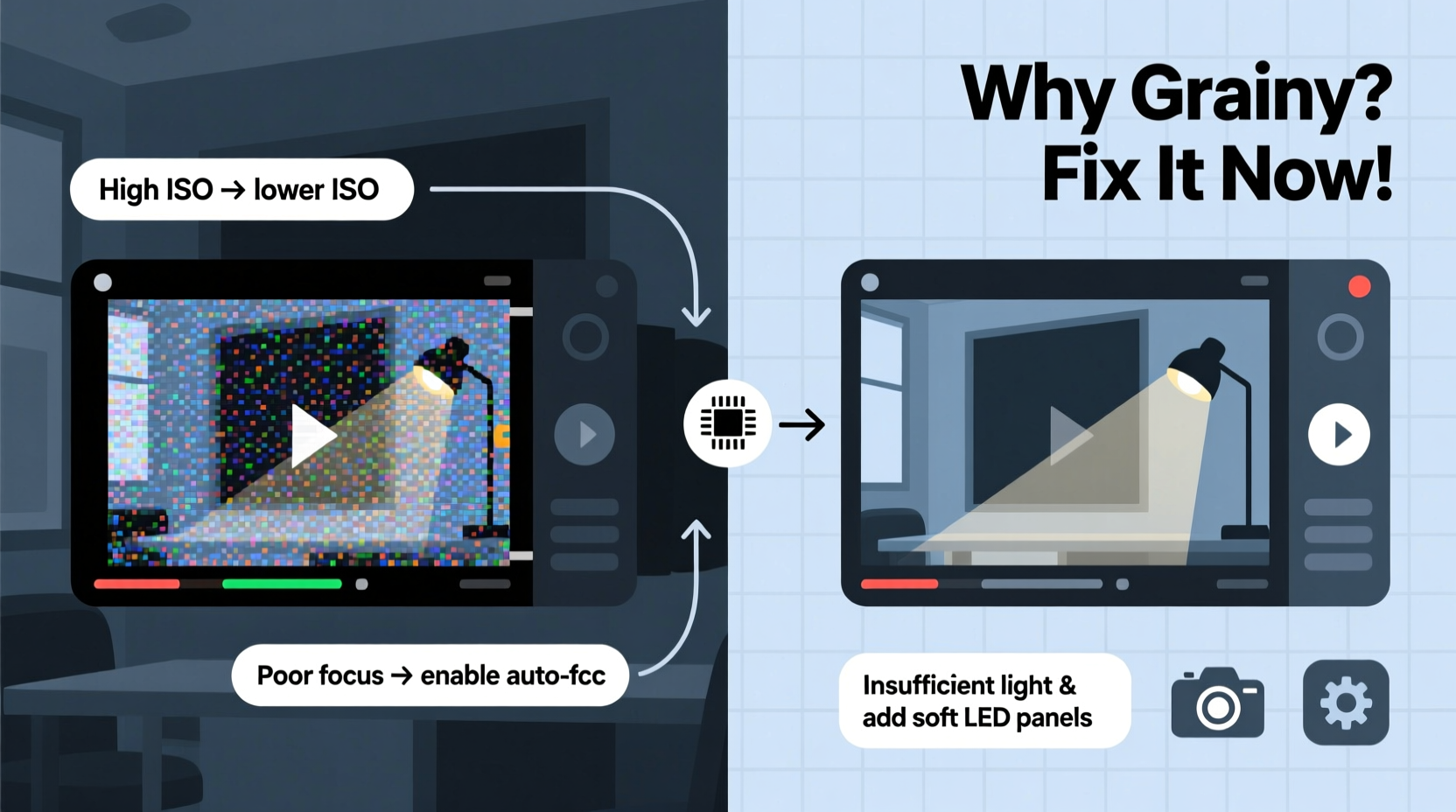
Digital cameras capture light through an image sensor—typically CMOS or CCD—that converts photons into electrical signals. In bright environments, this process is efficient: plenty of light hits each pixel, creating a strong signal. But in low light, the signal is weak. To compensate, the camera increases its sensitivity using ISO (or gain), which amplifies the signal—but also amplifies random electronic interference, resulting in visual noise.
This noise manifests as random speckles of color and brightness across the image, most noticeable in shadow areas. It’s similar to turning up the volume on a quiet audio track: while the desired sound becomes audible, so does background hiss.
Three primary factors contribute to low-light noise:
- High ISO Settings: As ISO increases, so does sensor amplification—and noise.
- Small Sensor Size: Smaller sensors (like those in smartphones or compact cameras) gather less light per pixel, making them noisier in low light.
- Fast Shutter Speeds: In dim scenes, fast shutter speeds further limit light intake, forcing higher ISO use.
How Camera Settings Influence Noise Levels
Your camera settings play a crucial role in determining how much noise appears in low-light footage. Mastering the exposure triangle—aperture, shutter speed, and ISO—is essential for minimizing grain.
Aperture: A wider aperture (lower f-number like f/1.8) allows more light to reach the sensor. Lenses with large maximum apertures are often called “fast lenses” because they enable proper exposure with faster shutter speeds or lower ISO. If your lens only opens to f/5.6, you’ll likely need to push ISO higher in dim environments, increasing noise.
Shutter Speed: Slower shutter speeds let in more light but risk motion blur. For video, shutter speed is typically set to double the frame rate (e.g., 1/50s for 25fps). Going slower than this introduces unnatural motion artifacts, so it’s not always a viable solution.
ISO: This is the last variable to adjust. Modern cameras handle ISO reasonably well up to certain thresholds (varies by model), but beyond that, noise escalates rapidly. Consult your camera’s dynamic range charts to identify its “sweet spot” for low-light performance.
“Exposing correctly in-camera is the single most effective way to avoid noise. No amount of post-processing can recover detail lost to underexposure.” — David Lin, Cinematographer & Imaging Specialist
Practical Ways to Improve Low-Light Video Quality
While you can’t change the laws of physics, you can control your environment and equipment choices to dramatically improve results. Here are proven strategies used by professionals:
1. Use External Lighting
The most direct solution to grainy video is adding light. Even modest LED panels or softbox lights can transform a dim scene. Position lights to illuminate your subject evenly without harsh shadows. Battery-powered LEDs are portable and ideal for run-and-gun shooting.
2. Choose the Right Lens
Lenses with wide apertures (f/1.4 to f/2.8) perform significantly better in low light. Prime lenses often offer superior sharpness and larger apertures compared to zooms. If you frequently shoot indoors or at night, investing in a fast prime lens pays immediate dividends in image quality.
3. Stabilize Your Camera
When lowering shutter speed to allow more light, camera shake becomes a problem. Use a tripod, gimbal, or stabilizer to keep footage steady. This enables longer exposures without introducing blur, letting you keep ISO lower.
4. Shoot in Log or Flat Profiles
Many cameras offer log gamma profiles (like S-Log, C-Log, or V-Log) that preserve more dynamic range. These flat-looking images contain extra shadow and highlight data, making it easier to pull clean detail from dark areas during color grading. However, log footage requires proper exposure (often slightly brighter than normal) and post-processing.
5. Enable Dual Native ISO (if available)
Some professional cameras (e.g., Panasonic VariCam, Sony FX series) feature dual native ISO—two base sensitivity levels with optimal signal-to-noise ratios. Switching to the higher native ISO in low light can yield dramatically cleaner results than gradually increasing gain.
6. Record in Higher Bitrate Formats
Higher bitrate codecs (like All-I or ProRes) retain more image data, reducing compression artifacts that can exaggerate noise. Avoid heavily compressed formats like AVCHD in challenging lighting conditions.
Tip: When using log profiles, expose +1 to +2 stops brighter than normal (“exposing to the right”) to maximize shadow detail and minimize noise.Step-by-Step Guide to Shooting Cleaner Low-Light Video
Follow this sequence before and during filming to ensure the best possible image quality:
- Assess the Environment: Determine natural light sources and identify dark zones.
- Set Up Lighting: Add soft, diffused artificial light to key areas, especially where subjects will be framed.
- Mount the Camera Securely: Attach to a tripod or stabilizer to allow slower shutter speeds.
- Select a Fast Lens: Choose a lens with the widest aperture available (e.g., 35mm f/1.8).
- Adjust Aperture First: Open the lens fully or near its sharpest wide setting (often f/2–f/2.8).
- Set Shutter Speed: Use 1/double your frame rate (e.g., 1/50s for 24fps) unless motion blur is acceptable.
- Adjust ISO Last: Increase ISO only after maximizing light and adjusting other settings.
- Monitor Exposure: Use waveform monitors or false color if available to avoid underexposing shadows.
- Record in High-Quality Format: Choose the highest bitrate and bit depth your media supports.
- Check Footage Immediately: Review clips on a calibrated monitor to assess noise and exposure.
Post-Production Techniques to Reduce Grain
Even with careful shooting, some noise may remain. Post-processing offers tools to clean up footage without sacrificing too much detail.
Noise Reduction Filters: Software like DaVinci Resolve, Adobe Premiere Pro, and Final Cut Pro include temporal and spatial noise reduction tools. Temporal NR compares frames over time to smooth inconsistencies, while spatial NR blurs small details to suppress noise. Use both cautiously—overuse leads to a waxy, plastic look.
Color Grading for Clarity: Boost contrast and clarity subtly to enhance perceived sharpness. Lift shadows carefully; doing so can reveal hidden noise. Applying a slight vignette can draw attention away from noisier edges.
Upscaling with AI Tools: Emerging AI-based tools (Topaz Video AI, HitPaw Enhancer) can reduce noise and upscale resolution simultaneously. They analyze patterns in footage to reconstruct cleaner images, though processing times can be long.
| Software | Noise Reduction Tool | Best For |
|---|---|---|
| DaVinci Resolve | Temporal & Spatial NR | Professional workflows with precise control |
| Adobe Premiere Pro | Neat Video plugin recommended | Editors already in Creative Cloud ecosystem |
| Final Cut Pro | Built-in Denoising filter | Quick turnaround projects |
| Topaz Video AI | AI-powered noise removal | Heavy noise cleanup with detail recovery |
Mini Case Study: Documentary Filming in a Dimly Lit Church
A documentary crew was tasked with filming an intimate interview inside a historic church with minimal electric lighting. The director wanted a cinematic look, but initial test footage at ISO 1600 showed heavy grain, especially on the subject’s dark clothing.
The team adjusted their approach: they mounted the camera on a tripod, switched to a 50mm f/1.2 lens, and added two 1x1-foot LED panels placed off-camera and diffused with softboxes. They exposed the shot so the subject’s face registered at 70 IRE on the waveform, slightly brighter than typical, and recorded in S-Log3 at 10-bit 4:2:2.
In post, they applied moderate temporal noise reduction in DaVinci Resolve and graded the image to restore natural contrast. The final result was clean, filmic, and free of distracting grain—proving that thoughtful lighting and proper exposure trump high-tech fixes.
Checklist: How to Avoid Grainy Low-Light Video
- ✅ Use a tripod or stabilizer to allow slower shutter speeds
- ✅ Select a lens with a wide aperture (f/2.8 or lower)
- ✅ Add supplemental lighting—even small LEDs help
- ✅ Shoot in a high-bit-depth format (10-bit preferred)
- ✅ Use log profiles if your camera supports them
- ✅ Expose properly—avoid underexposed shadows
- ✅ Keep ISO as low as possible given the lighting
- ✅ Monitor footage on a calibrated display
- ✅ Apply noise reduction in post with precision
- ✅ Back up original files before heavy processing
Frequently Asked Questions
Can I fix grainy video after recording?
Yes, to an extent. Modern noise reduction software can significantly clean up grainy footage, especially if the original file is high quality (e.g., 10-bit, 4:2:2). However, aggressive noise reduction can soften details and create artifacts. Prevention through proper exposure and lighting is always preferable.
Does sensor size really affect low-light performance?
Absolutely. Larger sensors (full-frame, Super 35) have bigger pixels that capture more light and produce less noise. A full-frame camera at ISO 3200 will typically outperform a smartphone or 1-inch sensor device at the same ISO. Sensor size is one of the most critical factors in low-light image quality.
Is it better to shoot dark and brighten in post or expose correctly in-camera?
Always expose correctly in-camera. Underexposed footage lacks signal data, so when you brighten it in post, you’re amplifying noise along with the image. This results in a grainy, muddy appearance. Proper exposure captures maximum detail and minimizes noise from the start.
Conclusion: Take Control of Your Image Quality
Grainy video in low light isn’t inevitable—it’s a solvable challenge rooted in exposure, equipment, and technique. By understanding how ISO, aperture, and sensor size interact, and by leveraging lighting and post-processing tools, you can produce clean, professional footage even in dim environments. The key is to prioritize light capture over digital amplification. Whether you're filming interviews, events, or creative projects, applying these principles will elevate your work and ensure your visuals remain sharp and engaging.
🚀 Ready to shoot cleaner low-light video? Start by testing one new technique—add a simple LED light or try exposing to the right in log mode. Share your results and lessons learned in the comments below.