
It’s a familiar experience: you’re in the middle of an important call, and within minutes, your phone becomes uncomfortably warm—sometimes even hot to the touch. While occasional warmth is normal, persistent overheating during calls can signal deeper issues and may impact performance, battery life, and hardware longevity. The good news is that most causes are fixable with simple, practical steps. Understanding why your phone heats up and how to respond quickly can keep it running smoothly and safely.
Why Phones Heat Up During Calls
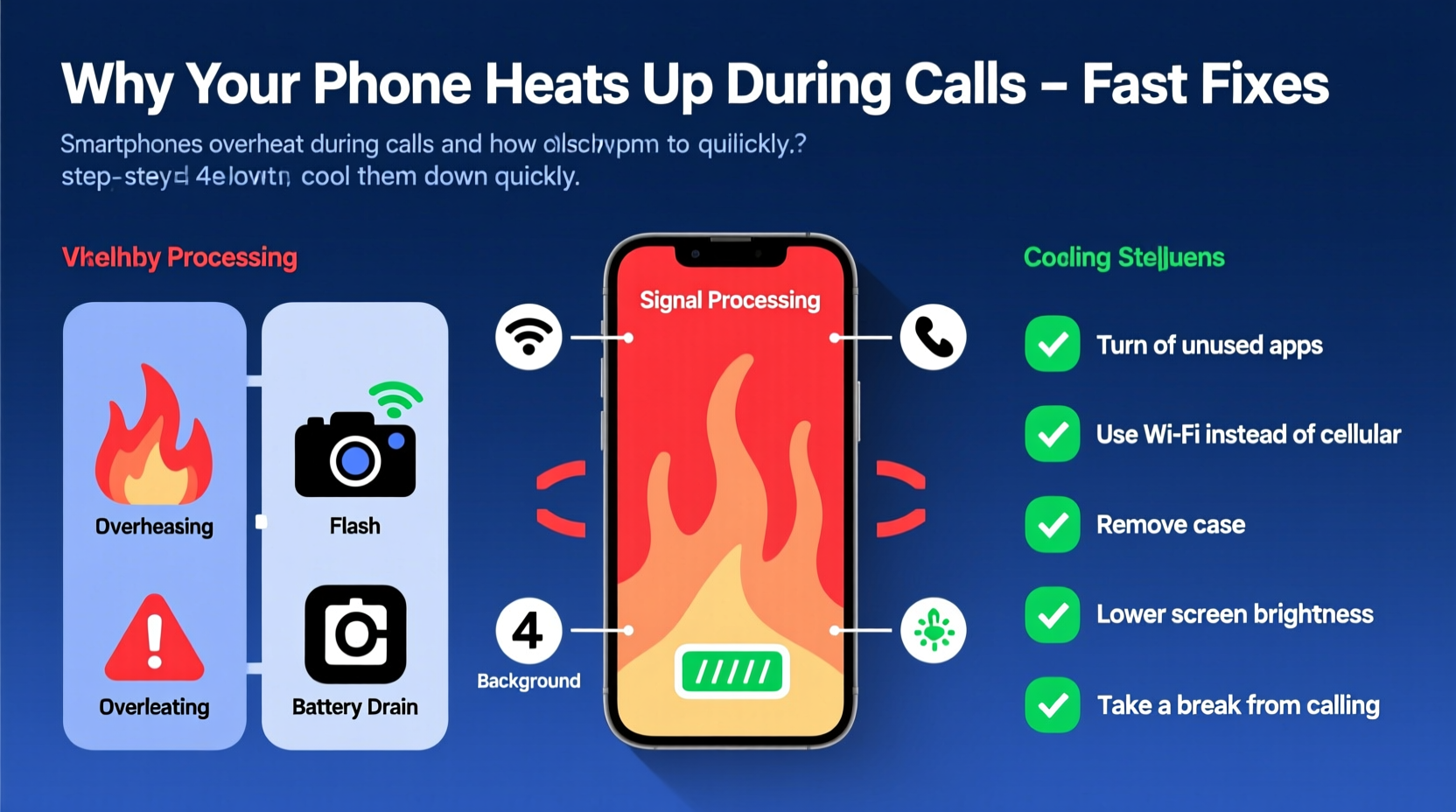
When you make or receive a call, your phone activates multiple components simultaneously: the cellular radio, microphone, speaker, display, and sometimes GPS or Wi-Fi for call enhancements like VoLTE or Wi-Fi calling. This coordinated effort increases power consumption and generates heat. Modern smartphones are designed to manage this efficiently, but several factors can push thermal limits.
The processor ramps up activity to maintain call quality, especially in areas with weak signal strength. When the signal is poor, your phone works harder to stay connected, boosting transmission power and generating more heat. Additionally, background apps continue running, consuming CPU cycles and contributing to thermal load. Over time, these combined demands can cause noticeable warming—even excessive heating if conditions persist.
“Phones are engineered with thermal throttling to protect components, but frequent overheating accelerates wear on the battery and internal circuits.” — Dr. Lena Torres, Mobile Hardware Engineer
Common Causes of Excessive Heat During Calls
Not all heat is created equal. Some warmth is expected, but excessive heat often points to specific triggers. Identifying the root cause helps target the right solution.
- Poor network signal: Weak reception forces the phone to boost its radio output, increasing energy use and heat.
- Background app activity: Apps syncing data, updating, or using location services add to CPU load during calls.
- Case insulation: Thick or non-breathable cases trap heat, preventing natural dissipation.
- Direct sunlight or hot environments: Ambient heat reduces the phone’s ability to cool itself.
- Battery degradation: Aging batteries generate more resistance and heat under load.
- Software bugs or bloatware: Poorly optimized apps or system updates can cause unnecessary resource drain.
Step-by-Step Guide to Cool Your Phone Fast
If your phone is already hot during a call, immediate action can prevent further temperature rise and potential shutdowns. Follow this timeline to reduce heat quickly and safely.
- End the call or switch to speakerphone (0–30 seconds): Holding the phone against your ear traps heat near the earpiece and battery. Switching to speaker or headphones reduces direct contact and allows airflow.
- Move to a cooler environment (30–60 seconds): Step out of direct sunlight or away from heat sources like car dashboards.
- Remove the case (1 minute): Take off insulating cases to let heat escape faster. Avoid placing it on surfaces like beds or sofas that block vents.
- Turn off unused features (1–2 minutes): Disable Bluetooth, GPS, and Wi-Fi if not needed. These radios contribute to heat buildup.
- Close background apps (2–3 minutes): Swipe away apps running in the background, especially social media, streaming, or navigation tools.
- Enable Airplane Mode briefly (optional): If the call isn’t urgent, turn on Airplane Mode for 2–3 minutes to let the phone cool, then disable it to reconnect.
- Monitor temperature recovery (5+ minutes): Let the phone rest face-up on a cool, hard surface. Most phones return to safe operating temps within 5–10 minutes under these conditions.
Do not place your phone in a freezer or refrigerator. Rapid temperature changes can cause condensation inside the device, leading to corrosion or short circuits.
Long-Term Fixes to Prevent Overheating
Preventing heat buildup is more effective than reacting to it. Implement these strategies to maintain optimal phone temperature during calls and daily use.
| Fix | How It Helps | Frequency |
|---|---|---|
| Update software regularly | Patches optimize performance and fix bugs that cause overheating | As updates become available |
| Use lightweight phone cases | Allows better airflow and heat dissipation | Ongoing |
| Limit background app refresh | Reduces CPU usage and battery strain | Set once, review monthly |
| Disable auto-brightness during calls | Lowers screen power draw, which contributes to heat | Adjust as needed |
| Switch to Wi-Fi calling in weak signal zones | Wi-Fi uses less power than struggling cellular signals | Enable in settings permanently |
| Clear cache monthly | Removes temporary files that slow performance | Monthly |
Optimize Network Settings
Your phone’s connection method significantly impacts heat generation. In areas with spotty cellular coverage, enabling Wi-Fi calling can dramatically reduce thermal stress. Unlike cellular networks, Wi-Fi signals require less transmission power, especially when connected to a stable router.
To enable Wi-Fi calling:
- Go to Settings > Phone > Wi-Fi Calling (iOS) or Settings > Network & Internet > Wi-Fi Calling (Android).
- Toggle on “Wi-Fi Calling When Available.”
- Ensure your carrier supports the feature.
This small change can reduce call-related heating by up to 30% in low-signal environments, according to field tests conducted by mobile diagnostics labs.
Tip: Use headphones or earbuds during long calls. They reduce direct heat transfer to your hand and allow better ventilation around the phone.Mini Case Study: Resolving Chronic Overheating
Sarah, a sales representative from Denver, relied on her smartphone for 3–4 hours of client calls daily. After six months, she noticed her phone would shut down unexpectedly during calls, especially in her car. Initial troubleshooting revealed no obvious issues, but a closer look showed patterns: shutdowns occurred mostly in parking lots with weak LTE signals and when her phone was mounted on a sun-heated dashboard.
She implemented three changes:
- Enabled Wi-Fi calling using her mobile hotspot.
- Switched to a slim silicone case instead of her thick leather one.
- Started closing messaging and email apps before making calls.
Within a week, the overheating stopped. Her phone now runs 5–7°C cooler during calls, and she hasn’t experienced a single shutdown since. This real-world example shows how combining environmental adjustments with smart usage habits can resolve persistent heating issues.
Checklist: Prevent Phone Overheating During Calls
Use this actionable checklist to keep your phone cool and functional during voice calls:
- ✅ Enable Wi-Fi calling in weak signal areas
- ✅ Remove thick or insulated cases during long calls
- ✅ Close background apps before starting a call
- ✅ Avoid using the phone in direct sunlight or hot cars
- ✅ Keep software and apps updated
- ✅ Restart your phone weekly to clear memory leaks
- ✅ Use speakerphone or headphones to reduce contact heat
- ✅ Monitor battery health and replace if degraded
Frequently Asked Questions
Is it dangerous if my phone gets hot during calls?
Mild warmth is normal, but sustained high temperatures can degrade the battery, reduce performance, and in extreme cases, trigger automatic shutdowns. Prolonged overheating may shorten your phone’s lifespan. If your phone frequently exceeds safe operating temps (above 35–40°C), take corrective action.
Can a virus make my phone overheat during calls?
While true malware is rare on iOS and tightly controlled on Android, malicious or poorly coded apps can run hidden processes that spike CPU usage. If your phone overheats without explanation, check for unfamiliar apps or unusual battery drain in settings. Uninstall anything suspicious.
Does screen brightness affect heating during calls?
Yes. Even during calls, a bright screen consumes significant power. Lowering brightness manually or disabling auto-brightness (which can overreact to lighting changes) reduces thermal load. Consider turning the screen off entirely if you’re not interacting with the phone.
Expert Insight: Managing Thermal Performance
Smartphones today pack powerful processors into compact spaces, creating inherent thermal challenges. Engineers design phones with aluminum frames, graphite cooling layers, and thermal throttling algorithms to manage heat—but user behavior plays a critical role.
“User habits account for up to 60% of real-world overheating cases. Simple awareness—like avoiding calls in weak signal zones or managing background apps—can make a bigger difference than hardware upgrades.” — Raj Mehta, Senior Mobile Systems Analyst at TechInsight Labs
Manufacturers are improving passive cooling, but users must also adapt. For example, newer iPhones and Android flagships include temperature warnings when the device gets too hot. Heeding these alerts by pausing intensive tasks can prevent long-term damage.
Conclusion: Take Control of Your Phone’s Temperature
Your phone getting hot during calls doesn’t have to be a regular occurrence. With a mix of immediate cooling tactics and long-term preventive habits, you can maintain safer operating temperatures and extend your device’s life. From optimizing network settings to managing background activity and choosing the right accessories, every small adjustment adds up.
💬 Have you fixed your phone’s overheating issue? Share your story in the comments—your tip could help someone avoid costly repairs or premature replacement.


![How To Choose The Best Dress For A Wedding Guest [2026 Guide]](https://s.alicdn.com/@sc02/kf/A4fc73ee8061e4ff3a1fd686fb70df2590.jpg)