Connecting to Wi-Fi on Windows 10 should be effortless, but inconsistent signals, authentication errors, or driver conflicts can turn a simple task into a frustrating ordeal. Whether you're setting up a new laptop, troubleshooting a spotty connection, or optimizing your network for work-from-home efficiency, understanding the full scope of Windows 10's wireless capabilities is essential. This comprehensive guide walks through every stage—from initial setup to advanced diagnostics—ensuring reliable, high-speed internet access across all your devices.
Step-by-Step: Connecting to Wi-Fi for the First Time
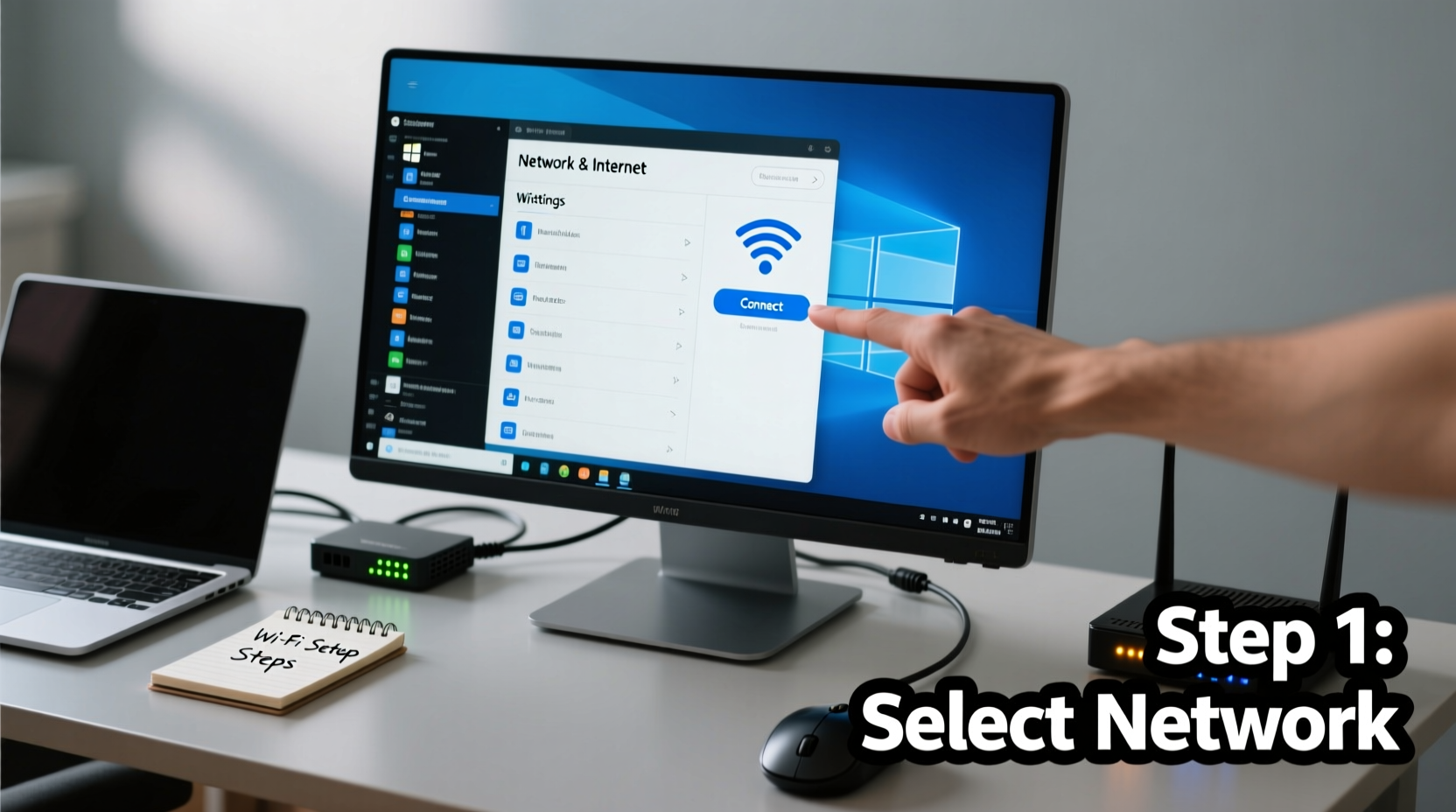
For most users, connecting to Wi-Fi begins at the login screen or shortly after booting a fresh installation of Windows 10. The operating system detects available networks automatically, but knowing how to navigate the interface ensures a smooth start.
- Click the network icon in the system tray (bottom-right corner, near the clock).
- Select your desired Wi-Fi network from the list of available connections.
- Click “Connect,” then enter the correct password when prompted.
- Ensure “Connect automatically” is checked if you want the PC to join this network in the future.
- Wait for confirmation: “Connected” will appear beneath the network name.
If the network doesn’t appear, click “Refresh” or toggle Airplane Mode off. Some routers broadcast on 5 GHz only, which older hardware may not support. In such cases, verify compatibility with your device’s wireless adapter specifications.
Tip: After connecting, open a browser and visit a non-cached site (like google.com) to confirm internet access. Some networks require web-based authentication (common in hotels or campuses).Managing Saved Networks and Priorities
Windows 10 remembers previously connected networks, attempting to reconnect automatically based on signal strength and user-defined preferences. However, misconfigured priority settings can lead to poor connectivity—such as joining a weak guest network instead of a stronger private one.
To manage saved networks:
- Go to Settings > Network & Internet > Wi-Fi.
- Scroll down and click “Manage known networks.”
- Here, you can remove outdated entries, edit connection behavior, or adjust connection priority.
Reordering networks by priority ensures your device connects to the best available option. For example, if you work from home and also have a mobile hotspot, set your home Wi-Fi as highest priority to avoid unnecessary data usage.
Wi-Fi Connection Priority Best Practices
| Network Type | Recommended Priority | Action |
|---|---|---|
| Home Broadband (5 GHz) | 1 (Highest) | Set as preferred; disable auto-connect on weaker bands |
| Guest Network | 3 | Use only when needed; avoid auto-connect |
| Mobile Hotspot | 2 | Enable auto-connect only if primary fails |
| Public Wi-Fi | Never Auto-Connect | Delete after use for security |
Troubleshooting Common Wi-Fi Issues
Even with proper setup, disruptions occur. Windows 10 includes built-in tools to diagnose and resolve many issues without third-party software.
Run the Built-in Network Troubleshooter
Navigate to Settings > Update & Security > Troubleshoot > Additional troubleshooters, then select “Internet Connections” and run the diagnostic. It checks for common problems like IP conflicts, DNS failures, or disabled adapters.
Reset the Network Stack
When the troubleshooter fails, resetting the entire network configuration often resolves deep-seated issues:
- Open Command Prompt as Administrator (search for “cmd,” right-click, choose “Run as administrator”).
- Enter the following commands one at a time, pressing Enter after each:
netsh winsock reset
netsh int ip reset
ipconfig /release
ipconfig /renew
ipconfig /flushdns - Restart your computer.
This process clears corrupted TCP/IP configurations and refreshes DNS resolution, frequently restoring connectivity.
“Over 70% of intermittent Wi-Fi issues on Windows 10 stem from stale DNS caches or IP address conflicts. A full network reset resolves most within minutes.” — David Lin, Senior Network Engineer at NetSecure Labs
Optimizing Performance and Signal Strength
A successful connection is just the beginning. Sustained performance depends on both software settings and physical environment.
Update Wireless Drivers Regularly
Outdated drivers are a leading cause of dropped connections and slow speeds. To update:
- Press Win + X and select “Device Manager.”
- Expand “Network adapters,” right-click your Wi-Fi device (e.g., Intel Dual Band Wireless-AC), and choose “Update driver.”
- Select “Search automatically for updated driver software.”
Alternatively, visit your laptop manufacturer’s support page and download the latest driver directly.
Adjust Power Management Settings
By default, Windows may turn off the Wi-Fi adapter to save power. While useful on battery, this can disrupt downloads or video calls.
Tip: Disable power-saving for Wi-Fi when using your device plugged in: In Device Manager, right-click the adapter → Properties → Power Management → Uncheck “Allow the computer to turn off this device to save power.”Position and Interference Considerations
Physical placement matters. Avoid placing your PC behind metal objects, thick walls, or near microwave ovens and cordless phones, which operate on the same 2.4 GHz band. If possible, connect to the 5 GHz band for faster, less congested service—provided your router supports it and you’re within close range.
Real-World Example: Remote Worker Regains Stable Connection
Sarah, a freelance graphic designer working from her apartment, experienced frequent disconnections during client video calls. Her laptop showed full signal strength, yet Zoom would drop every 10–15 minutes. She followed these steps:
- Ran the network troubleshooter (no issues found).
- Updated her Intel Wi-Fi driver from version 20.90 to 22.150.
- Disabled power management for the adapter.
- Switched from 2.4 GHz to 5 GHz band via router settings.
The result? Zero disconnections over the next three weeks. The root cause was outdated drivers combined with interference from a nearby Bluetooth speaker operating on the same frequency.
Essential Checklist for Seamless Wi-Fi Setup
Follow this checklist whenever setting up or reconfiguring Wi-Fi on Windows 10:
- ✅ Verify that Airplane Mode is turned off.
- ✅ Ensure Wi-Fi is enabled in Settings and Action Center.
- ✅ Confirm the correct password is entered (case-sensitive).
- ✅ Run the network troubleshooter if connection fails.
- ✅ Update network adapter drivers to the latest version.
- ✅ Flush DNS and reset IP configuration if pages fail to load.
- ✅ Remove outdated or duplicate network profiles.
- ✅ Connect to 5 GHz for better speed (if within range).
- ✅ Disable power-saving features on the Wi-Fi adapter for desktop replacements.
- ✅ Test connection with multiple websites and services.
Frequently Asked Questions
Why does my Windows 10 laptop keep disconnecting from Wi-Fi?
Common causes include outdated drivers, power-saving settings turning off the adapter, network congestion, or interference from other electronics. Updating drivers and disabling power management typically resolve the issue.
Can I connect to two Wi-Fi networks at once?
No, Windows 10 cannot actively use two Wi-Fi networks simultaneously. However, you can connect to a wired Ethernet network while using Wi-Fi, allowing dual-path routing if configured manually.
What should I do if no Wi-Fi networks appear?
First, check if Airplane Mode is on. Then ensure the Wi-Fi adapter is enabled in Device Manager. If missing, the hardware switch (on laptops) might be off, or the driver could be corrupted. Reinstalling the driver often restores visibility.
Final Thoughts: Take Control of Your Connectivity
Mastering Wi-Fi on Windows 10 isn’t about memorizing technical jargon—it’s about building confidence in managing your digital environment. With the right setup, regular maintenance, and an understanding of how networks behave, you can eliminate frustration and focus on what matters: productivity, creativity, and seamless online experiences.
🚀 Ready to optimize your connection? Run a quick network reset today, update your drivers, and test your setup. Share your success story or ask questions in the comments—let’s build a more connected community.