
In an age where connectivity defines productivity, entertainment, and communication, relying solely on public Wi-Fi or fixed broadband is no longer practical. Whether you're working remotely from a mountain cabin, attending a video call during a layover, or supporting multiple devices on a road trip, your smartphone’s personal hotspot can be a lifeline. Yet, many users struggle with weak signals, rapid battery drain, or connection drops. Mastering personal hotspot use isn’t just about turning on a setting—it’s about optimizing performance, security, and efficiency.
Understanding the Personal Hotspot: How It Works
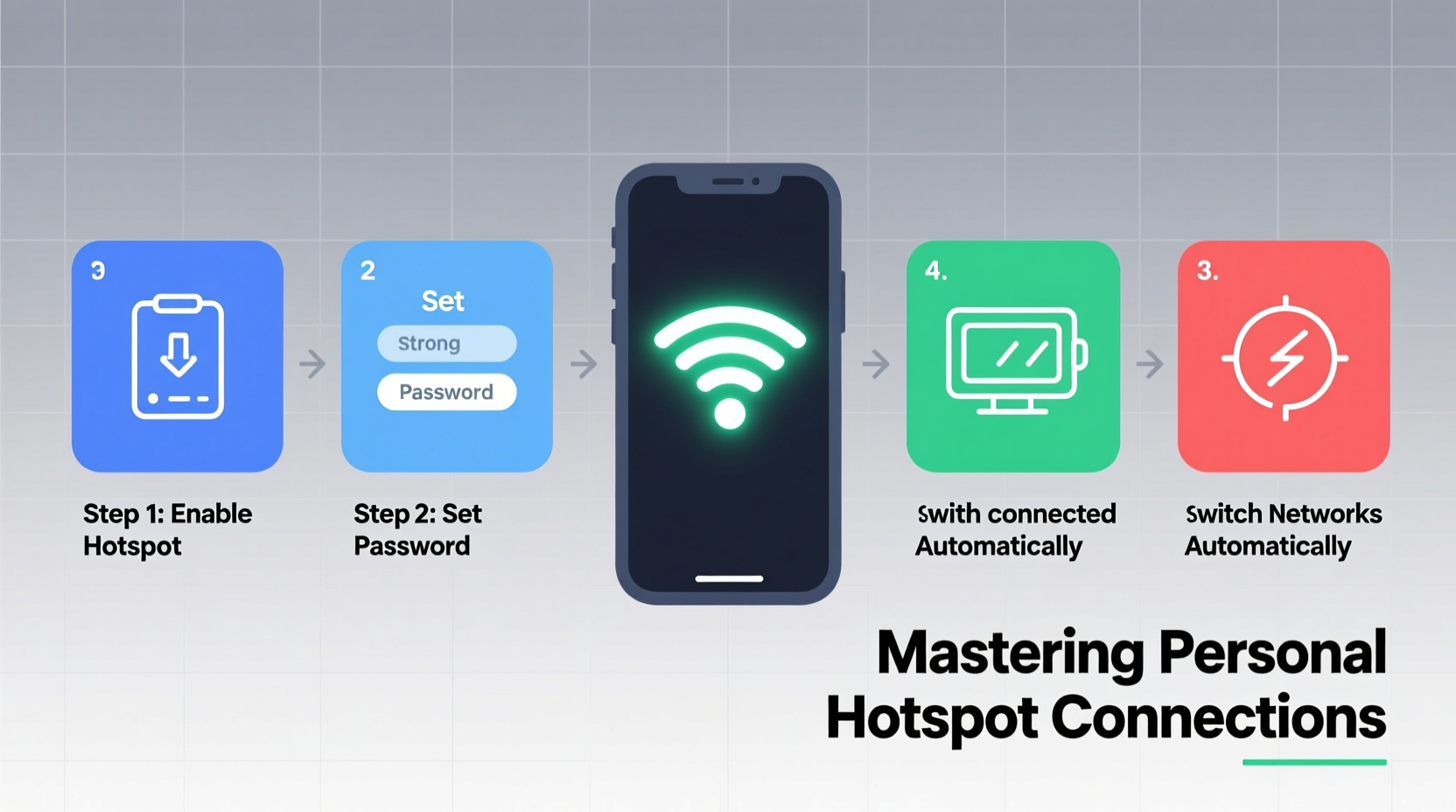
A personal hotspot transforms your smartphone into a wireless router by sharing its cellular data connection with other devices via Wi-Fi, Bluetooth, or USB. This allows laptops, tablets, smartwatches, and even gaming consoles to access the internet using your phone’s mobile network. The technology relies on LTE or 5G networks, depending on your carrier and device capabilities.
The effectiveness of a hotspot depends on several factors: signal strength, network congestion, device compatibility, and configuration settings. While convenient, poorly managed hotspots can lead to excessive data usage, poor speeds, and overheating. Understanding the mechanics behind the feature is the first step toward consistent, high-performance connectivity.
Tip: For the most stable connection, use USB tethering when possible—it offers faster speeds and charges your phone simultaneously.Step-by-Step Guide to Setting Up a Reliable Hotspot
Setting up a hotspot correctly ensures optimal performance across all connected devices. Follow this sequence to establish a secure and dependable connection.
- Check Your Data Plan – Confirm your cellular plan includes sufficient data and supports hotspot usage. Some carriers throttle hotspot speeds after a certain limit.
- Ensure Strong Signal – Move near a window or higher ground if indoors. Avoid basements or areas with known dead zones.
- Enable Hotspot Feature
- iOS: Go to Settings > Personal Hotspot > Allow Others to Join.
- Android: Navigate to Settings > Network & Internet > Hotspot & Tethering > Wi-Fi Hotspot.
- Customize Hotspot Settings – Change the default network name (SSID) and set a strong password using WPA2 or WPA3 encryption.
- Connect Devices – On your laptop or tablet, select the hotspot network from available Wi-Fi options and enter the password.
- Monitor Connection – Use your phone’s notification panel to view active devices and data usage in real time.
After setup, test the connection by loading a web page or running a speed test. If speeds are below expectations, revisit signal strength or consider switching to USB tethering for improved stability.
Optimizing Performance and Battery Life
Hotspot usage places significant demands on both battery and processor resources. Without proper management, your phone may overheat or shut down unexpectedly. Optimization extends usability and prevents interruptions.
| Issue | Solution |
|---|---|
| Rapid battery drain | Use a wall charger or power bank while hotspot is active; disable screen brightness auto-adjust. |
| Slow internet speeds | Limit connected devices; close background apps consuming bandwidth. |
| Overheating | Remove phone case; avoid direct sunlight; take breaks between long sessions. |
| Intermittent disconnections | Switch from Wi-Fi to USB tethering; reboot router function periodically. |
For extended use—such as remote workdays—prioritize wired connections. USB tethering not only improves speed but reduces strain on the battery and radio components.
“Tethering via USB can deliver up to 30% better throughput than Wi-Fi hotspot under the same signal conditions.” — Dr. Lena Torres, Wireless Network Engineer at Mobile Insights Group
Security Best Practices for Public and Private Use
While hotspots offer freedom, they also present risks—especially in public spaces. An unsecured or poorly configured hotspot can expose your device and connected gadgets to eavesdropping or unauthorized access.
- Always use a strong, unique password. Avoid common phrases or default credentials like “password123” or “admin.”
- Disable SSID broadcasting if supported, making your network invisible to casual scanners.
- Turn off the hotspot when not in use to prevent automatic reconnections from trusted devices that could drain your battery unnoticed.
- Enable firewall protection on connected laptops and avoid accessing sensitive accounts (like online banking) over shared connections unless using a VPN.
Real-World Scenario: Remote Work During Travel
Sophie, a freelance graphic designer, spends two weeks each quarter traveling for inspiration. During one trip to rural Vermont, she found herself without reliable Wi-Fi but needed to deliver client mockups by noon. She activated her iPhone’s hotspot and connected her MacBook via USB.
Initially, uploads were slow. After checking her settings, she realized background apps on her phone were syncing photos and messages. She closed unnecessary apps, disabled automatic backups, and switched to low-power mode. Upload speeds improved by nearly 40%, allowing her to submit the project on time. By keeping her phone plugged into a portable charger and limiting device access, she maintained stable connectivity throughout the day.
This example illustrates how small adjustments can dramatically improve hotspot reliability—even in suboptimal network environments.
Frequently Asked Questions
Can I use my hotspot internationally?
Yes, but exercise caution. Roaming charges can apply unless you have an international data plan. Consider purchasing a local SIM card or using a travel-specific data package to avoid bill shock.
Why does my hotspot disconnect randomly?
Random disconnections often stem from overheating, weak signal, or software glitches. Restarting your phone, updating the OS, or resetting network settings usually resolves the issue.
How many devices can connect to a hotspot at once?
Most smartphones support 5–10 simultaneous connections, though performance degrades with each additional device. For best results, limit connections to 2–3 essential devices.
Essential Checklist for Reliable Hotspot Use
- Before You Start
- ✅ Verify data allowance and hotspot inclusion in your plan
- ✅ Ensure your phone has at least 50% battery or is connected to power
- ✅ Confirm strong cellular signal (preferably 4G/5G)
- During Setup
- ✅ Customize SSID and set a complex password
- ✅ Choose USB tethering for critical tasks
- ✅ Disable unused features like Bluetooth and GPS to conserve power
- Ongoing Management
- ✅ Monitor data usage through your carrier app or system dashboard
- ✅ Close bandwidth-heavy background apps
- ✅ Reboot hotspot function every few hours during prolonged use
Conclusion: Take Control of Your Connectivity
Your smartphone’s personal hotspot is more than a backup option—it’s a powerful tool for maintaining productivity and staying connected wherever life takes you. With thoughtful configuration, proactive optimization, and attention to security, you can transform an unstable link into a dependable internet source. Don’t wait for the next airport delay or rural blackout to test your setup. Practice these steps now, refine your process, and carry confidence in your ability to stay online—on your terms.
🚀 Ready to master your mobile internet? Test your hotspot today using the checklist above and share your experience in the comments.