In an era where storytelling happens in seconds and attention spans are fleeting, the ability to capture compelling video is more valuable than ever. You don’t need a cinema-grade camera to produce professional-looking footage—your smartphone is already in your pocket, packed with advanced sensors and processing power. But raw capability isn't enough. The difference between amateur clips and polished content lies in technique, preparation, and attention to detail. Whether you're filming travel vlogs, social media reels, interviews, or family moments, mastering mobile video recording transforms how your story is seen—and remembered.
1. Understand Your Phone’s Video Capabilities
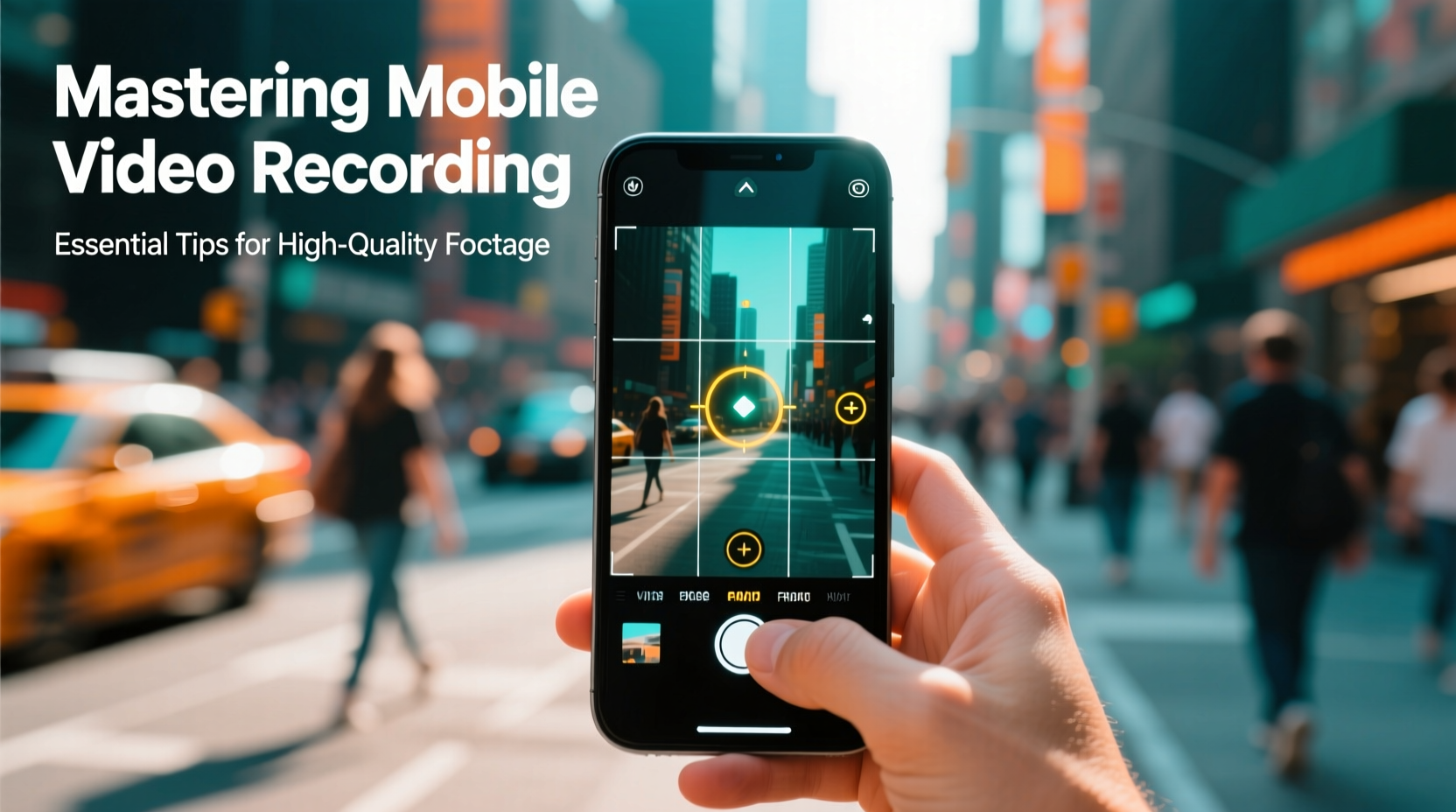 Modern smartphones support 4K resolution at 30 or even 60 frames per second (fps), with features like HDR, cinematic mode, and log profiles on higher-end models. Before shooting, check your device’s specs and default settings. Many phones automatically default to 1080p for battery and storage efficiency, but if your project demands clarity—especially for close-ups or editing flexibility—switch to the highest resolution available. Frame rate matters too. Use 24 or 30 fps for standard cinematic or natural motion. Choose 60 fps when capturing fast action, such as sports or pets, because it allows for smooth slow-motion playback in post-production.
Tip: Always test your phone's maximum video setting before an important shoot—some modes drain battery quickly or generate large files.
Keep in mind that higher resolutions require more storage. A minute of 4K/60fps video can take up over 400MB. Regularly clear space or use expandable storage via cloud services or external drives.
Modern smartphones support 4K resolution at 30 or even 60 frames per second (fps), with features like HDR, cinematic mode, and log profiles on higher-end models. Before shooting, check your device’s specs and default settings. Many phones automatically default to 1080p for battery and storage efficiency, but if your project demands clarity—especially for close-ups or editing flexibility—switch to the highest resolution available. Frame rate matters too. Use 24 or 30 fps for standard cinematic or natural motion. Choose 60 fps when capturing fast action, such as sports or pets, because it allows for smooth slow-motion playback in post-production.
Tip: Always test your phone's maximum video setting before an important shoot—some modes drain battery quickly or generate large files.
Keep in mind that higher resolutions require more storage. A minute of 4K/60fps video can take up over 400MB. Regularly clear space or use expandable storage via cloud services or external drives.
2. Prioritize Lighting Over Equipment
No amount of stabilization or editing can fix poorly lit footage. Natural light remains the gold standard. Position your subject facing a window or just outside during golden hour—the first hour after sunrise or before sunset—for soft, warm illumination without harsh shadows. Avoid backlighting unless using HDR mode or a reflector. If shooting indoors under artificial light, aim for consistent color temperature. Mixing cool (blue) fluorescent lights with warm (yellow) incandescent bulbs creates unnatural skin tones. Use daylight-balanced LED panels or apps that adjust white balance manually.“Light shapes emotion in video. Even the best composition falls flat without proper illumination.” — Jordan Lee, Mobile Cinematographer & DirectorFor low-light scenarios, avoid digital zoom and flash. Instead, stabilize your phone and let the sensor gather more light over time. Some phones offer Night Mode video; use it selectively, as motion blur may occur.
3. Stabilize Every Shot
Shaky footage distracts viewers and undermines credibility. While optical image stabilization (OIS) helps, it can’t compensate for aggressive movement. For steady results, use physical support:- Compact tripod with phone mount
- Gimbal for dynamic tracking shots
- DIY stabilization: rest your phone on books, ledges, or use a beanbag
| Stabilization Method | Best For | Limitations |
|---|---|---|
| Phone Tripod | Static interviews, product shots | Limited mobility |
| Handheld (arms only) | Quick captures, casual content | High risk of shake |
| 3-Axis Gimbal | Vlogging, walking shots | Bulkier, requires charging |
| Digital Stabilization | Action clips, run-and-gun | Crops frame, reduces resolution |
4. Optimize Audio Quality
Poor audio ruins good video. Built-in microphones pick up wind noise, background chatter, and handling sounds. For clear dialogue, get closer—within 3–6 feet—or use external tools. Bluetooth lavalier mics now support direct connection to iPhones and Android devices via USB-C or Lightning ports. Clip-on wireless mics like Rode Wireless GO II or DJI Mic 2 deliver broadcast-level sound and pair seamlessly with mobile apps. If recording ambient scenes—markets, nature, city streets—use stereo recording apps like Ferrite or Filmic Pro to capture spatial depth. Tip: Record a few seconds of room tone (silence) at the end of each scene—it helps editors reduce background noise later.5. Compose Like a Pro: Framing and Movement
Apply the rule of thirds by enabling grid lines in your camera app. Position key subjects along intersecting lines rather than centering them. This creates visual interest and balance. Use leading lines—roads, railings, doorways—to guide the viewer’s eye. Maintain headroom: leave space above a person’s head unless intentionally creating tension. For group shots, ensure everyone is in focus by increasing depth of field (avoid portrait mode unless artistically intended). Movement should serve the story. Pan slowly from left to right only if revealing something meaningful. Tilts work well for showing height—from feet to face, or ground to skyline. Zooming digitally degrades quality; instead, “dolly in” by moving the entire phone closer.Mini Case Study: Travel Vlogger Captures Viral Sunset Clip
Sarah Kim, a solo traveler documenting her journey through Morocco, wanted to film a time-lapse of the sun setting behind ancient medina walls. She arrived an hour early, scouted a rooftop with unobstructed west-facing view, and set her phone on a mini tripod. Using manual mode in Filmic Pro, she locked exposure and white balance to prevent flickering. She enabled 4K/30fps and started a 25-minute interval recording. The resulting clip, paired with local music, gained over 2 million views on Instagram. Her secret? Preparation—not luck.Step-by-Step Guide to Shooting High-Quality Mobile Video
Follow this sequence before every shoot to ensure consistency and quality:- Check Storage & Battery: Free up at least 2GB and charge to 80% or use a portable power bank.
- Select Resolution & Frame Rate: Choose based on content type (e.g., 4K/24fps for cinematic, 1080p/60fps for action).
- Enable Grid Lines: Activate in camera settings for better composition.
- Set White Balance Manually: Tap to focus and slide to adjust warmth if supported.
- Mount Phone Securely: Use tripod, clamp, or gimbal depending on motion needs.
- Do a Sound Check: Record 10 seconds, play back, and adjust mic placement or environment.
- Shoot B-Roll: Capture extra wide, medium, and close-up angles—even if not planned.
- Review Footage: Play back immediately to catch issues like blur, noise, or clipping.
Essential Mobile Video Checklist
📋 Before You Shoot:- ☑ Clean lens with microfiber cloth
- ☑ Disable auto-lock (set to 5 minutes or never)
- ☑ Close unused apps to free RAM
- ☑ Enable airplane mode if no live connection needed
- ☑ Attach external mic if dialogue is critical
- ☑ Confirm date/time stamp is correct
FAQ
Can I shoot professional videos with just my phone?
Absolutely. Industry professionals have filmed commercials, documentaries, and short films entirely on smartphones. The iPhone 14 Pro was used to shoot the feature film *LOVE ME*. What matters most is lighting, sound, framing, and storytelling—not the gear alone.
Why does my footage look grainy?
Grain (noise) appears in low light when the sensor amplifies signal. To reduce it, increase lighting, avoid digital zoom, and shoot in HDR or log mode if available. Also, never brighten dark clips excessively in editing—it magnifies noise.
Should I use third-party camera apps?
Yes, for advanced control. Apps like Filmic Pro, ProCamera, or Moment offer manual ISO, shutter speed, focus peaking, and external monitor support. They unlock creative potential beyond stock camera limitations.