
Finding a specific photo on your iPhone should be simple—but with thousands of images scattered across years of memories, it’s easy to feel overwhelmed. The good news is that Apple has packed the Photos app with powerful search capabilities that go far beyond basic keywords. When used effectively, these tools can help you locate any image in seconds, whether it's a beach sunset from 2020 or a screenshot of a restaurant receipt from last week.
The key lies in understanding how the iPhone’s image recognition, metadata indexing, and natural language search work together. This guide breaks down every feature, shortcut, and strategy available to turn your iPhone into a personal visual search engine.
How iPhone Image Search Works
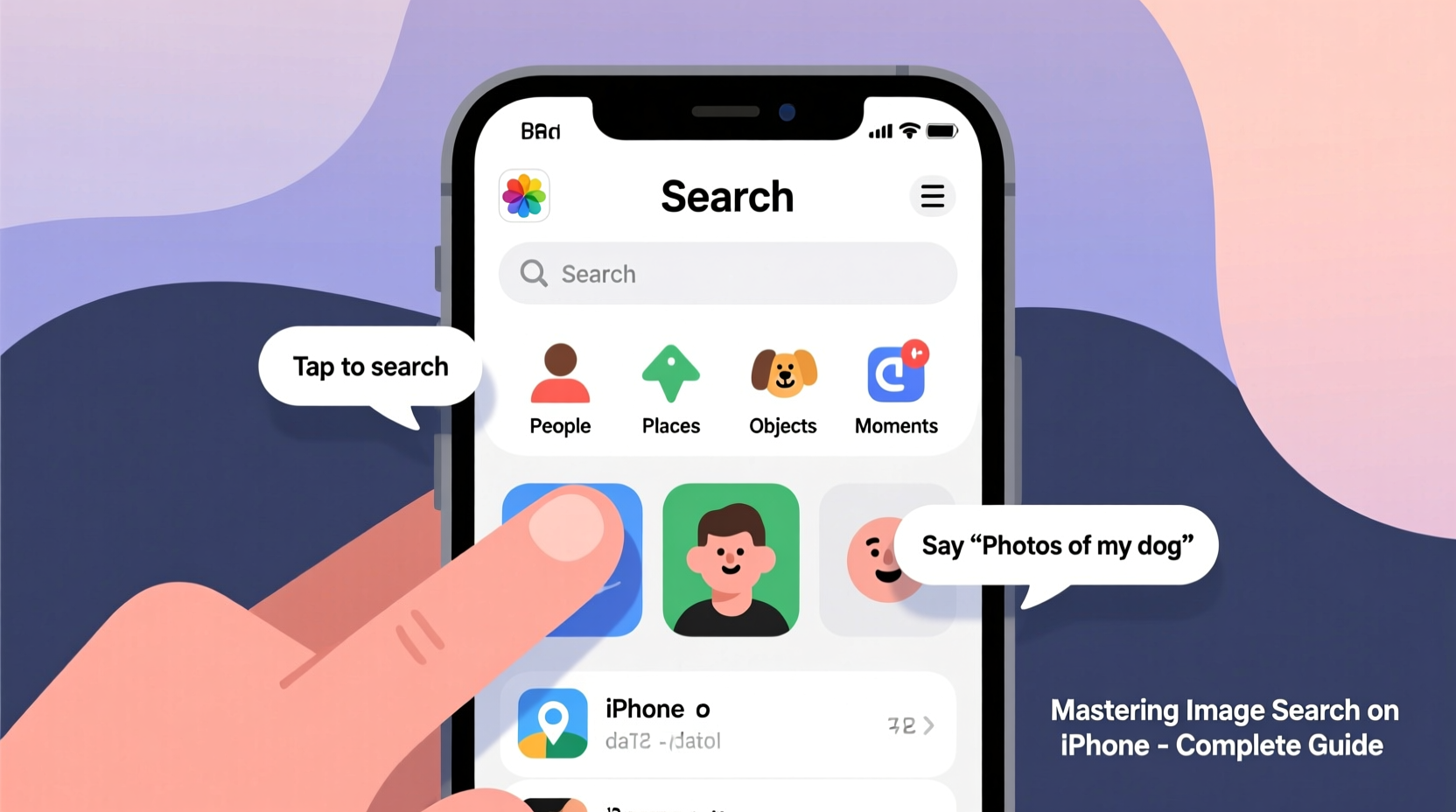
At its core, the iPhone’s photo search relies on on-device machine learning. Unlike cloud-based systems that upload your data, Apple processes image analysis directly on your device for privacy. This means facial recognition, object detection, scene identification, and location tagging all happen locally using the Neural Engine in your iPhone’s chip.
When you open the Search tab in the Photos app, the system scans indexed metadata including:
- People and pets (via facial recognition)
- Objects (dogs, cars, food, etc.)
- Scenes (beaches, mountains, cities)
- Locations (if location services are enabled)
- Dates and times
- Albums and shared collections
- Types of media (screenshot, video, portrait mode, live photo)
This indexing happens continuously in the background. Once set up, you can use natural language queries like “pictures of Emma at the beach in July” and get accurate results.
Tip: Ensure your iPhone has enough idle time to complete photo indexing—connect it to power overnight with Wi-Fi to speed up processing.Step-by-Step: Using Advanced Search Features
To harness the full power of image search, follow this sequence of actions within the Photos app:
- Open the Photos app and tap the Search tab (magnifying glass icon).
- Browse suggested categories like \"People & Pets,\" \"Places,\" or \"Categories\" (e.g., Food, Travel).
- Tap into a category or begin typing a keyword in the search bar.
- Use compound phrases such as “dog playing in snow” or “dinner in Paris last summer.”
- Refine results by tapping filters like date, location, or media type.
- Long-press an image to access quick actions—share, edit, or add to an album.
The more specific your query, the better the results. For example, searching “birthday cake” returns many matches, but “Mom’s birthday cake 2023” narrows it to one event.
Natural Language Queries That Work
The search function supports conversational input. Try these real-world examples:
- “Videos from Hawaii trip”
- “Screenshots from March”
- “Photos of my cat on the couch”
- “Pictures taken with John at night”
- “Last selfie I took”
These queries combine object recognition, time context, and relationship data to deliver precise outcomes.
Optimizing Your Photo Library for Faster Search
Even the best search engine struggles with disorganized data. Optimize your library to improve accuracy and retrieval speed.
Enable Key Settings
| Setting | Action | Benefit |
|---|---|---|
| Face Recognition | Settings > Photos > Names | Identifies people automatically |
| Location Services | Settings > Privacy > Location Services > Photos | Enables place-based search |
| My Photo Stream | Settings > Photos | Synchronizes recent photos across devices |
| iCloud Photos | Settings > Photos > Sync this iPhone | Ensures full indexing and backup |
Without these enabled, search capabilities are significantly limited. For instance, disabling location prevents searches like “photos from New York.”
Tip: Rename detected faces—tap a person in the \"People\" album and assign a correct name for better search accuracy.Real Example: Finding a Lost Receipt
Consider Sarah, who needed a digital copy of a hotel receipt for expense reporting. She remembered taking a screenshot during her business trip to Chicago two weeks prior but couldn’t find it in Messages or Notes.
Instead of scrolling endlessly, she opened the Photos app, went to Search, and typed “screenshot Chicago.” Instantly, dozens of screenshots appeared, filtered by location and media type. She scrolled briefly and found the receipt among them—retrieved in under 15 seconds.
This demonstrates how combining media type (“screenshot”) with location (“Chicago”) dramatically reduces search effort.
Expert Insight: What Apple Engineers Say About Search
“We designed on-device intelligence so users can ask questions about their photos the way they’d naturally speak. The system learns over time which faces belong to family, which locations are frequent, and what objects matter most.” — Craig Federighi, Senior Vice President of Software Engineering, Apple Inc.
This philosophy underscores why consistent usage improves performance. The longer you use facial recognition and search, the more personalized and accurate results become.
Do’s and Don’ts of iPhone Photo Search
| Do | Don’t |
|---|---|
| Use descriptive phrases: “concert tickets backstage” | Use vague terms: “that thing I saw” |
| Search by date ranges: “June 2023 vacation” | Assume deleted photos appear in search |
| Leverage filters after searching (video, favorites, etc.) | Expect perfect pet recognition without naming animals |
| Check Recently Deleted if a photo seems missing | Disable iCloud Photos if you want seamless cross-device search |
Checklist: Maximize Your iPhone Photo Search Efficiency
- ✅ Turn on Face Recognition and label all detected people
- ✅ Enable Location Services for the Photos app
- ✅ Activate iCloud Photos to sync and index across devices
- ✅ Regularly review and merge duplicate face groups
- ✅ Use natural language queries instead of single keywords
- ✅ Filter results by date, media type, or album after initial search
- ✅ Restart indexing if search seems slow (toggle iCloud Photos off/on)
FAQ
Why doesn’t my iPhone find photos when I search for “dog”?
If no results appear, ensure that “Index Visual Lookups” is enabled (Settings > Photos). Also, give the system time—it may take hours or days to fully analyze older photos. Naming your pet in the People album also improves recognition.
Can I search for text inside photos or screenshots?
Yes. Starting with iOS 15, the Photos app can detect text in images. Searching for “invoice,” “Apple Store,” or even a phone number visible in a photo will return relevant results. This works especially well with receipts, whiteboards, and documents.
Does searching work offline?
Yes, because indexing occurs on-device. However, if iCloud Photos is enabled and not fully synced, some recent photos might not appear until reconnected to the internet.
Maintaining Long-Term Search Performance
Over time, your photo library grows, and search relevance depends on maintenance. Periodically review the following:
- Merge duplicate faces: Go to Albums > People and check for multiple entries of the same person.
- Delete irrelevant content: Remove blurry shots or duplicates to reduce clutter.
- Organize with albums: Create curated collections for events, projects, or categories that matter to you.
- Verify settings after iOS updates: Occasionally, updates reset privacy permissions—re-enable location or face scanning if needed.
A lean, well-labeled library ensures fast, reliable search results for years to come.
Conclusion
Mastering image search on iPhone transforms how you interact with your digital memories. No longer must you waste time swiping through endless grids or relying on memory alone. With intelligent search, natural language input, and proper setup, every photo—from a child’s first steps to a critical document screenshot—is just a few taps away.
🚀 Start today: Open your Photos app, type a detailed search, and see how quickly you can find something you thought was lost. Share your favorite search trick in the comments below!