A sudden blue screen on your phone can be alarming, especially if it appears out of nowhere during normal use. Unlike the familiar black or white screens, a blue display often signals an underlying hardware, software, or accessibility issue. While it may resemble the infamous “Blue Screen of Death” from PCs, mobile devices handle such errors differently. Understanding the root causes and knowing how to respond can save time, prevent data loss, and potentially avoid costly repairs.
This guide explores the most common reasons behind a blue-tinted or entirely blue phone screen, offers step-by-step solutions, and provides expert-backed advice to help you restore normal function—often without needing professional assistance.
Common Causes of a Blue Phone Screen
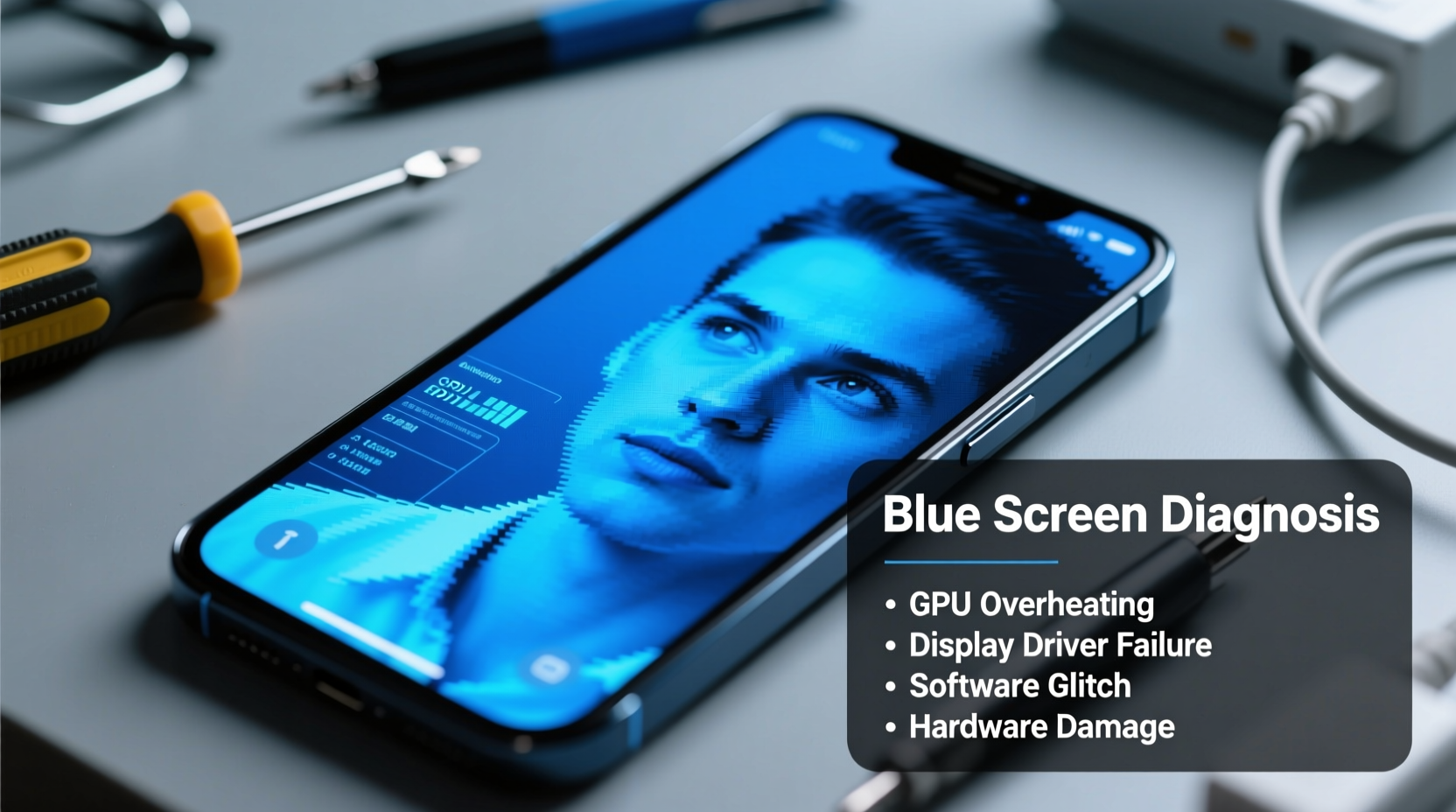
A blue screen isn’t always caused by one single factor. It can stem from settings adjustments, system malfunctions, or even physical damage. Identifying the cause is the first step toward resolution.
- Blue Light Filter or Night Mode Enabled: Many smartphones come with built-in features designed to reduce eye strain by warming the screen tone. If misconfigured, these can make the screen appear excessively blue.
- Color Inversion or Accessibility Settings: Features like color correction or grayscale inversion sometimes alter display output in unexpected ways, including introducing a dominant blue hue.
- Software Glitches or OS Bugs: After an update or due to app conflicts, the operating system may incorrectly render colors or freeze on a blue screen during boot.
- Hardware Display Failure: Physical damage to the OLED/LCD panel, loose internal connections, or water exposure can result in discoloration, including persistent blue tinting.
- Third-Party App Interference: Some apps modify screen color for specific functions (e.g., reading modes) and fail to revert changes after closing.
Troubleshooting Steps to Fix a Blue Screen
Start with the simplest fixes before moving to more advanced methods. Most cases are resolvable through software adjustments or minor resets.
- Check Night Mode / Blue Light Filter: Navigate to Settings > Display > Night Mode (or similar). Turn it off temporarily to see if the blue tint disappears.
- Disable Color Filters: On Android: Settings > Accessibility > Color & Motion > Color Correction > Off. On iPhone: Settings > Accessibility > Display & Text Size > Color Filters > Off.
- Restart Your Phone: A soft reboot clears temporary glitches. Hold the power button and select “Restart.”
- Boot into Safe Mode (Android): Press and hold the power button, then long-press “Power Off” until “Safe Mode” appears. This disables third-party apps to test if one is causing the issue.
- Check for System Updates: Outdated firmware may contain bugs affecting display rendering. Install any pending updates under Settings > Software Update.
- Reset Display Settings: As a last software resort, reset display preferences without erasing personal data. On Samsung: Settings > General Management > Reset > Reset Preferences.
When Hardware Might Be the Culprit
If software troubleshooting fails and the screen remains blue—especially if only certain areas are affected or lines accompany the tint—hardware damage is likely. Common indicators include:
- One corner or half of the screen appears blue while the rest functions normally.
- Discoloration persists across all modes, including recovery or boot screens.
- Physical cracks or pressure marks visible near the affected area.
- Screen flickering or unresponsiveness alongside the blue tint.
“Persistent color distortion, especially when consistent across reboots and safe mode, typically points to a failing display module or connection fault.” — David Lin, Mobile Repair Technician with 12 years of experience at TechFix Labs
In such cases, professional repair is recommended. Attempting DIY screen replacement without proper tools risks further damage.
Do’s and Don’ts: Managing a Blue Screen Issue
| Action | Do | Don't |
|---|---|---|
| Initial Response | Restart the device and disable screen filters | Panic or assume immediate hardware failure |
| Testing the Issue | Boot into safe mode or recovery to isolate software causes | Download random “screen fix” apps from unknown sources |
| After Physical Damage | Turn off the phone and seek authorized service | Continue using the device if touch or display is erratic |
| Prevention | Use screen protectors and cases to guard against impact | Expose the phone to extreme temperatures or moisture |
Real-World Example: Resolving a Mysterious Blue Tint
Sarah, a freelance writer from Portland, noticed her Samsung Galaxy S21’s screen turned unnaturally blue after installing a new e-reader app. The entire interface had a cold cast, making editing difficult. She first assumed it was a screen defect and considered repair costs. Instead, she followed basic troubleshooting: she restarted the phone, checked her display settings, and discovered the app had enabled a “night reading mode” that persisted globally. Disabling the feature through the app’s settings resolved the issue instantly. No data was lost, and no technician visit was needed.
This case highlights how easily third-party apps can interfere with display behavior—and why methodical diagnosis matters.
Tip: After installing new apps, monitor changes in brightness, color, or responsiveness. Uninstall immediately if unusual display behavior begins.Step-by-Step Recovery Checklist
Follow this structured checklist to systematically identify and resolve a blue screen issue:
- ✅ Observe when the blue screen occurs: during startup, in specific apps, or constantly?
- ✅ Disable Night Mode, Blue Light Filter, or Reading Mode in display settings.
- ✅ Turn off all accessibility features related to color adjustment.
- ✅ Restart the phone normally.
- ✅ Boot into Safe Mode (Android) or DFU Mode (iPhone) to check for app interference.
- ✅ Check for and install OS updates.
- ✅ Clear cache partition (Android: Power + Volume Up to recovery menu).
- ✅ If problem persists, back up data and consider factory reset as a last resort.
- ✅ If screen remains blue after reset, contact manufacturer support or visit a certified repair center.
Frequently Asked Questions
Can a virus make my phone screen turn blue?
True malware that alters display hardware is extremely rare on mobile devices. However, malicious apps can change system settings, including enabling color filters. Removing suspicious apps usually resolves the issue.
Why does my phone show a blue screen when charging?
This is uncommon but may occur if a faulty charger or cable interferes with touchscreen circuitry, creating visual artifacts. Try a different charging setup. If the screen returns to normal when unplugged, the issue is likely power-related.
Will a factory reset fix a blue screen?
It may—if the cause is software corruption or conflicting settings. However, a factory reset won’t repair physical screen damage. Always back up your data before proceeding.
Conclusion: Take Control of Your Device’s Display Health
A blue phone screen doesn’t have to mean disaster. In most cases, the cause is adjustable through settings, restarts, or simple updates. By understanding the difference between software quirks and hardware failures, you can respond confidently and efficiently. Regular maintenance, cautious app installation, and awareness of accessibility features go a long way in preventing display issues before they start.
💬 Experiencing a blue screen? Share your story below. Whether you fixed it yourself or learned something new, your insight could help another user avoid a service bill.